1. Before you start
- Make a copy of the whole download. If something goes wrong, you can go back to it.
- Install a free code editor such as Visual Studio Code (or Notepad++ on Windows). For pictures, the free GIMP or Krita open and export WebP files. For sounds, the free Audacity exports MP3.
-
Work inside
source/. To see your changes, open a terminal in that folder and runnpm run dev, then openhttp://localhost:5180/. The game does not run by double-clickingindex.html, because browsers block JavaScript modules onfile://. - No terminal? Edit the files of
game/directly, upload them to your host and reload the page.
2. Your brand: name and logo
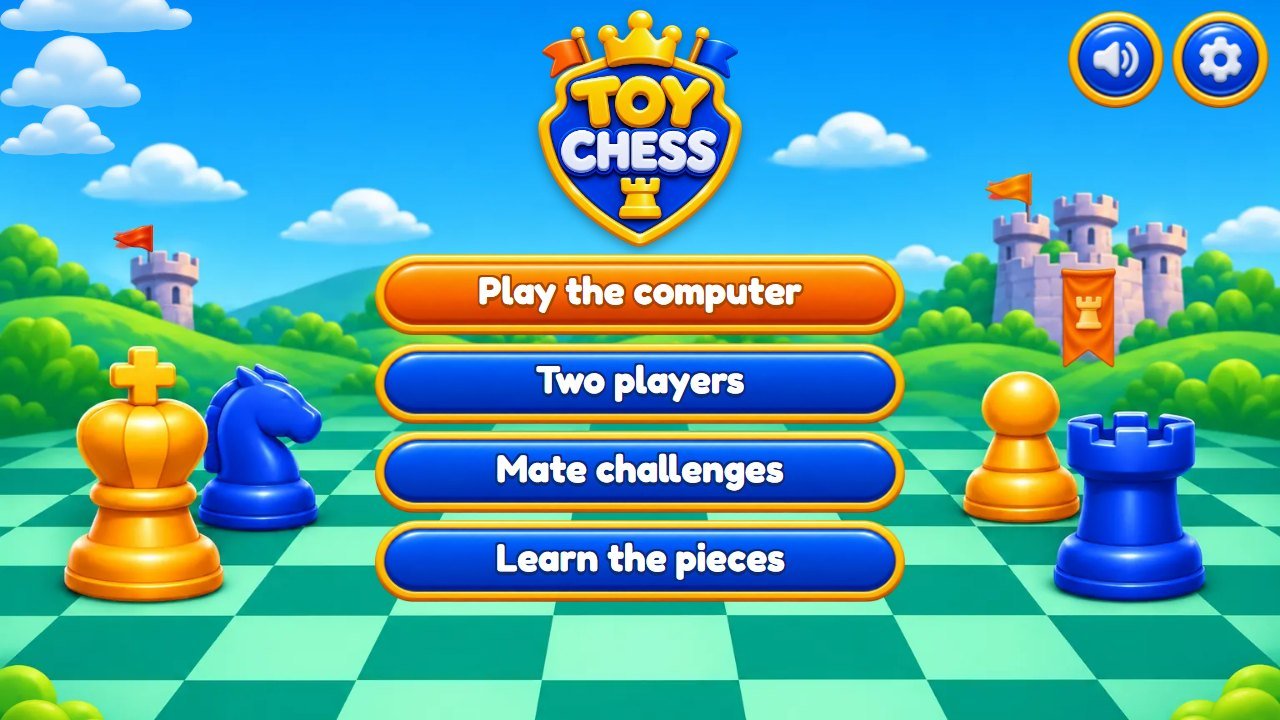
- The name in the browser tab is the
<title>line ofindex.html. -
The logo has three pictures of the same size (720 x 831 pixels), so the two flags can wave:
assets/ui/logo-base.webp,assets/ui/logo-flag-l.webpandassets/ui/logo-flag-r.webp. -
To use your own logo, save it as
logo-base.webpat that size with a transparent background, and replace the two flag files with fully transparent pictures of the same size. - The page icon is
assets/icon-192.png(192 x 192 pixels).
3. Board and interface colors
Open src/styles.css. The colors are at the very top, inside :root:
--sq-l: #f4f7f8;   /* light squares */
--sq-d: #252a32;   /* dark squares */
--mint: #8ef2c8;   /* light accent */
--teal: #0f7a66;   /* panels */
--orange: #ff8a00; /* main button */
--gold: #ffc21a;   /* highlights */
Change a value, save the file and reload the page.
4. Replace pictures (reskin)
Replace a file with another of the same name and a similar size. Nothing else needs to change.
| On screen | File |
|---|---|
| Orange army | assets/pieces/wk.webp, wq.webp, wr.webp, wb.webp, wn.webp, wp.webp |
| Blue army | assets/pieces/bk.webp, bq.webp, br.webp, bb.webp, bn.webp, bp.webp |
| Opponent portraits | assets/faces/pip-idle.webp, pip-think.webp, pip-smile.webp, pip-check.webp, pip-cheer.webp, pip-sad.webp (the same for nina, otto, vera, rex, atlas) |
| Buttons | assets/ui/btn-orange.webp, btn-blue.webp, btn-teal.webp, round.webp |
| Panels, bars and the board frame | assets/ui/panel.webp, bar.webp, row.webp, frame.webp |
| Challenge tiles and small buttons | assets/ui/tile.webp, tile-on.webp, chip.webp, chip-on.webp |
| Crowns and laurels of the result panel | assets/ui/crown-gold.webp, crown-muted.webp, crown-orange.webp, crown-blue.webp, laurel-l.webp, laurel-r.webp |
| Icons | assets/icons/ (one file per icon) |
| Backgrounds | assets/bg/menu-landscape.webp, menu-portrait.webp, game-landscape.webp, game-portrait.webp |
| Moving scenery | assets/scene/cloud1.webp, cloud2.webp, cloud3.webp, bush1.webp, bush2.webp, pennant1.webp, pennant2.webp, banner.webp |
The moving flags and bushes sit over the same shapes painted in the background. If you change a background, change them too.
5. Opponents and difficulty
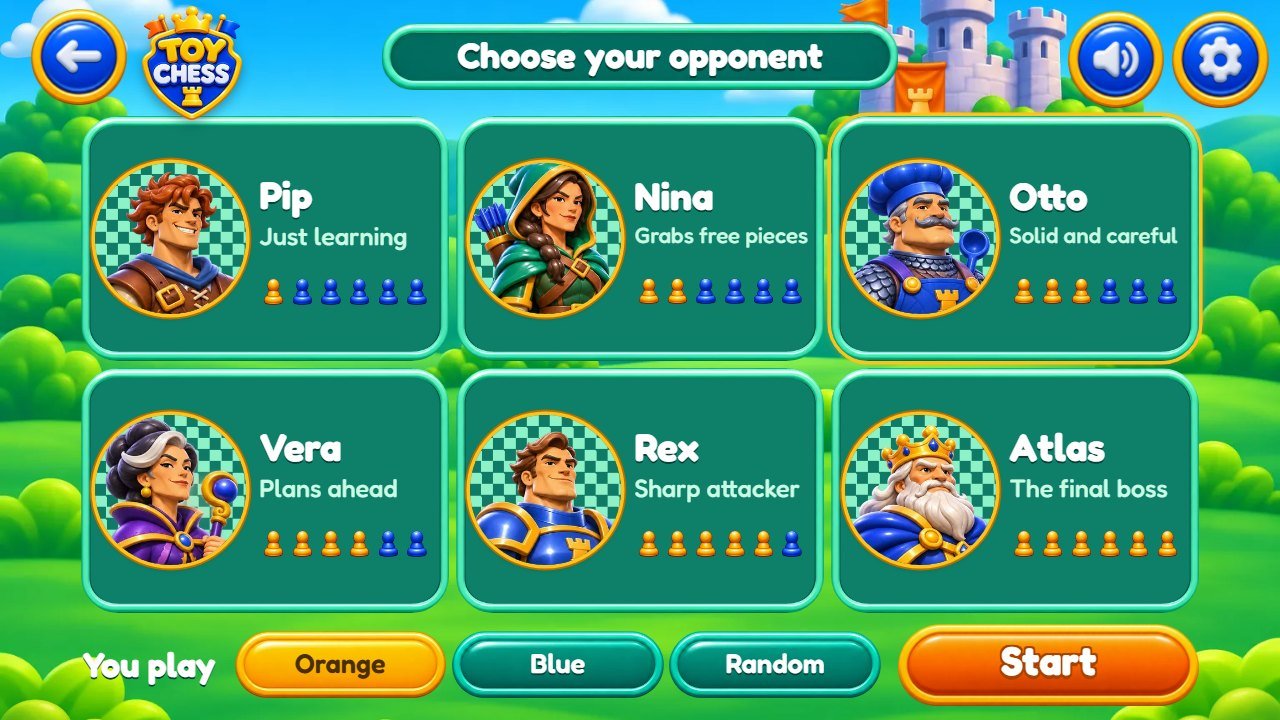
Names are in BOTS in src/config.js:
{ lv: 1, key: 'pip', name: 'Pip' },
The short description is the bot.pip.d key in each file of src/locales/. The strength is in LEVELS in src/engine.js:
{ id: 1, name: 'Pip', depth: 1, qs: 0, noise: 170, mate1: 0.8, scan: true, nodes: 20000, ms: 400, think: [350, 900] },
| Setting | What it does |
|---|---|
depth |
How many moves ahead it looks. Higher is stronger. |
noise |
How much it errs. 0 means no deliberate mistakes. |
mate1 |
Chance of seeing a mate in one (1 is always). |
ms |
Maximum thinking time, in milliseconds. |
think |
Shortest and longest pause before it moves, so it feels like a person. |
6. Mate challenges
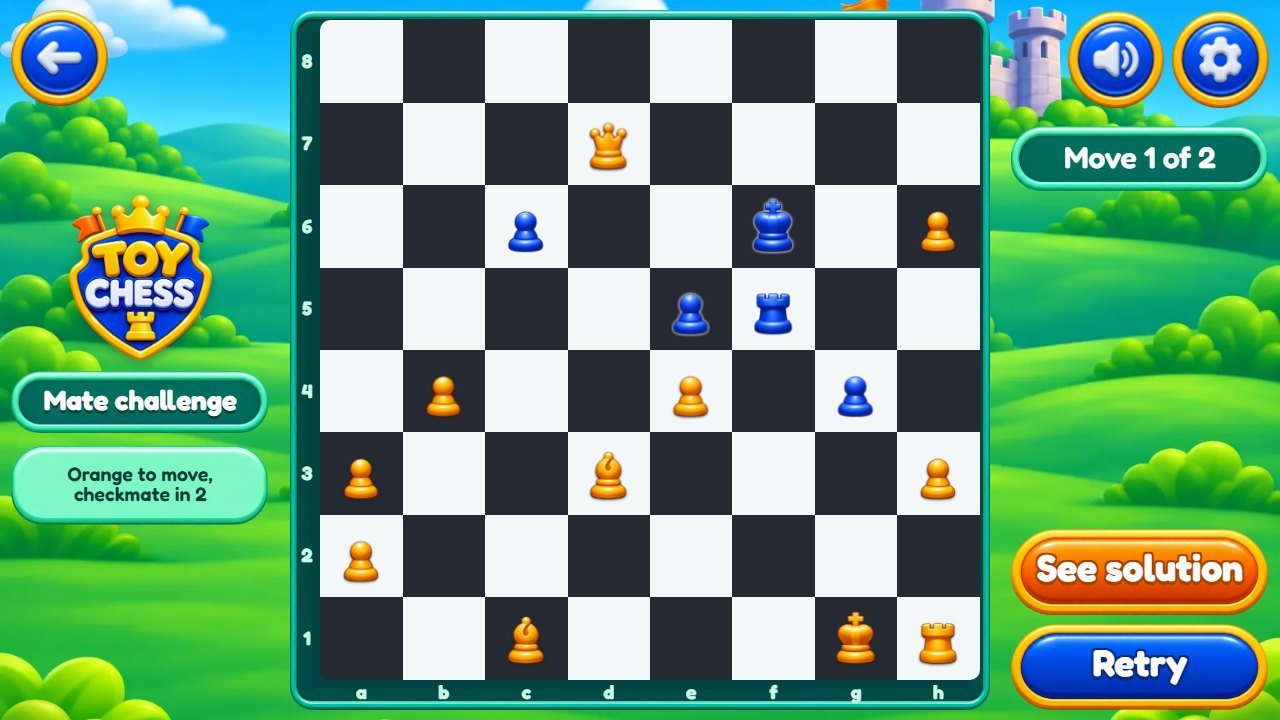
The challenges are in src/puzzles.js. Each line is one position:
{ id: 'my-1', n: 1, i: 12, fen: '6k1/5ppp/8/8/8/8/8/R3K3 w - - 0 1', sol: ['a1a8'] },
id: any unique name. Solved challenges are remembered by it.n: mate in how many moves (1, 2 or 3), which is also the group.i: position in the group, starting at 0.fen: the position in standard FEN notation. Free chess websites can create it from a board.sol: the winning first move, from square to square.
Run npm test afterwards: it checks that every challenge has one winning first move and no shorter mate.
7. Game feel
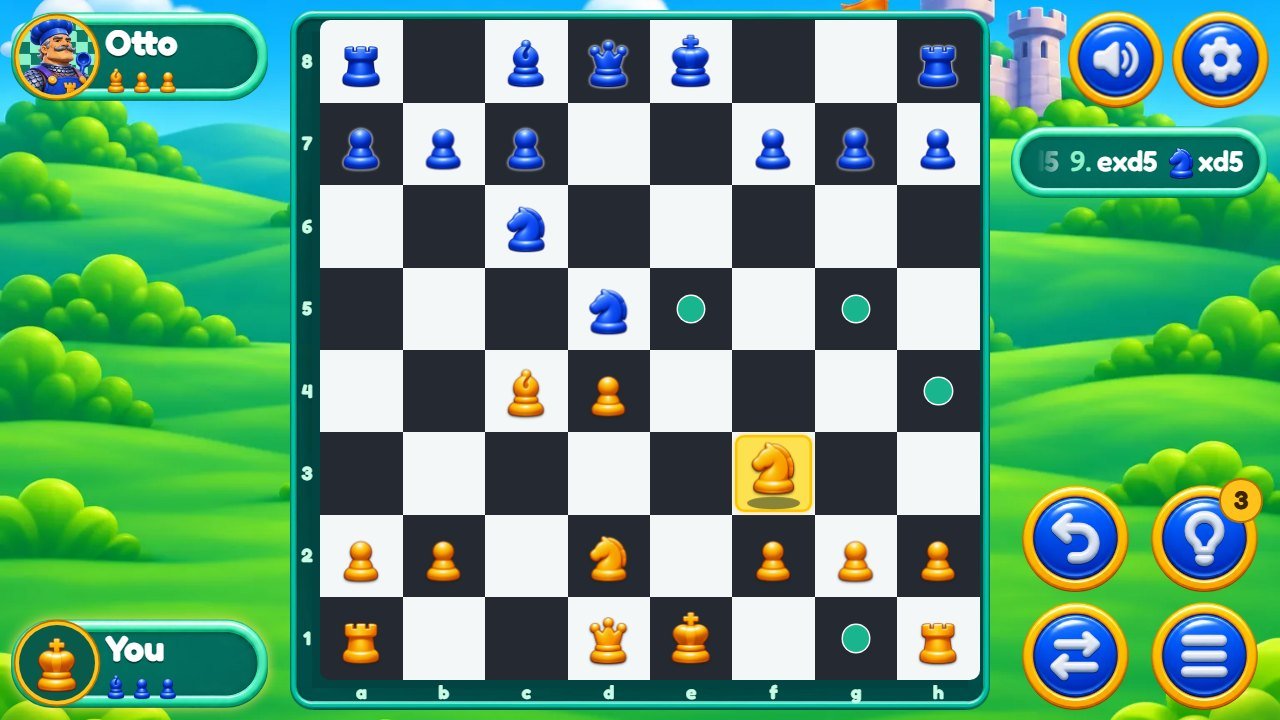
Every animation number is in FEEL in src/config.js:
| Setting | What it does |
|---|---|
fly |
Speed and arc of a piece in flight. |
land |
The landing: squash, dust and how long the square stays lit. |
cap |
Impact of a capture, by piece: pause, particles, ring and vibration. |
check, promo, mate |
Timing of check, promotion and the checkmate sequence. |
face |
Opponents: blinking, speech bubbles and how many per game. |
wipe, vs |
Screen transition and the versus screen. |
8. Texts and languages
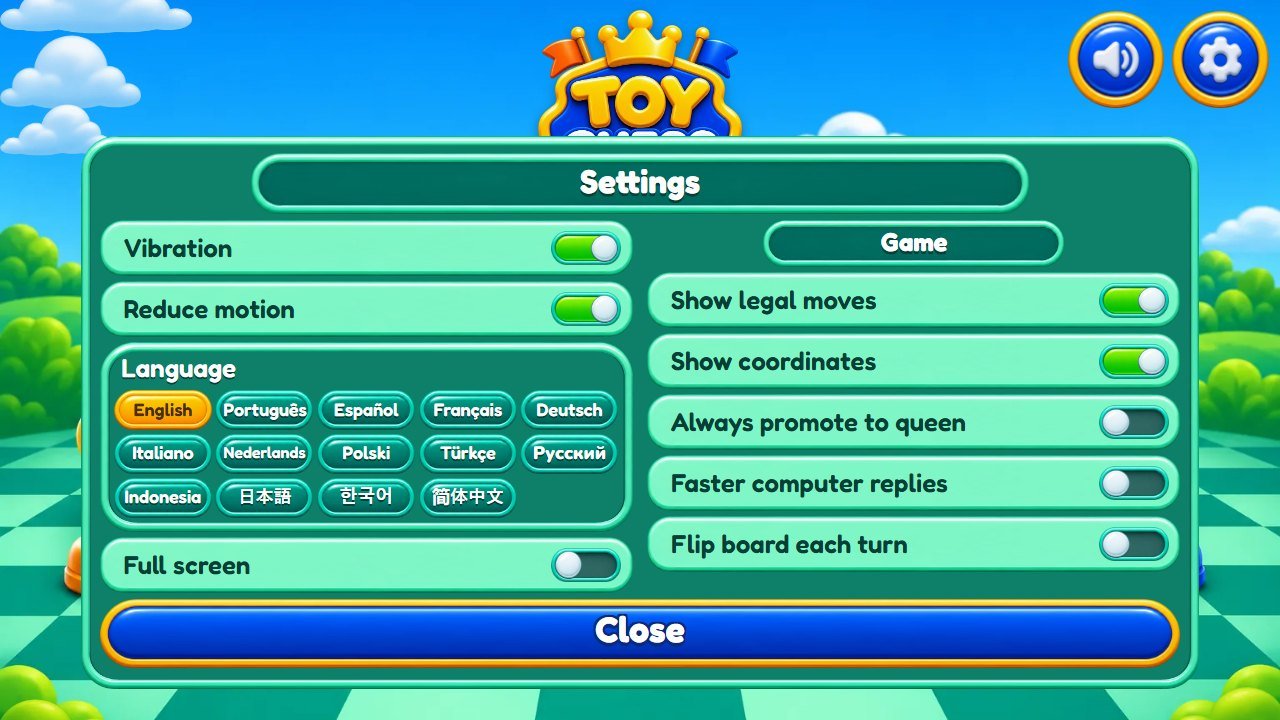
- Every text is in
src/locales/, one file per language (en.js,pt.js,es.js...). Change the text after the colon and keep the key. - To start in one language, open
src/settings.jsand setlang: 'pt'inDEF. The valuenullfollows the browser. - New language: copy
en.jsto a new file, translate it, import it insrc/i18n.jsand add it toLANGSandLANG_NAMES. The Settings panel shows it by itself.
9. Sounds and music
Every effect is an MP3 in assets/sfx/. Replace a file and keep its name.
| Files | When they play |
|---|---|
pick-*, drop-*, slide-*, nope-* |
Picking up, landing, a long flight and a piece that cannot move. |
cap-p-*, cap-m-*, cap-r-*, cap-q-*, tray-* |
Captures by piece value and the piece reaching the tray. |
check-1, relief-1, ep-1, promote-1 |
Check, leaving check, en passant and promotion. |
mate-1, topple-1, stamp-1, win-1, lose-1, draw-1, confetti-1 |
The end of the game. |
click-*, back-1, toggle-1, whoosh-1, hint-1, undo-1, star-1 |
Buttons, screens, hints, undo and correct challenge moves. |
assets/music/castle-theme.mp3 |
The background music, in a loop. |
The number at the end is the version: the game alternates them. To add a version, put the file in the folder and raise its
number in FILES at the top of src/audio.js:
const FILES = { pick: 3, drop: 4, slide: 2, nope: 2 /* ... */ };
10. Save keys and starting over
The game in progress stays in the browser of each player, under the key toy-chess.template.save.v1. Settings,
volumes and solved challenges use toy-chess.template.settings, toy-chess.template.volumes and
toy-chess.template.puzzles. If you host two copies on the same domain, change these names in
src/config.js, src/settings.js, src/audio.js and src/main.js. To start over,
clear the site data in the browser.
11. Publish your version
- In
source/, runnpm testandnpm run build. This writessource/dist/. - Back up the game on your website, then upload the contents of
dist/in place of the old files. -
Keep the folders as they are. If you added a new file or folder next to
index.html, add its name toPARTSinsource/tools/build.mjs. - Clear the browser cache to see the new version (see the buyer guide).
Support: willian@polargames.com.br