Before you start
This guide has step-by-step recipes to change how Witch Flight looks and sounds, for people
who do not program. The full technical guide is DOCUMENTATION.html.
-
Make a backup. Copy the whole package folder (or at least
game/orsource/) to another place before you change anything. If something breaks, put the copy back. -
Choose where you edit. The files in
game/and insource/are the same readable files: nothing is compiled. You can editgame/directly and upload it, or editsource/and runnpm run build(see the technical guide) to make a fresh copy insource/dist/. Pick one and stay with it, so your changes do not end up in two places. -
See your change. Open the game through a web address (your host, or
npm starton your computer), not by double-clickingindex.html. After each change, reload without the cache (Ctrl+F5, or Cmd+Shift+R on macOS).
Free tools
| Task | Free tool |
|---|---|
Edit text files (.html, .css, .js) |
Visual Studio Code, Notepad++ (Windows), TextEdit in plain-text mode (macOS) |
| Edit images and save WebP | GIMP, Krita, Photopea (in the browser) |
| Convert PNG or JPG to WebP | Squoosh (squoosh.app, in the browser) |
| Edit and convert sounds to MP3 | Audacity |
| Upload to your host | FileZilla, or the file manager of your hosting panel |
Always keep the same file name and the same image size (width × height in pixels) when you replace a file. The game places the pictures by their size.
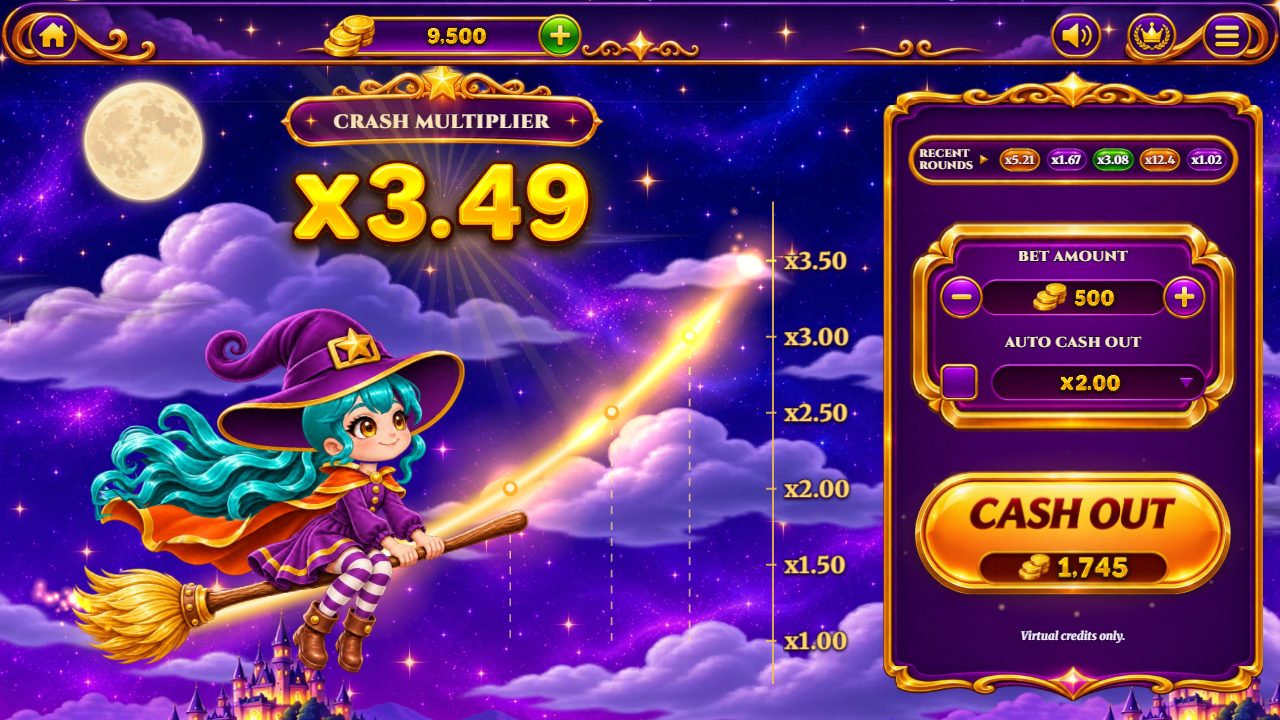
Where each part of the screen comes from
 1
2
3
4
5
6
7
8
9
10
11
12
13
14
- Home button (address set in WF_CONFIG, or hidden)
- Play credits balance
- Free refill (+10,000 play credits)
- Sound on/off
- Best flights
- Menu
- Multiplier (the title above shows the round phase)
- Recent rounds
- Lower bet
- Higher bet
- Auto cash out on/off
- Auto cash-out target
- BET / CASH OUT / CANCEL (shows the bet, or what it is worth now)
- Notice "Virtual credits only." (keep it visible)
| Part of the screen | File |
|---|---|
| Sky with stars | arte/ceu.webp and arte/fundo/f_ceu.webp |
| Clouds, hills, the castle and trees in front |
arte/fundo/f_nuvens.webp, f_montanhas.webp, f_perto.webp,
arte/ui/final/castelo.webp
|
| Moon | arte/ui/final/lua2.webp |
| The witch |
arte/final/ (one image per layer: body, head,
hat, hair_back_1... )
|
| Coins, smoke, wind streaks, things that pass in the sky |
arte/novo/final/moeda-*.webp, fumaca-*.webp, vento-*.webp,
extra-0*.webp
|
| Top bar, panel, buttons, pills, icons | arte/ui/final/ |
| Logo on the loading screen | arte/novo/final/logo.webp |
| Gold numbers (x3.47, prizes) | arte/final/font-gold.webp + font-gold.json |
| BIG / MEGA / EPIC WIN plates |
arte/final/placa_big.webp, placa_mega.webp, placa_epic.webp
|
| Texts | idiomas.js |
| Colours, sizes, positions | estilo.css |
Recipe 1: change the background
-
Open
arte/fundo/and look at the four layers:f_ceu(sky),f_nuvens(clouds),f_montanhas(hills) andf_perto(the near layer). They scroll at different speeds while the witch flies. - Note the size of the file you want to replace (right-click > Properties > Details on Windows, or open it in your image editor).
- Make your new picture at exactly that size. Keep the transparent areas of the clouds, hills and near layer transparent, so the layers behind show through.
- Export as WebP with the same name and replace the old file.
- Reload the game without the cache.

Recipe 2: change the witch
The witch is made of separate layers (body, head, hat, hair locks, cape, faces) that the animation engine bends in real time, so her hair and cape move with physics. You can recolour her, or replace her with a character of the same pose.
Recolour (easy)
-
Open each layer of
arte/final/that you want to change (for examplehat.webp,hat_front.webp,cape_1.webp,cape_2.webp,cape_front_1.webp,cape_front_2.webp). - Change the colours with hue/saturation in your editor. Do not move, resize or crop anything.
- Export with the same names.
A new character (advanced)
- Draw the new character in the same pose and at the same size as the original (1536 × 1024 canvas, the witch on the broom facing right).
- Split it into the same layers, each cropped tightly on a transparent background: body with the broom, head, hat, the front of the hat, eyes closed, eyes scared, open mouth, "o" mouth, the four hair locks (back and middle parts) and the two cape parts.
-
Write where each layer sits on the 1536 × 1024 drawing (its top-left corner,
xandy) inarte/camadas.json, next to its name. -
Keep the PNG masks of
arte/final/mask_*.png: they tell the engine which part of each hair and cape layer can bend. If your hair or cape has a very different shape, paint new masks (white = free to move, black = fixed). -
The positions of the bones (neck, hat, hair roots) are in
bruxa.jsin pixels of that 1536 × 1024 canvas. If your character's head or hat is in another place, move those numbers.
Recipe 3: buttons, panel and icons
All the interface pictures are in arte/ui/final/. The panels, pills and bars are stretched by
the game with their corners kept, so you can change the colours freely.
-
Open the picture (for example
botao_laranja.webp, the big BET / CASH OUT button, orpainel_alto.webp). - Change it in your editor at the same size. Keep the corners and borders the same width, because the game cuts the picture into nine parts and only stretches the middle.
- Export with the same name.
The words on the big button are pictures too: txt_bet.webp, txt_cashout.webp,
txt_cancel.webp. To translate them, make new pictures with your words at the same size.

Recipe 4: logo and game name
-
Replace
arte/novo/final/logo.webpwith your logo at the same size (it shows on the loading screen). -
In
index.html, change the text inside<title>Witch Flight</title>(the browser tab) andalt="Witch Flight"on the logo.
Recipe 5: sounds and music
- Open
audio/. Each MP3 has a fixed name and a fixed moment:
| File | When it plays |
|---|---|
music.mp3 |
background music, in a loop |
bet.mp3, click.mp3 |
bet and buttons |
go.mp3, takeoff.mp3, wind.mp3 |
take-off and the wind while she flies |
cashout.mp3, coin.mp3 |
cash out and coins reaching the balance |
poof.mp3, voz-grito.mp3 |
the fall and the witch's scream |
voz-uhul.mp3, voz-riso.mp3 |
the witch's voice on a cash out |
bigwin.mp3, v-big.mp3, v-mega.mp3, v-epic.mp3
|
the win celebrations |
count.mp3 |
the prize counting up on the plate |
- Make your sound in Audacity, export as MP3 with the same name and replace the file.
-
Keep loops (
music,wind,count) without silence at the start and end, so they repeat smoothly.
The countdown bells of room mode are made by code (no file).
Recipe 6: colours and fonts
-
Open
estilo.css. At the top, the:rootblock has the main values:--serif(the title font),--num(the font of numbers and texts) and--creme(the light text colour). -
To change a colour, find it (for example
#ffe9a8, the gold of the menu values) and write another colour code. Any free online colour picker gives you the code. -
The fonts are in
fontes/(Cinzel and Merriweather, free licence). To use another font, copy its WOFF2 files tofontes/, add an@font-faceblock for it infontes/fontes.cssand put its name first in--serifor--num.
Recipe 7: texts and languages
-
Open
idiomas.js. Each language is a block (en: { ... },pt: { ... }...). -
Change the text between the quotes. Keep
{0}and{1}(the game puts numbers there) and<br>(a line break). -
To offer fewer languages, delete their blocks and their names in
WF_NOMESat the top. Keepen: it is the fallback for any missing text.
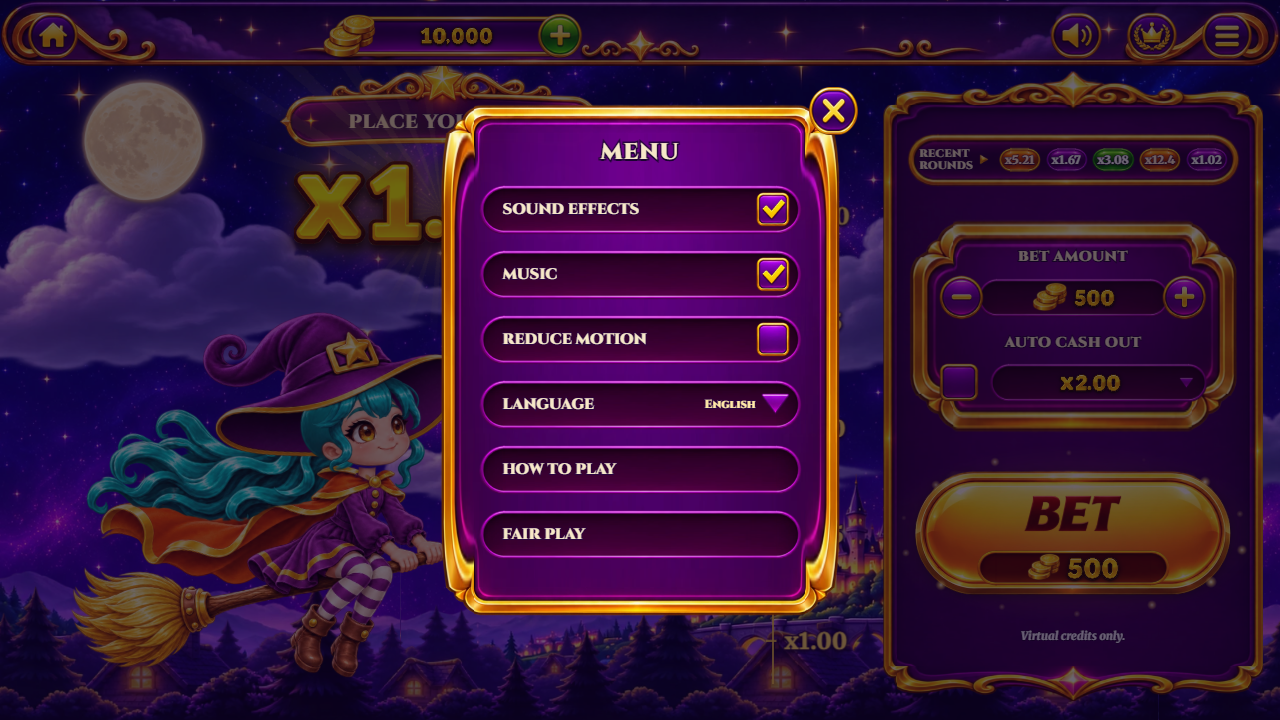
Recipe 8: bets, balance and celebrations
Open jogo.js and search for these names near the top:
-
const APOSTAS = [10, 20, 50, ...]: the bet amounts of the – and + buttons, from the smallest to the largest. const AUTOS = [1.2, 1.5, 2, ...]: the auto cash-out targets of the list.-
10000(three places): the starting balance, the free refill button and the automatic refill when the credits run out. -
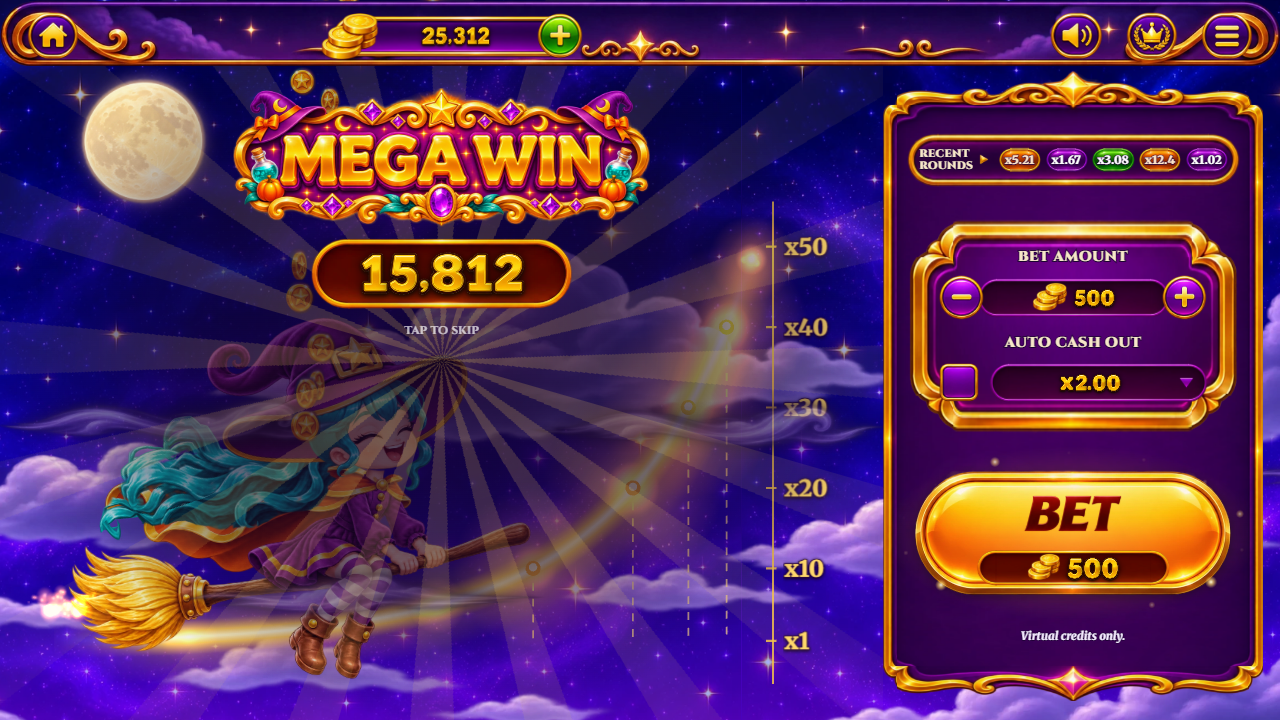
tiers: { big: 10, mega: 25, epic: 50 }: how many times the bet a cash out must pay to open each celebration. marcos: [2, 3, 5, 10, ...]: the multipliers that ring a bell and flash.
Save, reload and check that the game still opens. If the page goes blank, a comma or bracket was lost: put the backup back and try again.
Recipe 9: round mode and the home button
-
Open
index.htmland findwindow.WF_CONFIG = { modo: 'solo' };near the end. -
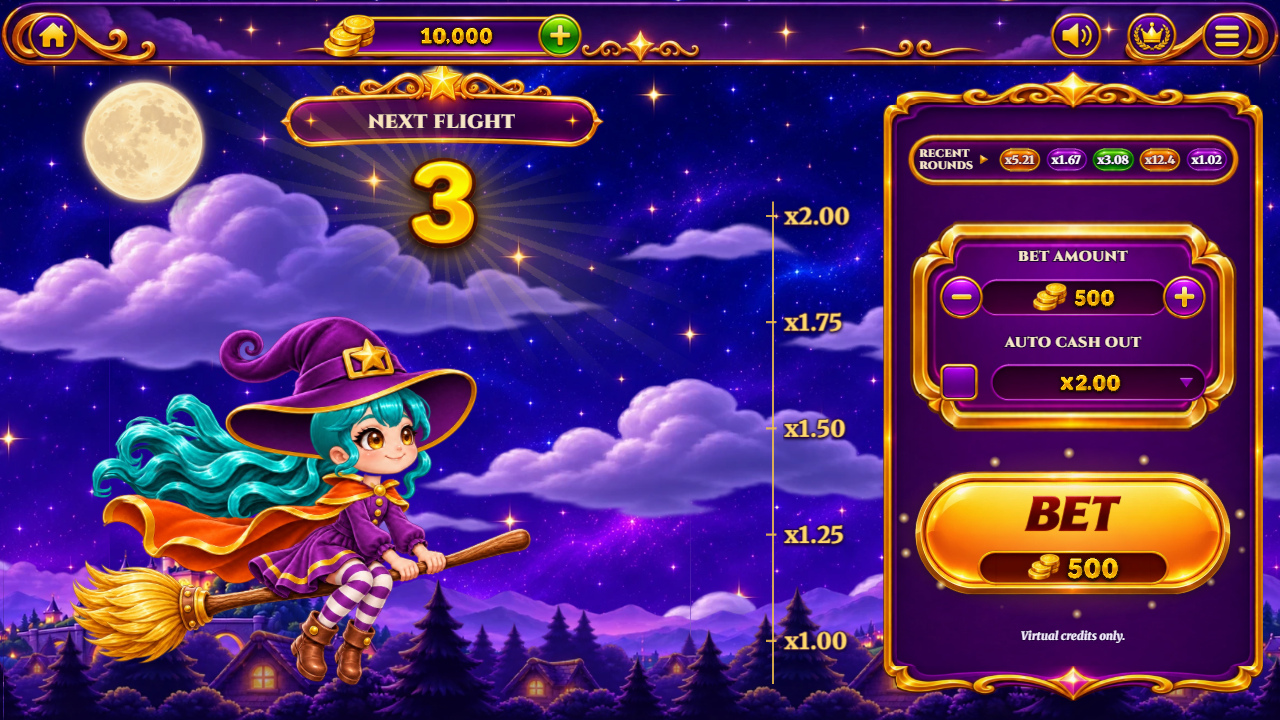
modo: 'sala'turns on room mode (countdown and continuous flights);modo: 'solo'is the default (the round starts when the player bets). -
home: '/'makes the house button at the top left go to your home page;home: falsehides it.
Example: window.WF_CONFIG = { modo: 'sala', home: '/games/' };
Recipe 10: return to player and speed
- Open
motor.js. -
RTP: 0.97is the return to player (97%). A lower number keeps more credits in the game on average. -
K: 0.00009is the speed of the climb: a larger number makes the multiplier grow faster. -
If you use Node.js, run
npm testinsource/: it measures the return of your new numbers.
Publish your changed game
-
Upload the changed files (or the whole
game/folder, or the contents ofsource/dist/afternpm run build) to your host, replacing the old ones. - Reload without the cache. If the old version still shows, see "Updating the game and clearing the cache" in the technical guide.
- Keep
SCOPE.mdwith the game and the notice "Virtual credits only." visible.
Questions: willian@polargames.com.br.