Mahjong Cosmic Quest: buyer guide
HTML5 space tile matching puzzle game, version 1.0.0
1. Overview
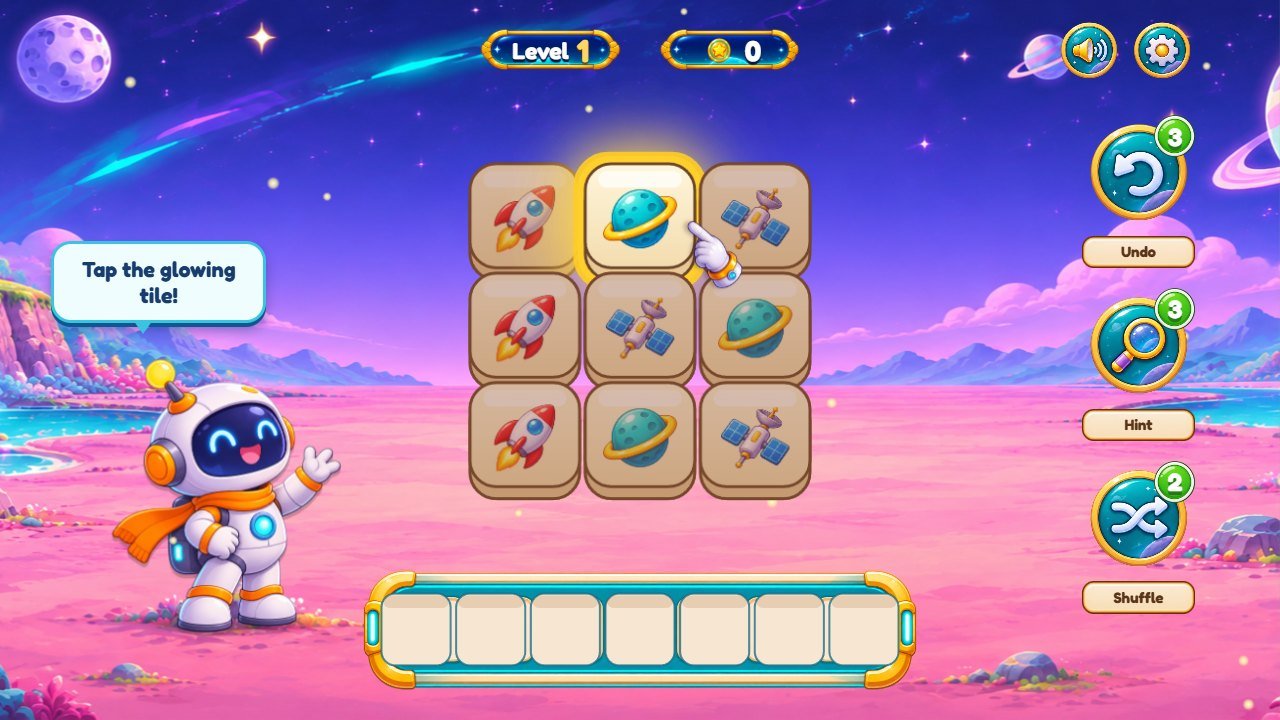
Mahjong Cosmic Quest is a triple tile matching puzzle game with a space theme. Tap free tiles to send them to a 7-slot tray: three equal tiles disappear. Clear the board to win.
60 levels in 4 worlds: Nebula Landing, Starlight Ocean, Cosmic Garden and Golden Planet. Each world has its own level background, its own level map and 12 tile pictures. A friendly robot astronaut is the mascot (happy, pointing, victory and sad poses).
Undo, Hint and Shuffle helpers, coins and stars, a guided tutorial on level 1, a level map for every world, floating star particles, animated screen transitions, sound effects and music, Settings with effects and music volume, language and vibration. 14 interface languages. Layouts for phones (portrait and landscape), tablets, desktop and ultra-wide screens.
No ads, no account, no online ranking, no tracking and no external requests: the game is static HTML, CSS and JavaScript. Progress is saved in the browser of the player.
2. Install
Upload only the contents of the game/ folder to any static web host (HTTPS recommended), keeping all folders
and paths. Open the address in a browser. No database, PHP or Node.js is needed on the server.
Do not open game/index.html by double-clicking it: browsers block ES modules on file:// addresses and the screen
stays empty. To try the game on your computer use npm run serve (see Editable project) or any local web server.
Do not put source/, the downloaded ZIP or this documentation on the public game address.
To show the game inside another page, use an iframe that points to the game address, for example
<iframe src="https://your-site.com/cosmic/" width="100%" height="640" allow="autoplay;
            fullscreen"></iframe>
.
3. Requirements
Works in all current browsers on desktop and mobile:
Chrome, Edge, Firefox, Safari (macOS, iPhone and iPad), Opera, Brave, Samsung Internet and other modern browsers. Minimum
versions: Chromium-based browsers 105+, Firefox 121+, Safari 16+ (iOS and iPadOS 16+). The game uses ES modules, Canvas 2D, Web Audio, CSS
container query units and the :has() selector.
Browsers start the sound only after the first tap or click; this is why the game opens with a "Tap to start" screen. Vibration works only on devices and browsers that support it (most Android phones).
4. How to play
- Tap a tile that is not covered by another tile. It flies to the tray at the bottom.
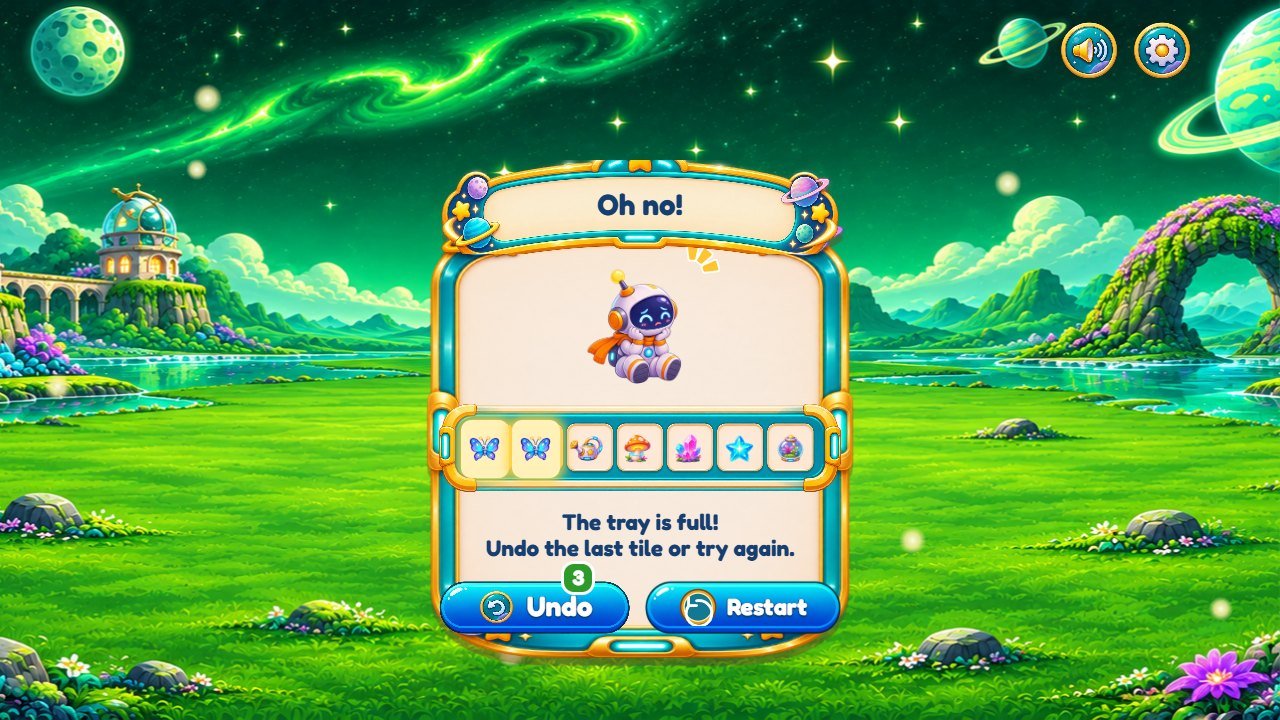
- Three equal tiles in the tray disappear. If the tray fills up with 7 tiles without a trio, the level is lost: you can undo the last tile or restart.
- Helpers per level: Undo 3, Hint 3, Shuffle 2. Hint makes a matching trio glow; Shuffle mixes the tiles that are left (the level stays solvable).
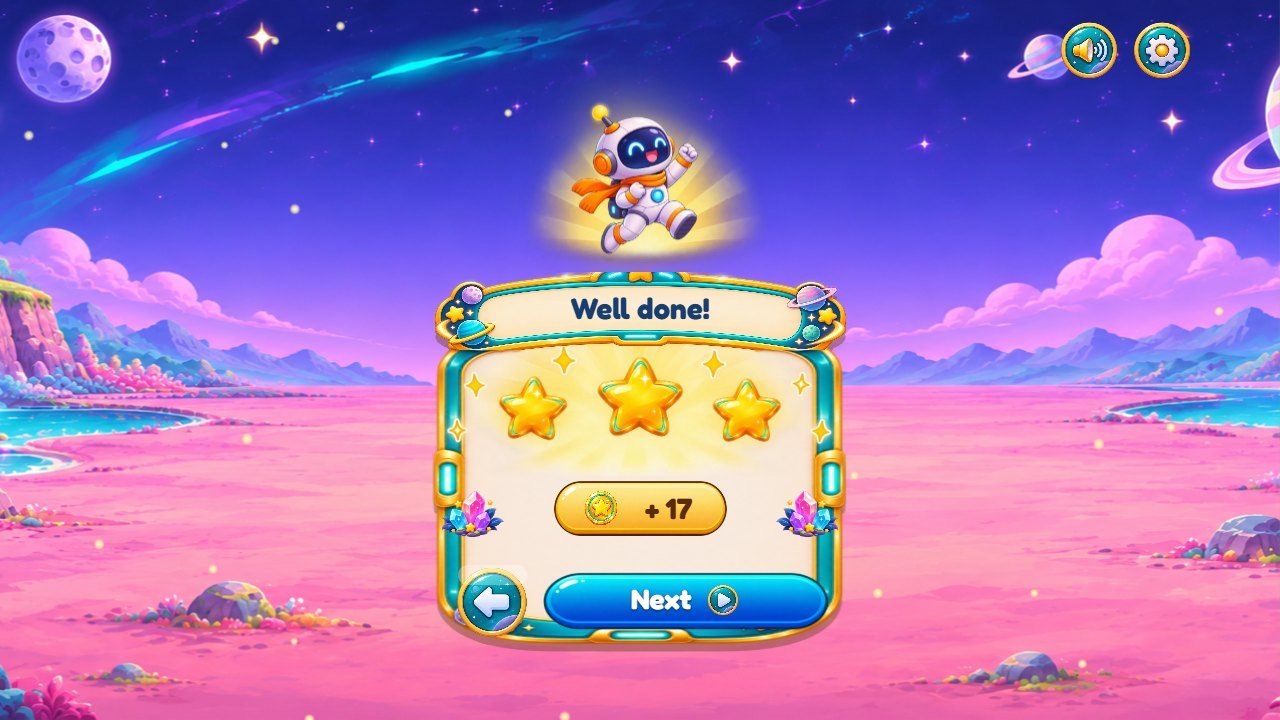
- Stars: 3 stars if you used no helper, 2 stars with 1 or 2 helpers, 1 star with more. Coins: +1 for each trio and +10 for each win.
- Every level is generated from a fixed seed and checked to have a solution (the tests play all 60 levels).
5. Screens
Numbered screens. The numbers match the list under each picture.
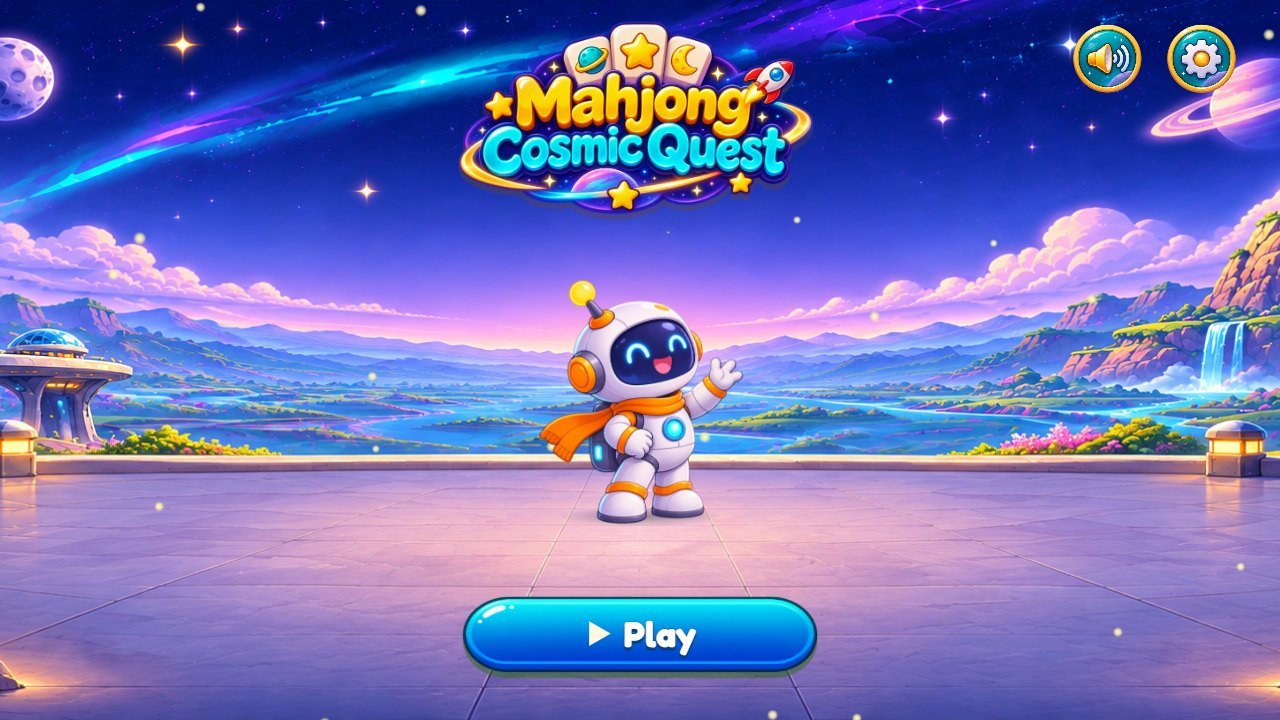 1
2
3
4
5
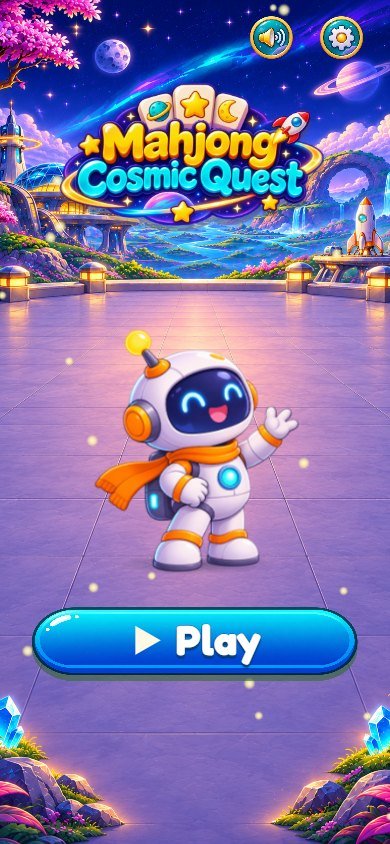
- Play: opens the level map
- Sound: effects and music volume
- Settings: volumes, language, vibration
- Game logo (assets/cosmic/logo.png)
- Robot mascot (assets/cosmic/robo-feliz.png)
 1
2
3
4
5
- A level stop: tap to play (locked levels show a padlock)
- Previous world (the next world arrow is on the right)
- Sound
- Settings
- Back to the menu
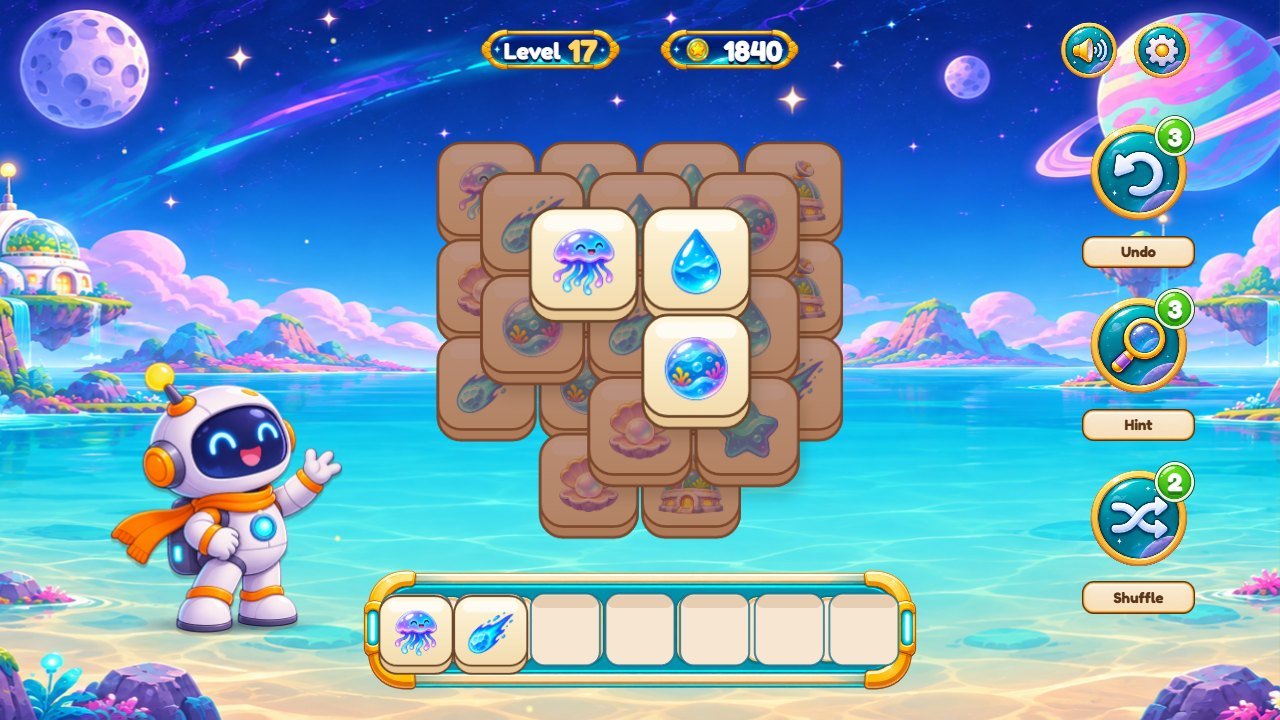 1
2
3
4
5
6
7
8
9
10
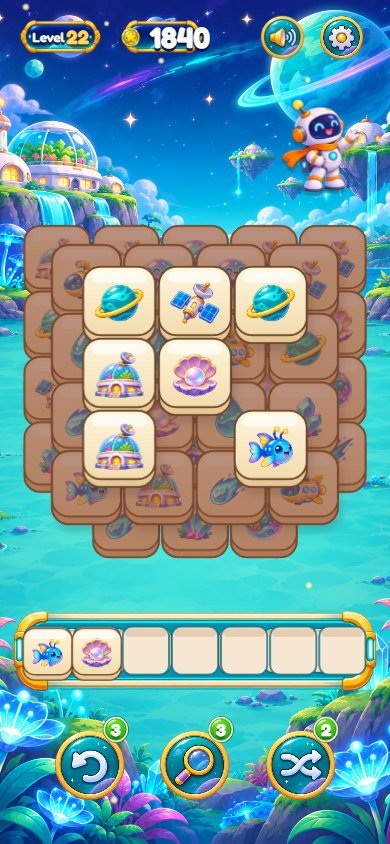
- Level number
- Coins
- Sound
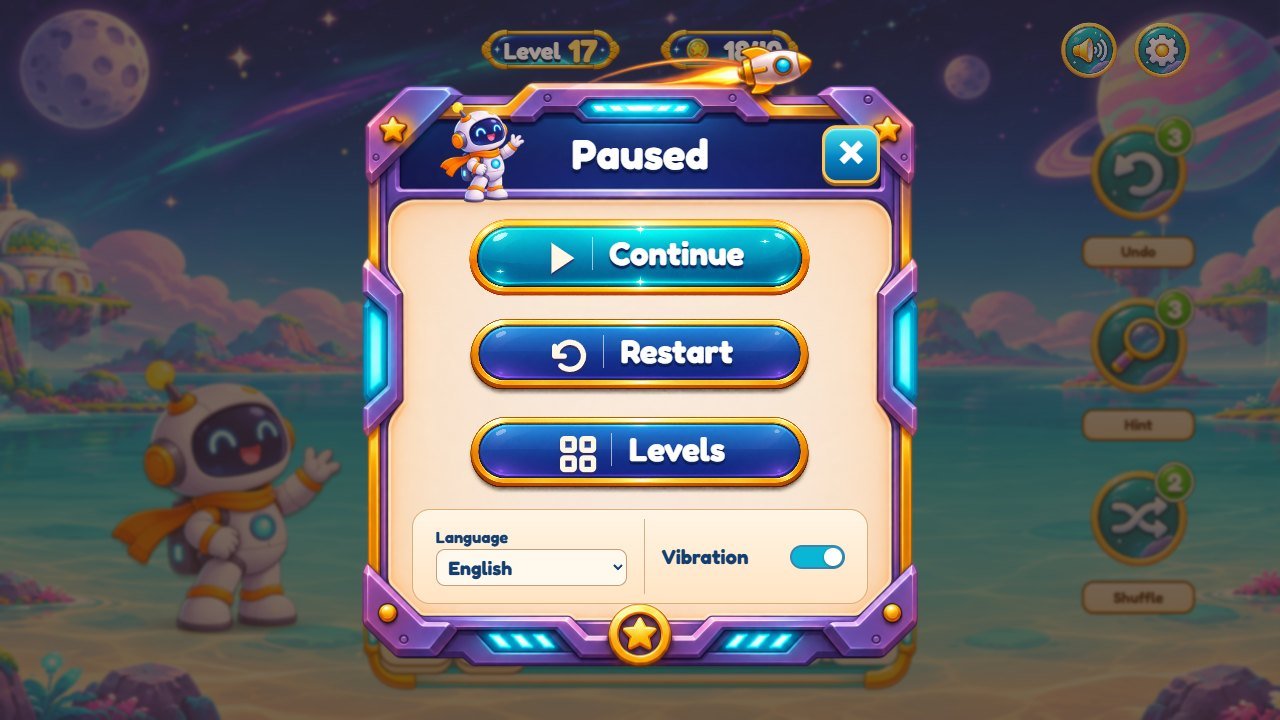
- Pause (continue, restart, levels, language, vibration)
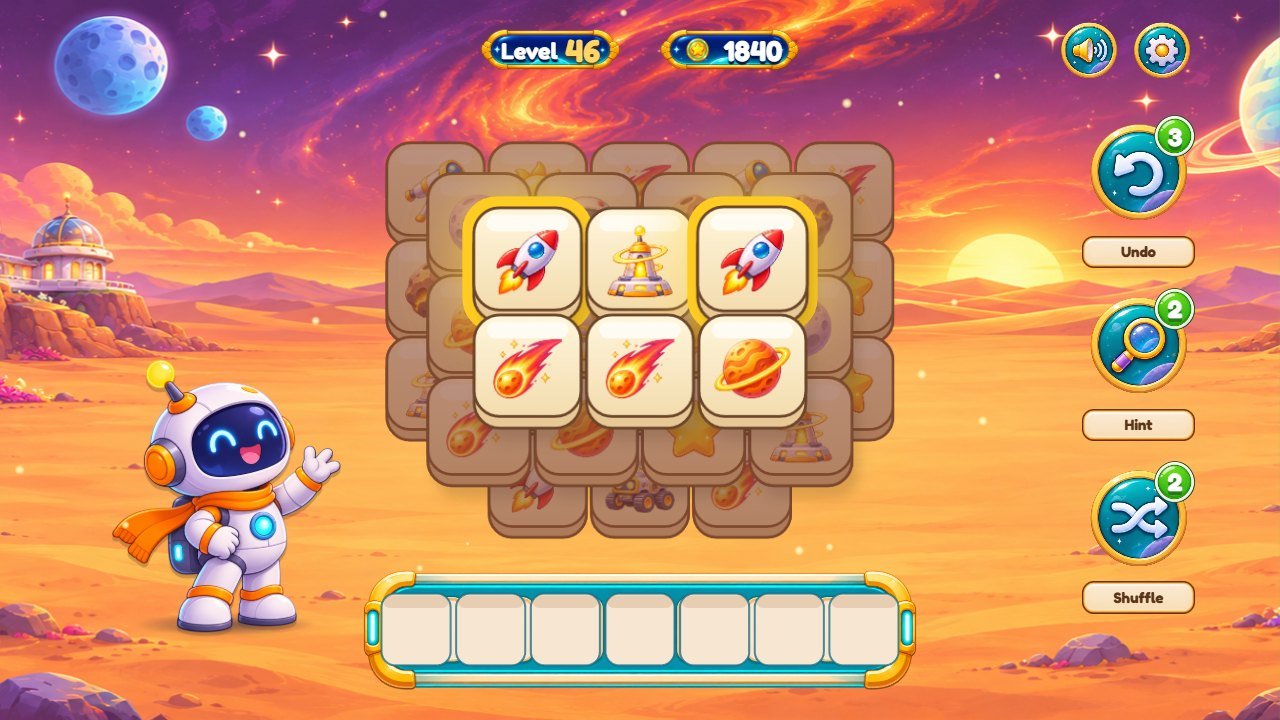
- Board: tap a free tile (not covered)
- Tray: 7 slots, three equal tiles disappear
- Undo (3 per level)
- Hint (3 per level)
- Shuffle (2 per level)
- Robot mascot: reacts to the game
6. Gallery
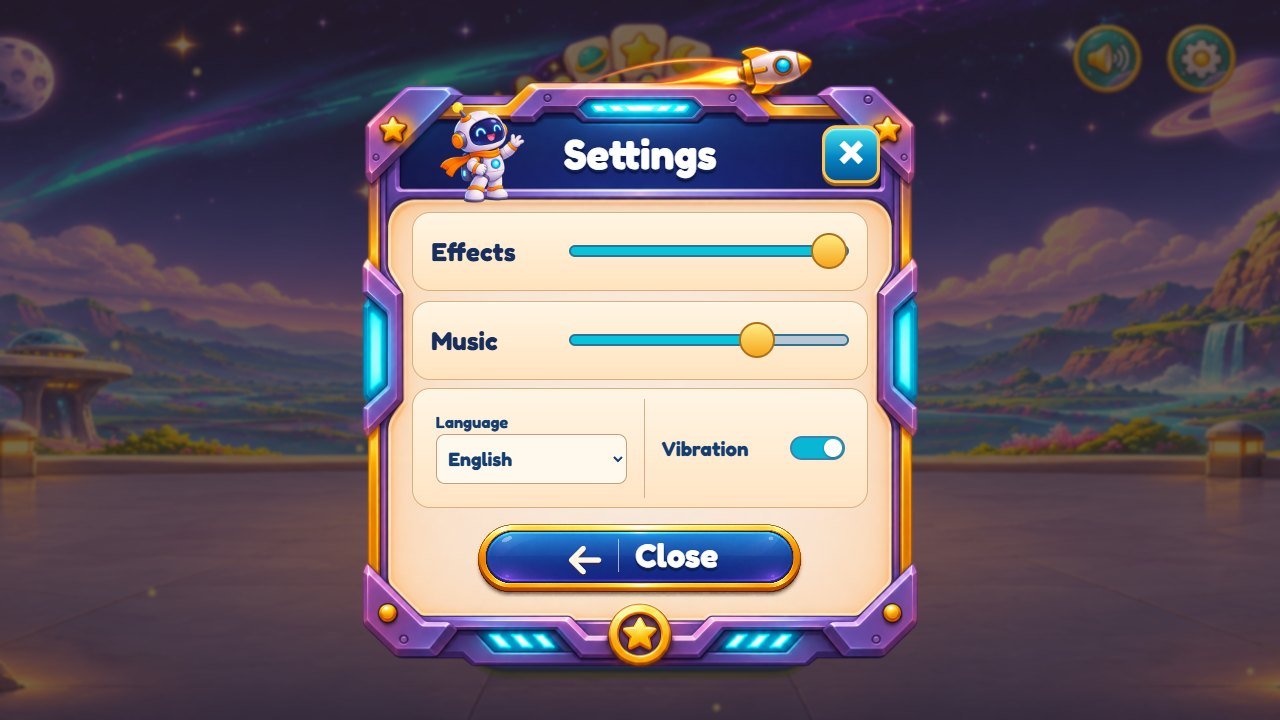
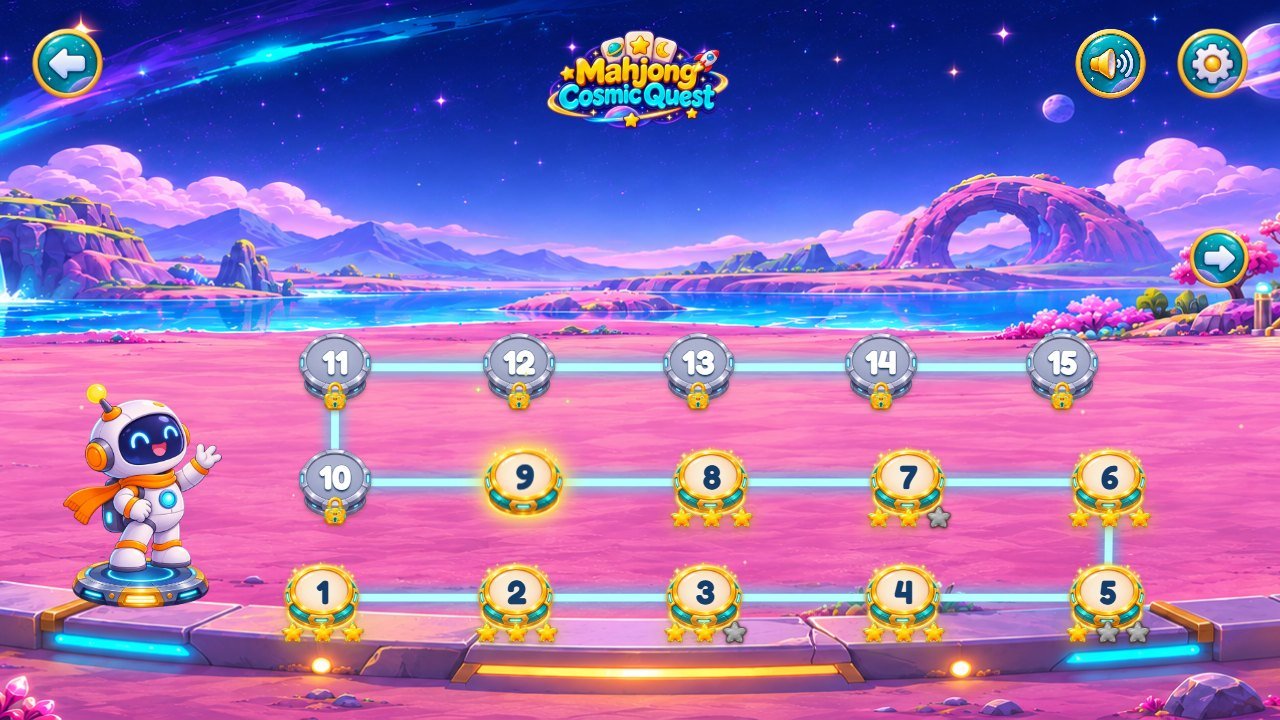
Real screenshots of this edition (1280 x 720 and phone portrait 390 x 844). Click a picture to open it in full size.


7. Files
What is in the package:
game/                         upload THE CONTENTS of this folder to your web host
  index.html                  the page
  css/  src/  assets/         same files as in source/ (made by npm run build)
source/                       the editable project (plain JavaScript, no dependencies)
  index.html                  loads the 4 style files in css/ and src/main.js
  css/01-base.css ... 04-overrides.css   layered styles: the LAST file that sets a rule wins
  src/main.js                 entry point
  src/app/                    screens and systems, one small file per subject
  src/game/rules.js           the rules (tray, trios, undo, hint, shuffle)
  src/game/levels.js          the 60 levels (number of tiles per level)
  src/config.js               worlds, tile names, helpers per level, coins, feel numbers
  src/i18n.js                 interface texts in 14 languages
  src/audio/sfx.js            which sound file plays for each event, music
  src/render/tiles.js         draws the tiles (reads the tile sheets)
  assets/cosmic/              space artwork: backgrounds, maps, robot, tiles, buttons, windows
  assets/ui/                  small interface images (glows, sparkles, helper badges)
  assets/sfx/  assets/music/  sounds and music (MP3)
  assets/fonts/               Fredoka font + its license
  test/                       rule and language tests (npm test)
  tools/serve.mjs             local web server (npm run serve)
  tools/build.mjs             copies the game files to ../game (npm run build)
documentation/index.html      this guide;  documentation/customization.html  step-by-step changes
DOCUMENTATION.html            opens this guide;  CUSTOMIZATION.html  opens the customization guide
THIRD-PARTY-LICENSES/         font license
8. Customize
Step-by-step recipes for people who do not program (replace the backgrounds, the robot, the tiles, the logo, sounds, music, texts, colors, the font, the difficulty, helpers and coins), with the exact file for every part of the screen: CUSTOMIZATION.html (also at the top of the package).
Quick map: world backgrounds and maps are PNG files in assets/cosmic/; the tile pictures are the sheets
assets/cosmic/tiles-0.png to tiles-3.png; numbers (helpers, coins) are in src/config.js; level sizes
in src/game/levels.js; texts in src/i18n.js; sounds in assets/sfx/ (chosen in
src/audio/sfx.js).
9. Internal names
Some file, function and class names are in Portuguese, the language of the original developer. They are kept so that the code stays the same as the tested game. This table explains them:
| Name in the files | Meaning |
|---|---|
robo-*.png, robot() |
robot mascot images and the function that picks a pose |
fundo, partida, partida-retrato-* |
background; level (gameplay) screen; portrait version |
mapa, mapa-*-retrato-final |
level map; portrait version of the map |
nebulosa / oceano, oceano-estelar / cosmic-garden / deserto, planeta-dourado |
file names of the 4 worlds: Nebula Landing / Starlight Ocean / Cosmic Garden / Golden Planet |
*-final.png |
final version of a picture (older variants are not shipped) |
botao-*, placa-*, painel, ornamento, plataforma-mascote |
button; plaque (level and coins); window panel; decoration; platform under the robot on the map |
modal-cosmica-fiel.png |
frame of the Settings and Pause windows |
tiles-0.png ... tiles-3.png |
tile sheets of worlds 1 to 4 (4 columns x 3 rows) |
clima, clima-stars, gota |
floating star particles behind the board; one particle |
telaInicio, telaPronta, toque, toqueX/Y |
"Tap to start" screen; screen ready; tap; tap position |
comTransicao, veu, irisFlor, irisAnel |
screen transition: the veil, the tile picture in the middle and the ring |
passoTut, fimTut, tutAvanca, TUT_PASSOS |
tutorial steps: next step, end, advance, list of steps |
refazHud, estrelinhas, lugar, animar |
rebuild the top bar; little stars on touch; position the mascot; animate |
home-flores, front-flowers |
decoration image in the menu and in front of the robot (assets/cosmic/ornamento.png) |
world id: nebula, ocean, cosmic-garden, golden |
internal ids of the 4 worlds in src/config.js (the world names are next to them) |
10. Languages
The interface offers 14 languages: English, Portuguese, Spanish, French, German, Italian, Dutch, Polish, Russian, Turkish,
Japanese, Korean, Chinese and Indonesian. The game starts in the language of the device (English if it is not in the list) and the player
can change it in Settings. A link such as ?lang=de opens the game in a language. To add a language, add a table to
src/i18n.js, add its name to LANGS and run npm test: the language test checks that every text key is
present. This guide is in English, Brazilian Portuguese and Spanish.
11. Saves
Progress (unlocked levels, stars, coins), volumes, vibration and language are saved in the browser with localStorage, under
keys that start with:
mahjong-cosmic-quest.template.save.v1:progress
mahjong-cosmic-quest.template.save.v1:vol-sfx  /  vol-music  /  vibe
mahjong-cosmic-quest.template.save.v1:lang
Each browser and each web address keeps its own progress. In a private window the progress is lost when the window closes. To reset the
progress, clear the site data of the game address in the browser settings. If you host two copies of the game on the same domain, change the
prefix STORAGE_PREFIX in src/config.js of one of them.
12. Editable project
The ready-to-host game needs no Node.js. The editable project in source/ is plain JavaScript modules with no dependencies and
no compile step. Node.js 26.13 or newer (the current LTS) is only used to run the tests, open the game locally and copy the
files to game/.
New to Node.js? 1) Install the LTS version from nodejs.org (Windows or macOS installer, or your package manager on Linux);
it must be 26.13 or newer. 2) Close and reopen the terminal and type node -v to check the version. 3) Open a terminal inside
the source folder (Windows: open the folder, click the address bar, type cmd and press Enter; macOS: right-click
the folder, New Terminal at Folder). 4) Run the commands below one at a time.
cd source
npm ci
npm test
npm run serve
# open http://localhost:8080/
npm run build
# copies index.html, css/, src/ and assets/ to ../game
npm ci installs nothing because the project has no dependencies; it only checks the lock file. npm test runs the
rule and language tests. npm run serve opens the game at http://localhost:8080/ (Ctrl+C stops it).
npm run build copies index.html, css/, src/ and assets/ to the
game folder next to source, overwriting files with the same name (delete files yourself in game/ if
you removed them from source/).
- node is not recognized / command not found: Node.js is not installed or the terminal was opened before the installation. Reopen the terminal.
-
npm.ps1 cannot be loaded (Windows PowerShell): use
cmdinstead of PowerShell, or runnpm.cmd ci. - EBADENGINE: your Node.js is older than 26.13. Install the current LTS.
- ENOENT package.json: the terminal is not inside the
sourcefolder. Usecdto go there. -
npm ci fails behind a proxy: the project downloads nothing, but npm may still try the registry; set your proxy (
npm config set proxy ...) or skipnpm ci, the other commands work without it. - Port 8080 in use: run
node tools/serve.mjs 8090and open http://localhost:8090/.
13. Updates and cache
After you upload a new version, browsers and hosting caches can keep the old files for a while. If a change does not appear:
- Force a reload: Ctrl+F5 (Windows/Linux) or Cmd+Shift+R (macOS).
- Clear the cached images and files of the site in the browser settings. Do not clear "cookies and site data" if you want to keep the saved progress.
- Try a private window to see the new version without any cache.
- If your host or a CDN (for example Cloudflare) caches files, purge its cache.
- Add a version to the address, for example
index.html?v=2, to bypass old copies of the page.
14. Licenses
The game code, artwork, sounds and music are supplied under the license of the item you purchased.
Fredoka font: SIL Open Font License 1.1, see THIRD-PARTY-LICENSES/ (a copy is also in assets/fonts/). The project
has no other third-party code.
15. Problems
- Empty screen when opening index.html from the folder: use a web server (see Install).
- No sound: tap the screen once (browsers require it), check the volumes in Settings and the device volume and silent switch.
- Progress disappeared: the game address, browser or private window changed (see Saves).
- Changed art does not show: clear the cache (see Updates and cache) and check that the file name and size are the same as before.
- The game looks too small or too large inside a site: give the iframe a fixed height or use the game address directly; the layout adapts to the size of the frame.
16. Support
Questions, problems or custom development (new themes, levels, features, store versions): willian@polargames.com.br. Please include your purchase code, the browser and device, and a screenshot of the problem.