Customize Mahjong Cosmic Quest without programming
Step-by-step recipes: pictures, robot, tiles, logo, texts, difficulty, helpers and coins, sounds, colors, font. Works offline, no JavaScript needed.
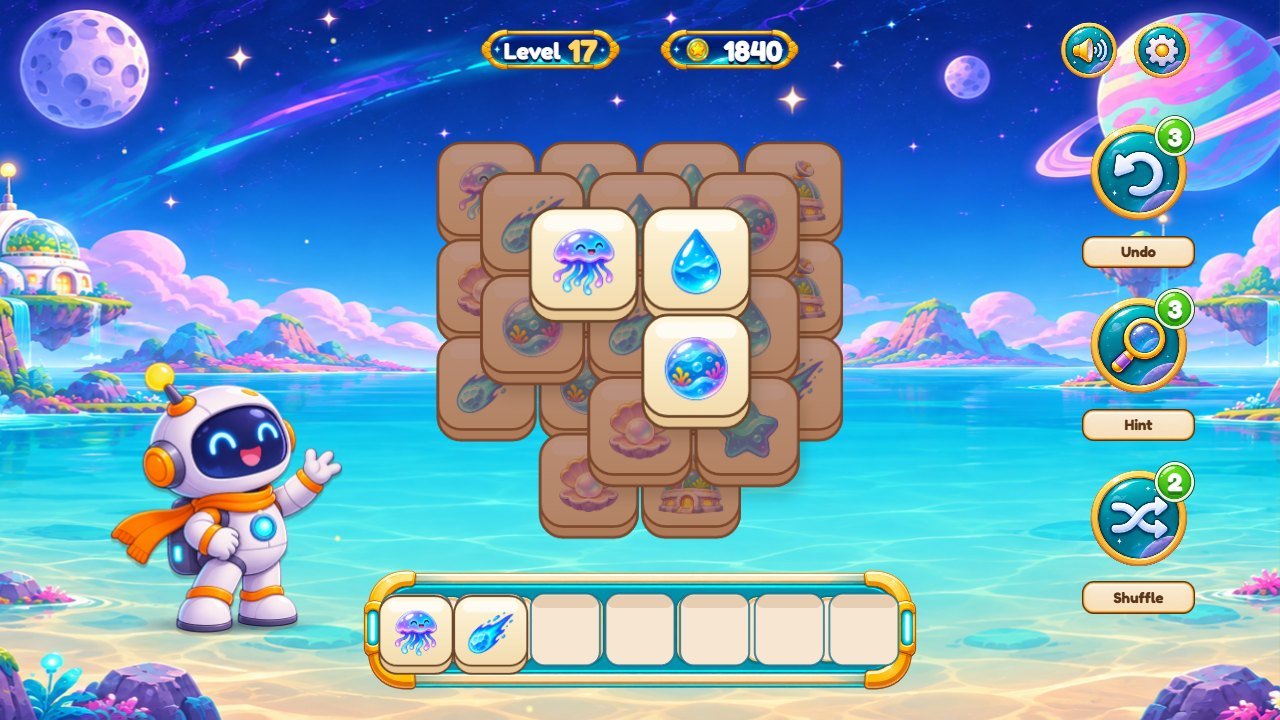 1
2
3
4
5
6
7
8
9
10
1. Before you start
This guide is for people who do not program. Every change is made in the source/ folder and then copied to game/ with one command (or by copying the files yourself). Keep the folder structure and the file names.
Português: este é o guia de personalização passo a passo (em inglês). Cada receita diz o arquivo exato e o tamanho da imagem. O guia completo em português está em pt.html. Español: esta es la guía de personalización paso a paso (en inglés); la guía completa en español está en es.html.
Free tools
-
VS Code (code.visualstudio.com) or Notepad++ (Windows) to edit
.js,.cssand.htmlfiles. Do not use Word or WordPad. - Photopea (photopea.com, in the browser) to edit PNG pictures with transparency, like Photoshop.
- Squoosh (squoosh.app) to make pictures smaller without changing their size in pixels.
- Audacity (audacityteam.org) to cut sounds and export them as MP3.
-
Node.js 26.13 LTS (nodejs.org), only if you want to use the commands
npm run serveandnpm run build.
Make a backup first
- Copy the whole downloaded folder (or keep the ZIP) before you change anything.
- Change one thing at a time and check the game after each change.
See your changes on your computer
- Open a terminal inside
source/(see DOCUMENTATION.html, Editable project). - Run
npm run serveand open http://localhost:8080/ in the browser. - After each change, reload the page with Ctrl+F5 (Cmd+Shift+R on macOS).
- Without Node.js you can use any local web server; double-clicking
index.htmldoes not work (browsers block it).
2. Where everything is
Each row is a part of the screen and the file that draws it. Pictures are PNG files with transparency where noted. Keep the same size in pixels (or the same proportions) so the layout stays right.
Menu (start screen)
| Part of the screen | File (inside source/) | Size |
|---|---|---|
| Background, landscape (wide screens) | assets/cosmic/menu-final.png |
2172 x 724 (3:1) |
| Background, portrait (phones held upright) | assets/cosmic/menu-retrato-final.png |
940 x 1672 |
| Game logo (menu, map, windows) | assets/cosmic/logo.png |
1752 x 897, transparent |
| Robot on the menu | assets/cosmic/robo-feliz.png |
1199 x 1312, transparent |
| Play button and other big blue buttons | assets/cosmic/botao-azul-novo.png |
2172 x 724, transparent |
| Round buttons (sound, settings, arrows, helpers, coin) | assets/cosmic/ui-icons.png |
1448 x 1086 sheet: 4 columns x 3 rows |
| Decoration at the bottom of the menu and of the level screen | assets/cosmic/ornamento.png |
1536 x 1024, transparent |
Level maps (one per world)
| Part of the screen | File (inside source/) | Size |
|---|---|---|
| World 1 Nebula Landing, landscape / portrait | assets/cosmic/mapa-nebulosa-final.png / mapa-nebulosa-retrato-final.png |
2172 x 724 / 941 x 1672 |
| World 2 Starlight Ocean, landscape / portrait | assets/cosmic/mapa-oceano-final.png / mapa-oceano-retrato-final.png |
same sizes |
| World 3 Cosmic Garden, landscape / portrait | assets/cosmic/mapa-cosmic-garden-final.png / mapa-cosmic-garden-retrato-final.png |
same sizes |
| World 4 Golden Planet, landscape / portrait | assets/cosmic/mapa-deserto-final.png / mapa-deserto-retrato-final.png |
same sizes |
| Level stops: open / locked / padlock | assets/cosmic/level-open.png / level-locked.png / lock.png |
transparent |
| Platform under the robot on the map | assets/cosmic/plataforma-mascote.png |
1774 x 887, transparent |
| Positions of the 15 stops on the map | source/src/app/data.js (COSMIC_MAP_LAYOUT) |
percent of the map picture |
Level screen (gameplay)
| Part of the screen | File (inside source/) | Size |
|---|---|---|
| Background of world 1 / 2 / 3 / 4, landscape |
assets/cosmic/partida-nebulosa.png / partida-oceano-estelar.png / partida-cosmic-garden-v2.png / partida-planeta-dourado.png
|
2172 x 724 |
| Background of each world, portrait | assets/cosmic/partida-retrato-nebulosa.png (and -oceano-estelar, -cosmic-garden, -planeta-dourado) |
941 x 1672 |
| Tile pictures of world 1 / 2 / 3 / 4 | assets/cosmic/tiles-0.png / tiles-1.png / tiles-2.png / tiles-3.png |
1448 x 1086 sheet: 4 x 3 cells of 362 x 362 |
| Tray (7 slots) | assets/cosmic/tray.png |
2172 x 724, transparent |
| Level and coin plaques at the top | assets/cosmic/placa-hud-espacial.png |
2098 x 749, transparent |
| Robot: happy (level screen) / pointing (tutorial) / victory / sad | assets/cosmic/robo-feliz.png / robo-aponta.png / robo-vitoria.png / robo-triste.png |
about 1300 x 1200, transparent |
| Tutorial hand | assets/cosmic/hand.png |
transparent |
| Coin, star and sparkle | assets/cosmic/coin.png / star.png / spark.png |
transparent |
| Small count badges of the helpers | assets/ui/selo-verde.webp |
small, transparent |
Windows (pause, settings, win, lose)
| Part of the screen | File (inside source/) | Size |
|---|---|---|
| Frame of the Settings and Pause windows | assets/cosmic/modal-cosmica-fiel.png |
1203 x 1308 |
| Frame of the win and lose windows | assets/cosmic/painel.png |
1040 x 1512 |
| Title ribbon of the windows | assets/cosmic/ribbon.png |
2172 x 724 |
| Buttons inside windows (blue / teal) | assets/cosmic/botao-modal-azul.png / botao-modal-turquesa.png |
2172 x 724 |
| Coin pill on the win window | assets/ui/pilula-moedas.webp |
small |
| Glow behind the robot and sparkles on the win window | assets/ui/brilho-robo.webp / assets/ui/faiscas.webp |
transparent |
3. Recipe A: replace a picture (any background, button or decoration)
- Find the part of the screen in the table above and note the file name, for example
assets/cosmic/partida-nebulosa.png. - Open that file in Photopea (File > Open). Paint over it or paste your own picture into the same canvas, so the size in pixels stays the same.
- Keep the transparent areas transparent (buttons, robot, tiles, tray). Backgrounds have no transparency.
-
Export as PNG with exactly the same file name (File > Export as > PNG) and save it over the old file in
source/assets/cosmic/. - Optional: make the file smaller with Squoosh (OxiPNG), keeping the same size in pixels.
- Reload the game (Ctrl+F5). Check the landscape and the portrait version of the screen (resize the browser window or use the phone mode of the browser, F12).
4. Recipe B: change the logo and the game name
-
Logo picture: replace
assets/cosmic/logo.png(1752 x 897, transparent) as in Recipe A. It appears on the menu, on the map and on some windows. -
Name in the browser tab: open
source/index.htmland change the text inside<title>and thecontentof<meta name="description">. -
Name read by screen readers and in the language texts: open
source/src/i18n.js, search fortitle:and change it in every language you use. -
Change the save prefix if you publish a different game based on this one:
STORAGE_PREFIXinsource/src/config.js.
5. Recipe C: change the robot mascot
-
The robot has 4 poses:
robo-feliz.png(happy: menu, map and level screen),robo-aponta.png(pointing: tutorial),robo-vitoria.png(victory jump) androbo-triste.png(sad: tray almost full and lose window). All are inassets/cosmic/. - Replace each one as in Recipe A, keeping the size and a transparent background. Keep the character in the same place inside the picture, with the feet near the bottom, so it stands on the platform.
-
Which game situation uses which pose is set in
source/src/app/worlds.js(catPoses): the left side is the situation, the right side is the file name afterrobo-. - The platform under the robot on the map is
assets/cosmic/plataforma-mascote.png.
6. Recipe D: change the tile pictures
Each world has one tile sheet: assets/cosmic/tiles-0.png (world 1) to tiles-3.png (world 4). A sheet is 1448 x 1086
pixels with 4 columns x 3 rows of 362 x 362 cells, transparent background. The game cuts the cells and centers the visible
drawing in each tile.
- Open the sheet in Photopea. Turn on View > Show > Grid or draw guides every 362 pixels.
- Paint one picture per cell, leaving a small transparent margin. Each of the 12 pictures must be clearly different from the others: the player matches them by sight.
- Export as PNG with the same name.
-
Optional: the names of the 12 pictures (used only inside the code) are in
source/src/config.js,WORLDS[n].icons, in the same order as the cells: left to right, top to bottom. - The burst colors when a trio disappears are
ICON_COLORSinsource/src/config.js(one color per cell).
7. Recipe E: change texts and translations
-
Open
source/src/i18n.js. Each language has a block (en: {,pt: {,es: {...). Each line iskey: 'text',. -
Change only the text between the quotes. Keep the key on the left and placeholders such as
{n}(the game puts a number there). - To remove a language from the selector, delete its entry in
LANGSat the end of the file (you may keep its block). - Run
npm test: the language test tells you if a key is missing in any language.
8. Recipe F: make the levels easier or harder
The number of tiles of each level is in source/src/game/levels.js, in the table TARGET: one row per world, 15
numbers per row (levels 1 to 15 of that world). More tiles = longer and harder level.
- Change a number. It must be a multiple of 3 (tiles disappear in trios), for example 33, 36, 39. Keep it at 90 or less: more tiles become too small on phones.
- Save and run
npm test. The test plays every level with its stored solution and fails if a level cannot be won. - The shape of the board in each world is
SHAPESin the same file (diamond, cloud, pyramid). -
The tray has 7 slots (
TRAYinsource/src/game/rules.js). Fewer slots make the game much harder; the tray artwork is drawn for 7.
9. Recipe G: change helpers, coins and stars
- Helpers per level:
HELPERS = { undo: 3, hint: 3, shuffle: 2 }insource/src/config.js. - Coins:
COINS = { match: 1, win: 10 }in the same file (coins for each trio and for each win). -
Stars: in
source/src/app/screen-modals.js, the lineconst stars = used <= 0 ? 3 : used <= 2 ? 2 : 1;(no helper = 3 stars, 1 or 2 helpers = 2 stars, more = 1 star). - The game has no shop or real-money purchases; coins are a score that the player collects.
10. Recipe H: replace sounds and music
Sounds are MP3 files in assets/sfx/, music is assets/music/tema.mp3. The list below shows which file plays for each
event (set in source/src/audio/sfx.js, FILES).
| Event | File in assets/sfx/ |
|---|---|
| pick a tile | pegar-1.mp3 |
| tile lands in the tray | passo-1.mp3 |
| trio disappears | caixa-cheia-1.mp3, caixa-cheia-2.mp3 |
| combo | combo-1.mp3 |
| coin | moeda-1.mp3 |
| covered tile tapped | bloqueio-1.mp3 |
| undo | desfazer-1.mp3 |
| shuffle | milho-1.mp3 |
| hint | botao-1.mp3 |
| win | vitoria-sem-trinado.mp3 |
| confetti | confete-1.mp3 |
| lose | tempo-acabou-1.mp3 |
| button click | clique-1.mp3 |
| window opens | janela-1.mp3 |
- Open your sound in Audacity, cut the silence at the start (short sounds feel faster) and export as MP3 (128 kbps is enough).
-
Save it with the same file name over the old one, or save it with a new name and change the name in
FILES(without.mp3). - Music: replace
assets/music/tema.mp3with a loopable MP3. Keep it small (2 to 4 MB) so the game loads fast. - Players can lower effects and music separately in Settings.
11. Recipe I: change colors and the font
-
Most colors of the space theme are in
source/css/04-overrides.css(the last style file wins). Use the search of your editor to find a color code, for example#, and change it. - The outline color of some effects drawn on the board is
INKinsource/src/config.js. -
Font: the game uses Fredoka (
assets/fonts/fredoka-latin.woff2andfredoka-latin-ext.woff2). To use another font, put its.woff2files inassets/fonts/, change the two@font-faceblocks at the top ofsource/css/01-base.css(thesrc: url(...)lines) and keep the nameFredokaor replace it everywhere. Include the font license. - Check the menu, a level and the windows after changing colors: some buttons are pictures and do not change with CSS.
12. Recipe J: rename or reorder the worlds
-
World names are in
WORLDSinsource/src/config.js(name:). The game does not print them on screen: they are the accessible labels of the map arrows (read by screen readers). Theidis internal: leave it as it is. -
Each world uses its own tile sheet (
tiles-0totiles-3), level background, map and portrait versions (see the table in section 2). To swap two worlds, swap their files. -
There are 15 levels per world (
WORLD_SIZE) and 60 in total (LEVEL_COUNTinlevels.js). Adding a fifth world needs new art for every screen and changes in the code; ask for custom development if you need it.
13. Check and publish your changes
- In
source/, runnpm test(rules, all 60 levels and languages). - Run
npm run serveand play a level in landscape and in portrait (F12 > phone mode). -
Run
npm run build: it copiesindex.html,css/,src/andassets/togame/. If you deleted or renamed files, delete the old ones ingame/yourself. - Upload the contents of
game/to your host, replacing the old files. - If you still see the old version, clear the cache (DOCUMENTATION.html, Updates and cache).
14. If something goes wrong
- A picture is missing or broken: the file name or folder is different from the original, or the file is not a real PNG. Names are case sensitive on most web hosts.
- The game stops loading after editing a .js file: a quote, comma or bracket is missing. Press F12, open the Console tab: it shows the file and the line. Put back the line from your backup.
- The layout looks wrong after changing a picture: the new picture has a different size or proportion. Use the size from the table in section 2.
-
npm test fails after changing levels: a number in
TARGETis not a multiple of 3, or a row does not have 15 numbers. - Still stuck? Write to willian@polargames.com.br with your purchase code and a screenshot.