1. Before you start
- Make a copy of the whole download. If something goes wrong, you can go back to it.
- Install a free code editor such as Visual Studio Code (or Notepad++ on Windows). For pictures, the free GIMP or Krita open and export WebP files. For sounds, the free Audacity exports MP3.
-
Work inside
source/. To see your changes, open a terminal in that folder and runnpm run dev, then openhttp://localhost:5180/. The game does not run by double-clickingindex.html, because browsers block JavaScript modules onfile://. -
No terminal? Edit the files of
game/directly, upload them to your host and reload the page.
2. Your brand: name, logo and icon
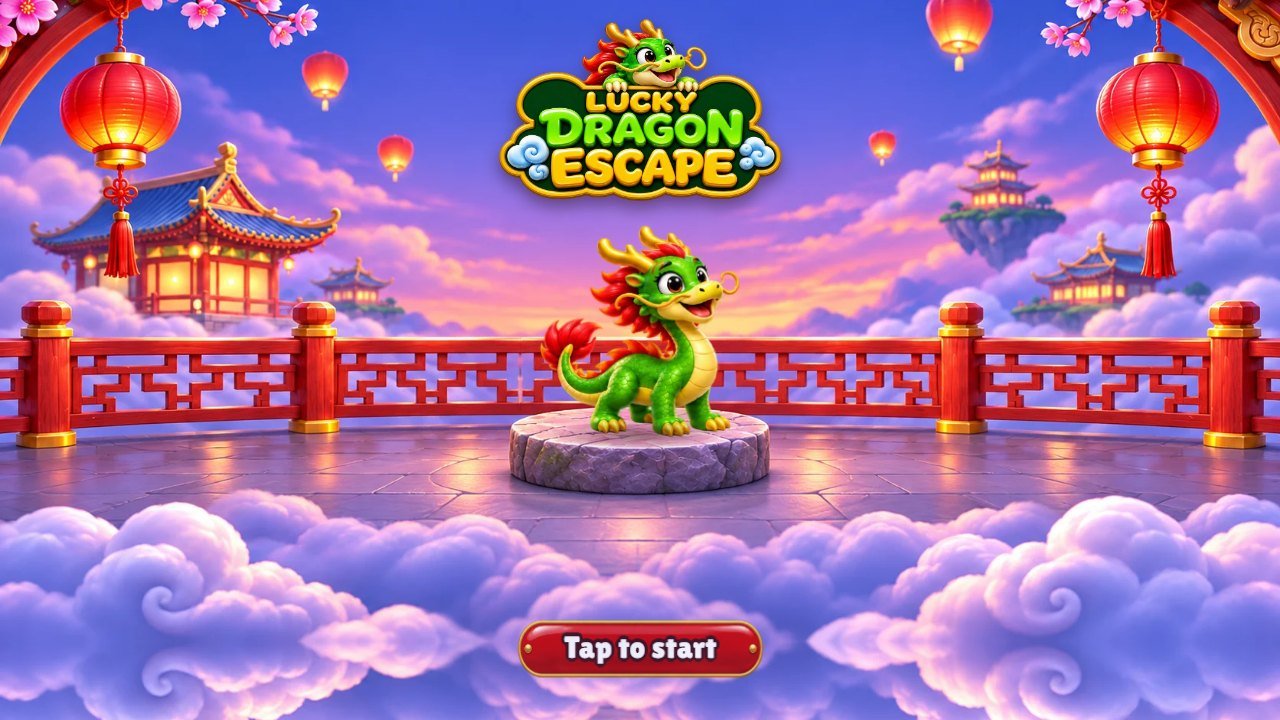
- The name in the browser tab is the
<title>line ofindex.html. -
The logo is
assets/logo.webp(1000 x 591 pixels, transparent background). To use your own, save it at the same size with a transparent background. -
The mascot has five poses:
assets/mascot-idle.webp,mascot-hype.webp,mascot-cheer.webp,mascot-oops.webpandmascot-sleepy.webp. Replace each one with a picture of the same size. - The page icon is
assets/icon-192.png(192 x 192 pixels).
3. Colors and the look
Almost every piece of the interface (buttons, panels, plates, stars, the world board) is a picture in
assets/, so you change the look by editing those pictures (see table 4). The few colors of the
text are at the top of css/base.css, inside :root:
--ink: #3a0d14; /* dark wine red of the text outline */
--gold: #ffd23f; /* gold of the titles */
--font: 'Fredoka', 'Nunito', 'Noto Sans', system-ui, sans-serif; /* text font */
The 6 dragon colors are COLORS in src/config.js. The painted dragon is one green
picture that the game recolors into these colors, so change the hex values and the dragons follow:
export const COLORS = ['#35c24a', '#2f8cff', '#ffc928', '#f4483f', '#a05bf2', '#ff86c6'];
4. Replace pictures (reskin)
Replace a file with another of the same name and a similar size. Nothing else needs to change.
| On screen | File |
|---|---|
| Backgrounds of the 5 worlds |
assets/bg-portrait.webp and bg-landscape.webp (Lantern Festival); the same with
bg-w2 (Bamboo Grove), bg-w3 (Jade Lake), bg-w4 (Blossom Mountain)
and bg-w5 (Moonlit Temple)
|
| Background of the menu | assets/bg-menu-portrait.webp and bg-menu-landscape.webp |
| The painted dragon |
assets/snake-head.webp, snake-body.webp, snake-tail.webp and
tail-tip.webp (the flame tuft at the tail); green, the game recolors them
|
| The board under the dragons | assets/soil.webp, wood.webp and cell.webp |
| Lucky cloud, gong and lucky knot |
assets/bridge.webp, clock.webp, clock-silver.webp and
collar.webp
|
| Petals and leaves of each world |
assets/amb-petal.webp, amb-leaf.webp, amb-seed.webp,
amb-maple.webp and amb-firefly.webp
|
| Round buttons (pause, sound, settings, undo, hint, replay, close, home, arrows) | assets/btn-*.webp |
| Play button, plates and the plaque | assets/cta.webp, plate.webp and plaque.webp |
| Panels | assets/panel.webp and board-dark.webp |
| Stars | assets/star-on.webp and star-off.webp |
| Level select: the board, the level tiles and the lock |
assets/board.webp, tile-open.webp, tile-now.webp,
tile-locked.webp and lock.webp
|
| Slider knob and the picture of the final screen | assets/badge.webp and assets/end-art.webp |
5. The dragons
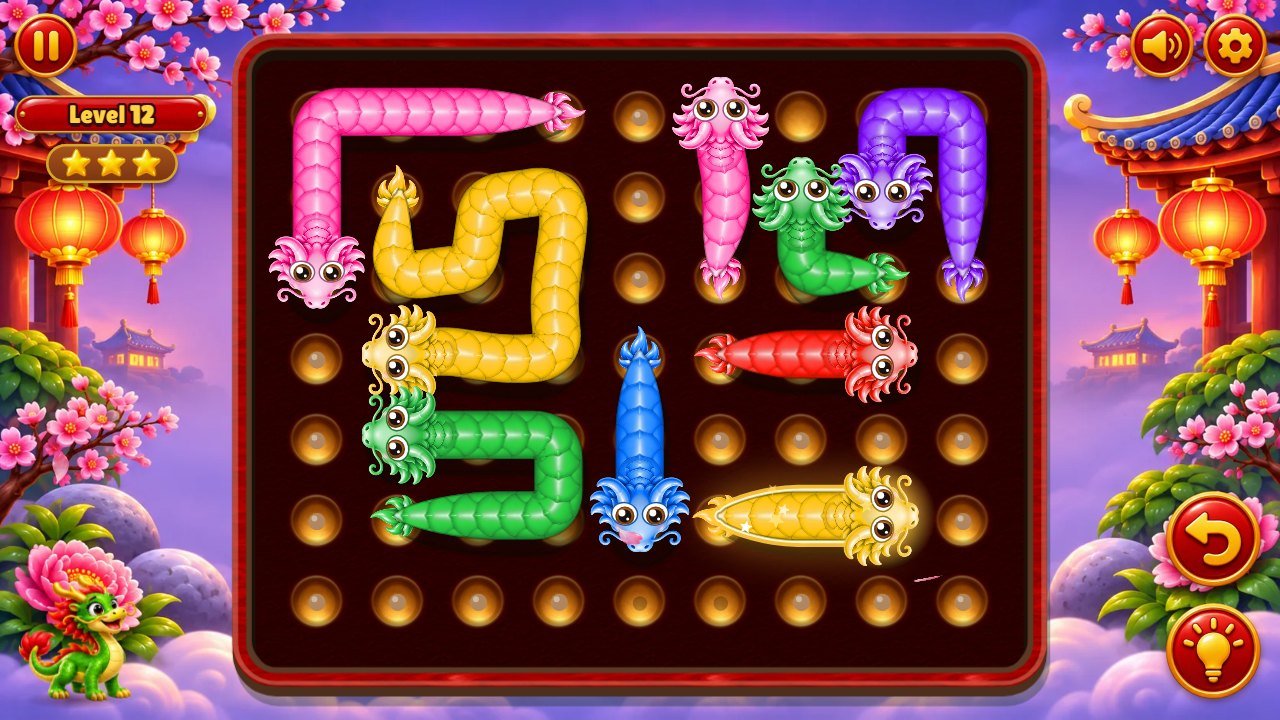
The dragons are painted (assets/snake-head.webp, snake-body.webp,
snake-tail.webp and tail-tip.webp) and drawn by code: the body picture is wrapped
along the path of the dragon, so it bends and slides. The eyes, cheeks, hint glow and the white flash of a
blocking dragon are drawn by src/render/snakes.js and src/render/skin.js.
The look of the dragon is set in FEEL.snake and FEEL.skin in
src/config.js (thickness, head size, tail tuft, how the body wiggles). If a picture fails to
load, the game draws the dragon in code with the same colors.
6. Levels

A level is one line of a pack in src/game/levels/. The board is w cells wide and
h cells high; the top left cell is 0, 0. This is level 3:
{ w: 5, h: 6, s: ['331RDDDLUU', '215RRR', '011DDD', '110LDDDDD', '240LLDDDD'], sol: [4, 3, 2, 1, 0] }
| Field | What it is |
|---|---|
w |
The width of the board in cells. |
h |
The height of the board in cells. |
s |
The dragons. Each one is a text such as 233RUULL: the color (0 to 5), the x and y of the head
(0 to 9, then a to z), then the moves from the head to the tail: U, D,
L or R. A z at the end makes it a sleepy dragon.
|
sol |
The stored solution: the ids of the dragons (their place in s, starting at 0) in an order
that clears the board without a mistake.
|
t, c, r |
Optional: t lists lucky cloud cells as "x,y", c lists pairs tied
with lucky knots as [idA, idB] and r lists gong dragons as [id, n]:
the dragon must leave before n other dragons have left.
|
A dragon flies out in a straight line in the direction its head points, which is the opposite of its first
move: in 233RUULL the first move is R, so the head points left. A dragon is blocked
while another dragon (or its own body) is in the way. npm test plays the stored solution of all
100 levels and fails if one no longer wins, or if a dragon overlaps another or leaves the board.
After changing a level, run npm test. If you generate levels with npm run levels,
the packs are written again from the recipe: copy your own edits somewhere safe first.
To add a level, add a line to a pack. The tests expect 100 levels in 5 worlds of 20: if you add or remove
levels, change PER_WORLD in src/game/worlds.js and the counts in
tests/rules.test.js and tests/package.test.js.
7. Difficulty and game feel

Open src/config.js. The most useful numbers:
| Setting | What it does |
|---|---|
STARS |
How many mistakes are allowed for 3 stars and for 2 stars (0 and 2). |
LAYOUT.cellMax and LAYOUT.boardPad |
The biggest size of a board cell and the room around the board. Raise the cell size for bigger dragons on small boards. |
FEEL.streak |
How many seconds the combo lasts and from which dragon the combo words appear. |
FEEL.hint and FEEL.idle |
How long the hint glows and how many seconds without a tap before a free dragon wiggles. |
FEEL.exit |
How fast and how far a dragon flies out, the crouch before it goes and when it fades. |
FEEL.blocked |
The bump when a dragon is blocked: the lunge, the flash of the blocker and the pause. |
recipe() in tools/generate-levels.mjs |
The board size, dragon length, colors, how many dragons are free at the start and how long the blocking
chains are, level by level. Run npm run levels to apply a change.
|
8. Texts and languages
-
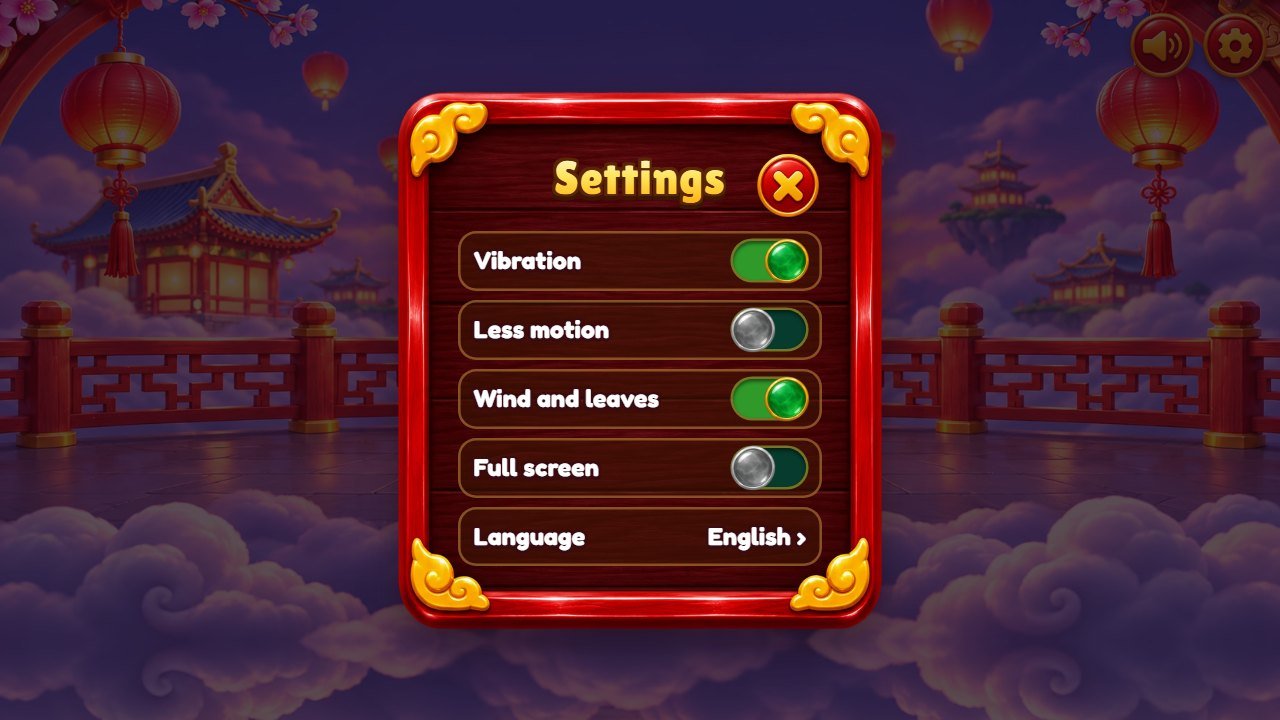
Every text is in
src/lib/locales/, one file per language (en.js,pt.js,es.js...). Change the text after the colon and keep the key. - The first visit uses the language of the browser. The player can change it in Settings.
-
New language: copy
en.jsto a new file, translate it, and add its code and name toLANGSinsrc/lib/i18n.js(and to the list intests/locales.test.js). The Settings panel shows it by itself.
9. Sounds and music
Every effect is an MP3 in assets/sfx/. Replace a file and keep its name.
| Files | When they play |
|---|---|
tap-*, press-* |
Taps on the interface and presses on buttons. |
slide-*, pop-* |
A dragon flying out and leaving the board. The pitch climbs with the combo. |
bump-*, deny-* |
A blocked dragon and a tap that cannot do anything (for example Undo with nothing to undo). |
undo-*, hint-* |
Undo, and the hint (also used when a sleepy dragon wakes up). |
star-*, win-* |
The stars of the result panel and the victory jingle. |
start-*, panel-* |
Starting a level and opening a panel. |
assets/music/menu.mp3 |
The music of the menus. |
assets/music/game.mp3 |
The music during the levels. |
The number at the end is the version: the game alternates them. To add a version, put the file in the folder
and raise its number in SFX_FILES in src/audio/sfx-files.js. The volume of each
sound is in AUDIO.gains in src/config.js.
export const SFX_FILES = { bump: [2], deny: [1, 2], hint: [1, 2], slide: [1, 2] /* ... */ };
10. Save keys and starting over
The progress stays in the browser of each player, under the prefix dragon-escape.template: (STORAGE_PREFIX
in src/config.js). If you host two copies on the same domain, change the prefix in one of them.
To start over, clear the site data in the browser.
11. Publish your version
-
In
source/, runnpm testandnpm run build. This writessource/dist/. -
Back up the game on your website, then upload the contents of
dist/in place of the old files. -
Keep the folders as they are. If you added a new file or folder next to
index.html, add its name toPARTSinsource/tools/build.mjs. - Clear the browser cache to see the new version (see the buyer guide).
Support: willian@polargames.com.br