
Contents
1 Overview
Toy Chess is a complete HTML5 chess game with all the official rules: castling, en passant, promotion, check, checkmate, stalemate, threefold repetition, the 50-move rule and insufficient material. The player taps a piece and then a square, or drags the piece.
It has four ways to play: against the computer (6 opponents with their own portraits and reactions, from Pip, who is just learning, to Atlas, the final boss), two players on one device, 36 mate challenges (12 each of mate in 1, 2 and 3) and Learn the pieces, with animated demonstrations.
The chess engine is part of the game and runs in the browser in a Web Worker, so the screen does not freeze while it thinks and no server is needed. Around the game: hints, undo, board flip, captured pieces, move list, automatic save with Continue, sound effects, music, 14 interface languages and layouts for desktop, tablet and phone.
2 Installing on your website
Installing takes a few minutes if you have FTP access or a file manager in your hosting panel.
- 1. Extract
toy-chess-static-1.0.0.zipon your computer. -
2. Connect to your hosting by FTP or its file manager and open the folder where the game should live, for
example
public_html/games/toy-chess/. -
3. Upload only the contents of the
game/folder, so thatindex.htmlsits directly inside the target folder. -
4. Keep
assets/andsrc/besideindex.html, with names and letter case unchanged. -
5. Open
https://your-domain.example/games/toy-chess/in a modern browser.
source/ folder, the documentation/ folder or the ZIP itself.
Players need no Node.js, PHP, database or account.
3 Requirements
-
Any static web hosting with HTTPS (or HTTP). Opening
index.htmldirectly from the disk (file://) does not work, because browsers block JavaScript modules there. - A current browser: Chrome, Edge, Firefox, Safari or Opera, on desktop or mobile.
-
About 4 MB of space on the server. The game makes no request to other websites: fonts, pictures and sounds
are all inside
game/. -
Node.js is only needed to run the tests or to rebuild the game from
source/(see the development section).
4 How to play
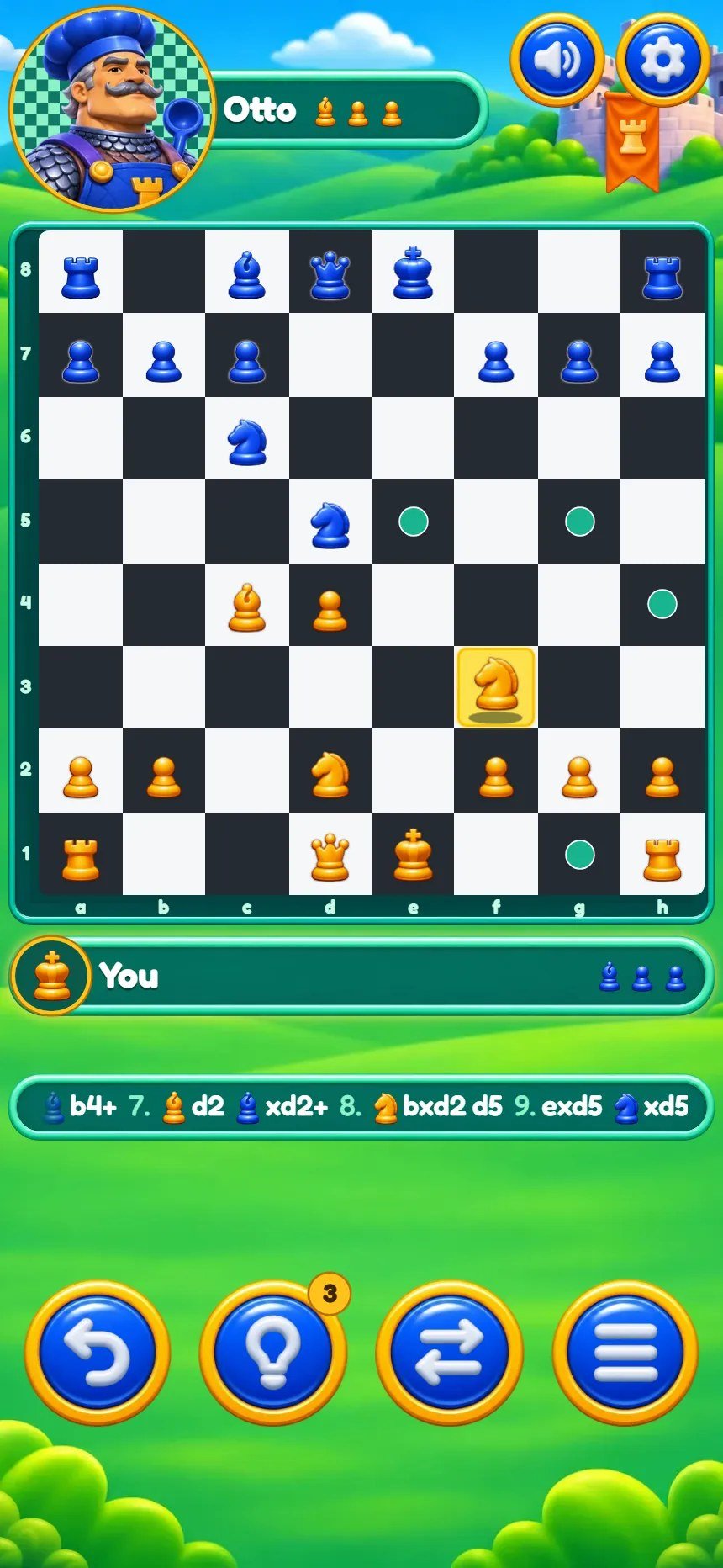
Tap or click a piece: it lifts and the squares it can move to are marked. Tap one of them to move, or drag the piece and drop it on the square. A piece with no legal move shakes when tapped.
Buttons during a game: Undo takes back your last move and the reply of the computer, Hint draws an arrow with a good move (3 per game), Flip turns the board around and Menu opens the pause panel with Resume, Restart, Resign and Main menu. Restart and Resign ask for confirmation.
Mate challenges: find the checkmate in the number of moves shown. A wrong move goes back and you can try again. See solution plays the whole answer on the board without counting as solved, and Retry starts the challenge again.
The game is saved after every move, and the main menu shows Continue game to go back to it. There is one saved game at a time, so starting a new game over a saved one asks first.
5 Screens
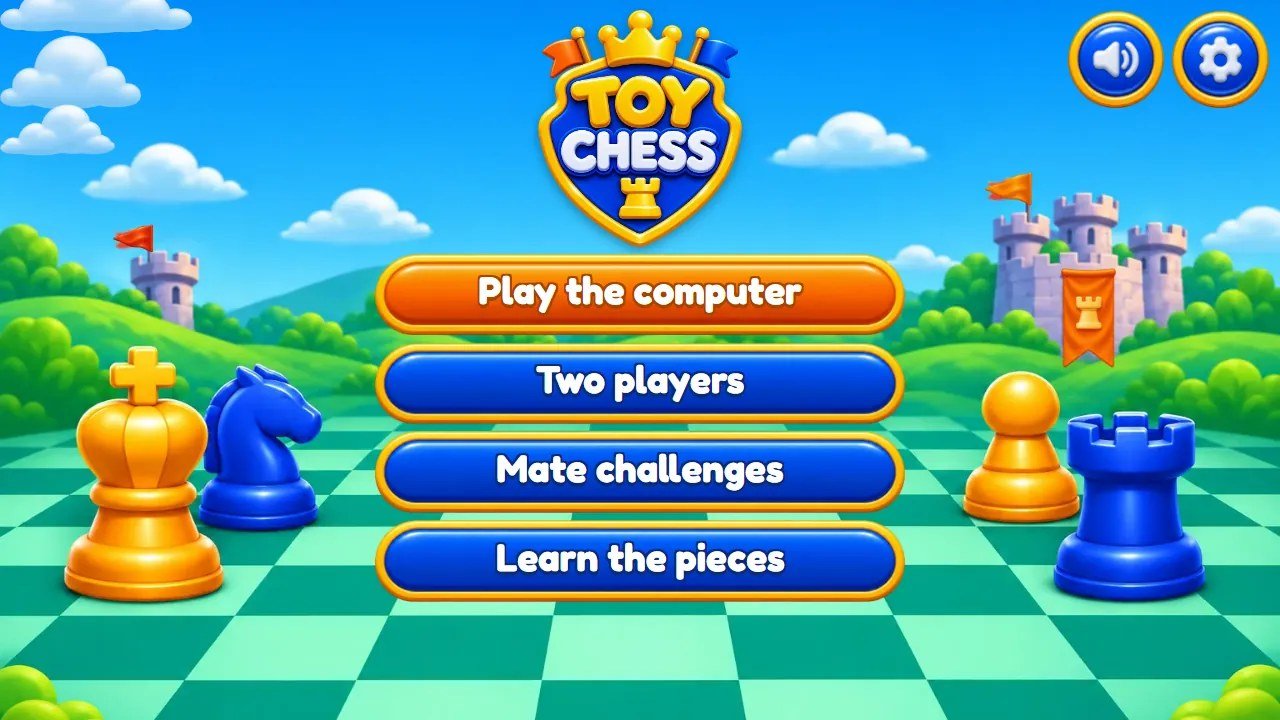
Marks on the screenshot
- Play the computer
- Two players
- Mate challenges
- Learn the pieces
- Sound: effects and music volume
- Settings
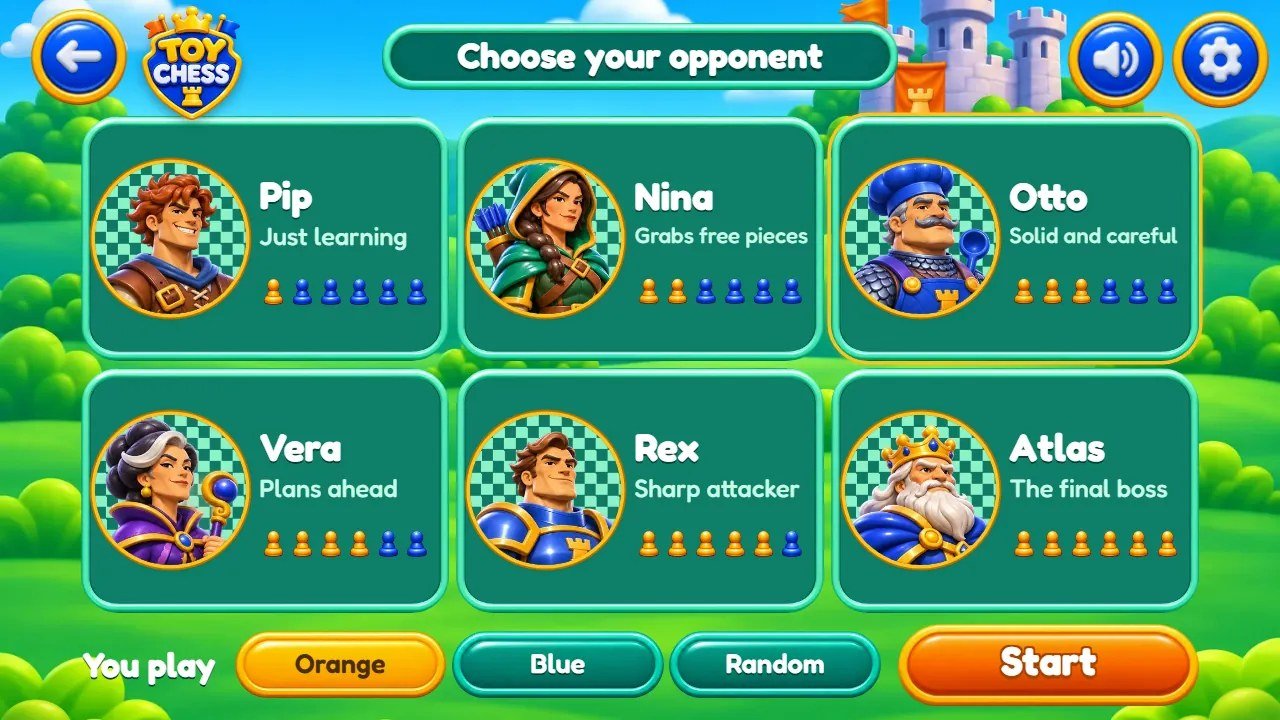
Marks on the screenshot
- Chosen opponent
- Strength
- Your color
- Start
- Back
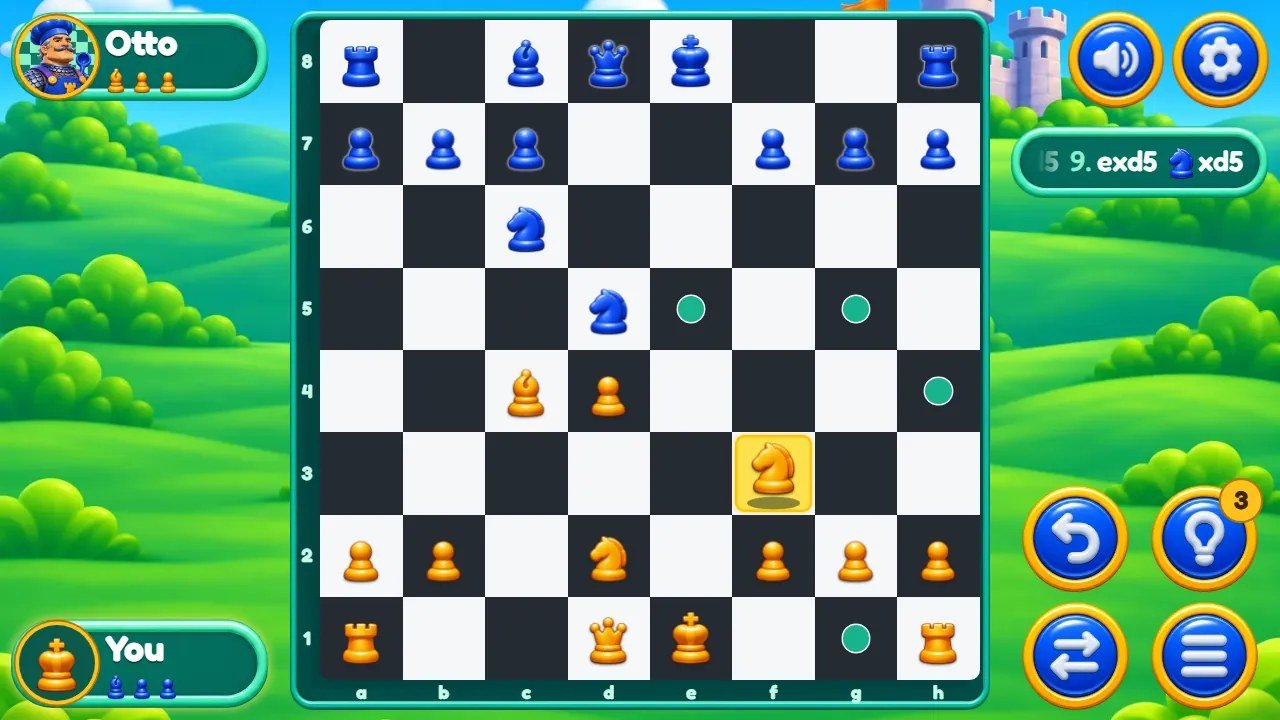
Marks on the screenshot
- Opponent
- You
- Board
- Move list
- Captured pieces
- Undo
- Hint
- Flip board
- Menu
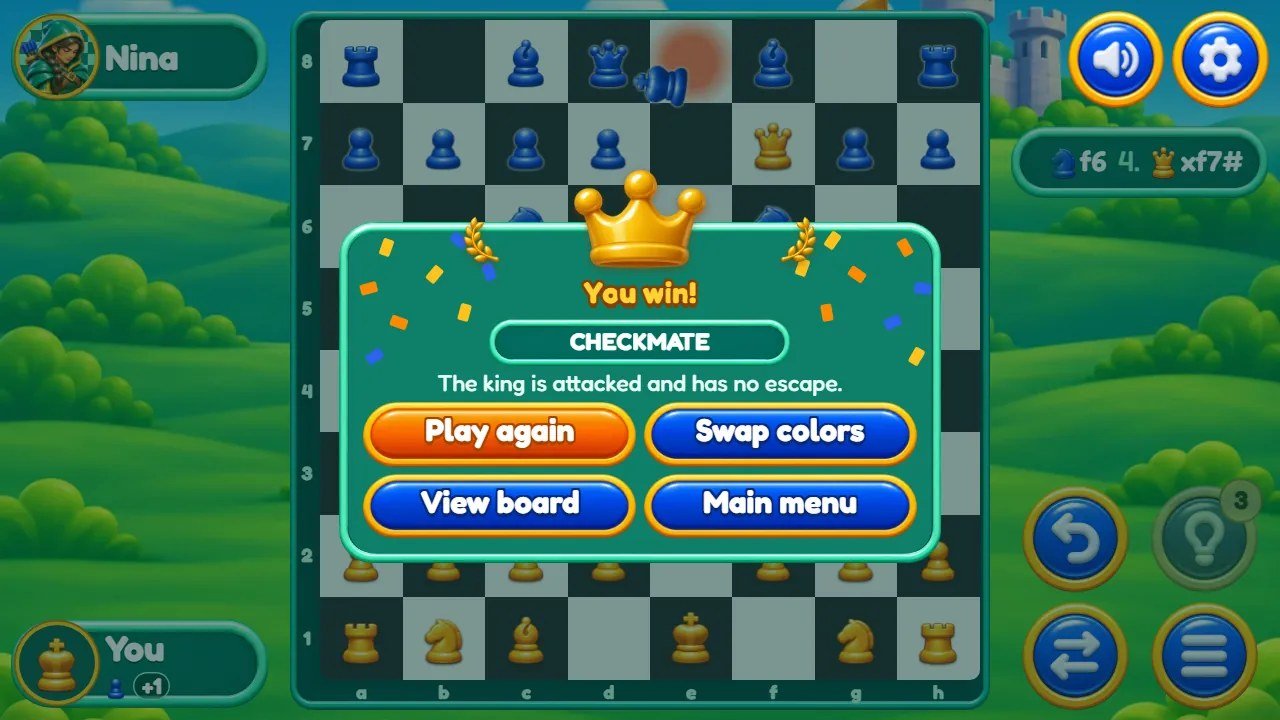
Marks on the screenshot
- Play again
- Swap colors
- View board
- Main menu
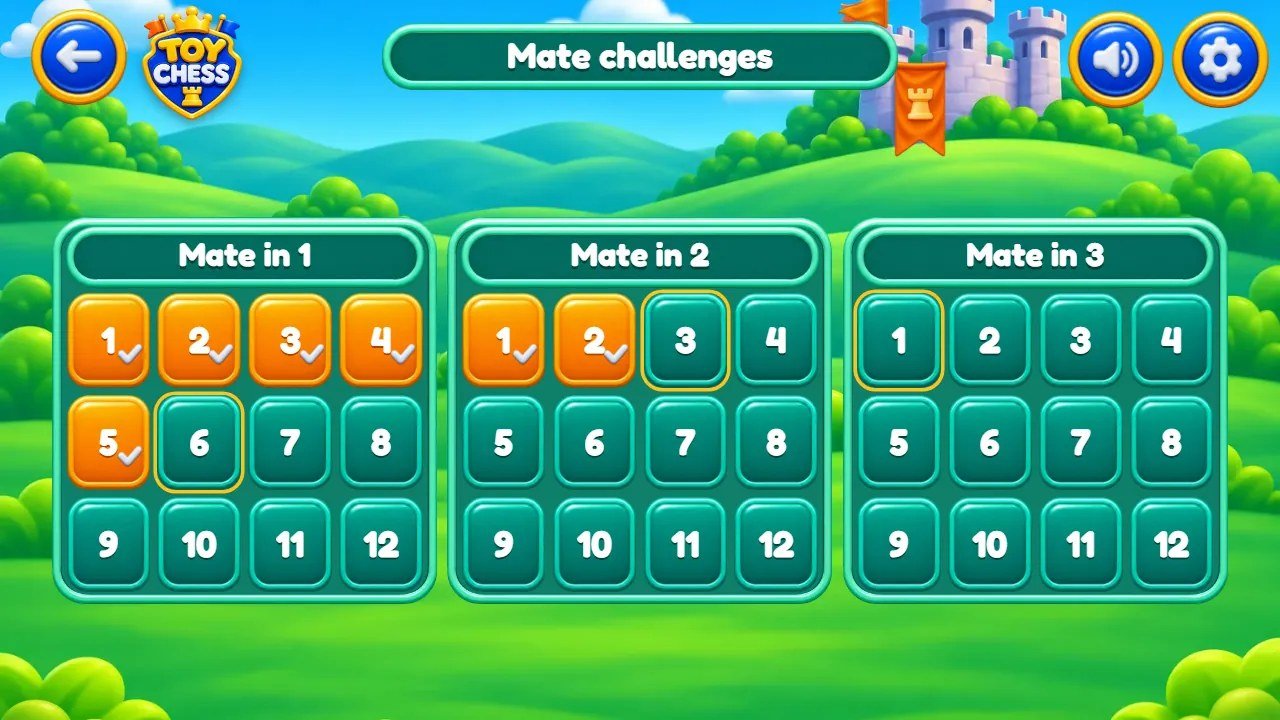
Marks on the screenshot
- Group of challenges
- Next challenge
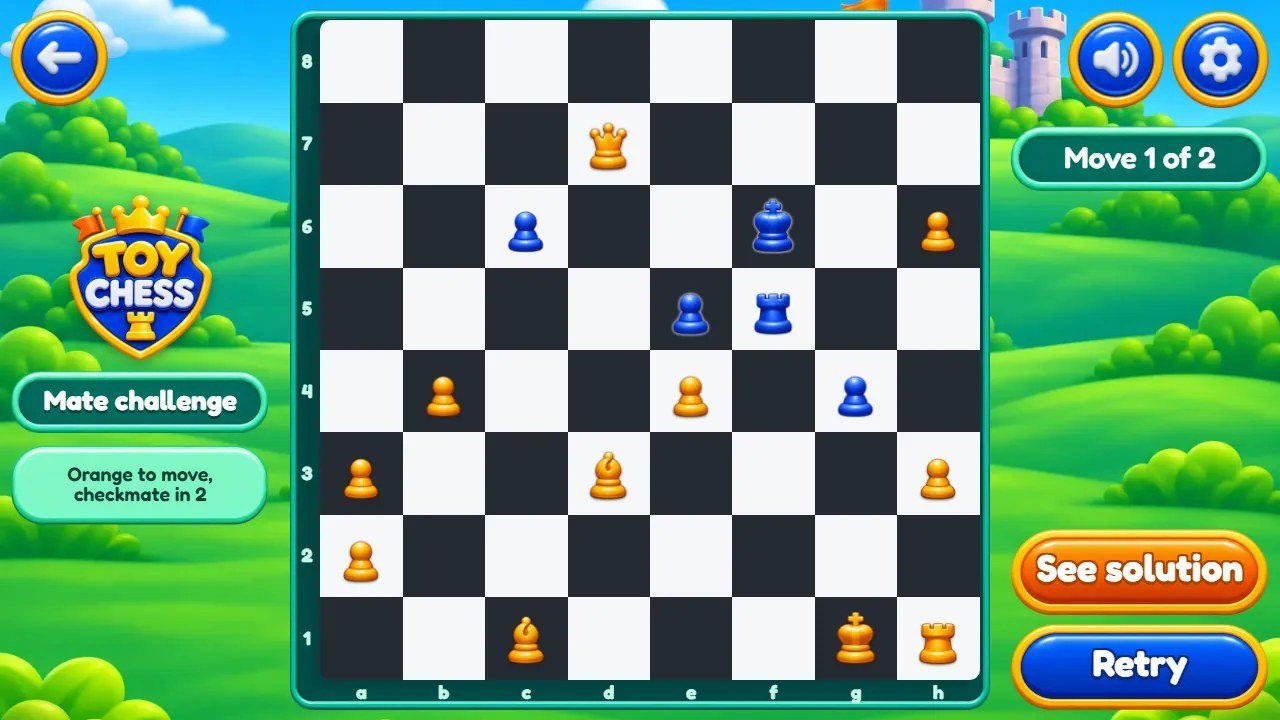
Marks on the screenshot
- Goal
- Current move
- See solution
- Retry
- Back
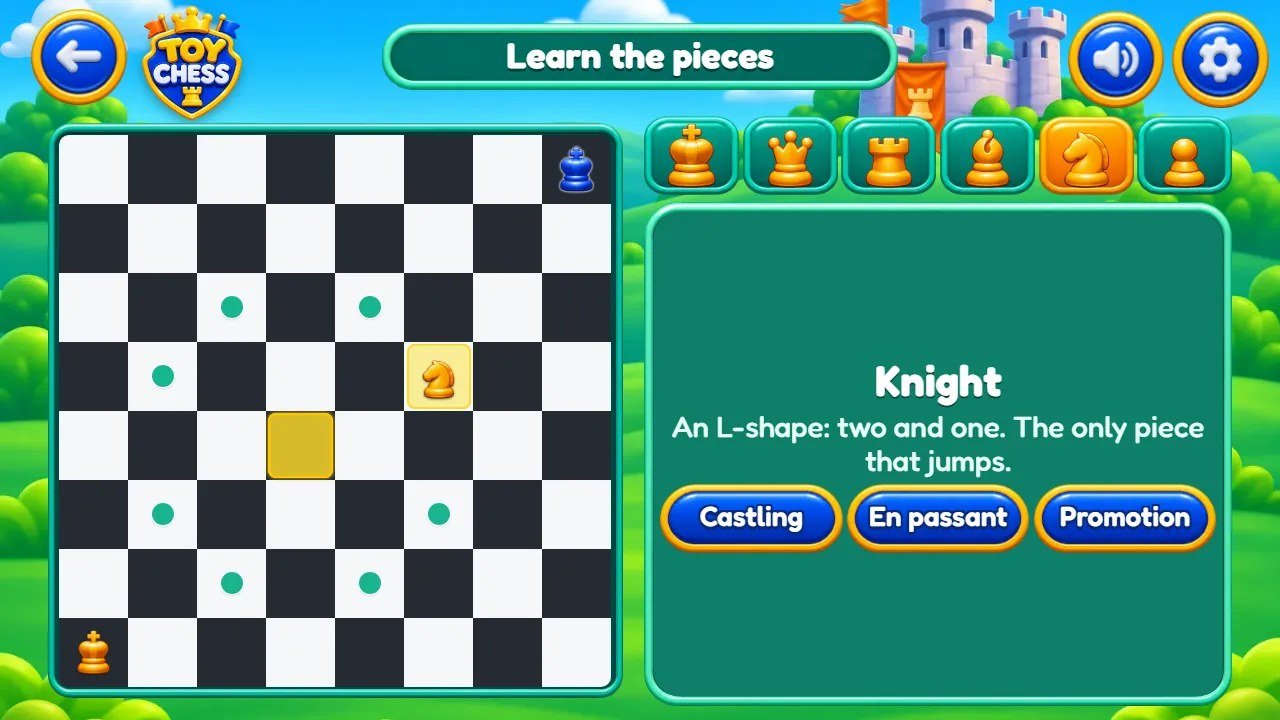
Marks on the screenshot
- Pieces
- Live demonstration
- How it moves
- Special moves
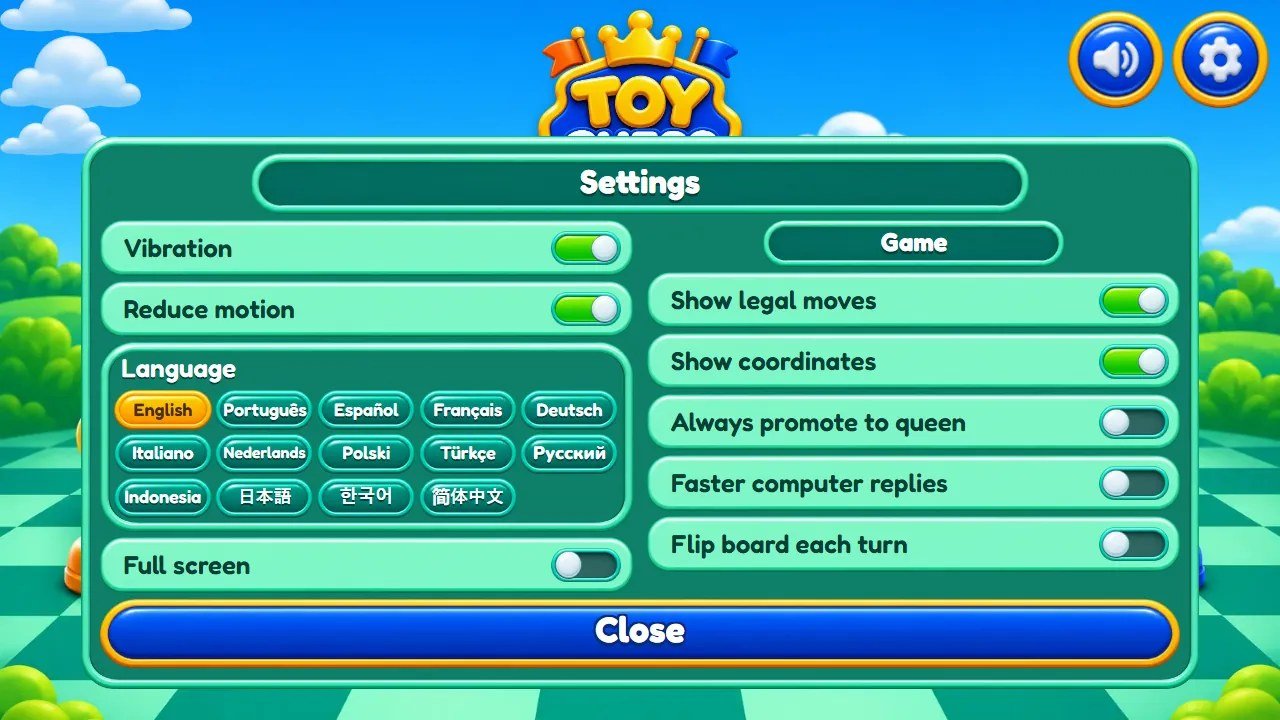
Marks on the screenshot
- Reduce motion
- Language
- Game options
- Close
6 Files and folders
game/ is the ready-to-host game. source/ has the same editable files plus the
tests, a local preview server and the build command. The code is plain JavaScript ES modules with no compile
step and no npm dependency.
game/                        upload these contents to your web host
  index.html                 the page: loads the style sheets and src/main.js
  src/config.js              START HERE: opponents and every game-feel number (FEEL)
  src/rules.js               the complete chess rules
  src/engine.js              the chess engine and its levels
  src/engine.worker.js       runs the engine in the background
  src/puzzles.js             the 36 mate challenges
  src/game.js                runs a match
  src/board.js               the board on screen, tap and drag
  src/move-fx.js, ceremony.js, fx.js    captures, check, promotion, checkmate, particles
  src/main.js, templates.js, parts.js   screens and HUD
  src/panels.js              sound, settings, pause, result, confirmation
  src/mascot.js              the living opponents
  src/demo.js                the lesson
  src/audio.js               sound effects and music
  src/styles.css             layout and colors
  src/juice.css              motion and effects
  src/locales/               interface texts, one file per language
  assets/pieces/             the 12 pieces (WebP)
  assets/faces/              the 6 opponents, 6 portraits each (WebP)
  assets/ui/, assets/icons/  interface art and icons (WebP)
  assets/bg/, assets/scene/  backgrounds and moving scenery (WebP)
  assets/sfx/, assets/music/ sound effects and music (MP3)
  assets/fonts/              Fredoka, Nunito and their licenses
  DOCUMENTATION.txt          short note that points to this guide
source/                      the same editable files, plus:
  package.json, package-lock.json
  README.md
  tests/                     npm test (31 checks)
  tools/build.mjs            copies the game into dist/
  tools/serve.mjs            local preview server (npm run dev, npm run preview)
  tools/check-node.mjs       checks the Node.js version before the commands
documentation/index.html     this guide (offline, 14 languages)
documentation/customization.html   step-by-step customization guide
documentation/img/           the screenshots of the guides
DOCUMENTATION.html           shortcut to this guide
CUSTOMIZATION.html           shortcut to the customization guide
START-HERE.txt, CHANGELOG.txt
THIRD-PARTY-LICENSES/        Fredoka and Nunito licenses
-
src/config.js: the first file to edit. The 6 opponents andFEEL, the block with every animation and game-feel number. -
src/rules.js: the complete chess rules, with no interface code.src/engine.js: the chess engine and its levels (LEVELS).src/engine.worker.jsandsrc/ai.jsrun it in the background.src/tactics.jsreads the position for the effects. -
src/game.js: runs a match.src/board.js: the board on screen, tap and drag.src/move-fx.js,src/ceremony.jsandsrc/fx.js: captures, check, promotion, the checkmate sequence and particles. -
src/main.js: connects the screens and draws the HUD.src/templates.jsandsrc/parts.js: the HTML of the screens.src/panels.js: sound, settings, pause, result and confirmation panels.src/mascot.js: the living opponents.src/ui-fx.js: screen transition and the versus screen.src/demo.js: the lesson. -
src/styles.css: layout and colors.src/juice.css: motion and effects.src/puzzles.js: the 36 challenges.src/audio.js: sound and music.src/locales/: one file per language. -
assets/pieces/,assets/faces/,assets/ui/,assets/icons/,assets/bg/andassets/scene/: all the art.assets/sfx/andassets/music/: sounds in MP3.assets/fonts/: fonts with their licenses.
7 Internal names in the code
A few ids in the code differ from the names on screen. They are only names: players never see them.
-
The two armies keep their chess names in the code:
w(white) is the orange army andb(black) is the blue army. A piece file is that letter plusk,q,r,b,norp:wq.webpis the orange queen andbn.webpis the blue knight. -
Opponents use the keys
pip,nina,otto,vera,rexandatlas. Each has six portraits:idle,think,smile,check,cheerandsad. -
Capture sounds:
cap-pis a pawn,cap-ma knight or bishop,cap-ra rook andcap-qa queen. -
puzzlein the code is a mate challenge,botis a computer opponent andplyis a move by one side. -
On
localhostonly,window.__chessis a test handle for developers. On a public address it does not exist.
8 Customizing
CUSTOMIZATION.html in the main folder of the download, or
documentation/customization.html.
Brand: the name in the browser tab is the <title> line of index.html. The
logo is made of three pictures of the same size so the flags can wave:
assets/ui/logo-base.webp, logo-flag-l.webp and logo-flag-r.webp. The
page icon is assets/icon-192.png.
Colors and pictures: the board colors are --sq-l and --sq-d at the top of
src/styles.css. To reskin, replace a file in assets/ with another WebP of the same
name and a similar size.
Opponents: names are in BOTS in src/config.js, their short descriptions are the
bot.pip.d style keys in src/locales/, and their strength is in
LEVELS in src/engine.js: depth is how far it looks,
noise is how much it errs and think is the pause before it moves.
Game feel: FEEL in src/config.js holds the flight of the pieces, the impact of
each capture, the checkmate timing and the screen transitions in one place.
Sounds and music
Every effect is an MP3 in assets/sfx/, named with its id and a number, for example
drop-1.mp3. Frequent sounds have several versions and the game alternates them. Replace a file
keeping its name. The music is assets/music/castle-theme.mp3.
To add a version, put the file in the folder and raise its number in FILES at the top of
src/audio.js. The volume of each sound is in GAIN in the same file.
toy-chess.template. If you host more than one copy of the
game on the same domain, change them in src/config.js, src/settings.js,
src/audio.js and src/main.js, otherwise the copies share saved games and
settings.
9 Languages
The game has 14 languages: English, Portuguese, Spanish, French, German, Italian, Dutch, Polish, Turkish, Russian, Indonesian, Japanese, Korean and Chinese. The first visit uses the browser language; the player can change it in Settings.
To change a text, edit the same key in src/locales/<code>.js. A key missing in another
language falls back to English. To add a language, copy en.js, translate it and add it to
LANGS and LANG_NAMES in src/i18n.js.
To start in one language, set lang in DEF in src/settings.js, for
example lang: 'pt'. Russian uses the included Nunito font. Japanese, Korean and Chinese use the
fonts of the device.
10 Saving and resetting
- The game in progress, solved challenges, settings, language and volumes are saved automatically in the browser of each player (localStorage). Nothing is sent to a server.
-
The game in progress is stored under the key below. Settings, volumes and challenges use
toy-chess.template.settings,toy-chess.template.volumesandtoy-chess.template.puzzles. - To start over, delete these keys in the developer tools (F12), under Application, Local Storage, or clear the site data in the browser.
toy-chess.template.save.v1
11 Development (optional)
This section is only for changing the code. The game/ folder already contains the finished
game, so installing it needs no Node.js. The game has no dependencies and no compile step:
npm run build only copies the files into dist/.
1. Install Node.js. Open https://nodejs.org/en/download and choose the latest Node.js 26 LTS installer for your system (minimum 26.13.0). npm is included.
Windows: run the .msi installer, keep npm and Add to PATH enabled, finish the installation and reopen Command Prompt. macOS: run the official .pkg installer and reopen Terminal. Linux: follow the instructions on the same page for your distribution.
2. Check the installation. Run node --version and npm --version separately. Both
must print a version number, and Node.js must be 26.13.0 or newer. If a command is not found, reopen the
terminal and check that Node.js is in PATH.
node --version
npm --version
3. Extract the complete ZIP first and open its source/ folder, where
package.json is. Windows: type cmd in the address bar of that folder in File Explorer. macOS
and Linux: open Terminal and use cd with the path of the folder.
4. Run the commands below one by one. npm ci checks the lock file (nothing is downloaded, the
project has no dependencies). npm test runs 31 checks on the chess rules, the engine, all 36
challenges and the package.
npm ci
npm test
5. Preview: npm run dev starts a local server; open http://localhost:5180/ in your browser,
play for a while, and stop the server with Ctrl+C.
npm run dev
6. Build: npm run build empties source/dist/ and copies index.html,
src/ and assets/ into it. dist/ is what you publish; while the source
is unchanged it is identical to game/.
npm run build
7. Publish: back up the game on your website, then upload the contents of dist/ in place of the
old files, keeping the folders. If you deleted or renamed a file, delete the old one on the server yourself.
Clear the cache afterwards.
npm test, means Node.js is too old. If PowerShell
blocks npm.ps1, use Command Prompt or run npm.cmd.
12 Updating and clearing the cache
Clearing the cache without losing progress
Progress is stored in this browser, not on the server. Clearing cached images and files, or doing a hard reload, keeps your progress.
Computer: press Ctrl+F5 on Windows and Linux, or Cmd+Shift+R on macOS. Phone: in the browser settings, choose the option to clear cached images and files.
Do not choose cookies and site data, or clear site data, for the game's address. That deletes the local save.
13 Licences and credits
The game code, the artwork, the sound effects and the music are supplied under the license of the item you purchased.
Third-party parts, with their complete license texts in THIRD-PARTY-LICENSES/: the Fredoka and
Nunito fonts (SIL Open Font License 1.1, also in assets/fonts/). The project has no other
third-party library.
14 Common problems
-
Blank page or a game that never opens: the game was opened from the disk or a file is missing. Use a web
host and keep every file and folder of
game/next toindex.html. - No sound: browsers start audio only after the first click or tap (the Tap to start screen does this). Check both volumes in the Sound panel and the volume of the device.
- The computer takes a moment on the strongest levels: this is normal. Atlas can think for up to 3 seconds. Faster computer replies in Settings shortens the pause.
- A piece does not move: in check, only moves that save the king are allowed, and a pinned piece cannot leave its line. The marked dots always show the legal moves.
- The old version still appears after an update: clear the cache (see the section above). Two copies share their saved games: give each copy its own save keys.
15 FAQ
Does the game need a database or a server language?
Does it include a third-party chess engine?
src/rules.js and
src/engine.js.
Can I add my own mate challenges?
src/puzzles.js (see the Customization Guide) and run
npm test: it checks that each challenge has one winning first move and no shorter mate.
Does it work on phones?
Can two people play online?
16 Support
Questions or problems: write to willian@polargames.com.br with your purchase code, the browser
and a short description or screenshot.
Support request
When you write to support, include the browser and device, the game version, the page address, the steps that caused the problem, a screenshot and the first error shown in the browser console. Never send passwords, payment details or secret keys.