
Contents
1 Overview
Stillpiece Puzzle is an HTML5 jigsaw puzzle game with real photos. The player picks a photo, chooses how many pieces to play with and builds it on a board: pieces come out of a tray, are dragged to their place and lock in when they are close enough. Pieces that fit together on the table join into a group that moves as one. The game ships with 120 photos in 12 categories (Dogs, Cats, Birds, Wildlife, Flowers, Landscapes, Coasts, Cities, Food, Cozy Rooms, Seasons and Underwater) and 6 sizes: 24, 54, 96, 150, 216 and 294 pieces.
Around the puzzles there is a daily puzzle picked from the date, with a calendar of the month; a home screen that continues the last puzzle; progress saved for every puzzle in progress, with its time; optional piece rotation; a tray with an edge filter, shuffle, sort by color and, on computers, spread pieces around the board; a ghost picture under the board; a lock that keeps the board still; music and recorded sound effects. The interface has 14 languages.
The game runs in any modern browser on phones, tablets and computers, upright or sideways, with touch or
mouse. Computers get their own layout with the tray on the right. It uses plain HTML, CSS and JavaScript
modules: no framework, no build step to play, no server code, no ads, no store, no ranking and no accounts.
The library is one file, content.js, so you can replace the photos with your own.
2 Quick installation by FTP
Installing takes a few minutes if you have FTP access or a file manager in your hosting panel.
- 1. Extract
stillpiece-static-1.0.0.zipon your computer. -
2. Connect to your hosting by FTP or its file manager and open the folder where the game should live, for
example
public_html/games/stillpiece/. -
3. Upload only the contents of the
game/folder, so thatindex.htmlsits directly inside the target folder. -
4. Keep
assets/,src/,content.js,style.cssandfavicon.icobesideindex.html, with names and letter case exactly as extracted. The photos are about 68 MB; uploading them takes a while on a slow connection. -
5. Open
https://your-domain.example/games/stillpiece/in a modern browser.
source/ folder, the documentation/ folder or the ZIP itself.
Players need no Node.js, PHP, database or account.
3 Requirements and sound
-
Any static web hosting with HTTPS (or HTTP). Opening
index.htmldirectly from the disk (file://) is not supported, because browsers block JavaScript modules that way. - A current browser: Chrome, Edge, Firefox or Safari, on desktop or mobile. A player downloads a photo only when the puzzle opens (about 0.5 MB each) and the small thumbnails of the screens they visit.
- Browsers start sound only after a user gesture. The game opens on a tap-to-start screen; the music starts on the next screen and the effects play from then on.
- When the page is hidden, the sound fades out over 30 seconds and everything pauses after 60 seconds; it comes back when the player returns.
4 Controls and how the game works
Choosing a puzzle: the Library shows the 12 categories; a category shows its photos. At the start the first 3 photos of each category are open, and each finished puzzle opens the next one. Tapping a photo opens the piece choice: 24, 54, 96, 150, 216 or 294 pieces, and the Rotate pieces switch. Start puzzle opens the board. A puzzle in progress is saved by itself, with its time; opening it again with the same size continues it, and a different size or Start over asks for a second tap, because it erases that progress.
Playing: the pieces wait in the tray (along the bottom on a phone, on the right on a computer). Drag a piece out of the tray toward the board, or hold it for a moment and then drag it in any direction; dragging along the tray scrolls it. Drop the piece near its place and it locks in with a green flash; a locked piece cannot be moved again. Dropped next to a matching loose piece, it joins it, and the group moves as one. A piece dropped back on the tray returns to the tray. On a touch screen the piece floats a little above the finger, so the finger never hides it.
The table: drag the empty table to move it, pinch or use the mouse wheel to zoom, and double-tap to switch between the whole board and a close view. The puzzle button shows the whole puzzle again. The padlock locks the table in place, so it does not move by mistake; the puzzle button still works. The eye button: a short tap turns on a faint ghost picture under the board (saved for later), and holding it shows the whole photo until you let go. On a computer, holding the Space key also shows the whole photo.
The tray: Edges shows only border pieces. The organize button opens a short menu: Shuffle mixes the tray, Sort by color puts pieces of the same tone together and, on a computer, Spread pieces lays the tray pieces around the board; when the tray is empty, Spread pieces again collects the single loose pieces back into the tray. With Rotate pieces on, pieces start turned: tap a piece (or right-click it, or press R with the mouse over it) to turn it a quarter turn; a piece must be upright to lock in.
When the last piece locks in, the seams disappear, the photo shines once and the win panel shows the photo, the number of pieces and the time. Home goes back, Next puzzle opens the piece choice of the next new puzzle (first in the same category), and More pieces opens the same photo with the next size. A jigsaw puzzle cannot be lost: there are no lives, no timer that runs out and no defeat screen.
Options (the gear) has volume sliders for music and sound effects, vibration, less motion, the language list and full screen (when the browser allows it). During a puzzle the same panel also offers Restart puzzle (second tap to confirm) and Home.
5 Screens and controls explained
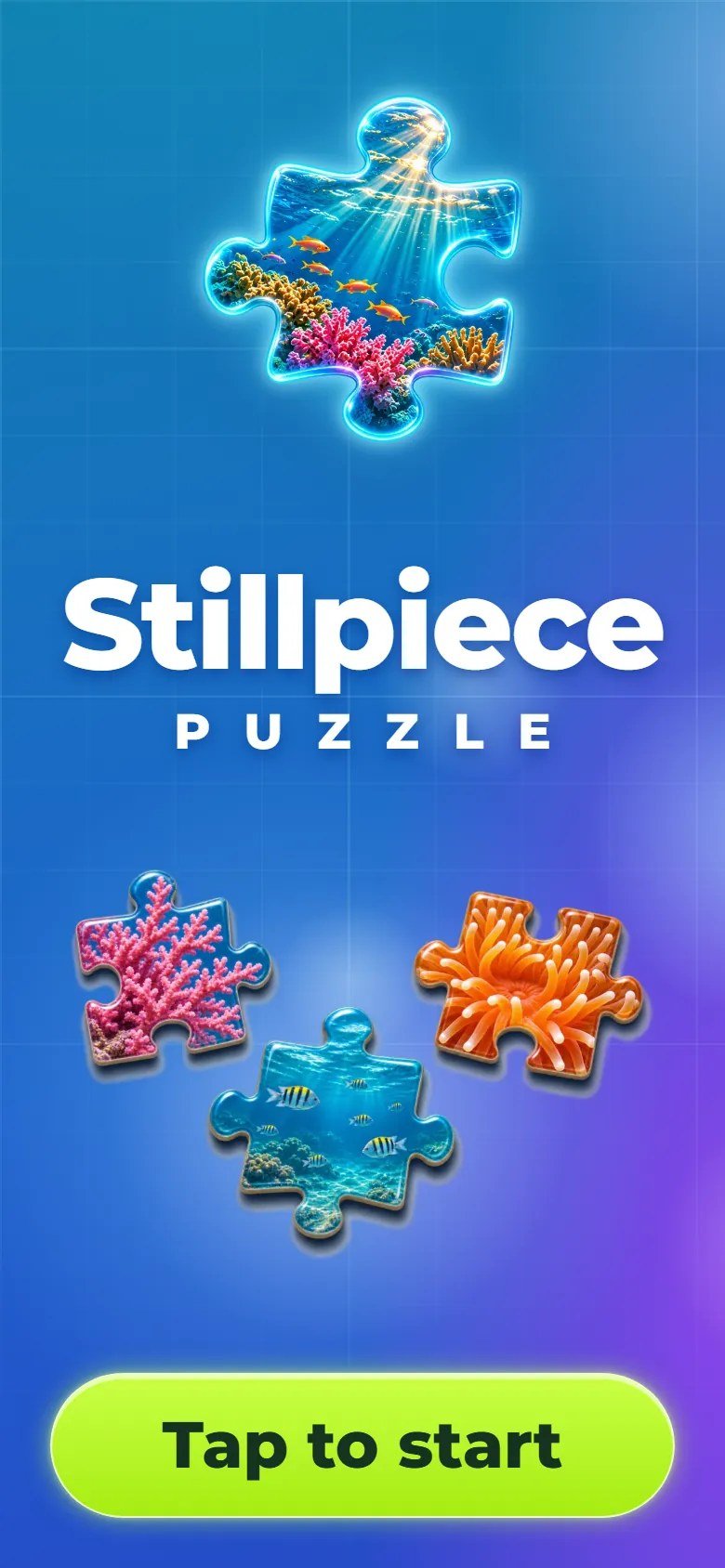
Marks on the screenshot
- Tap to start
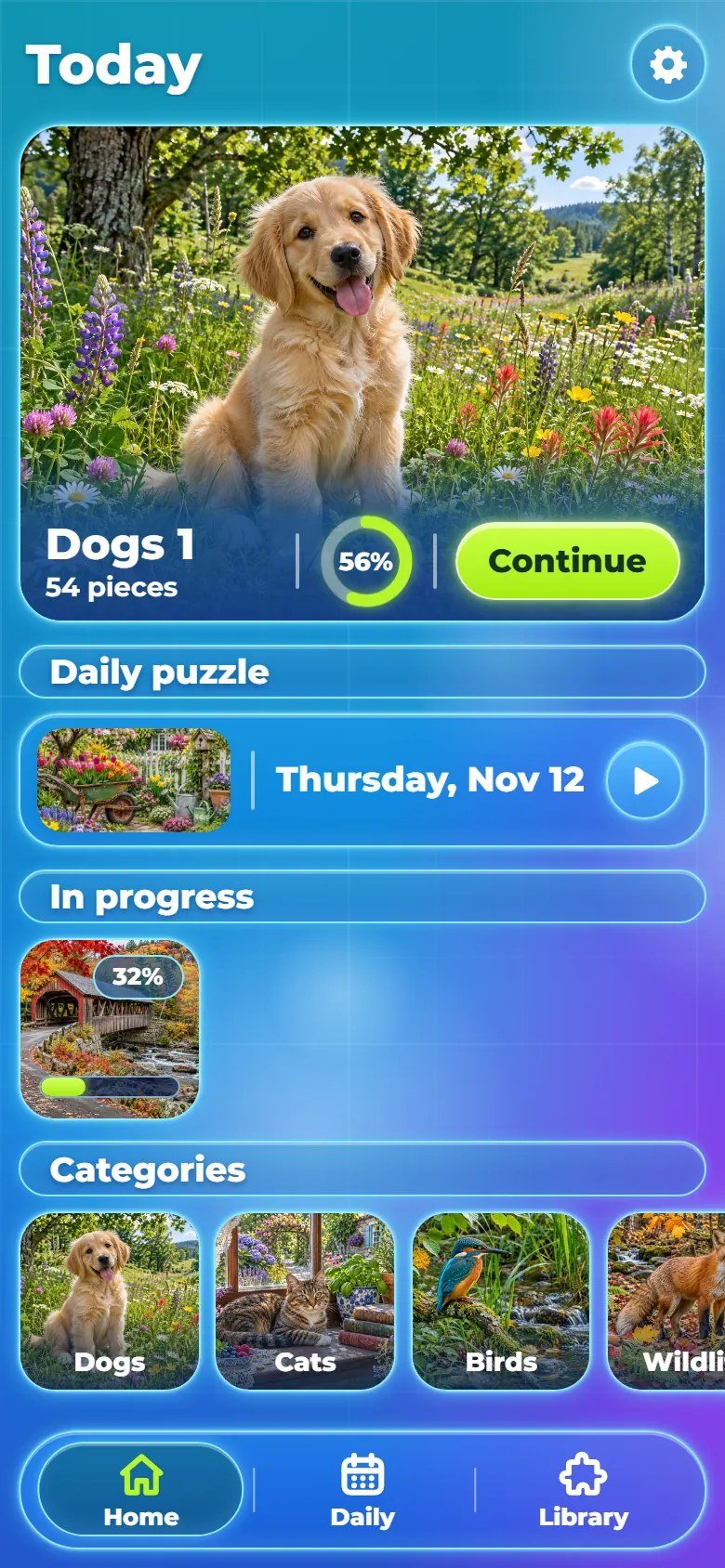
Marks on the screenshot
- Continue the last puzzle
- Daily puzzle
- Categories
- Options
- Home, Daily and Library
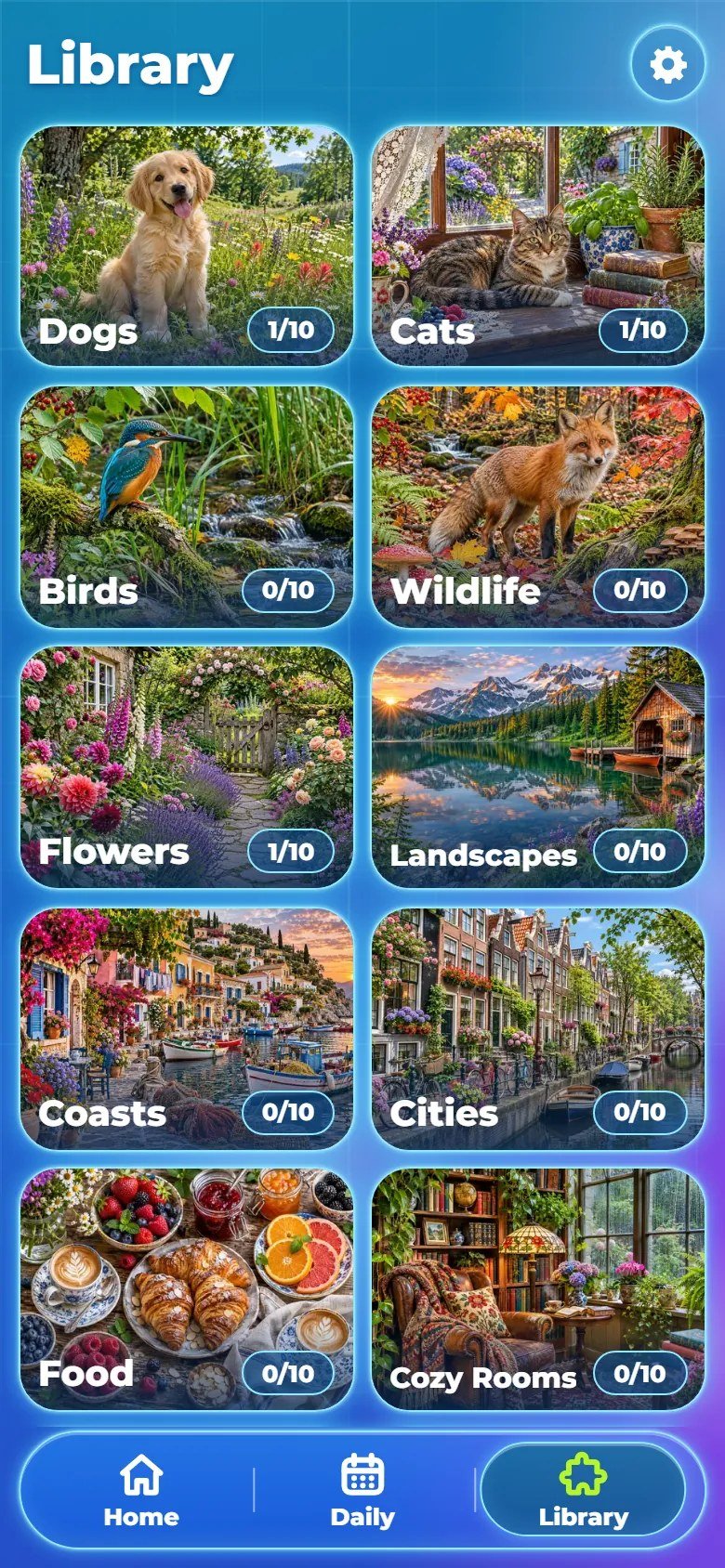
Marks on the screenshot
- Category
- Puzzles finished
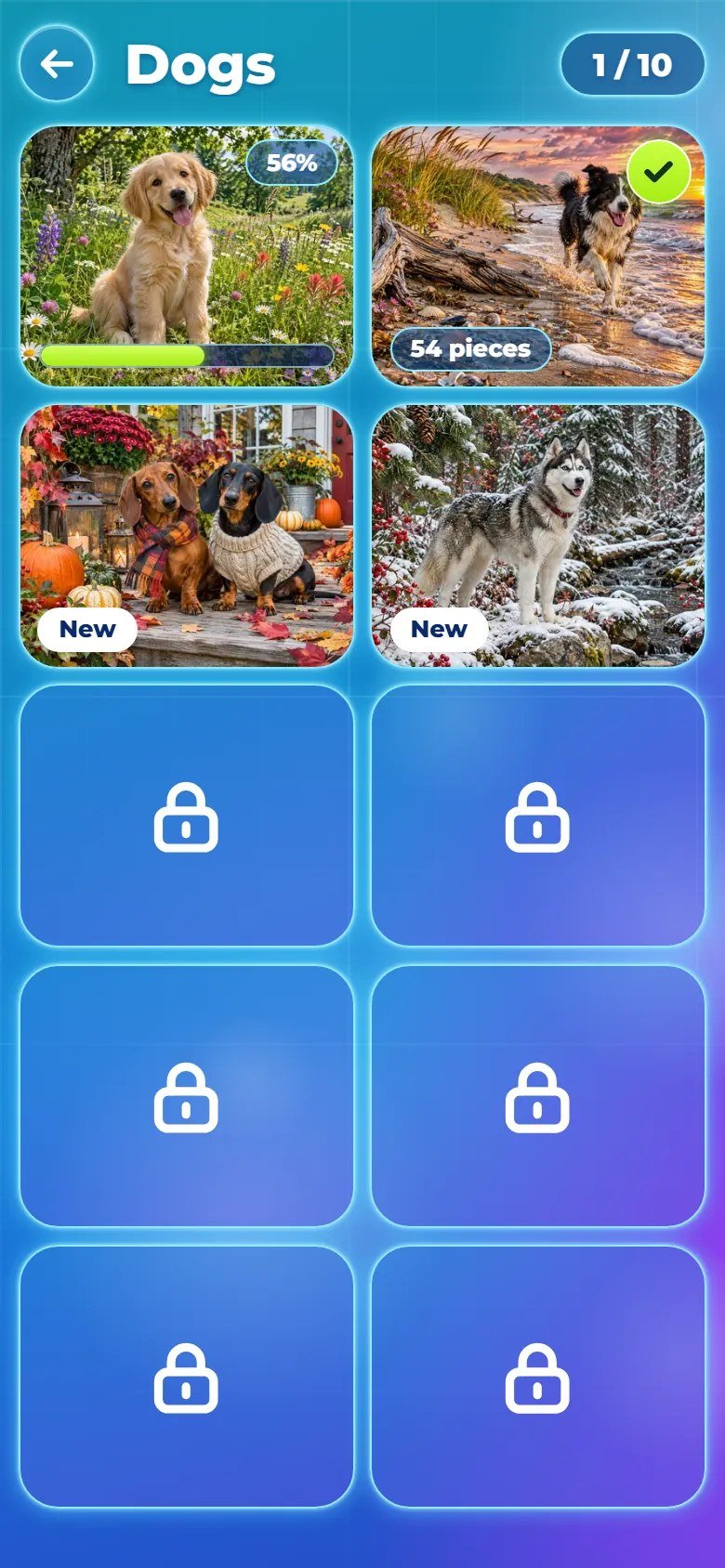
Marks on the screenshot
- In progress
- Finished
- New
- Locked
- Finished in this category
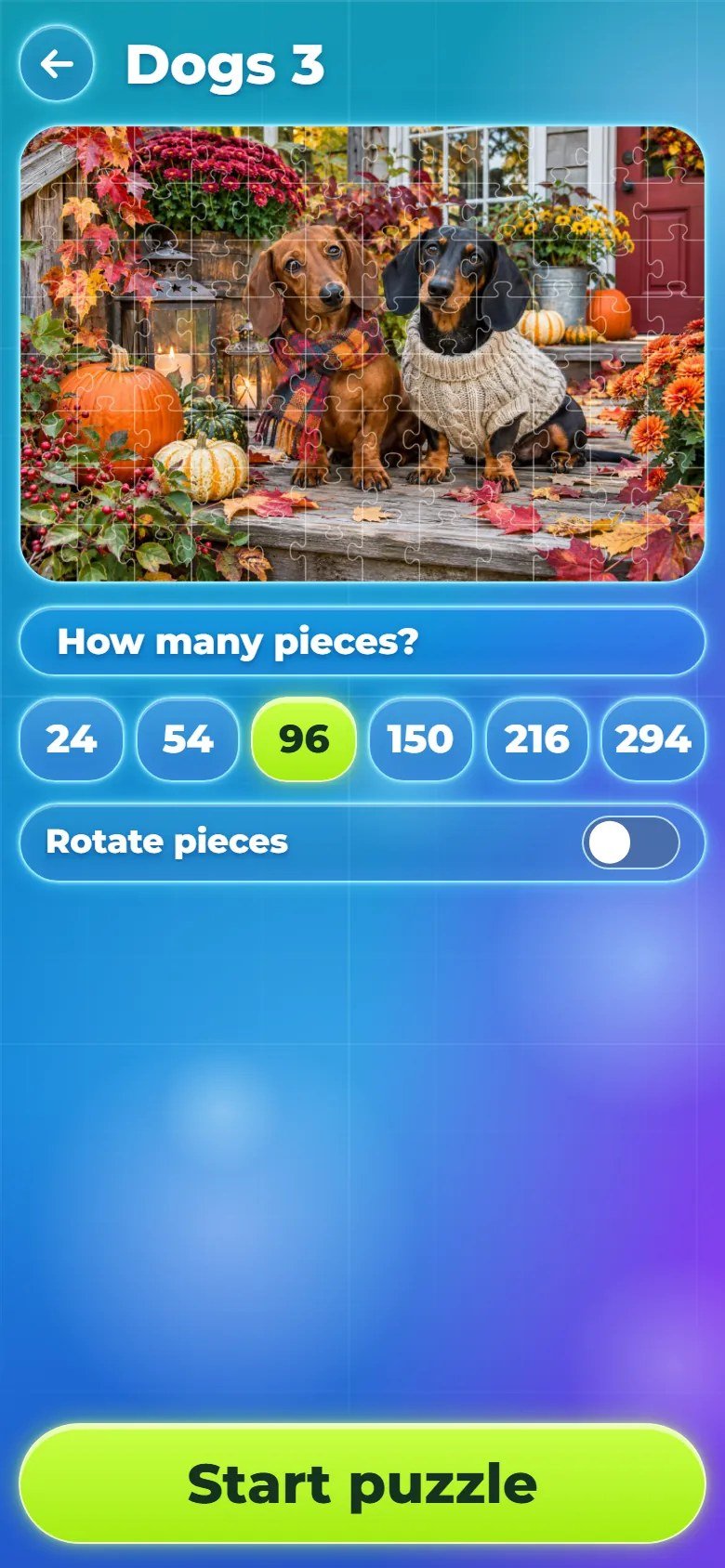
Marks on the screenshot
- Photo with the cut
- Number of pieces
- Rotate pieces
- Start puzzle
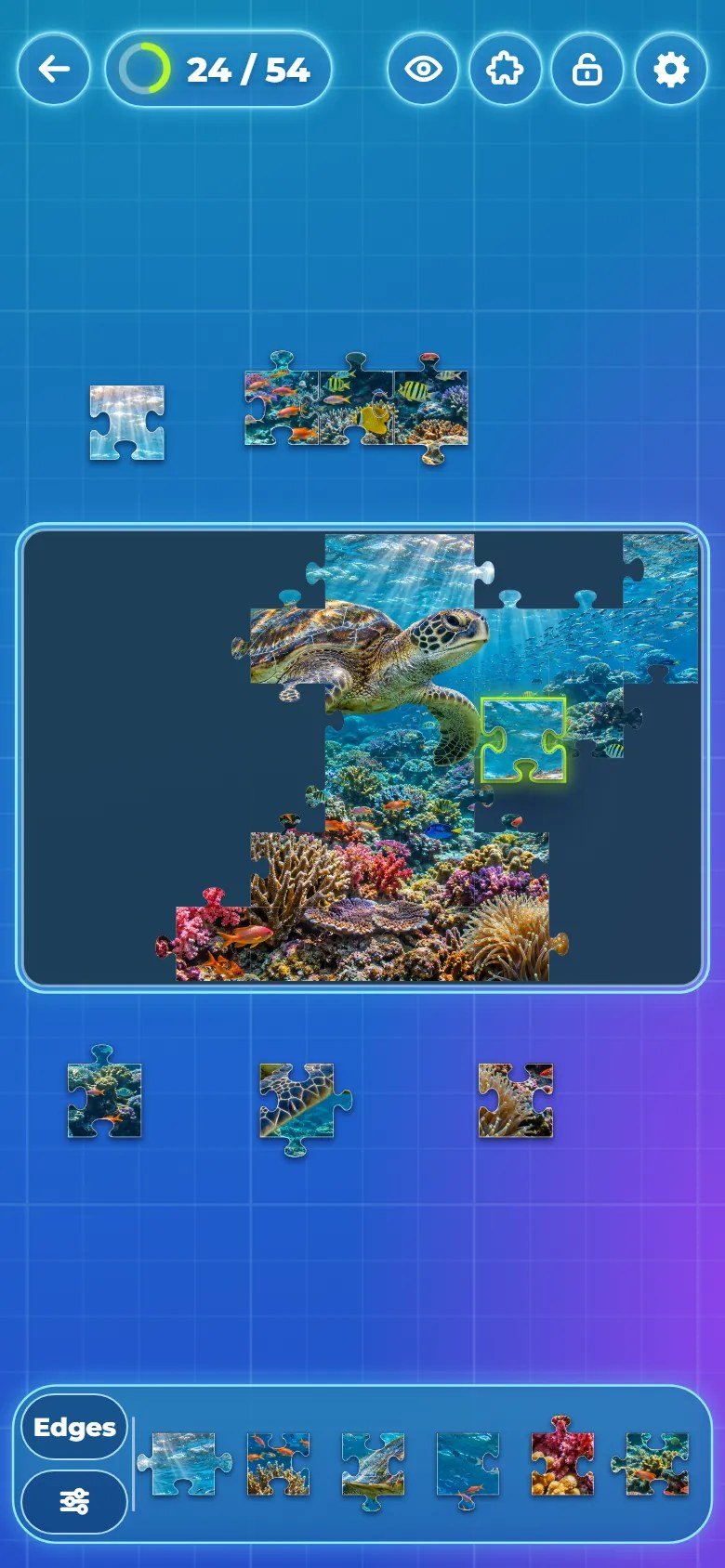
Marks on the screenshot
- Back
- Pieces placed
- Ghost or whole picture
- See the whole puzzle
- Lock the table
- Options
- Board
- Edges only
- Organize
- Tray
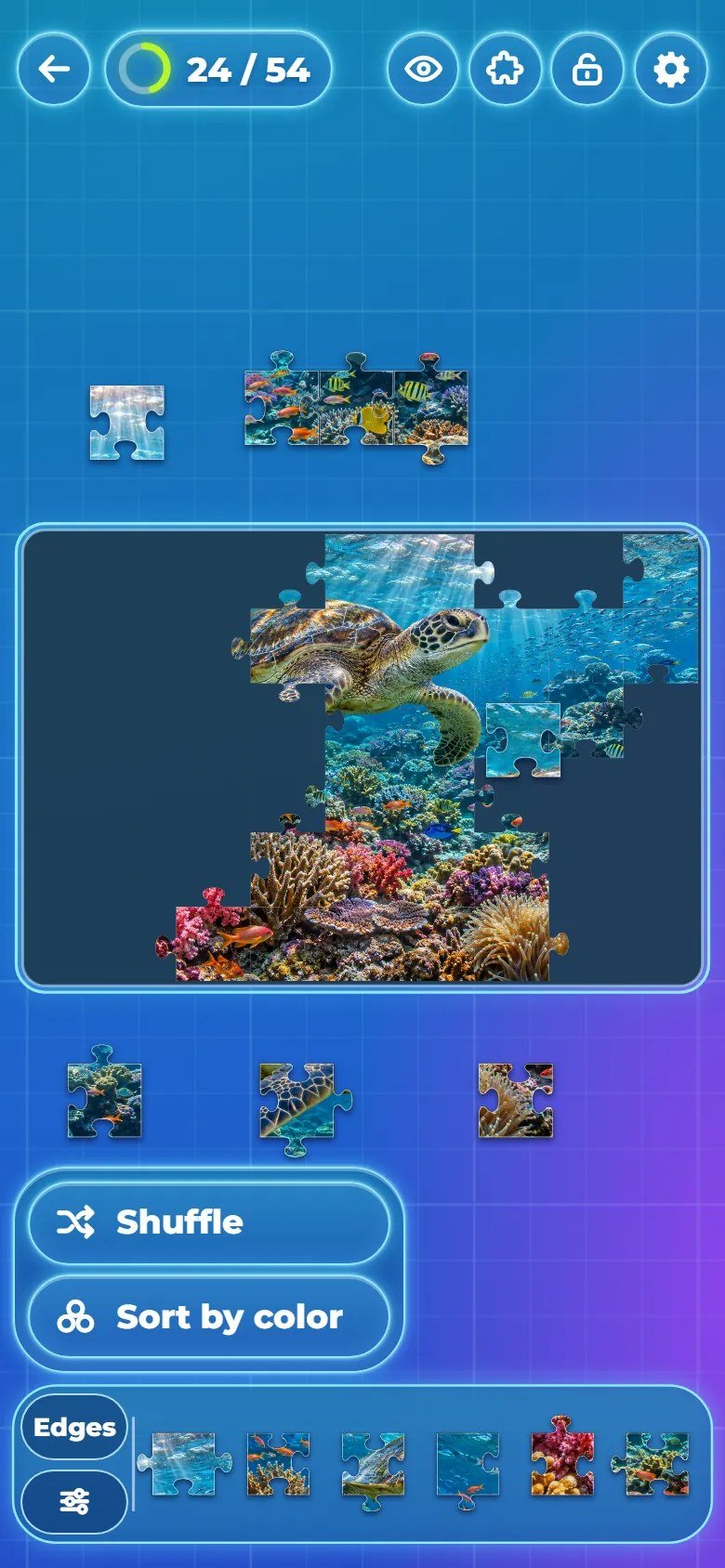
Marks on the screenshot
- Shuffle
- Sort by color
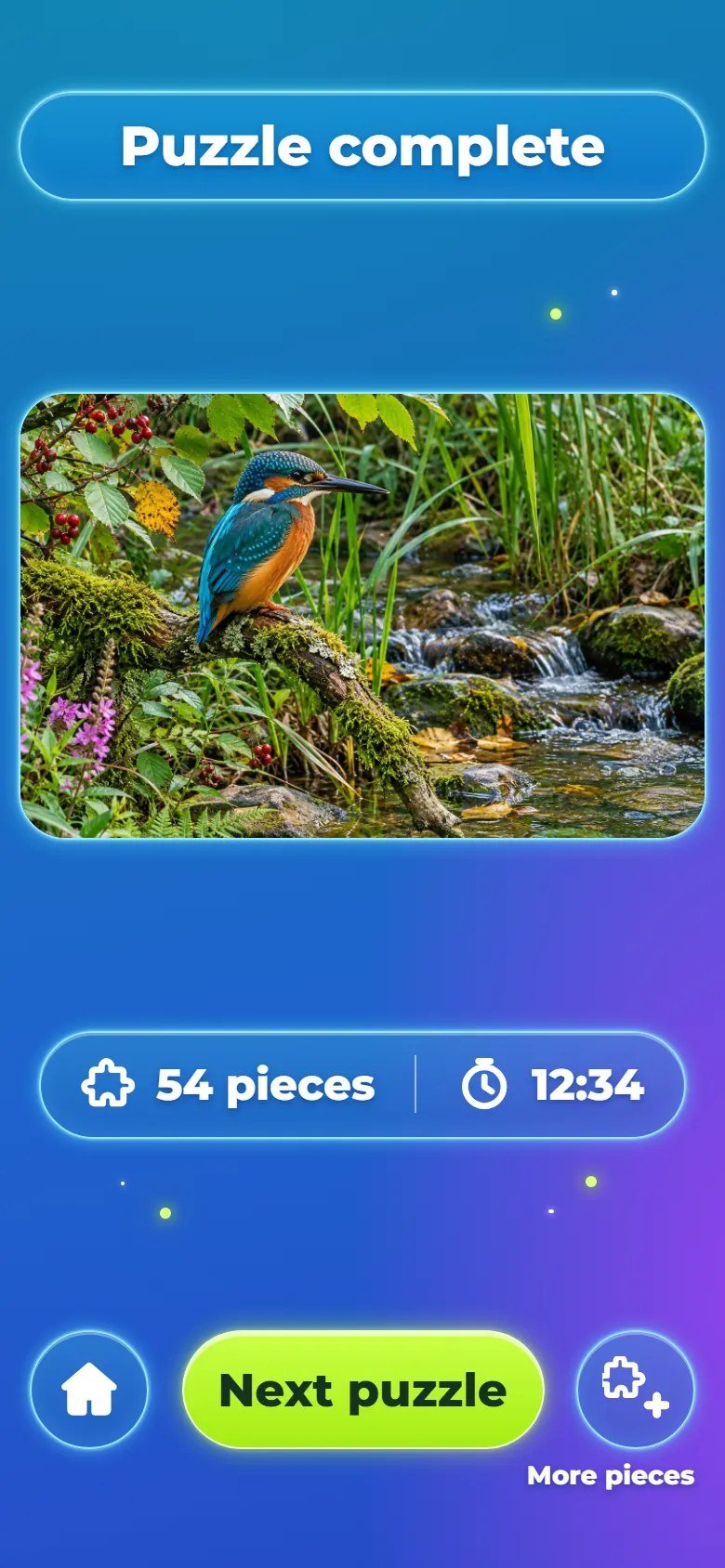
Marks on the screenshot
- Finished photo
- Pieces and time
- Home
- Next puzzle
- More pieces
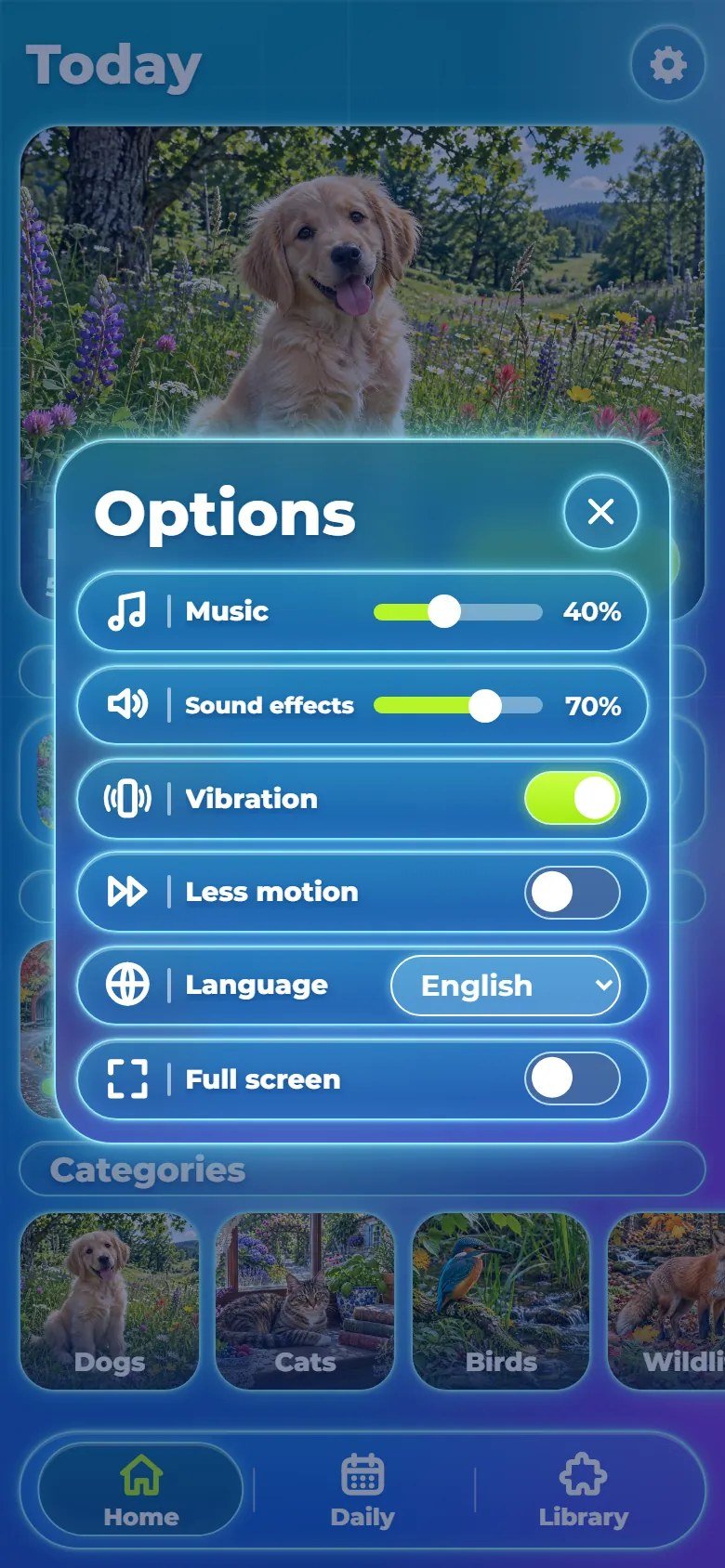
Marks on the screenshot
- Volume sliders
- Vibration, less motion and full screen
- Language
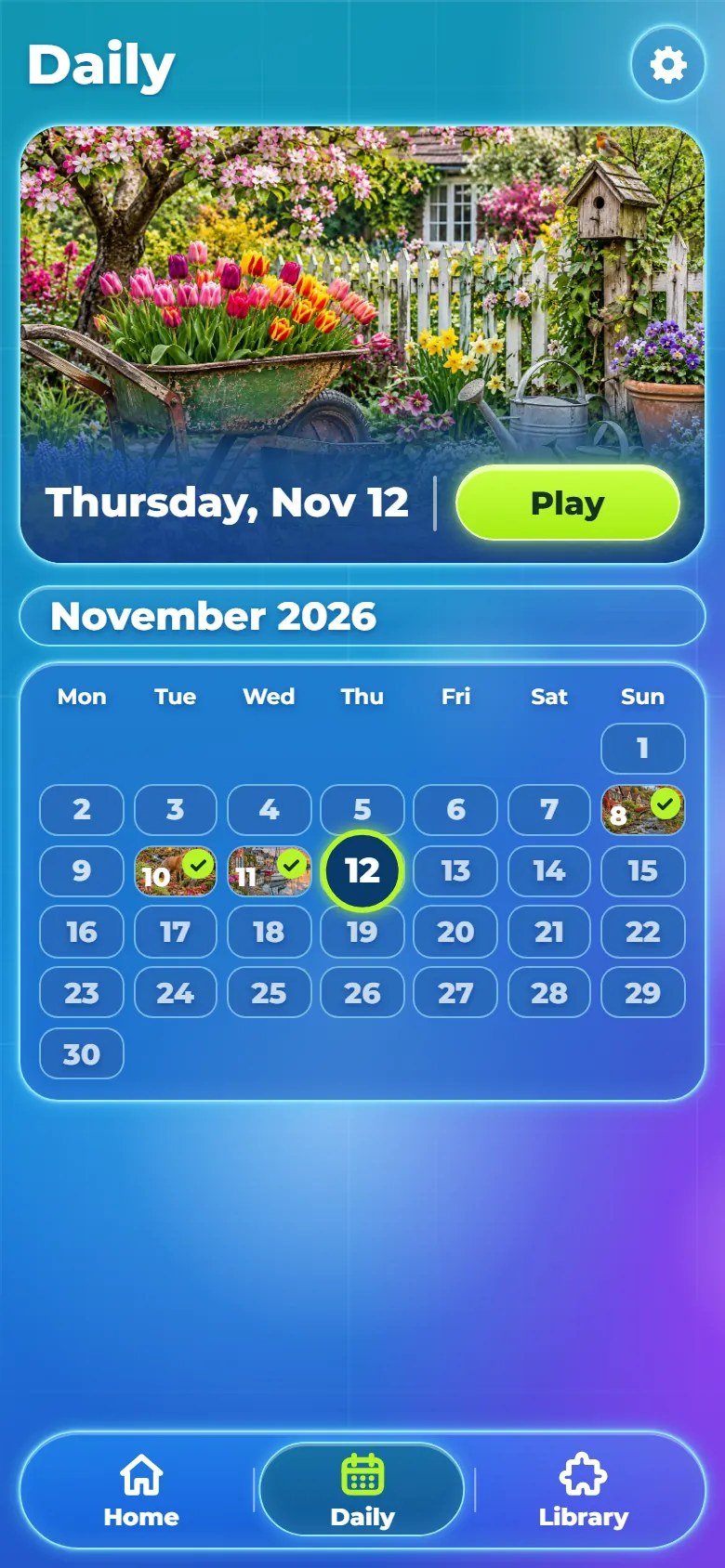
Marks on the screenshot
- Today's puzzle
- Calendar
6 Map of the files
game/ is the ready-to-host game. source/ has the same editable files plus the
tests, a local preview server, the photo converter and the build command. Code comments are in Portuguese.
game/                        upload these contents to your web host
  index.html                 entry page
  favicon.ico                browser tab icon
  style.css                  every style of the interface
  content.js                 the puzzle library: categories and photos
  src/main.js                start-up, resize, frame loop, test shortcuts
  src/ui.js                  screens and panels (DOM)
  src/table.js               the puzzle table on the canvas
  src/jigsaw.js              the cut of the pieces
  src/library.js             reads content.js, the daily puzzle
  src/audio/sound.js         music and sound effects
  src/locales.js             texts: English, Portuguese, Spanish
  src/locales-more.js        texts: the other 11 languages
  src/config.js              feel numbers, piece sizes, volumes, save key
  src/fx.js, save.js, storage.js, i18n.js, viewport.js, fullscreen.js
  assets/pics/               120 photos (WebP, 1536 x 1024)
  assets/pics/t/             120 thumbnails (WebP, 480 x 320)
  assets/art/                title art (WebP)
  assets/fonts/              Montserrat font and its license
  assets/music/              calm.mp3, calm2.mp3
  assets/sfx/                6 recorded effects (MP3)
  DOCUMENTATION.txt          short note that points to this guide
source/                      the same editable files, plus:
  package.json               npm test, npm run dev, build, preview, pics
  package-lock.json
  README.md
  test/                      node --test tests
  tools/build.mjs            copies the game into dist/
  tools/serve.mjs            local preview server
  tools/pics.py              converts your photos (Python 3 + Pillow)
documentation/index.html     this guide (offline, 14 languages)
documentation/customization.html   step-by-step customization guide
documentation/img/           the screenshots of both guides
DOCUMENTATION.html           shortcut to this guide
CUSTOMIZATION.html           shortcut to the customization guide
START-HERE.txt, CHANGELOG.txt
THIRD-PARTY-LICENSES/        font license
-
content.js: the puzzle library. Categories, how many photos each has, the photo format and how many puzzles are open at the start. It is the only file to edit to use your own photos. -
src/config.js: the feel numbers in one place (FEEL: lift, snap distance, camera, tray, win timing, vibration), default volumes, the six piece sizes (GRIDS), the accent color and the save key. -
src/locales.jsandsrc/locales-more.js: every interface text in the 14 languages, including the names of the 12 categories;src/i18n.jspicks the language. -
src/table.jsruns the puzzle on the canvas (pieces, tray, camera, touch and mouse, snapping, the win),src/jigsaw.jscuts the pieces,src/library.jsreadscontent.js,src/ui.jsbuilds the screens and panels, andsrc/main.jsstarts everything. -
style.css: every style of the interface. Sizes are measured in--u, a unit that follows the screen size. -
assets/: the photos (pics/, WebP, 1536 x 1024) and their thumbnails (pics/t/, 480 x 320), the title art (art/), the font (fonts/), the music (music/) and the sound effects (sfx/), all MP3.
7 Customizing photos, texts and sounds
CUSTOMIZATION.html in the main folder of the
download, or documentation/customization.html.
Customization Guide (step by step, in English)
Photos: each puzzle is two files with the same name, the photo in assets/pics/ (1536 x 1024)
and its thumbnail in assets/pics/t/ (480 x 320), named after the category and a two-digit
number: dogs-01.webp, dogs-02.webp and so on. Photo 01 is also the
cover of the category. To replace a photo, save the new one in both sizes with the same name. With Python 3
and Pillow, npm run pics makes both files from your photos: put them in
source/photos/ (for example cars-01.jpg) and run it in source/.
Photos that are not 3:2 are cropped at the center.
Categories: open content.js. Each line is one category with its id and its
count of photos; the order of the lines is the order in the game. To add a category, add a line
with a name (at least en, for example
name: { en: 'Cars', pt: 'Carros' }); languages you leave out show the English name. To remove
one, delete its line. openPerCategory sets how many puzzles are open from the start (99 opens
everything). Then run npm test: it lists any missing photo or thumbnail file.
Texts: open src/locales.js (English, Portuguese and Spanish) or
src/locales-more.js (the other 11 languages) and change the text after each key. Keep the keys
and placeholders such as {n} unchanged. The built-in category names are the keys that start
with cat_; a name in content.js replaces them.
Look and feel: colors and sizes are in style.css (the lime green of the buttons is
--lime; the board glow and the green of a locked piece are ACCENT in
src/config.js). The title is in index.html and the title art is
assets/art/emblem.webp and assets/art/title-pieces.webp. The piece sizes are
GRIDS in src/config.js (columns x rows, always 3:2);
test/jigsaw.test.mjs checks the six default sizes, so update that test when you change them.
Snap distance, lift and other feel numbers are FEEL in the same file.
Music and sound effects
Music: assets/music/calm.mp3 and assets/music/calm2.mp3 play one after the other
on every screen after the title. To change a track, replace the MP3 keeping the name. The next track starts
a few seconds before the end of the file, so that it blends with the fade-out; set those seconds per track
in MUSIC_TAIL, in src/audio/sound.js. To remove the music, delete the two files:
the game notices the missing file once and stays silent. Players can also set the music volume to zero in
Options.
Sound effects: the 6 recorded effects are the MP3 files in assets/sfx/: snap (a
piece locks in), snapBig (the last piece), join (pieces join on the table),
shuffle (shuffle, sort and spread), ui_click and ui_back (buttons).
Their levels are the GAIN table in src/audio/sound.js. Replace a file keeping the
name. If a file is missing, the game plays a built-in synthesized version of the same sound instead, so
deleting a file does not make it silent: to silence one effect, remove its name from GAIN and
from SYNTH in src/audio/sound.js. The soft notes of the milestones, the finished
border and the win are always synthesized and have no file.
Players control both volumes in Options; the starting values are VOL in
src/config.js.
8 Languages
The game has 14 languages: English, Português (Brasil), Español, Français, Deutsch, Italiano, Nederlands, Polski, Türkçe, Русский, Bahasa Indonesia, 日本語, 한국어 and 简体中文. It follows the browser language on the first visit and the player can change it in Options. Dates in the daily calendar follow the language. English, Portuguese and Spanish are the reference texts; the other 11 languages were not reviewed by native speakers, so a native review is recommended before a launch in those markets. The bundled font covers Latin and Cyrillic letters; Japanese, Korean and Chinese use a font of the device.
To force a language, add ?lang=pt (or another code) to the game address.
To add a language, copy one of the blocks in src/locales-more.js, translate it, add it to
MORE at the end of that file, and add its code and name to LANGS,
HTML_LANG and NUMBER_LOCALE in src/locales.js.
9 Local saves
-
Progress (finished puzzles and best time per size, the puzzles in progress, the last puzzle, the daily
days finished, the last size chosen, the ghost picture and the table lock, the volumes, vibration and less
motion) is saved in the browser
localStorageof each device. - Each puzzle in progress has its own key, with the pieces placed, the groups on the table, the tray order and the time. It is removed when the puzzle is finished or started over.
-
There are no accounts or cloud saves. Clearing site data resets the progress on that device. If a photo is
removed from
content.js, its saved progress is dropped the next time the game opens. -
The keys are shown below (
dogs-01stands for any puzzle id). Their prefix isSTORAGE_PREFIXinsrc/config.js.
stillpiece.template.save.v1.progress
stillpiece.template.save.v1.p.dogs-01
stillpiece.template.save.v1.lang
10 Optional development
This section is only for changing the code or the photos. The game/ folder already contains the
finished game, so installing it needs no Node.js. The game has no dependencies and no compile step:
npm run build only copies the files into source/dist/, which is identical to
game/.
1. Install Node.js. Open https://nodejs.org/en/download and choose the latest Node.js 26 LTS installer for your system (26.13.1 or newer). npm is included.
Windows: run the .msi installer, keep npm and Add to PATH enabled, finish the installation and reopen Command Prompt. macOS: run the official .pkg installer and reopen Terminal. Linux: follow the instructions on the official download page for your distribution, including npm.
2. Check the installation. Run node --version and npm --version separately. Both
must print a version number, and Node.js must be 26.13.1 or newer. If a command is not found, reopen the
terminal and check the installation.
node --version
npm --version
3. Extract the complete ZIP first and open its source/ folder, where
package.json is. Windows: type cmd in the address bar of that folder in File Explorer. macOS
and Linux: open Terminal and use cd with the folder path in quotes.
4. Run the commands below one by one. npm ci checks the lock file (nothing is downloaded, the
project has no dependencies). npm test checks content.js and that every photo and
thumbnail exists, the cut of the pieces, the six sizes and the save keys; stop and fix any error before
going on.
npm ci
npm test
5. Preview: npm run dev starts a local server; open http://localhost:5207/ in your browser,
play a puzzle, and stop the server with Ctrl+C.
npm run dev
6. Build: npm run build empties source/dist/ and copies index.html,
favicon.ico, style.css, content.js, src/ and
assets/ into it. dist/ is what you publish; while the source is unchanged it
matches game/ file by file. npm run preview shows dist/ at
http://localhost:5208/.
npm run build
npm run preview
7. Publish: back up the game on your website, then upload the contents of dist/ in place of the
old files, keeping the folders. If you deleted or renamed a file, delete the old one on the server yourself.
Clear the browser cache to see the new version (see below).
npm run pics needs Python 3 and Pillow (pip install pillow).
Test shortcuts (local addresses only)
The shortcuts below work only when the page address is localhost, 127.x or a
private network address (192.168.x). On any public address they are ignored, so players cannot
use them. ?lang=pt (or another language code) is not a test shortcut and works on any address.
-
?play=dogs-01&g=0opens a puzzle directly;gis the size, from0(24 pieces) to5(294 pieces). Add&freshto start it over and&rotateto turn pieces. ?unlockopens every puzzle of every category.-
?screen=libraryopens a screen directly (home,dailyorlibrary). ?reducedforces less motion.-
The
window.__stillpieceobject (the running game, for automated tests) also exists only on local addresses.
http://localhost:5207/?play=dogs-01&g=0&fresh&lang=es
11 Updating and cache
Clearing the cache without losing progress
Progress is stored in this browser, not on the server. Clearing cached images and files, or doing a hard reload, keeps your progress.
Computer: press Ctrl+F5 on Windows and Linux, or Cmd+Shift+R on macOS. Phone: in the browser settings, choose the option to clear cached images and files.
Do not choose cookies and site data, or clear site data, for the game's address. That deletes the local save.
12 Licenses
The game code, photos and artwork are supplied under the license of the item you purchased. The music and sound effects used by the game are included in the package and can be replaced or removed (see the customizing section).
The Montserrat font is used under the SIL Open Font License 1.1; its complete license text is in
THIRD-PARTY-LICENSES/ and in game/assets/fonts/LICENSE-Montserrat-OFL.txt. The
game has no third-party code and no npm dependencies.
13 Troubleshooting
-
Blank page: the game was opened from the disk or a file is missing. Use a web host and keep
assets/,src/,content.jsandstyle.cssnext toindex.html. - No sound: tap the screen once; check the device is not silent and the volume sliders are up.
- Old version after an update: clear the browser cache (see below).
-
A photo does not open or a card is empty after you changed the photos: check the file name, the extension,
the letter case, that the thumbnail exists in
assets/pics/t/and thatformatandcountincontent.jsmatch the files.npm testlists missing files. - A piece does not lock in: it must be close to its place and, with Rotate pieces on, upright. Tap it to turn it.
-
An address such as
?play=dogs-01does nothing on your website: test shortcuts only work on local addresses (see the development section).
14 Frequently asked questions
Does the game work without internet?
Can I use my own photos?
assets/pics/ and assets/pics/t/ and edit
content.js; the Customization Guide shows it step by step. Use photos you have the rights to.
Can I add ads, a store, cloud saves or a ranking?
Can I publish it on game portals or app stores?
Do I need Node.js?
How do I reset the progress while testing?
localStorage.clear() in the
browser console. Options has no reset button.
15 Support
Questions or problems: write to willian@polargames.com.br with your purchase code, the browser
and a short description or screenshot.
Support request
When you write to support, include the browser and device, the game version, the page address, the steps that caused the problem, a screenshot and the first error shown in the browser console. Never send passwords, payment details or secret keys.