Customization Guide
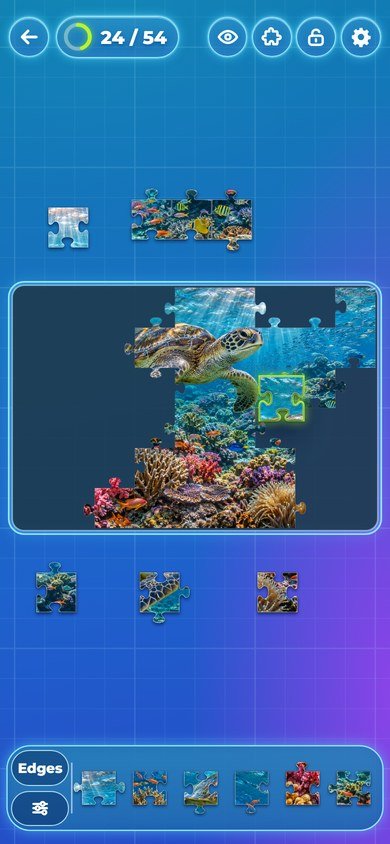
Make Stillpiece Puzzle your own game: your own photos and categories, how many puzzles are open, the piece sizes, the texts, the name and the title art, colors, music and sounds, and how the pieces feel. Every recipe below is a short list of steps and says exactly which file to open. You do not need to know how to program. All pictures on this page are real screenshots of the game in this package.
1. Before you start
Free tools you need:
- A code text editor: Visual Studio Code (Windows, Mac, Linux) or Notepad++ (Windows). Do not use Word or WordPad: they break the files.
- An image editor that can resize and export WebP: Photopea (in the browser), GIMP or Krita. You can also export JPG or PNG from any program and convert it to WebP at squoosh.app.
- For music and sounds: Audacity (exports MP3).
- Optional, to convert many photos at once: Python 3 (python.org) with the free Pillow library (recipe A).
Which folder to edit. The download has two copies of the game:
-
game/is the finished game. Simplest way: change files directly insidegame/and upload that folder. No other tools are needed. -
source/is the same game with tests, a local server and the photo converter. If you use it, editsource/and runnpm run build: it copies the game tosource/dist/, and that folder is what you upload. Pick one way and keep to it.
The paths in this guide (for example assets/pics/dogs-01.webp) are the same inside both folders.
See your changes on your computer. The game must be opened from a web address, not by
double-clicking index.html (browsers block the game that way). Two easy ways:
-
With Python: open a terminal in the game folder, run the command below and open
http://localhost:8080. -
With Node.js: in
source/, runnpm run devand openhttp://localhost:5207.
python -m http.server 8080After each change, reload the page with Ctrl+F5 (Windows) or Cmd+Shift+R (Mac) so the browser does not show the old file.
localhost) you can open any puzzle directly by
adding ?play=dogs-01&g=0 to the address (g is the size, from 0 for 24 pieces to 5
for 294), and ?unlock opens every puzzle. These shortcuts do not work on a published site.
2. Where everything is
The numbers on each screenshot match the table below it. Texts are named by their key in
src/locales.js (recipe E).
Title screen
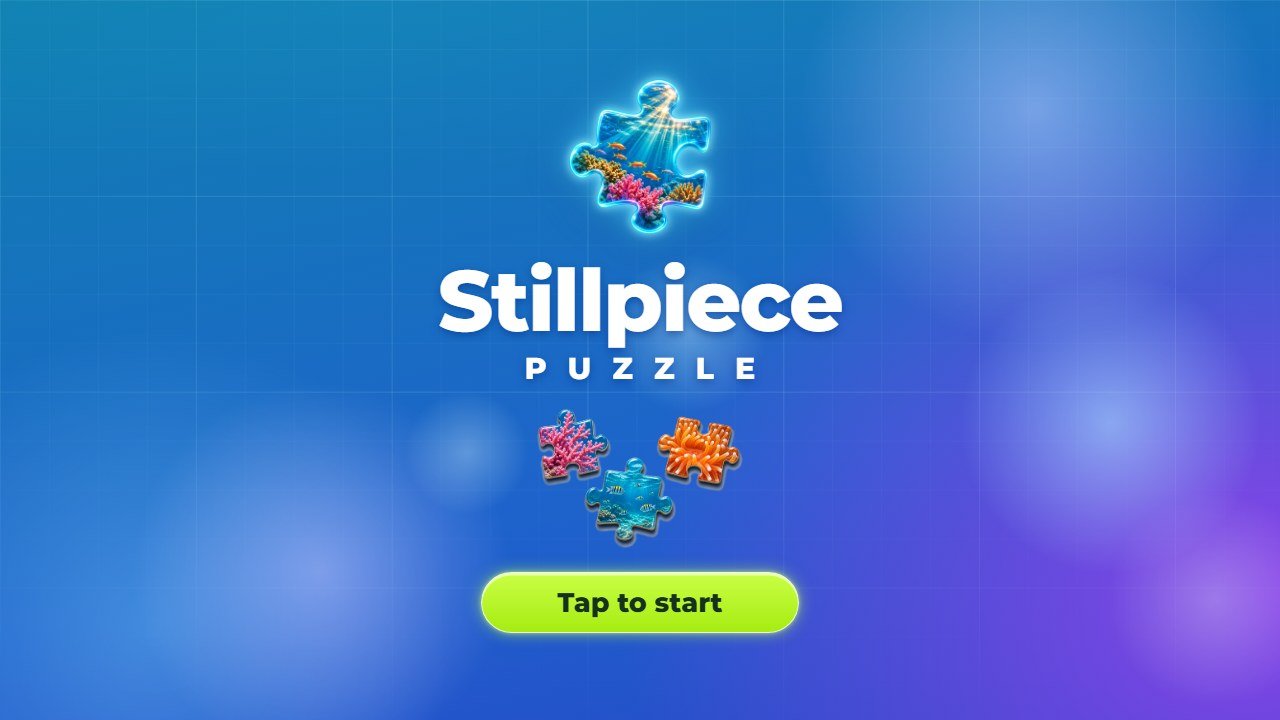 1
2
3
4
5
| # | What you see | File to change |
|---|---|---|
| 1 | Emblem | assets/art/emblem.webp (recipe F). The same picture is the icon of the browser tab. |
| 2 | Game name |
Written in index.html: the line
<h1 class="logo">Stillpiece<small>PUZZLE</small></h1> (recipe F).
|
| 3 | Floating pieces |
assets/art/title-pieces.webp (recipe F). Shown on computers and on phones held upright.
|
| 4 | Tap to start button |
Text: key tapToStart (recipe E). Green: --lime and --lime-2 in
style.css (recipe G).
|
| 5 | Background |
Three colors set at the top of style.css: --a1, --a2,
--a3 (recipe G). On screens with a photo the game shifts them a little toward the photo.
|
Home screen
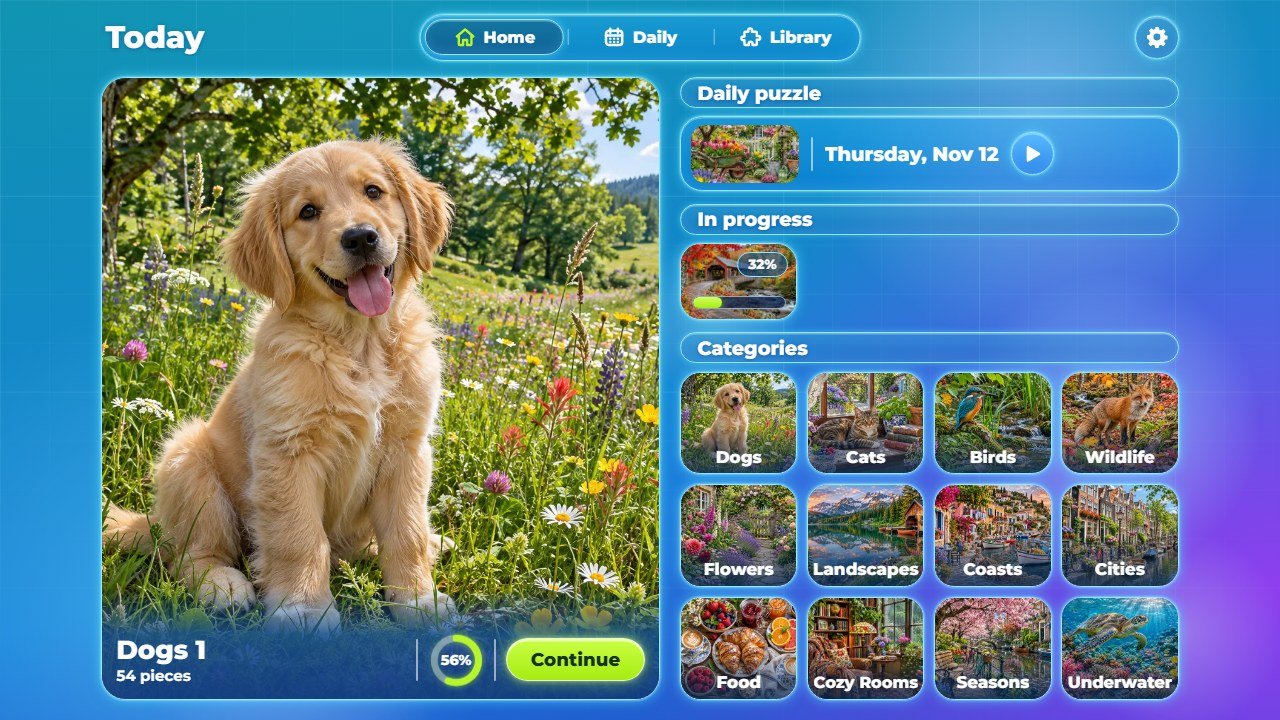 1
2
3
4
5
6
| # | What you see | File to change |
|---|---|---|
| 1 | Big photo |
The last puzzle in progress or, when there is none, today's daily puzzle. It is the photo itself, from
assets/pics/ (recipe A).
|
| 2 | Continue or Start |
Texts: keys continue and start. The name above it is the category name and the
photo number.
|
| 3 | Daily puzzle card |
Today's photo (thumbnail from assets/pics/t/) and the date, written in the player's
language by the browser. Title: key dailyPuzzle.
|
| 4 | Category card |
The thumbnail of photo 01 of the category, for example
assets/pics/t/dogs-01.webp. Name: key cat_dogs, or a name in
content.js (recipe B).
|
| 5 | Home, Daily and Library |
Texts: keys home, daily, library. The icons are drawn by code:
the list ICONS at the top of src/ui.js.
|
| 6 | Options button |
Icon: gear in the ICONS list of src/ui.js. It opens the Options
panel.
|
Library
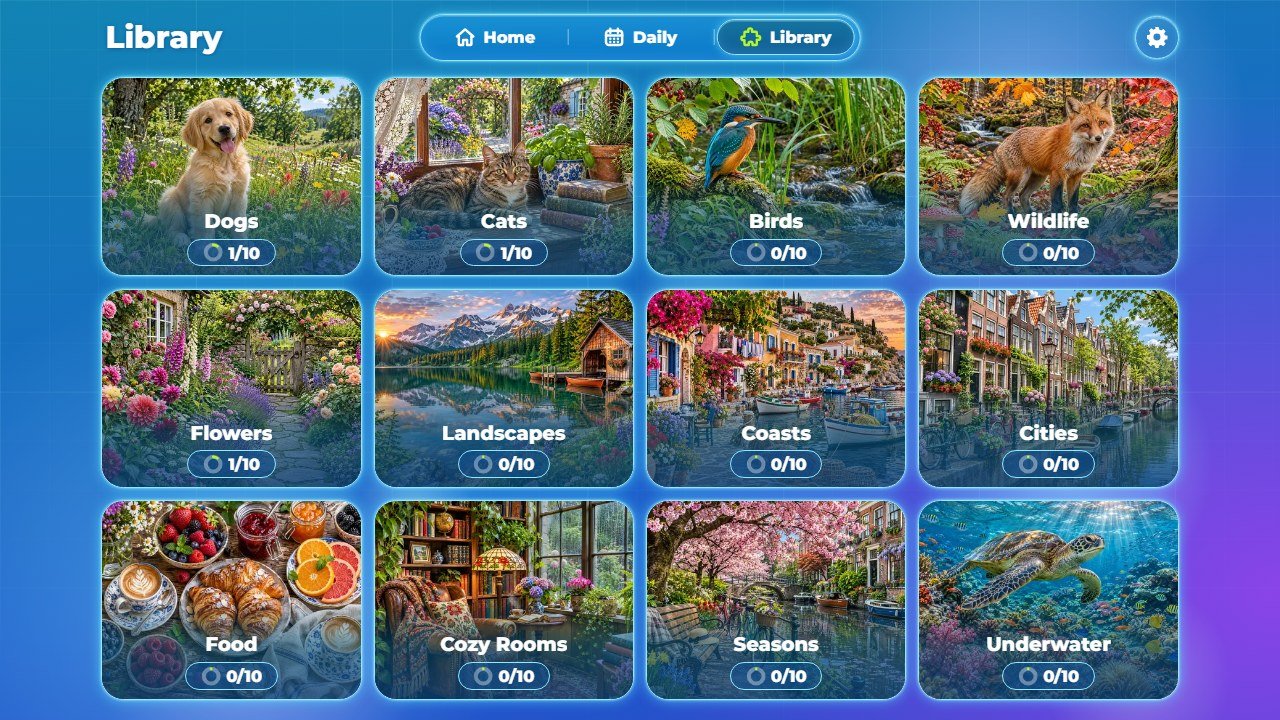 1
2
3
| # | What you see | File to change |
|---|---|---|
| 1 | Category cover |
Photo 01 of the category (its thumbnail). To change the cover, change which photo is number
01 (recipe A).
|
| 2 | Category name |
Key cat_<id> in the language files, or the name of the category in
content.js (recipe B).
|
| 3 | Finished puzzles |
Finished in this category / the count of the category in content.js. Counted
on each device.
|
A puzzle in progress (computer)
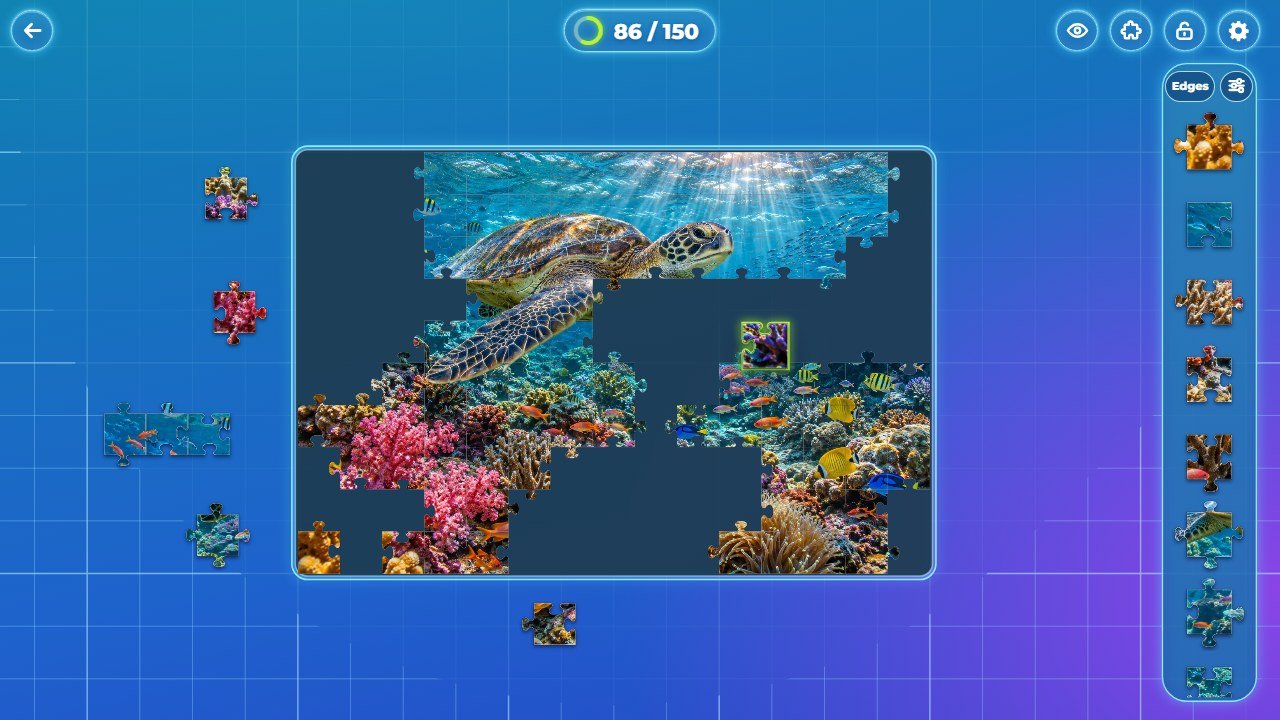 1
2
3
4
5
6
| # | What you see | File to change |
|---|---|---|
| 1 | Progress | Pieces placed / pieces of the puzzle. The ring uses --lime (recipe G). |
| 2 | Picture, whole puzzle, lock and options |
Icons: eye, puzzle, lock, unlock and
gear in the ICONS list of src/ui.js.
|
| 3 | Board |
Drawn by src/table.js. The pieces are the photo cut by src/jigsaw.js. The
green of a locked piece and of the win frame is ACCENT in
src/config.js (recipe G).
|
| 4 | Table grid |
The thin grid and its light waves: grid in FEEL,
src/config.js (recipe I).
|
| 5 | Tray |
Drawn by src/table.js. How a piece leaves the tray: tray in
FEEL (recipe I).
|
| 6 | Edges and Organize |
Texts: keys edges, shuffle, sortColor and scatter.
Icons: org, shuffle, color, fit in
src/ui.js.
|
3. More screens of the game
Panels, cards and buttons are drawn by style.css (no pictures to replace): the blue glass is
--glass, the cyan border and glow are --line and --glow, the green
buttons are --lime. The small icons are drawn by code in the ICONS list of
src/ui.js.
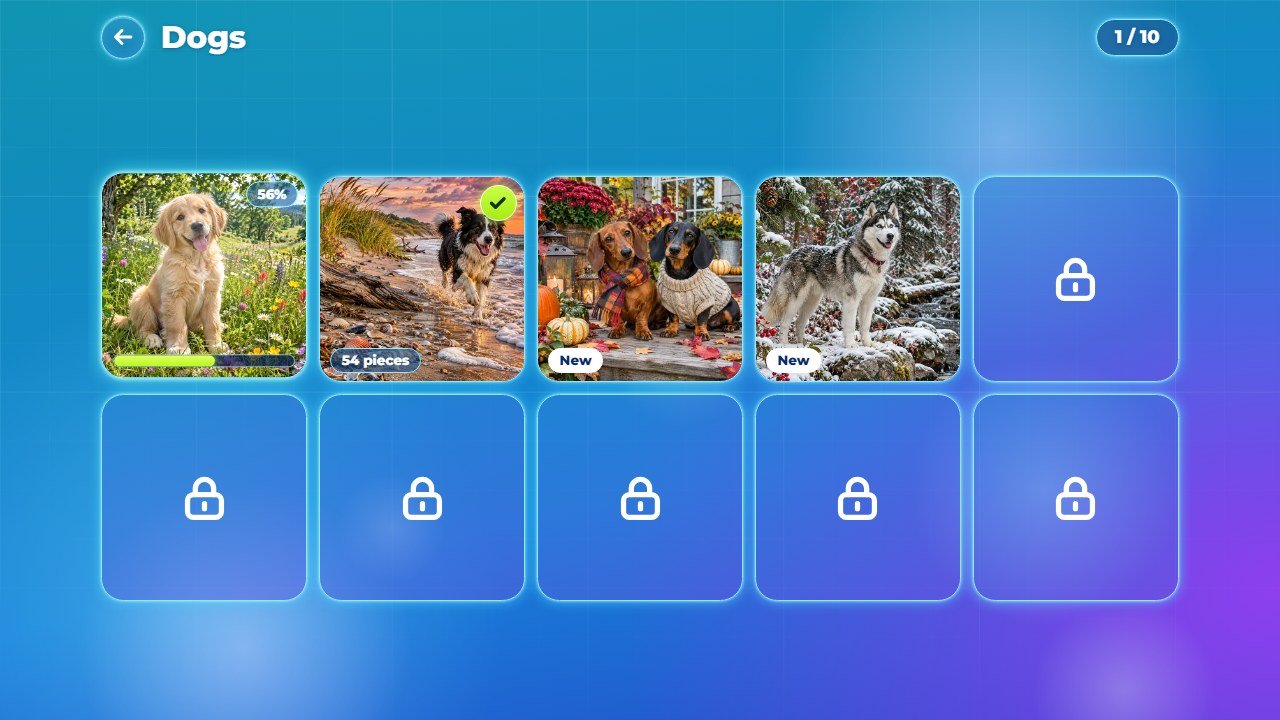
isNew, pieces, locked. How many are open: recipe C.
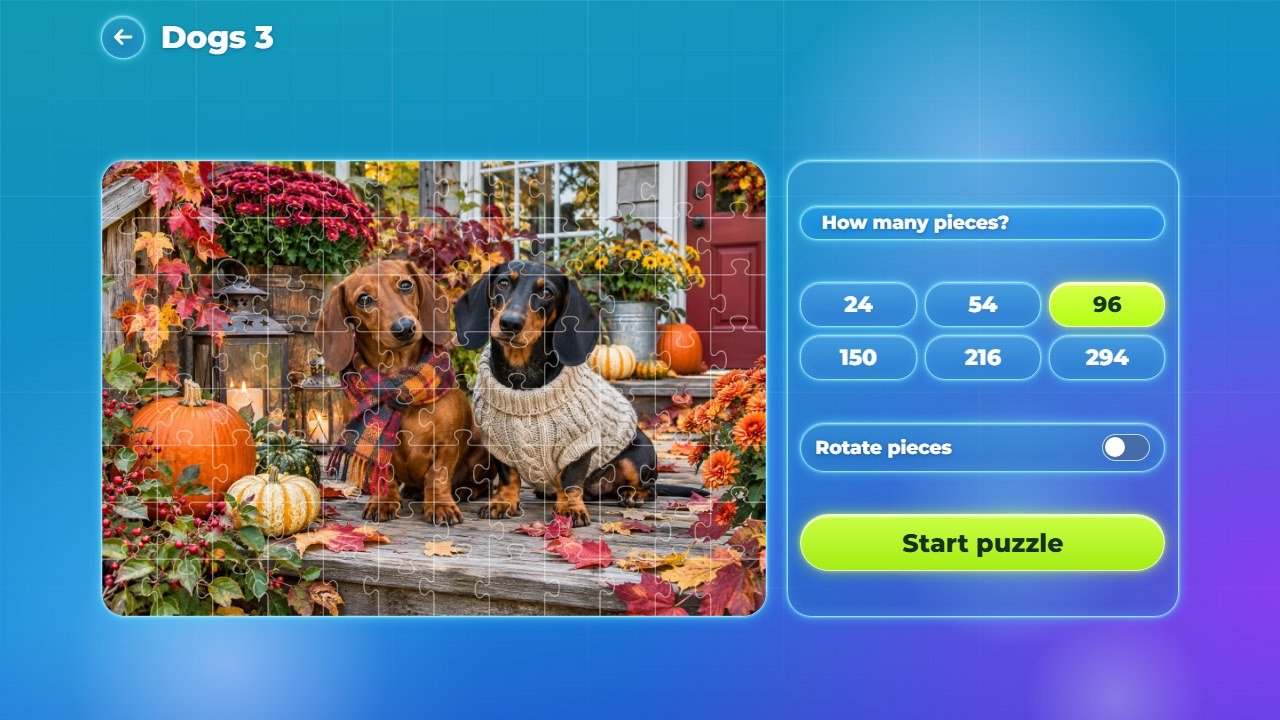
GRIDS (recipe D). Texts: keys howMany,
rotate, startPuzzle, startOver, tapAgain.
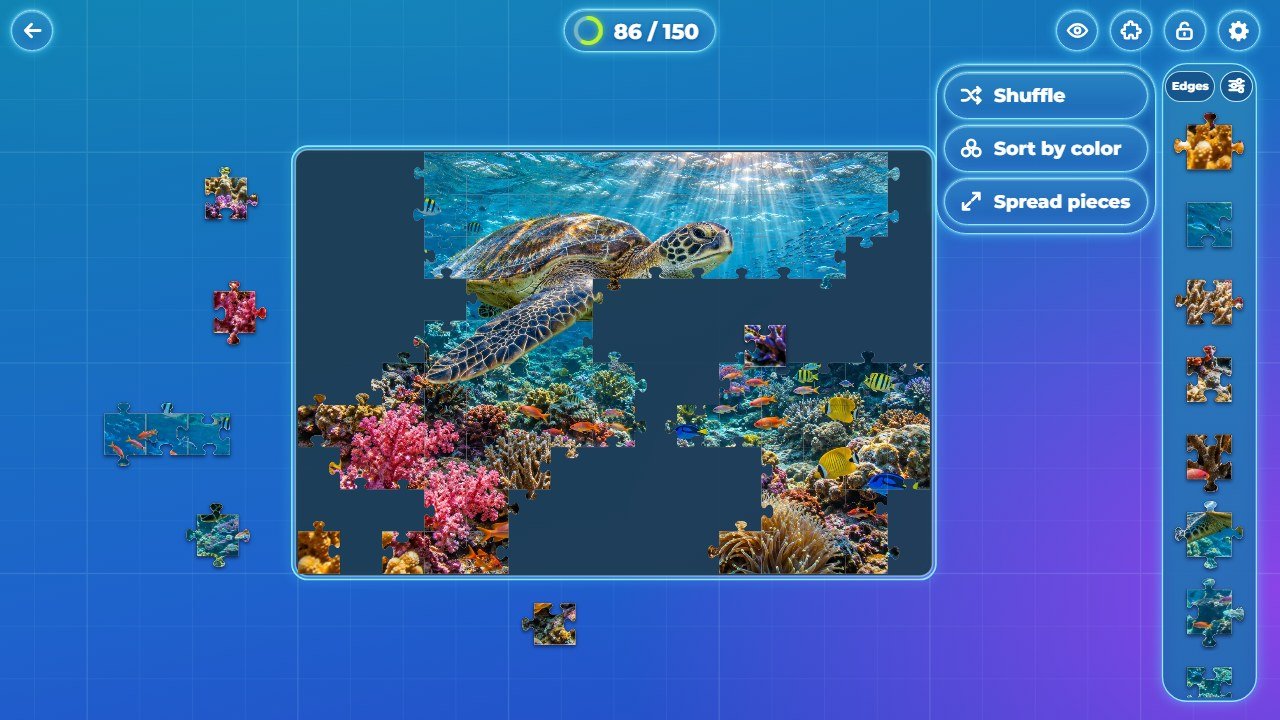
shuffle, sortColor,
scatter.
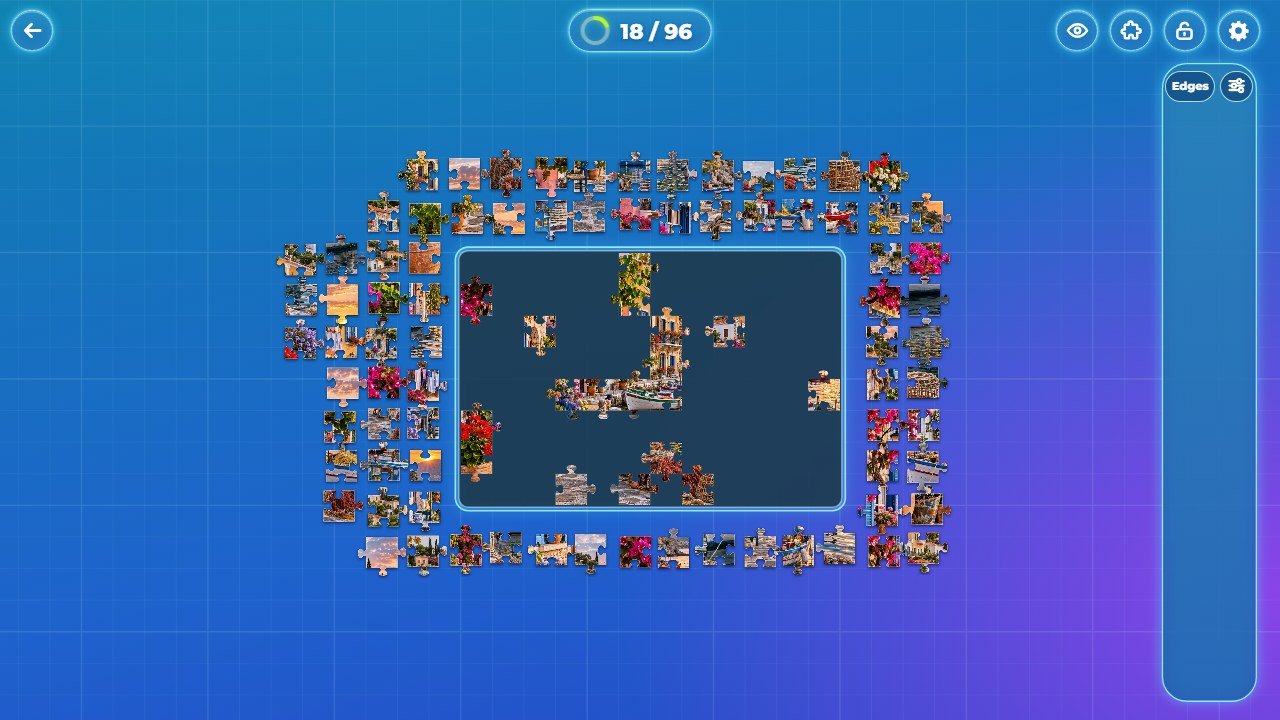
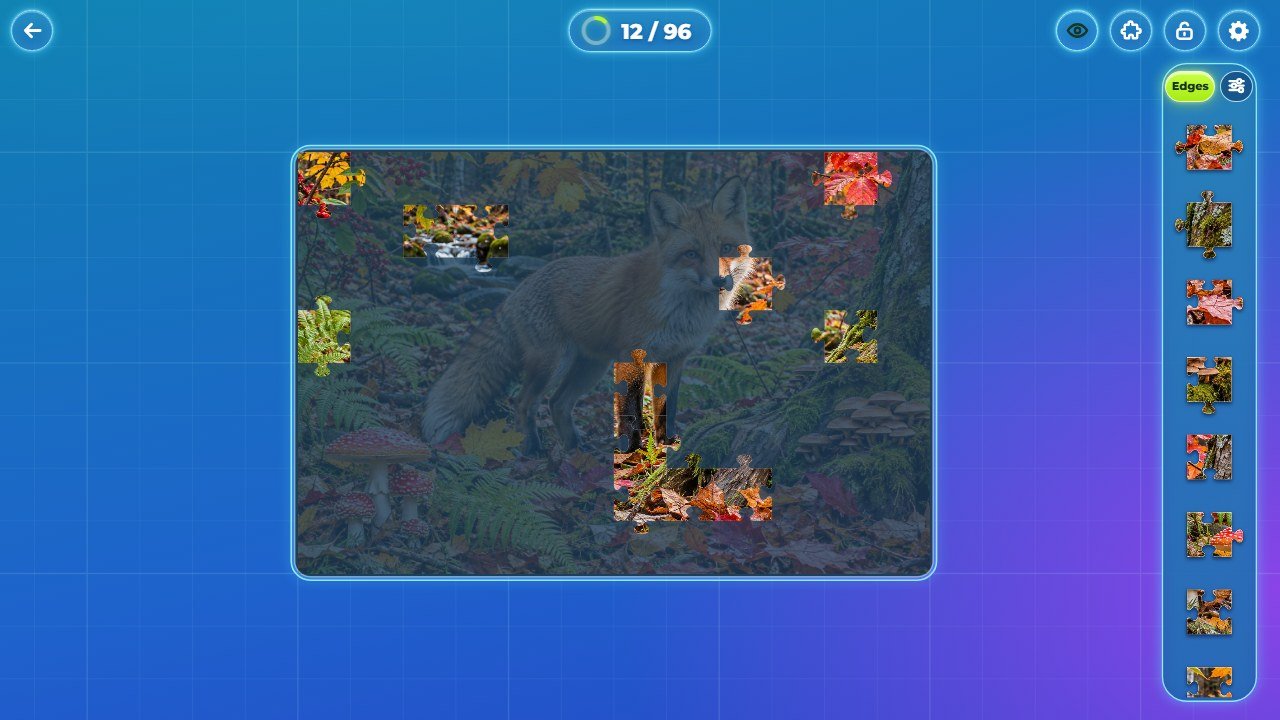
ghost in FEEL (recipe I).
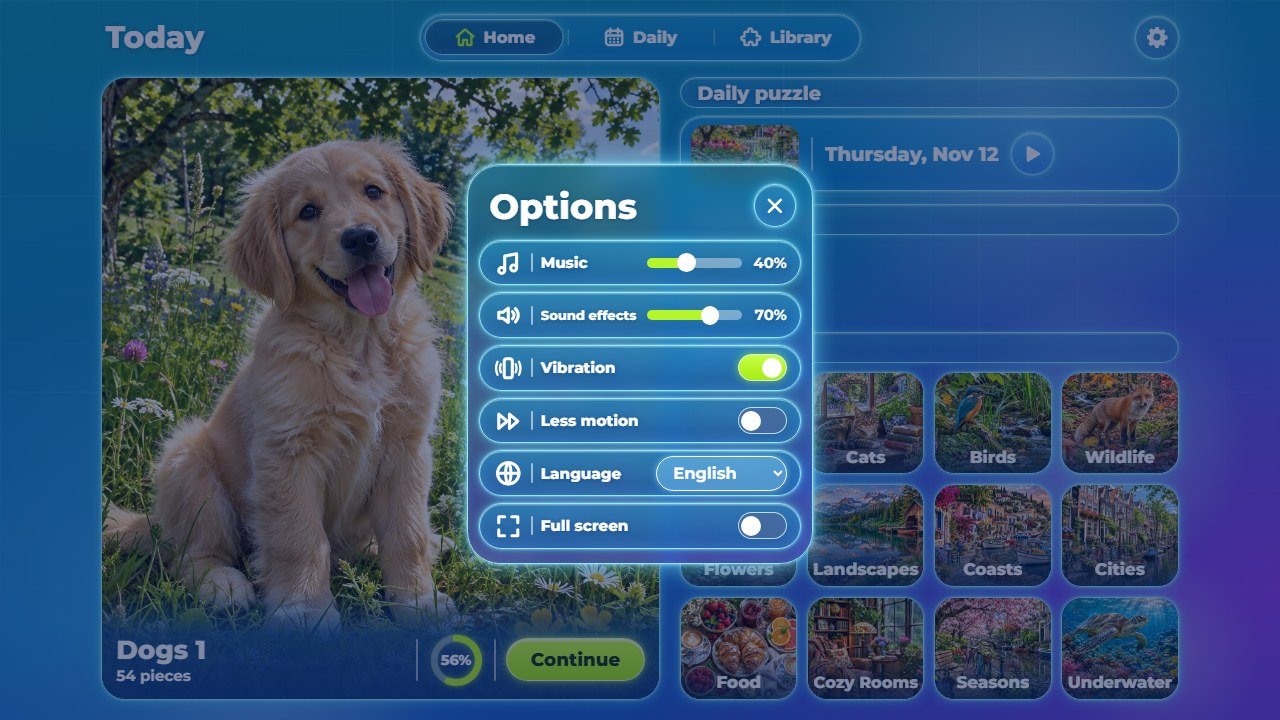
VOL in src/config.js.
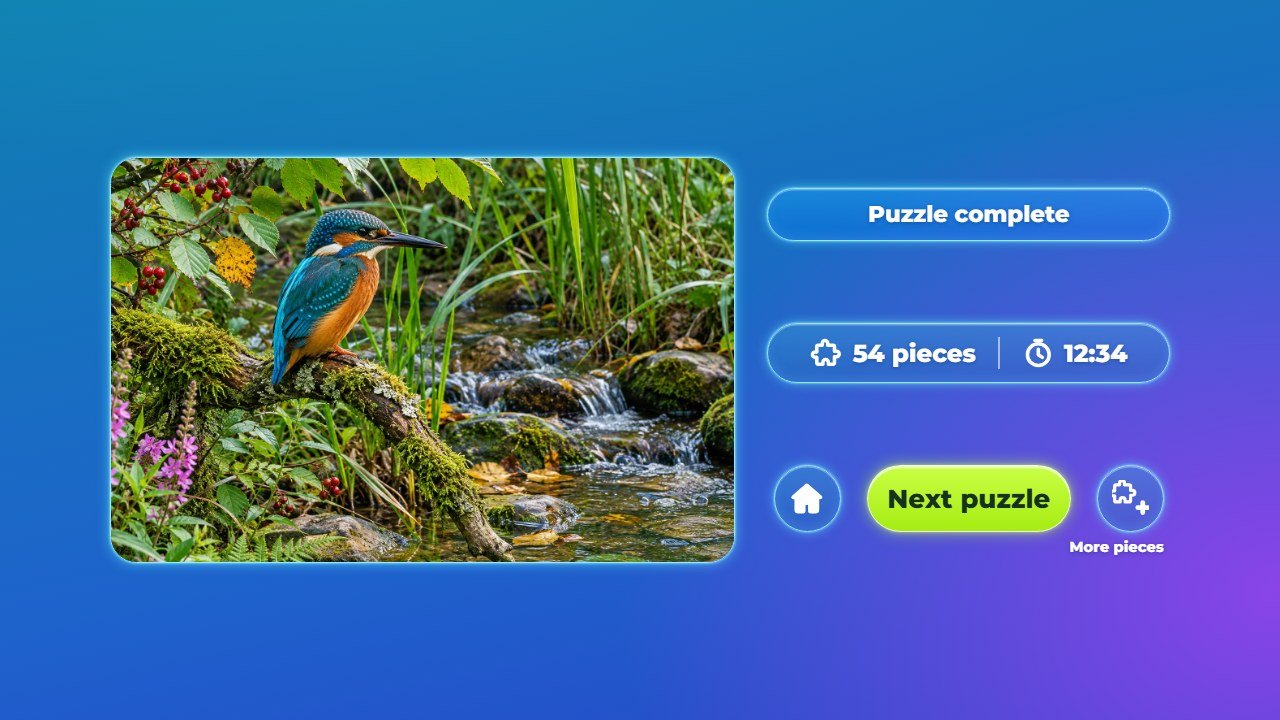
puzzleComplete, nextPuzzle,
morePieces.
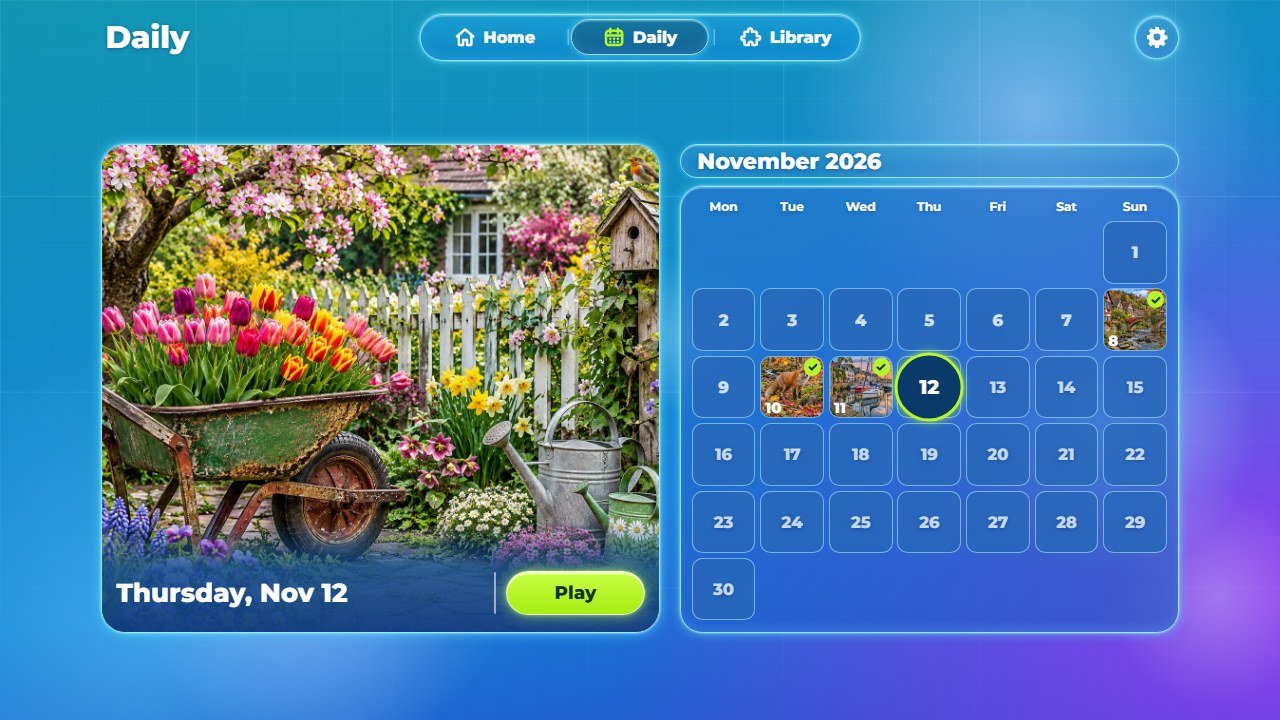
4. Recipe A: replace the photos
Each puzzle is two files with the same name: the photo in assets/pics/ (1536 x
1024 pixels) and its small thumbnail in assets/pics/t/ (480 x 320 pixels). The name is the category
id and a two-digit number: dogs-01.webp, dogs-02.webp and so on. Photo
01 is also the cover of the category.
- Shape: landscape photos in a 3:2 shape (for example 3000 x 2000) work best, because the board is 3:2. Photos with fine detail everywhere make better puzzles than photos with big flat areas such as an empty sky.
- Rights: use only photos you are allowed to use in a product.
Way 1: with the included converter (many photos at once)
-
Install Python 3 from python.org, then the Pillow library: run
pip install pillowin a terminal. -
Name your photos like the game files, for example
dogs-01.jpg(JPG, PNG or WebP, any size). - Put them in the folder
source/photos/(the converter creates it the first time it runs). -
In a terminal inside
source/, run the command below. It makes both files of each photo inassets/pics/andassets/pics/t/, cuts the photo to 3:2 at the center if needed, and skips photos that are already up to date.
npm run pics
(Without Node.js, the same converter runs with python tools/pics.py. On macOS and Linux Python is
often called python3: if npm run pics says python was not found, run
python3 tools/pics.py instead.)
Way 2: by hand, with an image editor
-
Crop your photo to 3:2 and resize it to 1536 x 1024. Export it as WebP (quality about 80)
with the right name, for example
dogs-01.webp, intoassets/pics/, replacing the old file. -
Resize the same photo to 480 x 320 and export it with the same name into
assets/pics/t/. -
If you prefer JPG or PNG, export every photo and thumbnail in that format and change
formatincontent.jsto'jpg'or'png'. All photos must use the same format.
5. Recipe B: add, remove, rename or reorder categories
The whole library is one short file next to index.html: content.js.
export const CONTENT = {
  format: 'webp',
  openPerCategory: 3,
  categories: [
    { id: 'dogs', count: 10 },
    { id: 'cats', count: 10 },
    { id: 'cars', count: 8, name: { en: 'Cars', pt: 'Carros', es: 'Coches' } },
  ],
};-
Add a category: add a line with its
id(lowercase letters, digits and hyphens), how many photos it has (count, 1 to 99) and aname. Give at leasten; languages you leave out show the English name. Language codes:en pt es fr de it nl pl tr ru id ja ko zh. Then add its photoscars-01tocars-08(recipe A). -
More photos in a category: add the files with the next numbers and raise
count. Numbers start at01and have no gaps. Add new photos at the end: progress is saved by number. - Remove a category: delete its line. You can also delete its files.
- Reorder: the order of the lines is the order in the game.
-
Rename a built-in category: give it a
nametoo (it replaces the built-in name), or change its key in the language files (recipe E).
The twelve categories that ship with the game already have names in all 14 languages:
| id | English name | Text key | Photos |
|---|---|---|---|
dogs |
Dogs | cat_dogs |
dogs-01.webp to dogs-10.webp |
cats |
Cats | cat_cats |
cats-01.webp to cats-10.webp |
birds |
Birds | cat_birds |
birds-01.webp to birds-10.webp |
wildlife |
Wildlife | cat_wildlife |
wildlife-01.webp to wildlife-10.webp |
flowers |
Flowers | cat_flowers |
flowers-01.webp to flowers-10.webp |
landscapes |
Landscapes | cat_landscapes |
landscapes-01.webp to landscapes-10.webp |
coasts |
Coasts | cat_coasts |
coasts-01.webp to coasts-10.webp |
cities |
Cities | cat_cities |
cities-01.webp to cities-10.webp |
food |
Food | cat_food |
food-01.webp to food-10.webp |
rooms |
Cozy Rooms | cat_rooms |
rooms-01.webp to rooms-10.webp |
seasons |
Seasons | cat_seasons |
seasons-01.webp to seasons-10.webp |
underwater |
Underwater | cat_underwater |
underwater-01.webp to underwater-10.webp |
Puzzles are titled with the category name and the photo number ("Cars 3"), so there are no photo names to
translate. If you edit source/, run npm test after any change: it checks
content.js and lists every missing photo or thumbnail file.
npm test6. Recipe C: choose how many puzzles are open
-
openPerCategoryincontent.jsis how many puzzles of each category are open from the start (3 in the package). Each finished puzzle opens the next one in its category. - Set it to
99to open every puzzle from the start. - The daily puzzle is picked from all photos by the date, with no server, and is always open. It goes through every photo before repeating.
7. Recipe D: change the piece sizes
The six sizes (24 to 294 pieces) are the list GRIDS in src/config.js, written as
columns and rows:
export const GRIDS = [[6, 4], [9, 6], [12, 8], [15, 10], [18, 12], [21, 14]];
export const DEFAULT_GRID = 1;-
Each size must be 3:2 (columns divided by rows = 1.5), because the photos are 3:2 and the pieces are square:
for example
[3, 2](6 pieces),[24, 16](384 pieces). - Keep six sizes: the piece choice screen is laid out for six buttons.
-
DEFAULT_GRIDis the size chosen the first time (counting from 0, so1is the second size). After that the game remembers the last size each player chose. -
If you edit
source/, opentest/jigsaw.test.mjsand write your new counts in the line[24, 54, 96, 150, 216, 294], then runnpm test.
STORAGE_PREFIX in src/config.js): players then start fresh.
8. Recipe E: change texts and translations
All texts players read are in two files: src/locales.js (English, Portuguese, Spanish) and
src/locales-more.js (French, German, Italian, Dutch, Polish, Turkish, Russian, Indonesian,
Japanese, Korean, Chinese). Each language is a block of lines like these:
  tapToStart: 'Tap to start', today: 'Today', daily: 'Daily', library: 'Library', home: 'Home',
pieces: '{n} pieces', howMany: 'How many pieces?', rotate: 'Rotate pieces',- Find the text you want to change (Ctrl+F in your editor). The word before the colon is the key; never change it.
-
Change only the words inside the quotes. If your text has an apostrophe, like
Let's, put double quotes around the text:"Let's go!". - Keep markers such as
{n}: the game puts a number there. - Change the same key in the other languages you use. A key missing in a language shows the English text.
Dates (the daily puzzle and the calendar) are not in these files: the browser writes them in the player's language.
9. Recipe F: change the name, the title art and the tab icon
-
Name on the title screen: open
index.htmland find<h1 class="logo">Stillpiece<small>PUZZLE</small></h1>. ChangeStillpiece(the big word) andPUZZLE(the small line under it). -
Browser tab name: in the same file, change the text between
<title>and</title>. -
Emblem above the name: replace
assets/art/emblem.webpwith a square-ish picture with a transparent background, about 600 pixels wide. -
Floating pieces under the name: replace
assets/art/title-pieces.webp(transparent background). -
Tab icon: the line
<link rel="icon" href="./assets/art/emblem.webp">inindex.htmluses the emblem. Some browsers also ask forfavicon.ico, next toindex.html: replace it with your own icon. -
Browser bar color on phones: the line
theme-colorinindex.html.
10. Recipe G: change colors and the font
-
Buttons and highlights: the block
:rootnear the top ofstyle.css:--limeand--lime-2(the green buttons, rings and switches),--ink(the dark text on green),--line(the cyan borders),--glass(the blue glass of panels and cards). Change the value after the colon, for example--lime: #b6f52a;. -
Background: the three lines
@property --a1,--a2and--a3just above:root(theirinitial-value). On screens with a photo the game moves these colors a little toward the photo (the functionambientinsrc/ui.js). -
Board glow, locked piece and win frame:
ACCENTat the end ofsrc/config.js. -
Font: Montserrat, in
assets/fonts/, declared by the two@font-facelines at the top ofstyle.css. To use another font, add its.woff2files toassets/fonts/and change the file names in those lines (and the nameMontserratin thebodyrule). Check that its license allows use in games.
11. Recipe H: replace or remove music and sounds
Save your audio as MP3 with the same file name and replace the old file.
-
Music (
assets/music/):calm.mp3andcalm2.mp3play one after the other on every screen after the title. A track that ends softly blends best. - To remove the music, delete the two files: the game notices the missing file once and stays silent.
| Recorded sound | When it plays |
|---|---|
assets/sfx/snap.mp3 |
a piece locks in on the board |
assets/sfx/snapBig.mp3 |
the last piece of the puzzle |
assets/sfx/join.mp3 |
two loose pieces or groups join on the table |
assets/sfx/shuffle.mp3 |
Shuffle, Sort by color and Spread pieces |
assets/sfx/ui_click.mp3 |
most buttons |
assets/sfx/ui_back.mp3 |
back and close buttons |
-
If a new sound is too loud or too quiet, change its number in
GAINat the top ofsrc/audio/sound.js(1 is full volume, 0.5 is half). -
Deleting a sound file does not make it silent: the game then plays a built-in synthesized
version of the same sound. To silence one effect, remove its line from both
GAINandSYNTHinsrc/audio/sound.js. -
The soft notes of the milestones (a quarter, half and three quarters of the puzzle), the finished border, the
win and the rising notes of quick placements are not files: the game makes them with the numbers in
SYNTH. -
Players set the Music and Sound effects volumes in Options; the starting values are
VOLinsrc/config.js. On phones, sound starts after the first touch (a browser rule).
12. Recipe I: change how the pieces feel
Every number of the game feel is in FEEL at the top of src/config.js, with a comment
above each group. The most useful ones:
| Setting | What it does | Package value |
|---|---|---|
snap.radius |
How close to its place a piece must be dropped to lock in, as a part of one piece (bigger = easier). | 0.3 |
pick.fingerUp |
On touch screens, how far above the finger the piece floats, in pieces. | 0.8 |
tray.holdMs |
How long to hold a tray piece before it can be dragged in any direction, in milliseconds. | 220 |
cam.deskFit |
On computers, how much of the screen the whole board fills at the start. | 0.72 |
ghost |
How visible the ghost picture under the board is (0 to 1). | 0.22 |
haptic |
Vibration lengths in milliseconds (phones that support it). | 6 to 80 |
win |
The timing of the win: pause, photo, panel (milliseconds). | 950 for the panel |
Change only the numbers. Keep the commas, braces and names exactly where they are. Make small changes and try them: a little goes a long way.
13. Check and publish your changes
- Play the parts you changed on your computer (see Before you start), in a wide window and in a narrow one (F12, then Ctrl+Shift+M shows phone sizes).
-
If you edited
source/: in a terminal insidesource/, run the commands below. The first checks the library, the photo files, the piece cut and the save keys; the second copies the game tosource/dist/.
npm test
npm run build-
Upload everything inside
game/(orsource/dist/, if you built it) to your web hosting, replacing the old files. If you removed photos, delete the old files on the server yourself. - Open your game address and press Ctrl+F5. If you still see the old version, read the section about updates and cache in the main buyer guide.
14. If something goes wrong
-
The game stops on the first screen after you edit a
.jsfile: a comma, quote or brace is missing. Press F12 and open the Console: it shows the file name and the line with the error. Compare that line with your backup. -
A photo or a card is empty: the file name is different (names are case sensitive:
Dogs-01.webpis notdogs-01.webp), the thumbnail is missing inassets/pics/t/, orformatandcountincontent.jsdo not match the files. - Nothing changed: the browser is showing the old file. Press Ctrl+F5, or open the game in a private window.
- Still stuck? Restore your backup and change one thing at a time. Support: willian@polargames.com.br (include the game version, what you changed and a screenshot).