Make Mahjong Sweet Shop your own game: a new mascot, new tiles, new shops, your own texts, sounds and colors,
and easier or harder levels. Every recipe is a short list of steps and says exactly which file to open. You do
not need to know how to program. All pictures on this page are real screenshots of the game.
1. Before you start
Make a backup.
Copy the whole
source
folder (for example to
source-original
) before changing anything. If something breaks, copy the original file back.
Free tools that are enough for everything here:
a text editor (
Visual Studio Code
or
Notepad++
; never Word), an image editor (
Photopea
, free in the browser, opens and saves PNG and WebP; or GIMP),
Squoosh
(squoosh.app, converts any picture to WebP in the browser) and
Audacity
(cuts and converts sounds to MP3).
Work in
source/
. When you are happy, copy the changes to
game/
(recipe L) and upload the contents of
game/
.
See your changes on your computer:
in
source
, run
npm run serve
and open http://localhost:8080/ (needs Node.js 26.13 or newer, see the main guide), or use the "Live Server"
extension of Visual Studio Code on
source/index.html
. Opening the file by double click does not work (the game uses JavaScript modules).
After every change, reload the page with
Ctrl+F5
(Windows) or
Cmd+Shift+R
(Mac) so the browser does not show the old file.
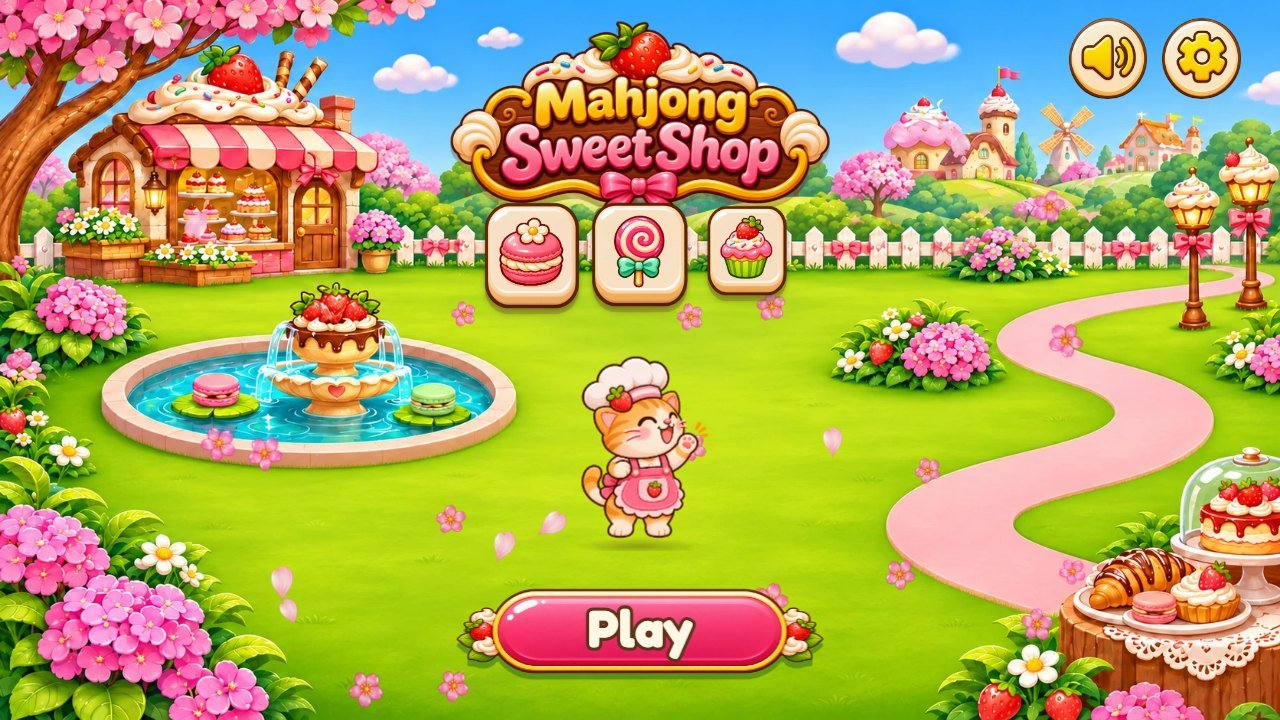
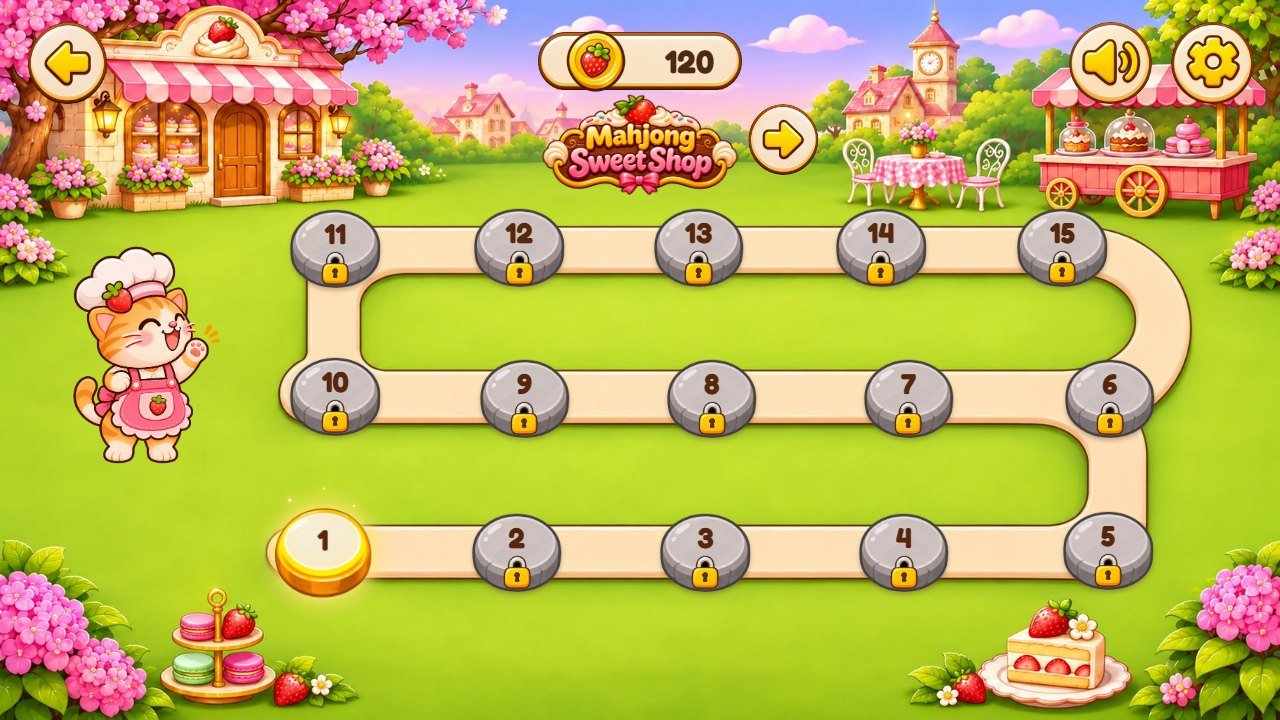
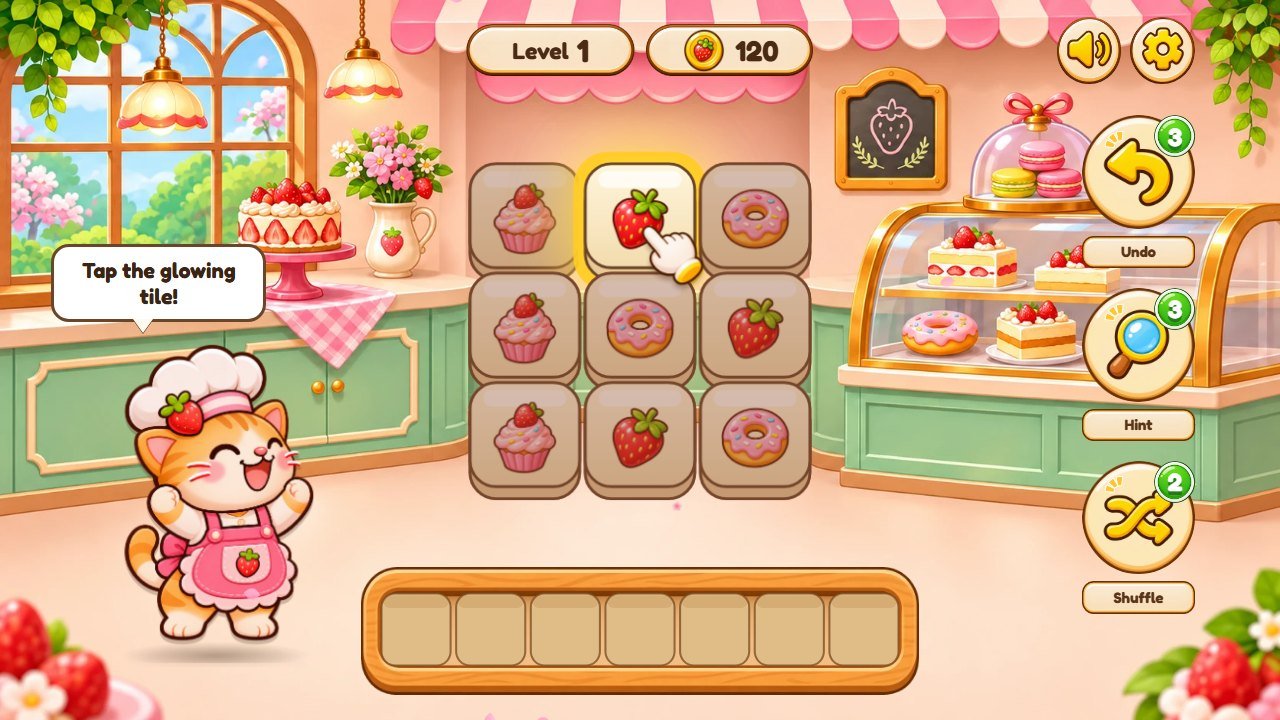
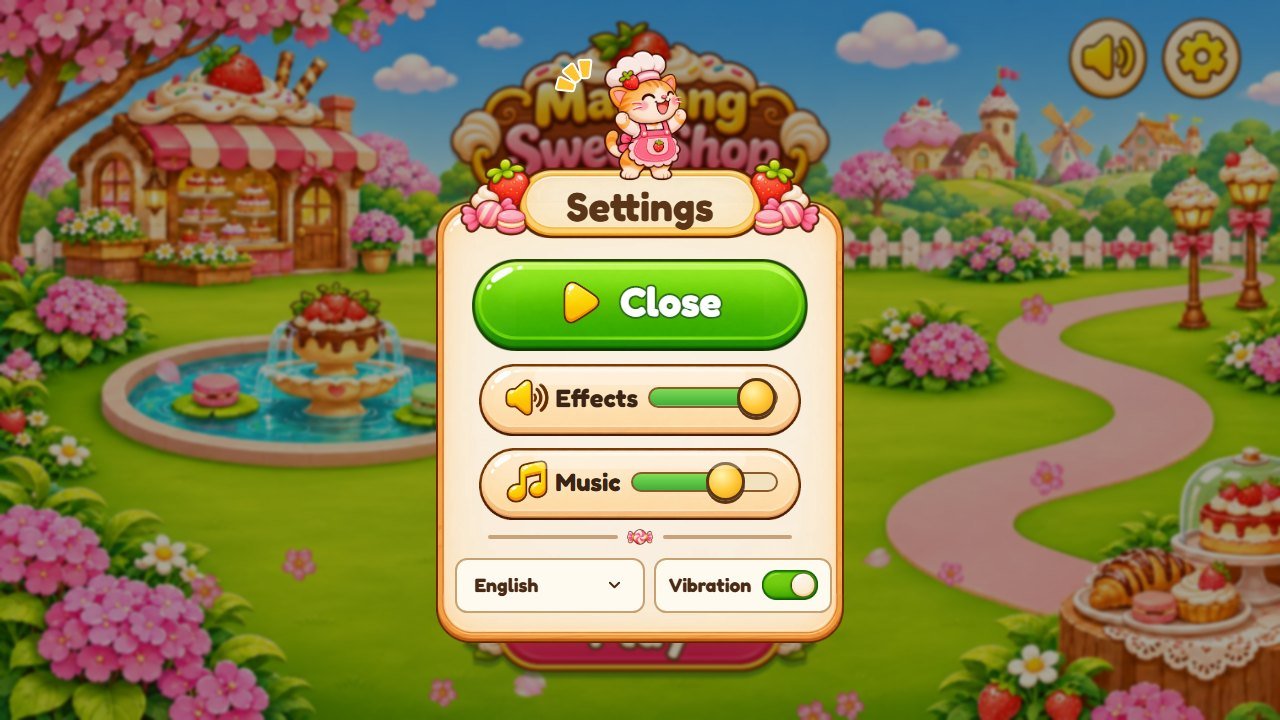
2. Where everything is (real screenshots with numbered parts)
Every number points to one part of the screen; the table under the picture says which file changes it.
Menu
12345
#
What you see
File
1
Logo
assets/sweet-shop/logo.webp
2
Play button
text
play
in
src/i18n.js
; picture
assets/sweet-shop/botao-play.webp
3
Settings
assets/ui/btn-gear-inicio.webp
; window in
src/app/screen-modals.js
Find the picture in the screenshots above or in the tables of the recipes below, for example
assets/sweet-shop/moeda.webp
(the coin).
Open it in Photopea (File > Open) to see its size in pixels. Make your new picture
the same size
(or the same proportions, larger is fine) with a
transparent background
where the original is transparent.
Save it as
WebP
with
exactly the same file name
(Photopea: File > Export as > WEBP; or save a PNG and convert it in Squoosh). Replace the old file in
the same folder.
Reload the game (Ctrl+F5). Nothing else changes: the game finds the picture by its name.
If you prefer to keep a PNG, you must also change the name in the code: search the file name in Visual Studio
Code (Ctrl+Shift+F, search
moeda.webp
) and change
.webp
to
.png
everywhere it appears.
4. Recipe B: the logo and the game name
Logo: replace
assets/sweet-shop/logo.webp
(recipe A). It is used on the menu and above every map.
The three small tiles under the logo on the menu are
assets/sweet-shop/peca-cupcake.webp
,
peca-pirulito.webp
and
peca-macaron.webp
.
Name in the browser tab: open
index.html
and change the text between
<title>
and
</title>
, and the
content
of
<meta name="description">
.
Name read by screen readers: key
title
in
src/i18n.js
(once for each of the 14 languages; search
title:
).
5. Recipe C: the cat (or a new mascot)
Pose
File
When it appears
happy
assets/sweet-shop/gata-direita-feliz.webp
menu, levels, Settings window
waves
gata-direita-acena.webp
level map
points
gata-direita-aponta.webp
tutorial
wins
gata-direita-vitoria.webp
level complete
sad
gata-direita-triste.webp
tray full
Draw the new mascot in the same five poses, looking to the right (towards the board), with a transparent
background. Keep the size of the old files.
Replace the five files (recipe A). For a mascot with more or fewer poses, edit the list
catPoses
in
src/app/worlds.js
: the left side is the moment in the game, the right side the end of the file name.
6. Recipe D: the tile pictures
Each shop has one picture with its 12 tiles:
assets/sweet-shop/icones-0.webp
(Sweet Shop),
icones-1.webp
(Ice Cream Shop),
icones-2.webp
(Bakery) and
icones-3.webp
(Chocolate Shop). The game cuts it into
4 columns and 3 rows
and centers each drawing in its tile.
Open
icones-0.webp
in Photopea. Keep the picture size and draw your 12 tiles in the same grid: 4 across, 3 down, all cells the
same size, transparent background, nothing crossing into the next cell.
Export as WebP with the same name. The tile order (left to right, top to bottom) is the order of the names in
src/config.js
(
WORLDS
, list
icons
).
The names in
icons
are only labels (used by the screen transition, which shows one tile of the shop). If you rename them, also
change the same name in
IRIS
in
src/app/data.js
.
The color of the little petals when three tiles pop is
ICON_COLORS
in
src/config.js
(one color for each position).
7. Recipe E: backgrounds, maps and the menu
What
Landscape
Portrait (phone)
Very wide screens
Menu
assets/sweet-shop/menu-fundo.webp
menu-vertical.webp
menu-superlargo.webp
Background of the levels of shop N (0 to 3)
fundo-N.webp
fundo-vertical-N.webp
fundo-N-superlargo.webp
Level map of shop N
mapa-N.webp
mapa-vertical-N.webp
mapa-N-superlargo.webp
Replace the files (recipe A), keeping their size. Leave the middle of the levels backgrounds calm: the tiles
and the tray are drawn on top of it.
On the maps the 15 stones are drawn by the game on top of the picture. If your new map has its path somewhere
else, move the stones:
STOP_POS
in
src/app/data.js
has, for every shop, the position of each stone in % of the picture (
land
= landscape,
pe
= portrait).
Which file each shop uses is set in
css/04-theme.css
(search
data-world='0'
).
8. Recipe F: texts and translations
All texts are in
src/i18n.js
, one block per language (
en: {
,
pt: {
,
es: {
...). Change the text between the quotes; keep the key on the left and things like
{n}
as they are.
Do not use a straight quote inside a text that is between straight quotes; write
\'
or use the other kind of quotes.
To add a language, copy the whole
en
block, change the code and the texts, and add its name to
LANGS
(end of the file). Then run
npm test
: it says if any text is missing.
Shop names read by screen readers on the map arrows:
name
in
WORLDS
,
src/config.js
.
9. Recipe G: easier or harder levels
What
Where
Now
Tiles in each level (multiple of 3)
TARGET
in
src/game/levels.js
(one line per shop, 15 numbers)
level 1: 9 tiles ... level 60: 90 tiles
How many different pictures
types
in
makeLevel
,
src/game/levels.js
3 + level of the shop + 3 per shop, up to 12
Face-down tiles
the
hid
line at the end of
makeLevel
from level 7, 25% of the lower tiles
Helpers per level
HELPERS
in
src/config.js
undo 3, hint 3, shuffle 2
Tray size
TRAY
in
src/game/rules.js
7 slots
Stars
stars
in
showWin
,
src/app/screen-modals.js
3 with no helper, 2 with 1-2, 1 with more
Every level is generated from a fixed seed with a guaranteed solution, so the same level is always the same
board. After changing these numbers, play a few levels of each shop, then run
npm test
.
10. Recipe H: coins (the game's "prices")
There is no shop and no real money in this game: coins are a score shown on the map and in the levels.
What
Where
Now
Coins for three tiles
COINS.match
in
src/config.js
1
Coins for a level
COINS.win
in
src/config.js
10
Coin picture
assets/sweet-shop/moeda.webp
strawberry coin
11. Recipe I: sounds and music
Moment
File in assets/sfx/
Name in src/audio/sfx.js
tap a tile
pegar-1.mp3
pick
tile lands in the tray
passo-1.mp3
land
three alike pop
caixa-cheia-1.mp3
,
caixa-cheia-2.mp3
match
combo
combo-1.mp3
combo
coin
moeda-1.mp3
coin
tile that cannot be taken
bloqueio-1.mp3
blocked
undo
desfazer-1.mp3
undo
shuffle
milho-1.mp3
shuffle
hint
botao-1.mp3
hint
level complete
vitoria-sem-trinado.mp3
win
confetti
confete-1.mp3
confetti
tray full
tempo-acabou-1.mp3
lose
button
clique-1.mp3
click
window opens
janela-1.mp3
window
Make the new sound short (under 1 second for effects), export it as
MP3
in Audacity (File > Export > MP3) and save it with the same name in
assets/sfx/
.
Or give it a new name and change the name in the list
FILES
at the top of
src/audio/sfx.js
(without
.mp3
).
Music: replace
assets/music/tema.mp3
(it loops; cut it so the end joins the start smoothly). Players set the volumes in Settings.
12. Recipe J: colors and the font
Colors of the theme (ribbons, buttons, windows, text outline) are in the style files. The last file,
css/04-theme.css
, has the Sweet Shop look; search a color code (for example
#5a3518
, the brown of the outlines) in Visual Studio Code to find every place it is used and replace it.
Dark outline of the texts and drawings on the canvas:
INK
in
src/config.js
. Browser bar color on phones:
theme-color
in
index.html
.
Font: Fredoka, in
assets/fonts/
and loaded in
css/01-base.css
(
@font-face
). To use another font, put its
.woff2
file there, change the file name in
@font-face
and keep the name
Fredoka
, or change
font-family
where it appears. Check that the license of the new font allows it in a game.
13. Recipe K: move or resize one element a little
Open the game in Chrome, right click the element and choose
Inspect
. The panel shows its class (for example
.home-mascot
).
In Visual Studio Code, search that class in
css/
. Change it in the
last
file that sets it (
04-theme.css
wins over
03
,
03
over
02
...): for example
left
,
top
,
width
or
transform: scale(1.1)
.
Check portrait and landscape: in Chrome press F12 and the phone icon to try phone sizes.
14. Recipe L: check and publish your changes
In
source
, run
npm test
(rules and texts) and play a level of each shop with
npm run serve
.
Run
npm run build
: it copies
index.html
,
css/
,
src/
and
assets/
from
source
to
game
. Without Node.js, copy the files you changed from
source
to the same place in
game
by hand.
Upload the contents of
game/
to your hosting, all changed files together, keeping the same address so players keep their progress.
Open the game in a private window. If you still see the old version, clear the cache (main guide, "Updating
and clearing the cache").
15. If something goes wrong
The game stays white:
a quote, comma or bracket is missing in the last file you changed. Press F12 in Chrome: the red message names
the file and line. Or copy the file back from your backup.
A picture is missing (empty space):
the file name or folder is different from the original. Names are case sensitive on most web hosts (
Moeda.webp
is not
moeda.webp
).
A sound does not play:
the file must be MP3 and the name must match the list in
src/audio/sfx.js
.
Still stuck? Write to
willian@polargames.com.br
with the file you changed and a screenshot.
 1
2
3
4
5
 1
2
3
4
5
6
 1
2
3
4
5
6
7
8
9
10
 1
2
3
4
5