Honey Ten customization guide
Step-by-step recipes to change the look, texts, sounds and levels of Honey Ten, for people who do not program. Every picture is a real screenshot of the game in this package. The technical guide is documentation/index.html.
Before you start
-
Make a backup. Copy the whole
source/folder to a safe place first. If something goes wrong, copy the backup back. -
Edit the files in
source/, then copy them to your website (recipe L).game/is the ready-to-host copy of the same files. - Free tools that are enough: a text editor such as Visual Studio Code or Notepad++ (save as UTF-8); an image editor such as GIMP, Krita or Photopea (in the browser) that can export WebP; Audacity for music and sounds.
-
To see your change you need the game served by a web address, not opened as a file. The
easiest way is
npm run serve(recipe L), or upload to your host. - Keep file names exactly, including lower case and the extension. Replacing a picture with one of the same name and similar proportions needs no code change at all.
Which file makes which part of the screen
Title screen
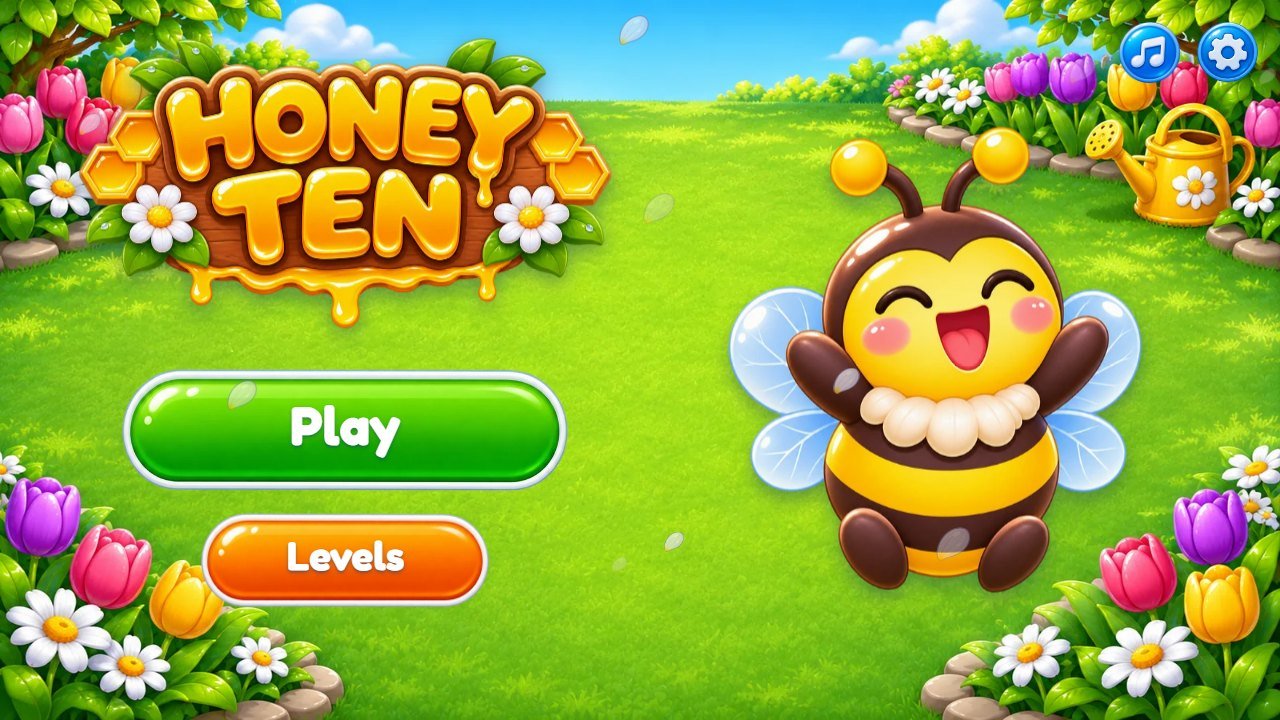 1
2
3
4
5
6
| # | What you see | File to change |
|---|---|---|
| 1 | Game logo | assets/art/logo.webp (recipe A) |
| 2 | Bee on the title screen | assets/art/bee-big.webp (recipe B) |
| 3 | Play button |
Text: key play in src/locales.js. Look:
assets/art/btn-green.webp (recipes E and F)
|
| 4 | Levels button | Text: key levels. Look: assets/art/btn-amber.webp |
| 5 | Sound button | assets/art/b-music.webp |
| 6 | Settings button | assets/art/b-gear.webp |
World map (world 2, Water Lily Pond)
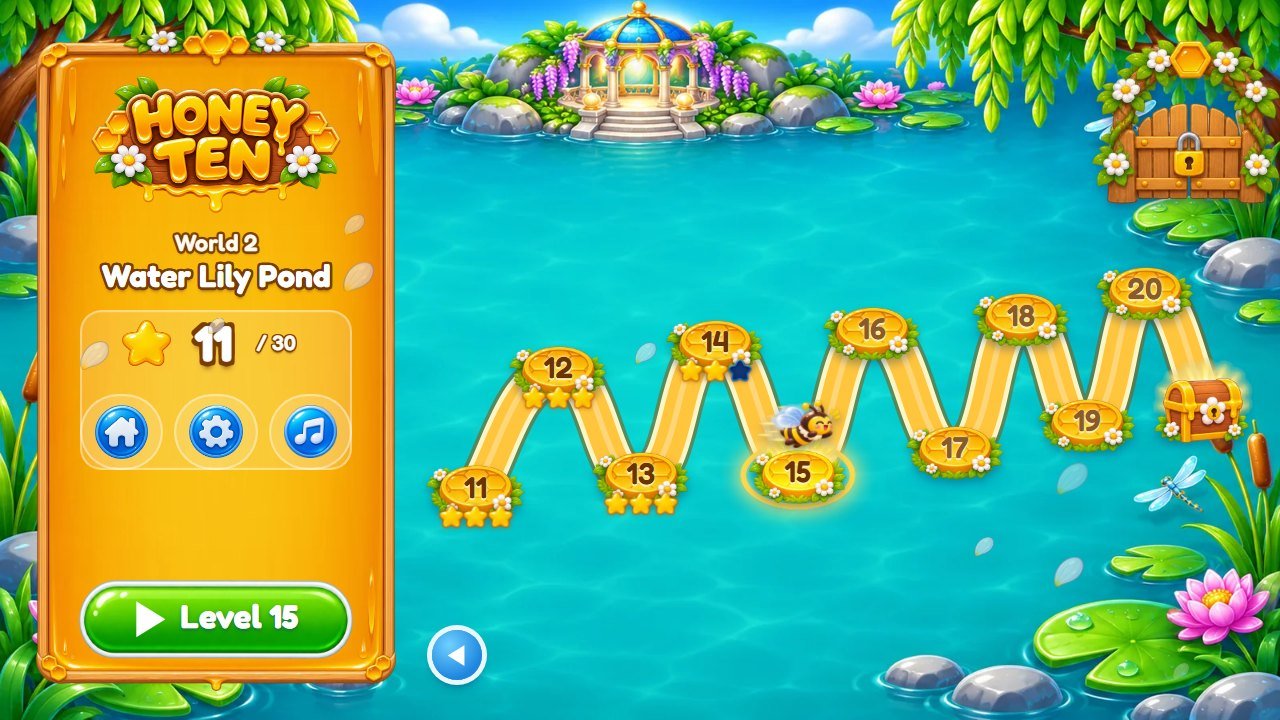 1
2
3
4
5
6
7
8
9
| # | What you see | File to change |
|---|---|---|
| 1 | Game logo | assets/art/logo.webp (recipe A) |
| 2 | World name |
Keys w1 to w5 in src/locales.js and
src/locales-more.js (recipe E)
|
| 3 | Stars | assets/art/star.webp and assets/art/star-off.webp |
| 4 | Level stone on the map | assets/art/stone.webp and assets/art/stone-now.webp (the current level) |
| 5 | World chest |
assets/art/chest.webp and assets/art/chest-open.webp; what it gives:
chestText key
|
| 6 | Gate to the next world | assets/art/gate.webp |
| 7 | The bee mascot |
assets/art/bee-fly.webp on the map, bee-idle.webp and the other poses in a
level (recipe B)
|
| 8 | Play button |
Text: key play in src/locales.js. Look:
assets/art/btn-green.webp (recipes E and F)
|
| 9 | Map background and trail |
assets/art/map-land.webp (world 1) and w2-map-land.webp to
w5-map-land.webp (recipe D)
|
A level (level 6, Flower Bed)
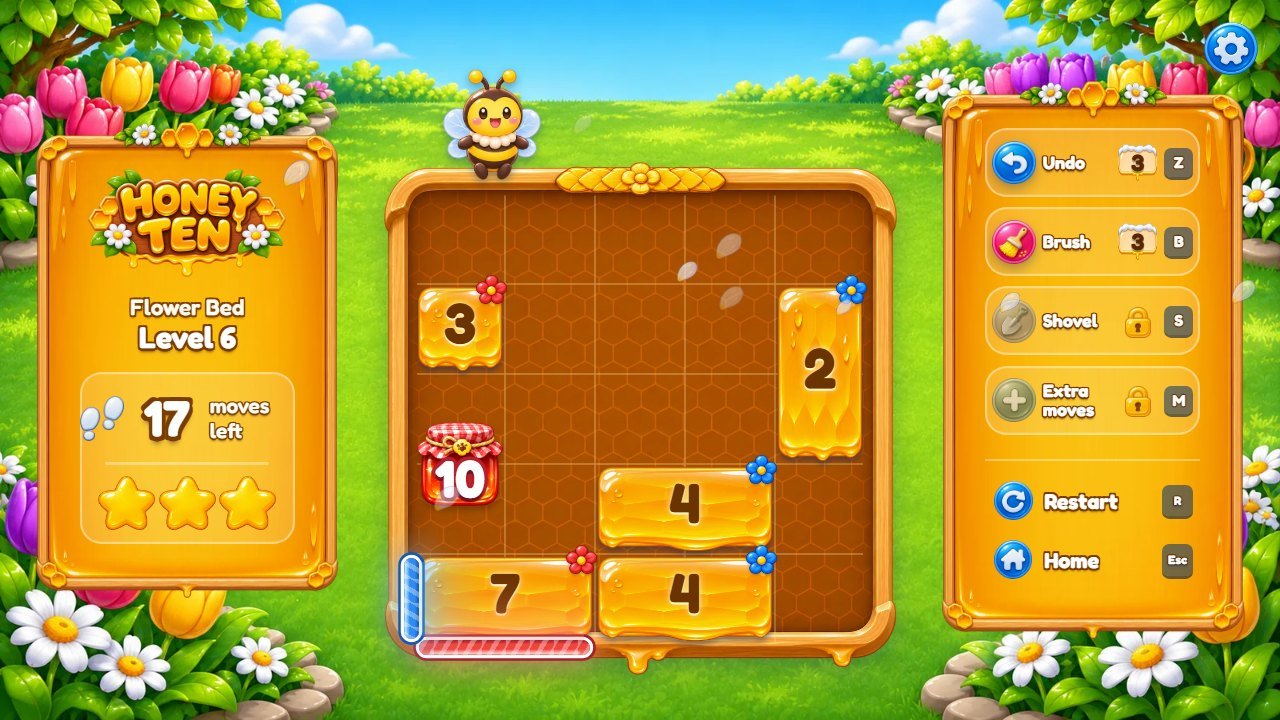 1
2
3
4
5
6
7
8
9
10
11
| # | What you see | File to change |
|---|---|---|
| 1 | Game logo | assets/art/logo.webp (recipe A) |
| 2 | Level number | Key level in src/locales.js |
| 3 | Moves left | The limit comes from par and RULES_UI (recipe I) |
| 4 | Stars | assets/art/star.webp and assets/art/star-off.webp |
| 5 | Door (glowing bar) |
Colors from COLORS in src/config.js (recipe G); position in
src/levels.js (recipe J)
|
| 6 | Honey block | assets/art/comb.webp (recipe C); its number and color come from the level (recipe J) |
| 7 | Flower on a block | assets/art/flower-r.webp to flower-k.webp (recipe C) |
| 8 | The bee mascot |
assets/art/bee-fly.webp on the map, bee-idle.webp and the other poses in a
level (recipe B)
|
| 9 | Board frame and honeycomb tray | assets/art/board.webp (recipe C) |
| 10 | Power-ups |
assets/art/p-undo.webp, p-brush.webp, p-shovel.webp,
p-plus.webp; rules in RULES_UI (recipe I)
|
| 11 | Restart and Home | assets/art/b-restart.webp and b-home.webp |
On a phone held upright the same pieces are arranged in a column (the world and level names are hidden to save room):
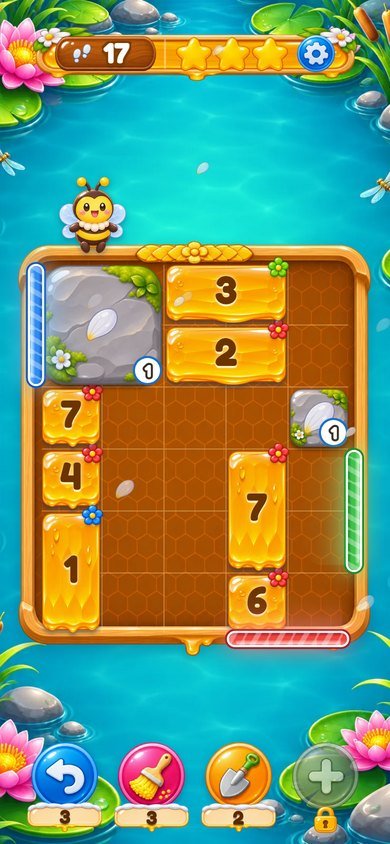
A. Game name, logo and page title
-
Logo: draw your logo with a transparent background, about 1200 x 700 pixels, export it as WebP and save it
over
assets/art/logo.webp. It is used on the title screen and, small, above the map and the level panel. -
Line under the logo: open
index.html, find<div class="sub"><span>Puzzle</span></div>and change the wordPuzzle. -
Browser tab title: in
index.htmlchange the text between<title>and</title>. The tab icon is the line withrel="icon"(it points toassets/art/jar-r.webp; any small square image works). -
The name inside texts (for example the thank-you screen) is the key
endTextinsrc/locales.jsandsrc/locales-more.js(recipe E).
B. The bee mascot
The bee is a set of pictures with a transparent background. Replace them with your character in the same poses, each about 500 x 500 pixels, keeping the names:
File in assets/art/ |
When it shows |
|---|---|
bee-idle.webp |
waiting on the frame |
bee-think.webp |
while a block is being dragged |
bee-cheer.webp |
a jar was made or delivered |
bee-oops.webp |
a sum over 10, a jar with no door, or out of moves |
bee-wave.webp |
when a level starts |
bee-push.webp |
pushing a block (free for your own use; the game shows it only through the test helpers) |
bee-big.webp |
title screen |
bee-fly.webp |
flying along the map |
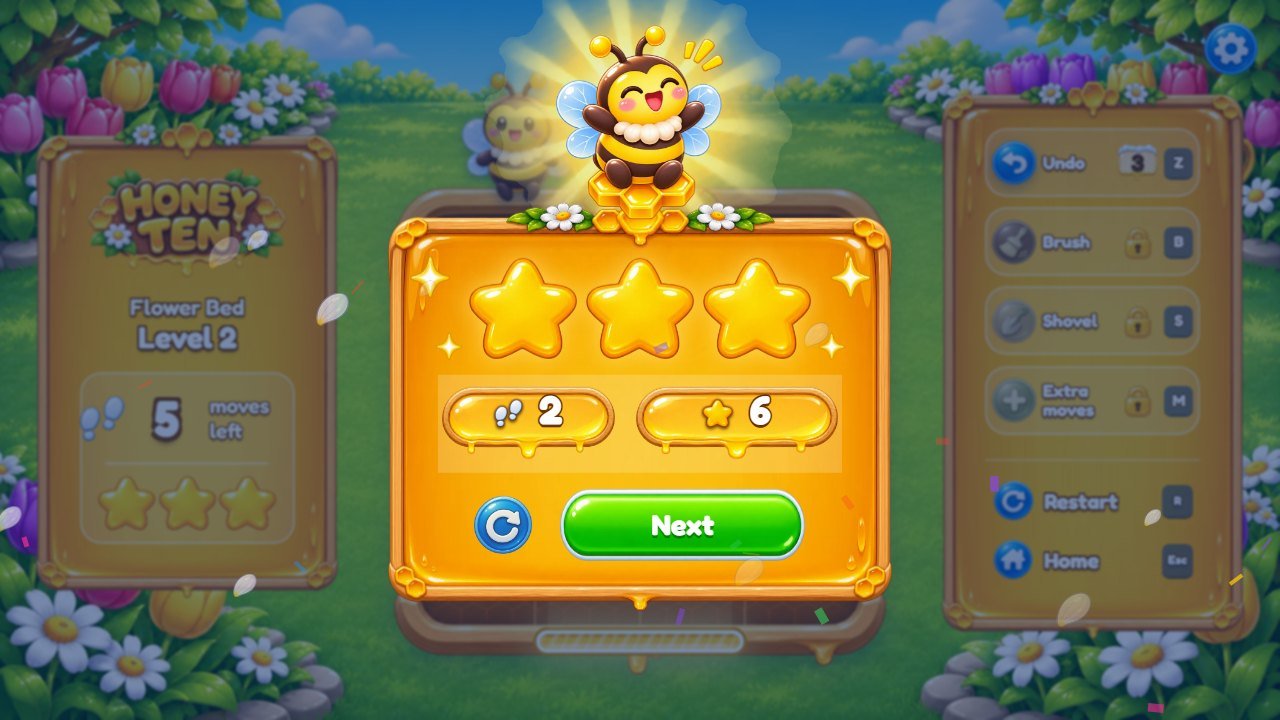
bee-win.webp |
the win panel |
In the code the mascot is called pip (for example the #pip picture and the
pipBox that holds it); you do not need to change those names.
C. Honey blocks, jars, flowers and the board
-
Number blocks:
assets/art/comb.webp. It is stretched to blocks of any size (1x1, 2x1, 2x2...) as a "9-slice" picture: the corners stay sharp and the middle stretches. Keep a plain middle and the decoration near the edges. The number is drawn by the game on top. -
Honey jars (a block that reached 10):
jar-r.webptojar-k.webp, one per color (the letter is the color, see recipe G). The "10" is written by the game in the middle of the jar. -
Little flowers on the blocks (they show the block color):
flower-r.webptoflower-k.webp. - Board frame and honeycomb tray:
board.webp. -
Special pieces: garden rock
rock.webp, honeycomb blockstuck-comb.webp, flower bushbush.webp, surprise basketsurprise.webp, door padlocklock.webp, challenge clockclock.webp, floating petalspetal.webp.
In the code these pieces keep the engine's names: a jar is a gift, a garden rock is
ice, a honeycomb block is a pin, a flower bush is a hole and a surprise
basket is a box.
D. World backgrounds and maps
Each world has a background for levels and a background for its map, in two shapes: land (wide screens, 1600 x 900 pixels) and port (phones held upright, 900 x 1600 pixels). Keep the important things away from the edges: different screens crop them a little.
| World | Levels | Level background | Map background |
|---|---|---|---|
| Flower Bed | 1 to 10 | bg-land.webpbg-port.webp |
map-land.webpmap-port.webp |
| Water Lily Pond | 11 to 20 | w2-bg-land.webpw2-bg-port.webp |
w2-map-land.webpw2-map-port.webp |
| Beehive | 21 to 30 | w3-bg-land.webpw3-bg-port.webp |
w3-map-land.webpw3-map-port.webp |
| Sunflower Field | 31 to 40 | w4-bg-land.webpw4-bg-port.webp |
w4-map-land.webpw4-map-port.webp |
| Moonlit Garden | 41 to 50 | w5-bg-land.webpw5-bg-port.webp |
w5-map-land.webpw5-map-port.webp |
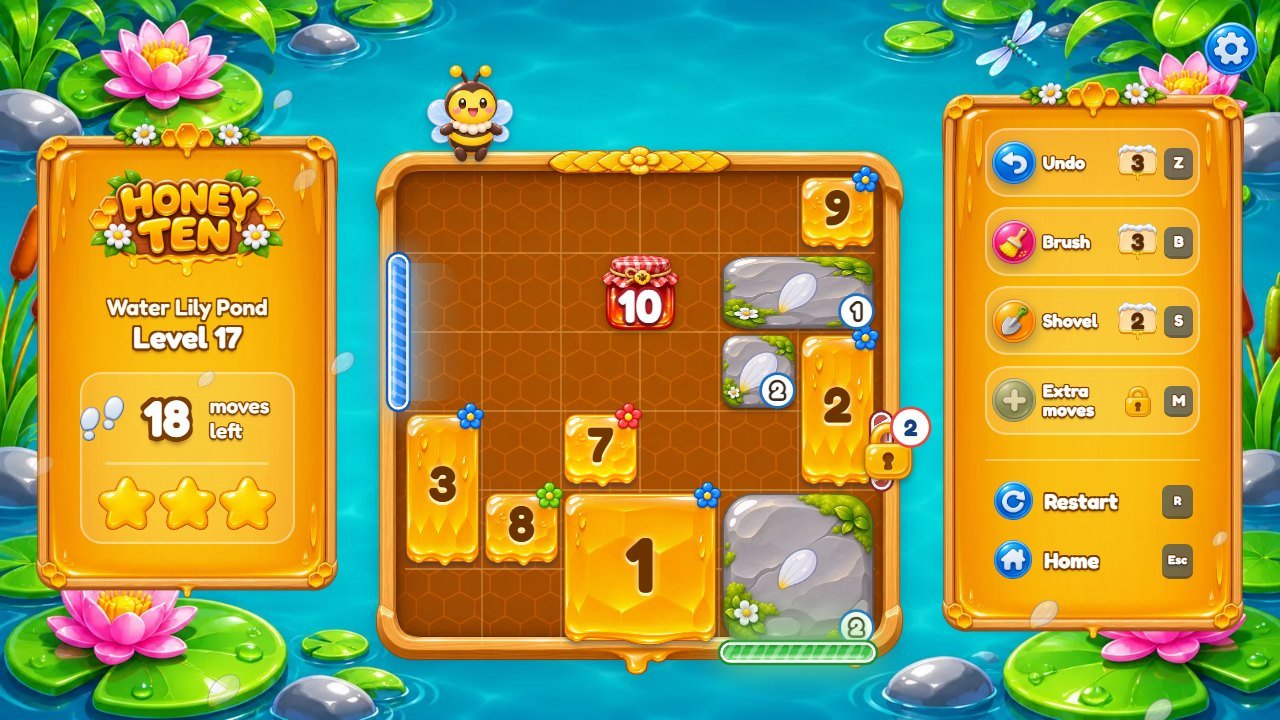
w2-bg-land.webp.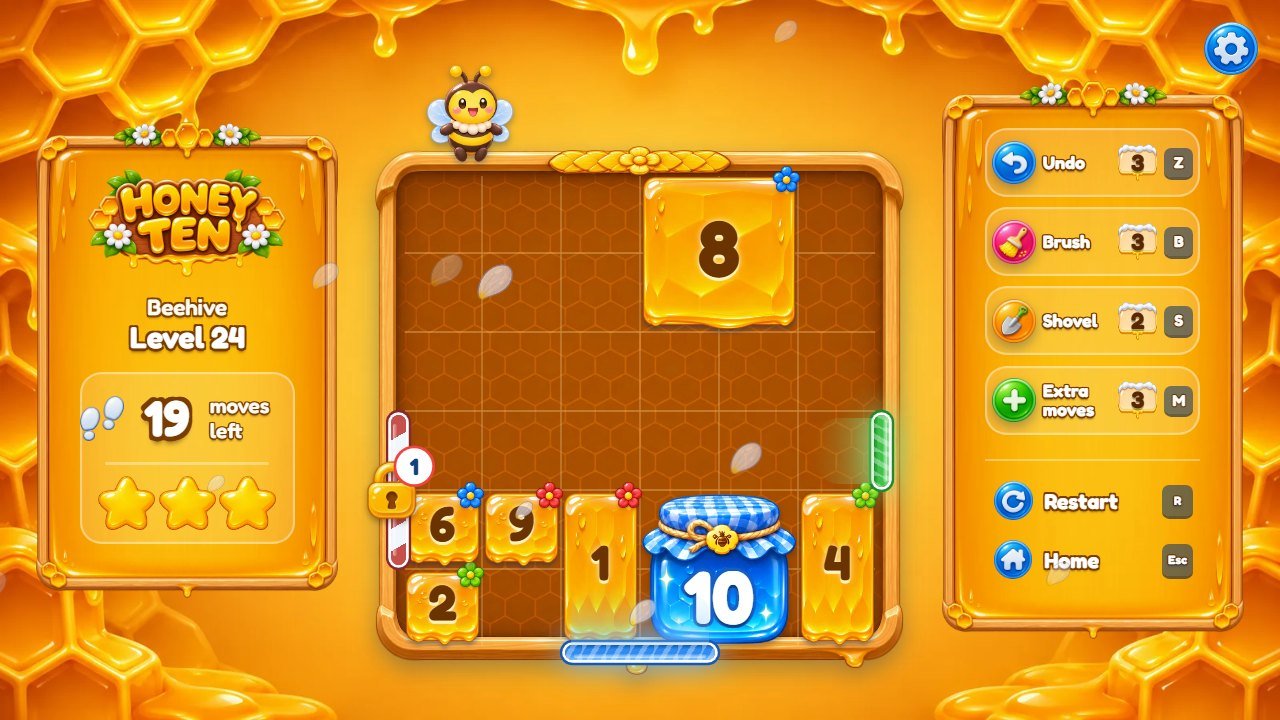
w3-bg-land.webp.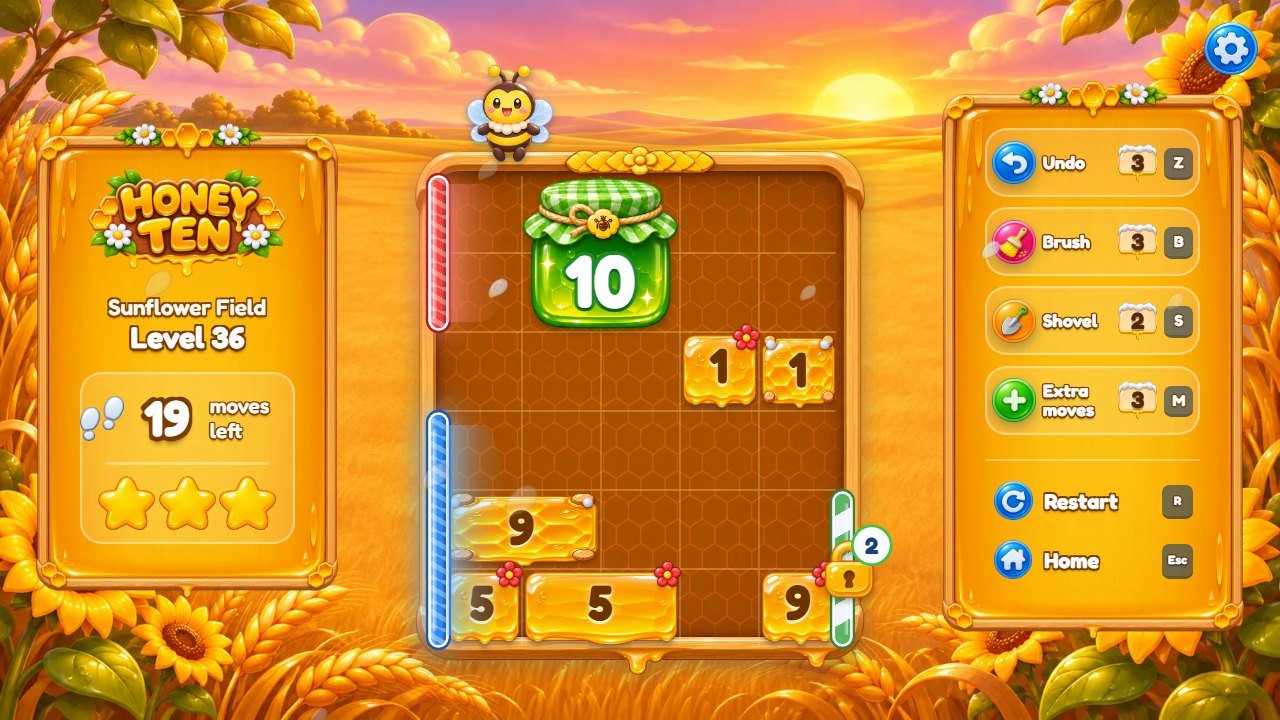
w4-bg-land.webp.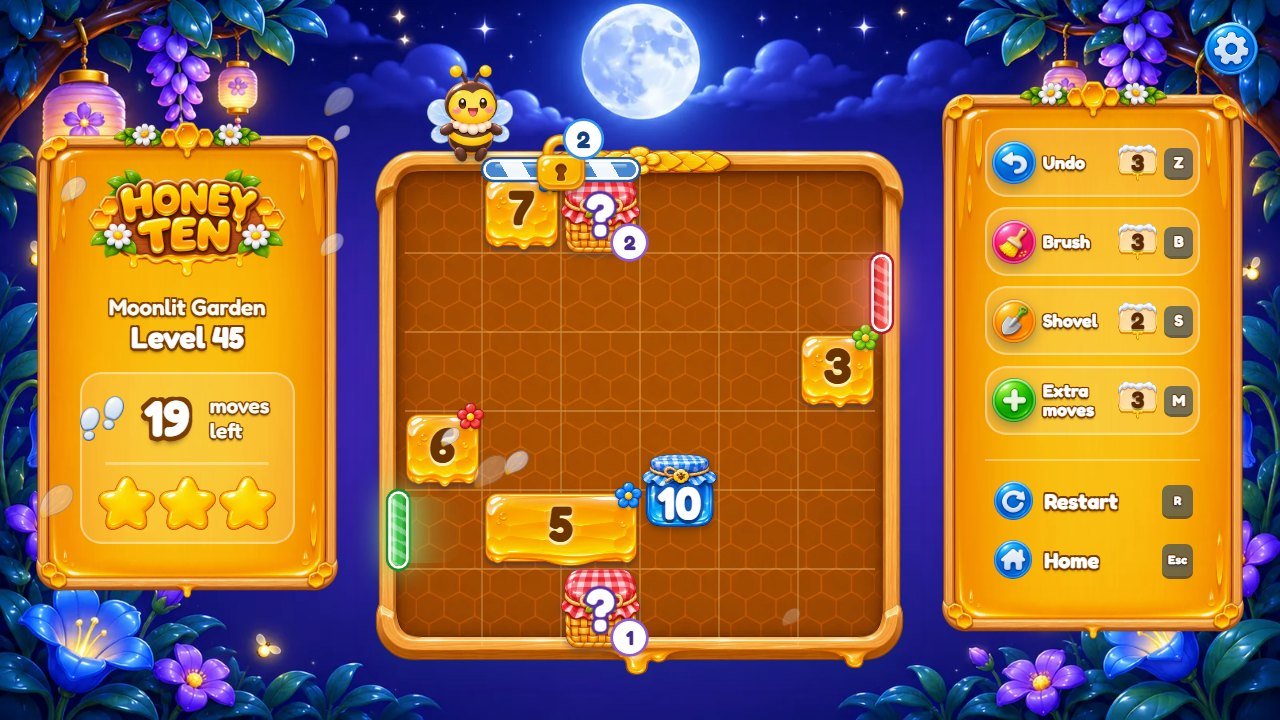
w5-bg-land.webp.E. Texts, world names and languages
-
Open
src/locales.js. Near the top is the English dictionary: each line iskey: 'text'. Change only the text between the quotes. -
Keep anything in curly brackets, such as
{n}in'Level {n}': the game puts a number there. -
World names are the keys
w1tow5. The tutorial tips aretut1totut4andtutMoves; the new-piece cards usetLock,dLockand the other keys that start with t and d. -
Portuguese and Spanish are in the same file; the other 11 languages are in
src/locales-more.js. If you change a text in English, change it in the other languages too (or delete that line in a language: the English text is used instead). - If a text contains an apostrophe, write it as
\'(for example'Time\'s up').
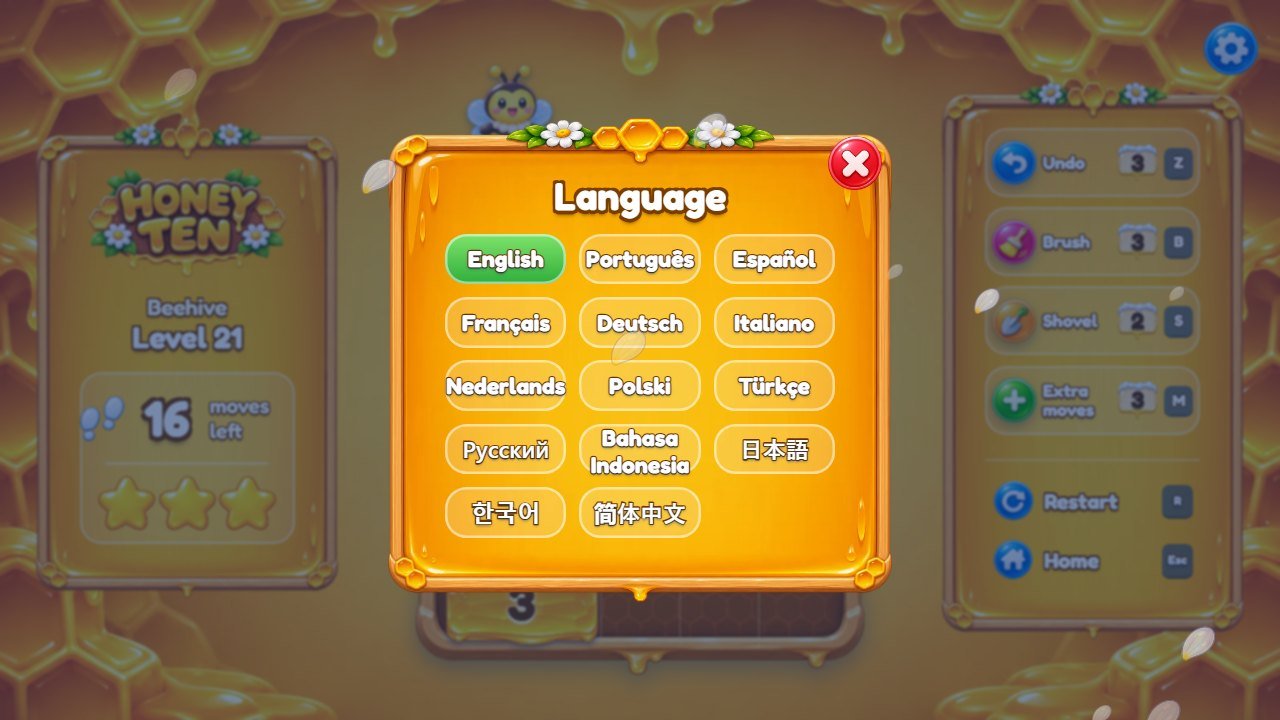
LANGS in
src/locales.js.
F. Buttons, panels and icons
-
Big buttons:
btn-green.webp(Play, Next) andbtn-amber.webp;btn-green-trim.webpis the version used for Next on the win panel. -
Round icon buttons:
b-music.webp,b-gear.webp,b-home.webp,b-restart.webp,b-close.webp,b-globe.webp. -
Wooden panels and bars:
panel.webp,plate.webp,bar.webp,pill-dark.webp,stat.webp. Panels are stretched like the blocks (recipe C), so keep their middle plain. -
Win panel:
rays.webp(light behind the bee) andbow.webp; level stones on the map:stone.webpandstone-now.webp.
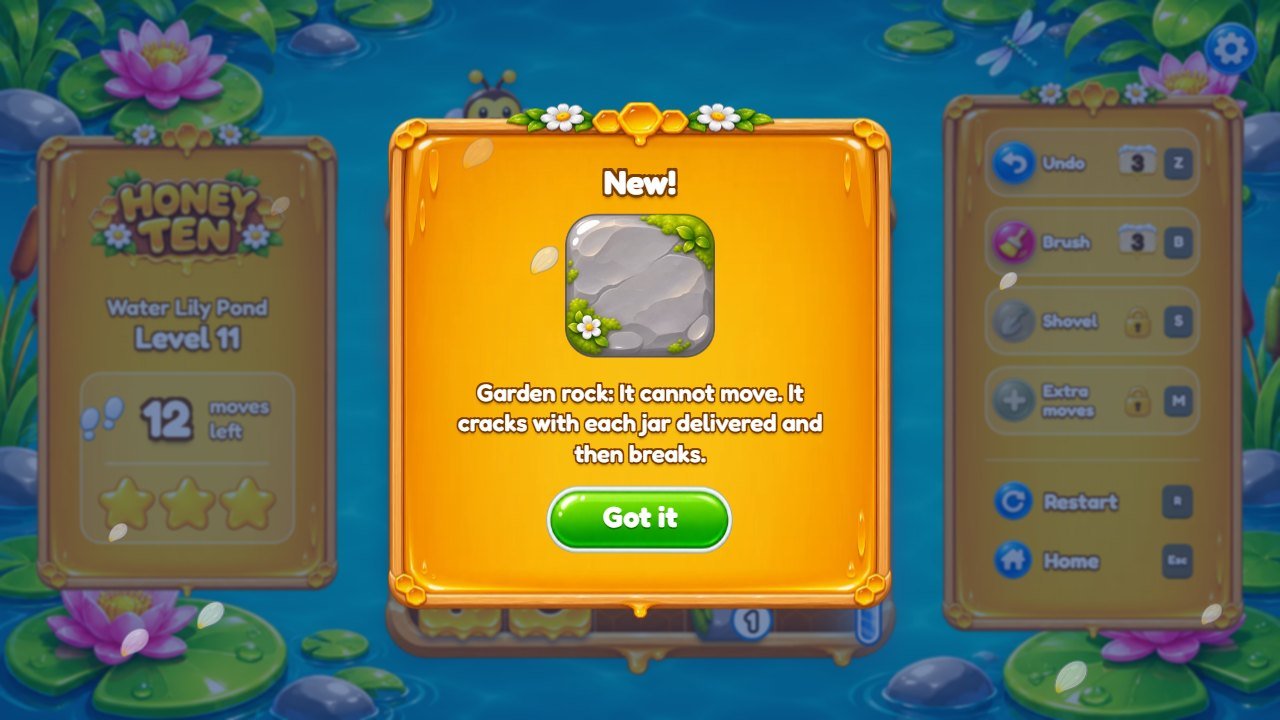
rock.webp).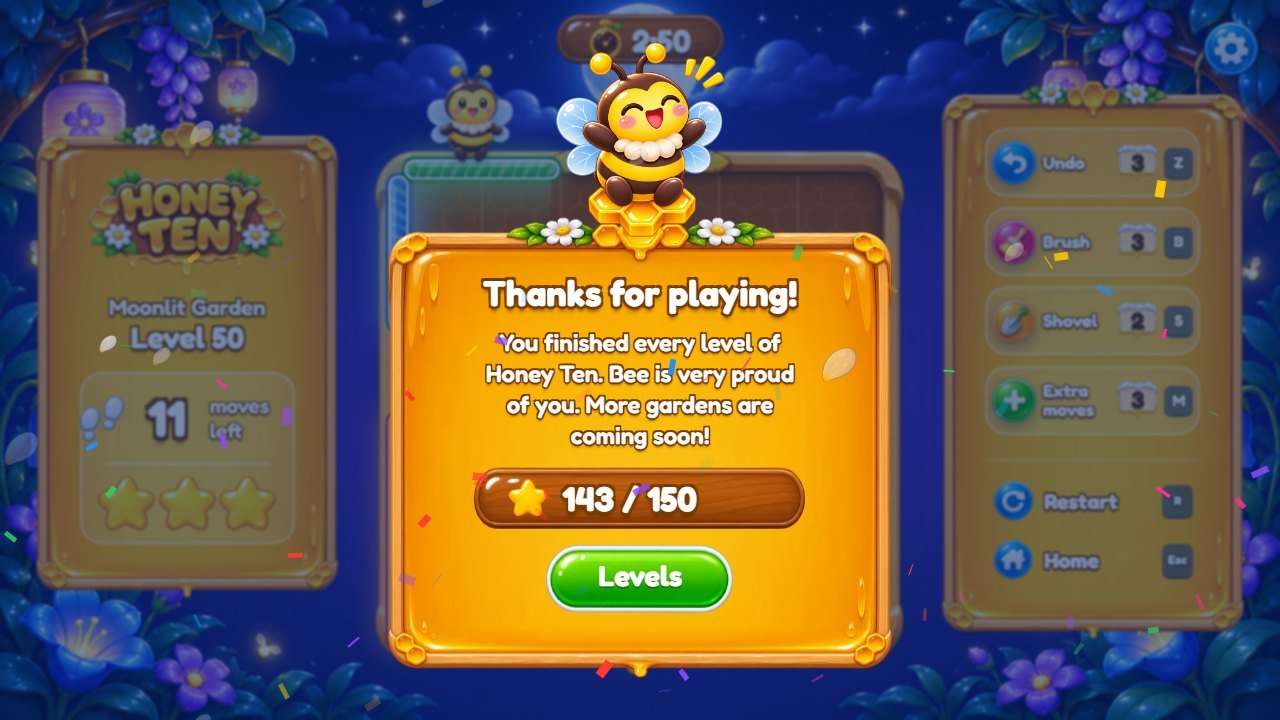
endTitle and endText).
G. Block colors
The game uses up to eight colors, each named by a letter. In src/config.js,
COLORS gives three shades per color (light, full, dark) used for the doors, the glow and the
effects; the pictures of recipe C (jar-* and flower-*) should match them.
| Letter | Color | Pictures |
|---|---|---|
r |
red | jar-r.webp, flower-r.webp |
b |
blue | jar-b.webp, flower-b.webp |
g |
green | jar-g.webp, flower-g.webp |
y |
yellow | jar-y.webp, flower-y.webp |
p |
purple | jar-p.webp, flower-p.webp |
o |
orange | jar-o.webp, flower-o.webp |
t |
teal | jar-t.webp, flower-t.webp |
k |
pink | jar-k.webp, flower-k.webp |
H. Music and sound effects
-
Music:
assets/music/menu.mp3(title screen),map.mp3(world map) andplay.mp3(levels). Replace a file with another MP3 of the same name; a track that loops cleanly sounds best. Delete a file and that screen is simply silent. -
Starting volumes for new players:
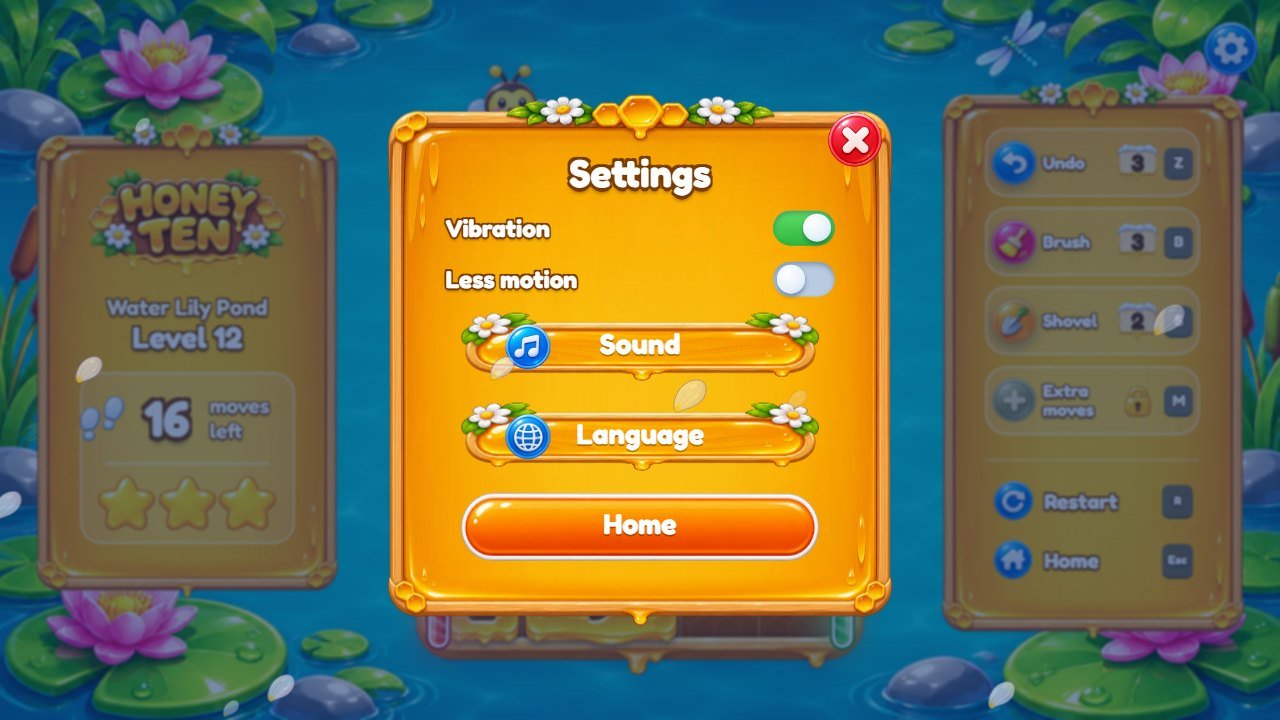
VOLinsrc/config.js(0 is silent, 1 is full). Players change them in Settings, Sound. -
Sound effects are made by code in
src/audio/sound.js(theSYNTHtable), so there are no files to replace. Each line is one sound; the number afterg:is its volume. To make one quieter, lower that number; 0 silences it.
Name in SYNTH |
When it plays |
|---|---|
merge |
two blocks join (the note rises with the sum) |
gift |
a jar is made |
exit |
a jar is delivered |
unlock |
a locked door opens |
crack |
a garden rock cracks |
melt |
a garden rock breaks |
reveal |
a surprise basket opens |
bump |
a sum over 10 does not fit |
paint |
the Brush |
shovel |
the Shovel |
undo |
Undo |
star |
a star on the win panel |
win |
level complete |
lose |
out of moves or time |
tick |
the last seconds of a challenge level |
ui_click |
a button |
ui_back |
closing a window |
I. Difficulty: moves, stars and power-ups
All in RULES_UI, in src/config.js:
-
limit: the move limit of a level, from its best solutionpar. More generous: raise the numbers. star3andstar2: how many moves still give 3 and 2 stars.unlockAt: the level where each power-up appears (brush 6, shovel 12, plus 18).-
undoPerLevel: Undo uses per level.start: power-ups a new player has.plusMovesandplusSeconds: what Extra moves gives. - Challenge levels: the seconds are
timein the level line (recipe J).
The feel of the game (springs, shake, particles, vibration) is FEEL in the same file; small changes
are safe.
J. Change or add a level
Each level is one line in src/levels.js, grouped by world (10 per world, in the lists
W1 to W5). The technical guide explains every field ("Levels and the level
generator"). The safest way to make a new level:
- Install Node.js and open a terminal in
source/(recipe L). -
Run
npm run levels -- tools/level-params.example.json 3. It prints 3 new solvable levels, each as a ready line. Opentools/level-params.example.jsonto choose the board size, how many doors and colors, rocks (ice), bushes (holes), locked doors (locks) and the range of moves (par). -
Copy a line over a level in
src/levels.js(keep the comma at the end), or add it to the end of a world list. -
Run
npm test: it solves every level again and tells you if one has no solution or if itsparis wrong. -
To watch the solution, open
http://localhost:5310/?level=7&solutionand press Show solution.
K. Font
The game uses Fredoka (SIL Open Font License), in assets/fonts/. To use another font, add its WOFF2
files there and change the @font-face blocks at the top of style.css, keeping
font-family: Fredoka or changing that name everywhere in the CSS files. Check that the new font has
the letters of all 14 languages, or keep Fredoka for them.
L. Test and publish
-
Install Node.js 26 LTS (26.13 or newer) from nodejs.org. Open a terminal in the
source/folder. npm cithennpm test. All tests must pass.-
npm run serveand openhttp://localhost:5310/. Play a level of each world you changed. Ctrl+C stops the server. npm run buildcopies the game intosource/dist/.-
Upload the contents of
dist/to your website over the old files. Delete on the server any file you renamed or removed. - Do not see the change? Clear the browser cache: Ctrl+F5 (Windows) or Cmd+Shift+R (Mac), a private window, or the cache of your host or CDN. The technical guide has a full section on cache.
Help: willian@polargames.com.br, with your purchase code.