Customization Guide
Make Glowpane Puzzle your own game: your own pictures and chapters, backgrounds, logo, texts, music, colors and difficulty. Every recipe below is a short list of steps and says exactly which file to open. You do not need to know how to program. All pictures on this page are real screenshots of the game in this package.
1. Before you start
Free tools you need:
- A code text editor: Visual Studio Code (Windows, Mac, Linux) or Notepad++ (Windows). Do not use Word or WordPad: they break the files.
- An image editor: Photopea (in the browser), GIMP or Krita. Level pictures can be JPG or WebP; interface pictures are WebP with a transparent background. You can save a PNG and convert it to WebP at squoosh.app.
-
To see the game on your computer, a browser and one of these: the local server included in
source/(npm run serve, needs Node.js, see the main guide), or any local web server you already use (for example XAMPP, WAMP or MAMP). Openingindex.htmlwith a double click does not work: browsers block the game files when the page comes from the disk.
game/ folder (or source/) to a
safe place before you change anything. If something breaks, put the backup back.
Which folder do I edit? The simplest way: edit the files inside game/ and upload
that folder. If you also use the developer tools, edit source/ instead and run
npm run build, which copies everything to source/dist/ (the same as
game/). Both folders have the same file names, so every recipe below works in either one.
2. Where everything is
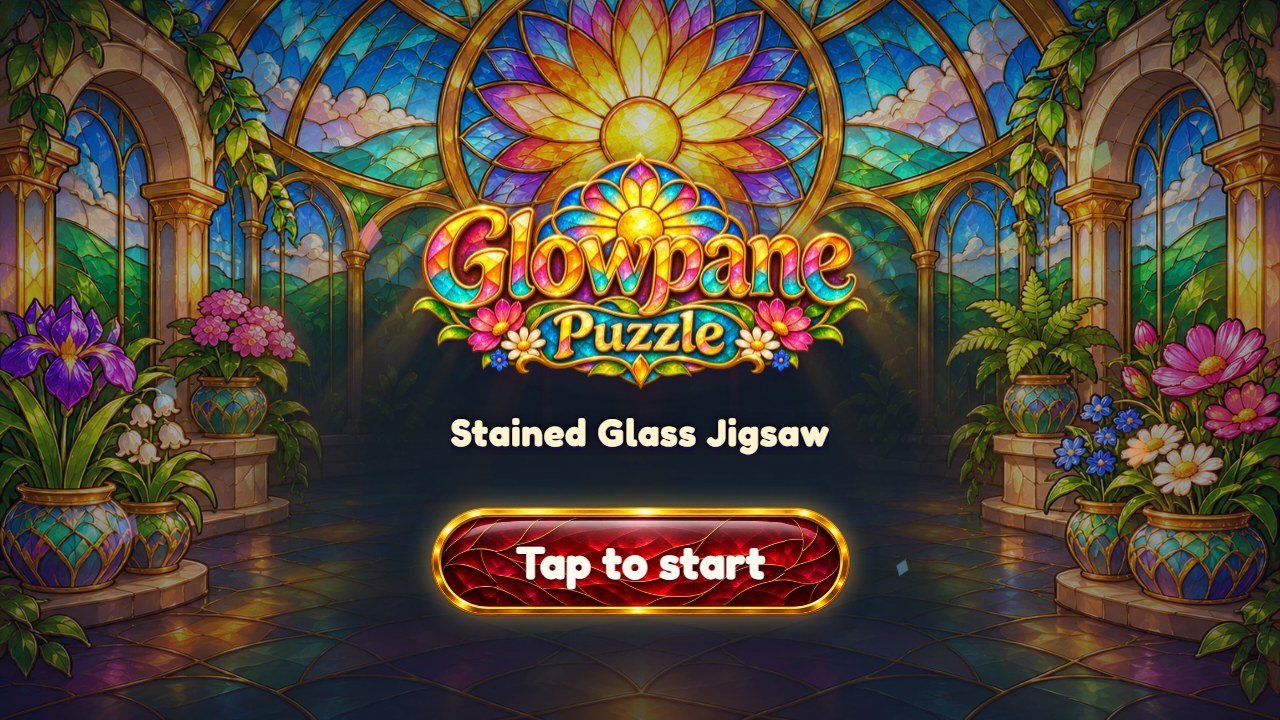
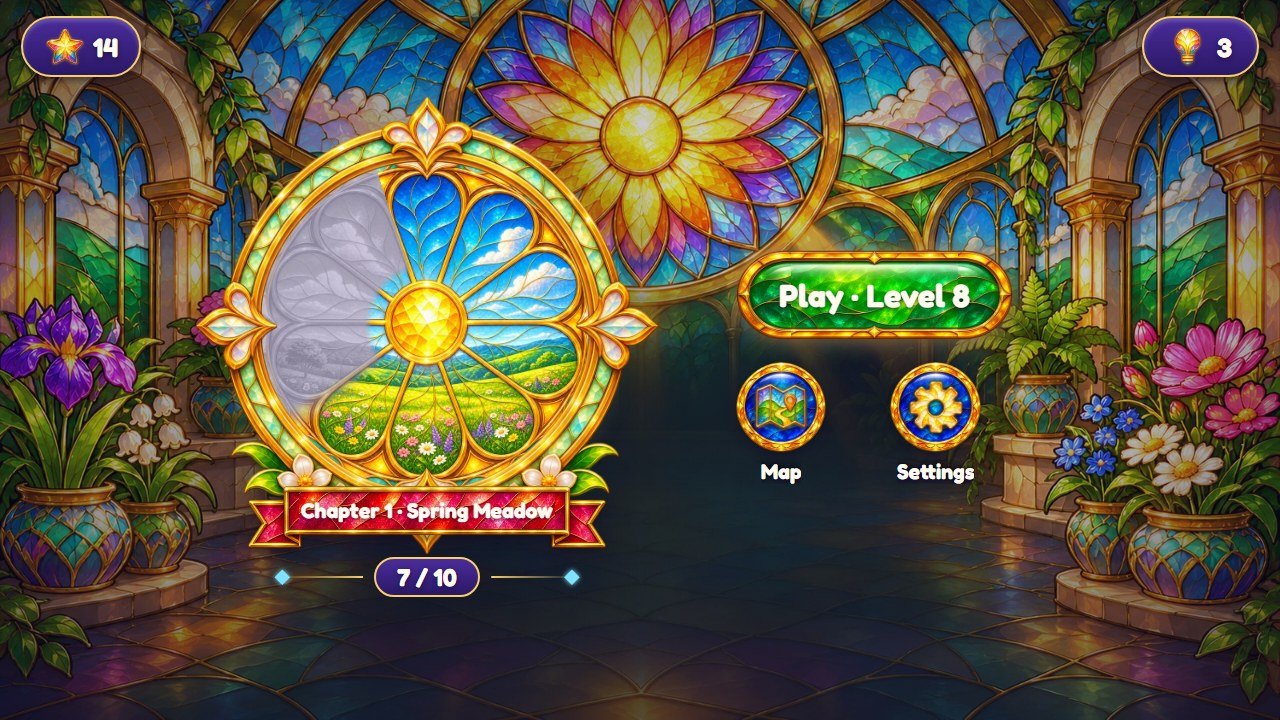
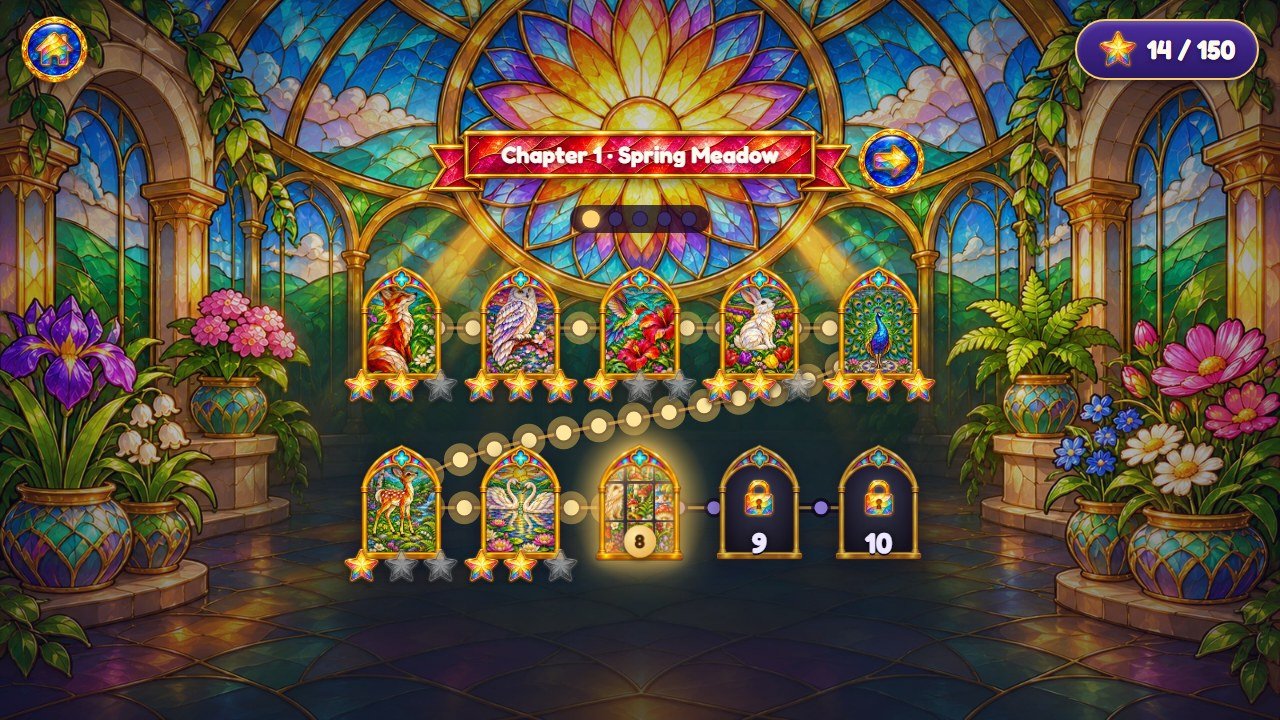
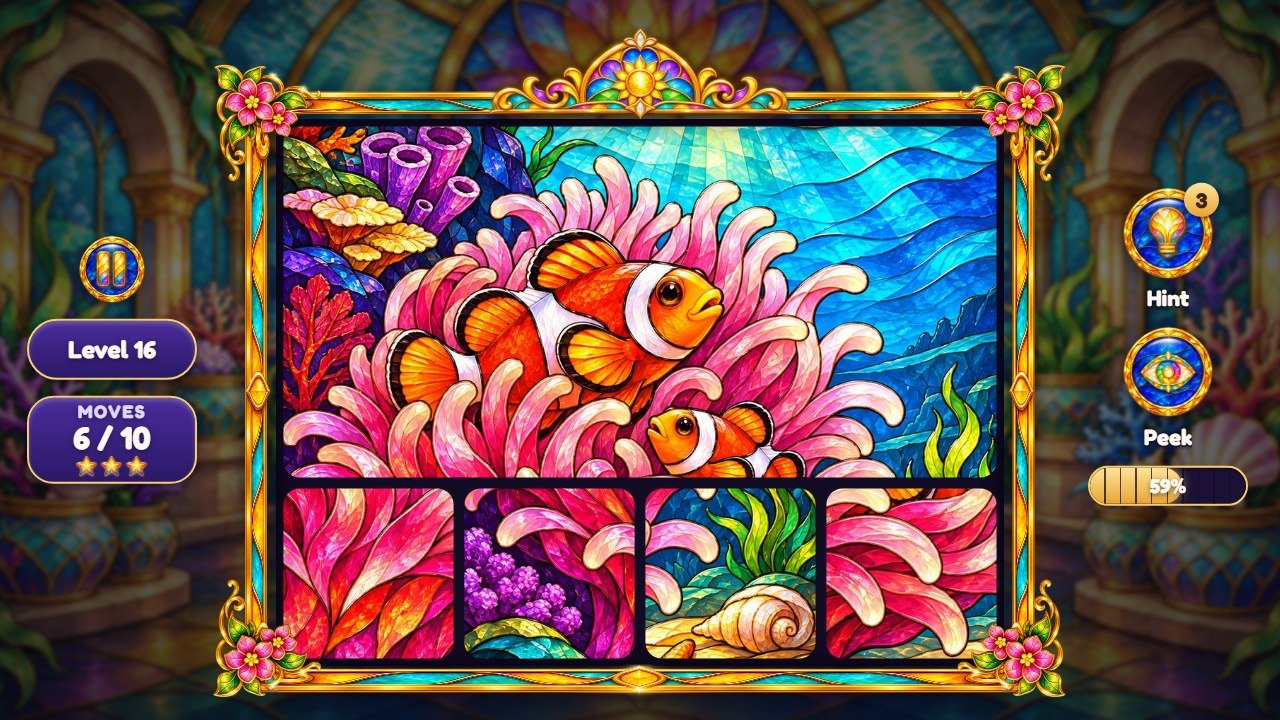
Each number on the screenshot matches a line of the table under it, with the exact file to change. Interface
texts are in src/locales.js (English, Portuguese, Spanish) and
src/locales-more.js (the other 11 languages); the table gives the key of each text.
Title screen
 1
2
3
4
| # | What you see | File to change |
|---|---|---|
| 1 | Logo | assets/art/logo.webp, a picture with a transparent background (recipe E). |
| 2 | Subtitle |
Text: key tagline in src/locales.js and
src/locales-more.js (recipe F).
|
| 3 | Tap to start button |
Text: key tapToStart. Button picture: assets/art/btn-red-l.webp,
btn-red-m.webp and btn-red-r.webp (recipe I).
|
| 4 | Background |
assets/art/bg-landscape.webp on wide screens and
assets/art/bg-portrait.webp on phones held upright (recipe D).
|
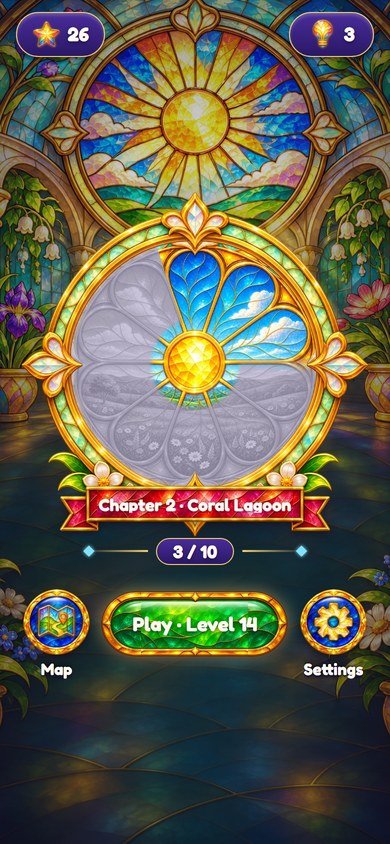
Home screen
 1
2
3
4
5
6
7
8
9
| # | What you see | File to change |
|---|---|---|
| 1 | Stars earned | Icon: assets/art/ic-star.webp. The sum of the best stars of every level. |
| 2 | Hints left |
Icon: assets/art/ic-hint.webp. Starting number: START_HINTS in
src/config.js (recipe G).
|
| 3 | Rose window |
assets/art/rose.webp (lit petals), rose-dim.webp (unlit) and
rose-ring.webp (the ring). One petal lights up for each finished level of the chapter, up
to 10.
|
| 4 | Chapter name |
The name of the chapter in assets/levels.json (recipe B). "Chapter 1" is the
key chapterN. Ribbon picture: assets/art/ribbon-l.webp,
ribbon-m.webp, ribbon-r.webp.
|
| 5 | Chapter progress | Finished levels of the chapter out of all its levels. Counted by the game from the list of pictures. |
| 6 | Map button |
Icon: assets/art/ic-map.webp; round button: btn-round.webp; text: key
map.
|
| 7 | Play button |
Texts: keys play and levelN. Button picture:
assets/art/btn-green-l.webp, btn-green-m.webp, btn-green-r.webp.
|
| 8 | Settings button | Icon: assets/art/ic-gear.webp; text: key settings. |
| 9 | Background |
assets/art/bg-landscape.webp on wide screens and
assets/art/bg-portrait.webp on phones held upright (recipe D).
|
Level map
 1
2
3
4
5
6
7
8
9
10
| # | What you see | File to change |
|---|---|---|
| 1 | Home button | Icon: assets/art/ic-home.webp. |
| 2 | Stars out of all | Stars earned out of 3 stars per level. Counted by the game from the list of pictures. |
| 3 | Chapter name | The name of the chapter in assets/levels.json (recipe B). |
| 4 | Next / previous chapter |
Icon: assets/art/ic-back.webp (turned around for "next"). A side swipe on the map does the
same.
|
| 5 | Chapter pages | One dot per chapter, drawn by the styles. It grows by itself when you add chapters. |
| 6 | Finished level |
The level picture with its stars. The window shape is assets/art/arch.webp with the mask
arch-mask.png.
|
| 7 | Current level | The level picture cut into 3×3 shuffled squares by the code, with the level number. |
| 8 | Locked level | Padlock: assets/art/ic-lock.webp. |
| 9 | Path between levels |
Drawn by the code (trail() in src/main.js): golden up to the current level,
violet after it.
|
| 10 | Chapter background |
mapBackground (phones held upright) and mapBackgroundWide (wide screens) of
the chapter in assets/levels.json (recipe D).
|
A level
 1
2
3
4
5
6
7
8
9
10
| # | What you see | File to change |
|---|---|---|
| 1 | Pause button | Icon: assets/art/ic-pause.webp. Opens the pause window with the settings. |
| 2 | Level number | Text: key levelN. |
| 3 | Moves and par | Text: key moves. The three small stars follow the rule of recipe G. |
| 4 | The pieces | The level picture, cropped in the middle and cut into the grid of that level (recipes A, B and C). |
| 5 | Frame | assets/art/frame.webp; the flowers in the corners are corner.webp. |
| 6 | Top ornament |
assets/art/crown.webp. When there is room above the frame (phones held upright) the game
shows the arch tympanum.webp instead.
|
| 7 | Hint button |
Icon: assets/art/ic-hint.webp; text: key hint. The number is the hints left
(recipe G).
|
| 8 | Progress bar | How much of the window is joined. Drawn by the styles (recipe I). |
| 9 | Peek button |
Icon: assets/art/ic-eye.webp; text: key peek. While it is held, the whole
picture shows over the board.
|
| 10 | Background of the level |
The same chapter background as the map (mapBackgroundWide on wide screens), recipe D.
|
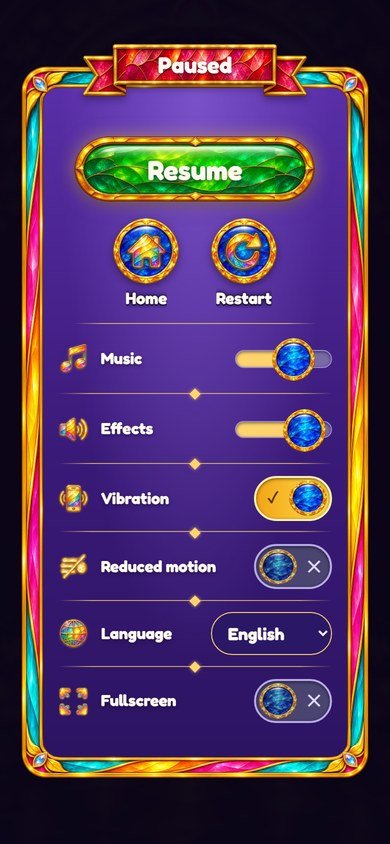
3. More screens of the game
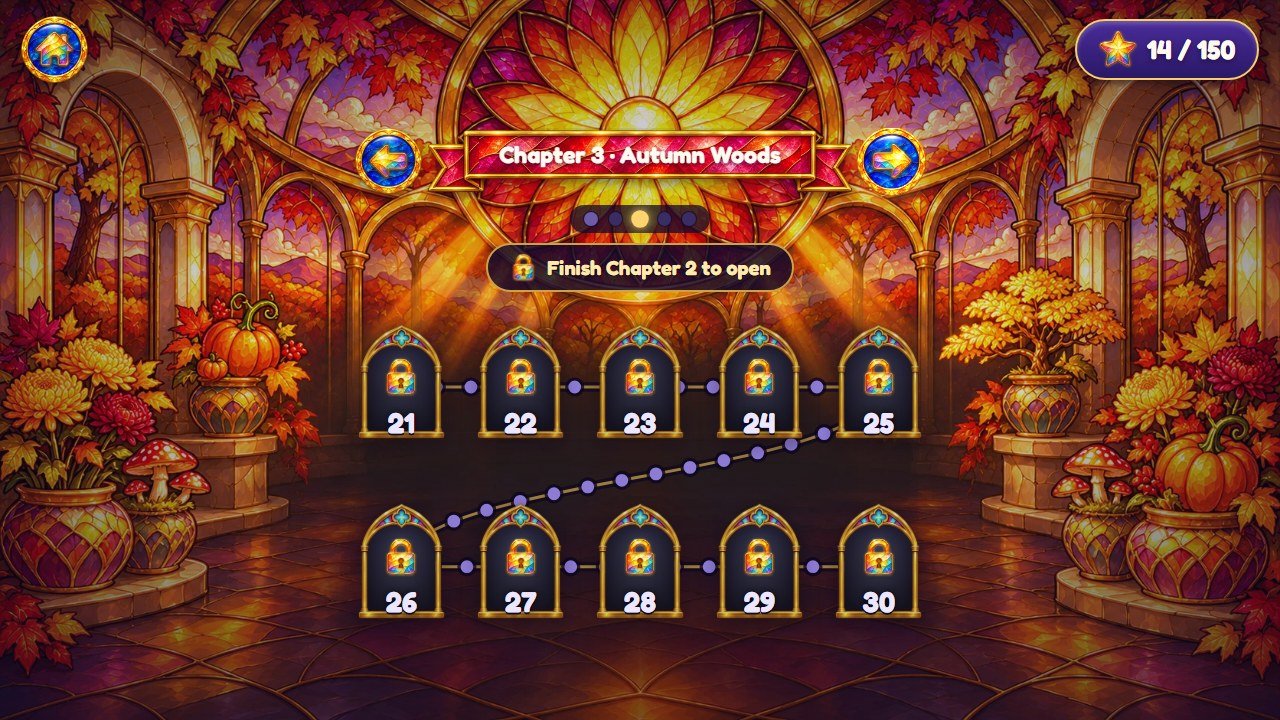
chapterLocked.
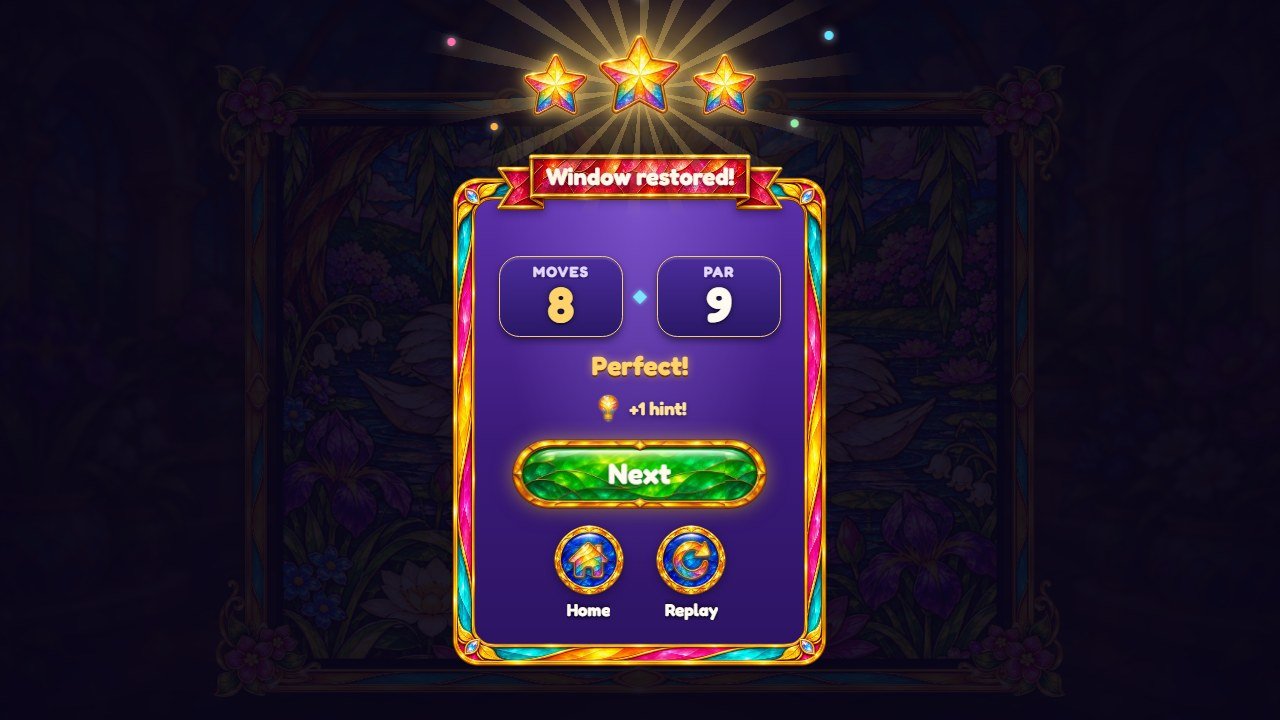
bg-portrait.webp).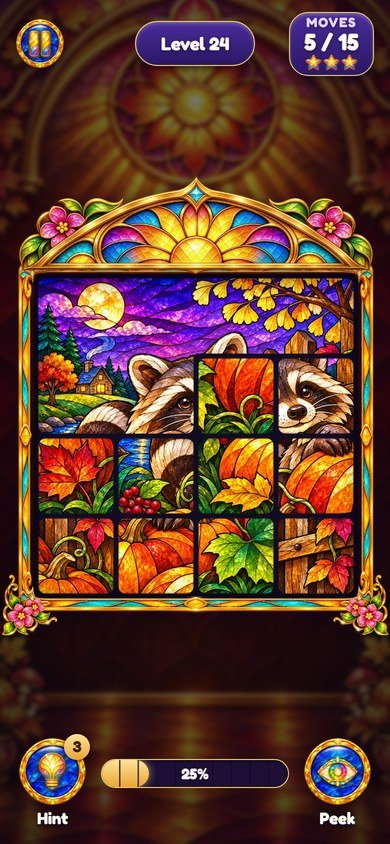
tympanum.webp sits above the frame.
4. Recipe A: replace a level picture
- Prepare your picture. Square, 1024×1024 pixels or larger gives the best result. Any other size or shape also works: the game keeps the middle of the picture and cuts it to the grid of the level.
- Choose pictures with detail everywhere. Big areas of one flat color (a clear sky, a white wall) make pieces that look the same, and the puzzle becomes frustrating.
- Save it as JPG (quality about 85) or WebP, so the game stays light. Use only pictures you have the right to publish.
-
Give it exactly the same name as the picture you replace, for example
assets/levels/ch1/01-fox.jpg, and copy it over the old file. Nothing else changes. -
To use a different name, change the name in the
imageslist of that chapter inassets/levels.jsonas well (recipe B).
5. Recipe B: add your own levels and chapters
All levels come from one file, assets/levels.json. One picture = one level. A
chapter is a name, a folder of pictures and the list of those pictures in the order they are played:
{
  "chapters": [
    {
      "name": "Spring Meadow",
      "folder": "assets/levels/ch1",
      "images": ["01-fox.jpg", "02-owl.jpg", "03-hummingbird.jpg"],
      "mapBackground": "assets/art/bg-map.webp",
      "mapBackgroundWide": "assets/art/bg-landscape.webp"
    },
    {
      "name": "My Photos",
      "folder": "assets/levels/mine",
      "images": ["beach.jpg", "dog.jpg", "mountain.jpg"]
    }
  ]
}-
Create a folder for the new chapter, for example
assets/levels/mine/, and put your pictures in it. -
Open
assets/levels.jsonin the code editor. Copy a whole chapter block (from{to}), paste it after the last one and put a comma between the two blocks. -
Change
name(shown on the map and on the home screen),folderand theimageslist. File names are case sensitive:Dog.JPGis notdog.jpg. -
mapBackgroundandmapBackgroundWideare optional (recipe D). Without them the chapter uses the default backgrounds. - To remove a level, delete its name from the list. To remove a chapter, delete its whole block and the comma before it. To change the order, move the names.
- Save, reload the game and open the map: the new chapter appears after the previous one and opens when the previous chapter is finished.
npm test in source/:
it reads the file and checks that every listed picture exists.
The chapter name is shown as written, in every language. Players keep their stars by level number, so if you reorder levels in a game that is already online, the stars stay on the same numbers.
6. Recipe C: change the number of levels and the difficulty
-
How many levels: as many as there are pictures in
assets/levels.json. The game has 50 (5 chapters of 10). The map and the rose window are designed for 10 levels per chapter. Other counts work: a chapter of 3 or 7 shows fewer windows, and with more than 10 the map page scrolls and the rose window stays fully lit after 10. -
Grid size of each level: it depends on the chapter and on the position of the level inside
the chapter. Open
src/levels.js:LADDERlists the grids from easy to hard: 2×2, 3×3, 3×4, 4×4, 4×5, 5×5, 5×6, 6×6.- The first level of the game is 2×2. Every chapter starts one step higher than the one before it.
-
BIG(positions 4 and 9, that is the 5th and 10th level of each chapter) marks the bigger windows, which jump further up the ladder. -
ALT(positions 2, 6 and 8) marks the levels one step harder than the rest of the chapter.
-
To make the game easier, remove the last grids of
LADDER(for example end it at[5, 5]); to make it harder, start the ladder higher. Grids bigger than 6×6 make very small pieces on phones. - The par (fewest moves) of each level is calculated by the game from the shuffle; you do not set it by hand. The shuffle of each level comes from its level number, so it is the same on every visit.
-
Run
npm testinsource/after any change insrc/levels.js. If you changeLADDER, also update the expected grids at the top oftest/levels.test.mjs(the first grid[2, 2]and the largest side, 6), which describe the ladder shipped with the game.
7. Recipe D: change the backgrounds
-
Title and home screen:
assets/art/bg-landscape.webp(wide screens, 16:9, at least 1600×900) andassets/art/bg-portrait.webp(phones held upright, 9:16, at least 940×1670). Replace them keeping the names. -
Map and levels of one chapter: set
mapBackground(tall picture) andmapBackgroundWide(wide picture) in that chapter ofassets/levels.json. The game includesbg-map.webp,bg-map-c2.webp…bg-map-c5.webpandbg-landscape.webp,bg-land-c2.webp…bg-land-c5.webp. - Keep the middle of the background calm and a bit dark: the level windows and the board sit there.
8. Recipe E: change the logo and the game name
-
Logo: replace
assets/art/logo.webpwith your logo as WebP with a transparent background, about 1100 pixels wide. It is used on the title screen. -
Name in the browser tab: open
index.htmland change the text inside<title>. The same file has the logo description inalt="Glowpane Puzzle". - The line under the logo is the key
tagline(recipe F). -
The browser tab icon is
assets/art/ic-star.webp(the line withrel="icon"inindex.html). Point it to another picture if you want a different icon. - The small version number on the title screen is the text
v1.0inindex.html.
9. Recipe F: change texts and translations
-
Open
src/locales.js. Each language is a list ofkey: 'text'. English is the blockconst en, Portugueseconst pt, Spanishconst es; the other 11 languages are insrc/locales-more.js. -
Change only the text between the quotes. Keep the key, the quotes and the comma. Keep words in braces such as
{n}: the game puts a number there. - Change the same key in every language you use. A key missing in a language shows the English text.
-
Useful keys:
tagline(line under the logo),tapToStart,restored(win title),chapterDone,allDone(shown after the last level),l_drag,l_mergeandl_group(the captions of levels 1, 2 and 3). -
Chapter names are not here: they are the
nameof each chapter inassets/levels.json. -
Run
npm testinsource/: it checks that the 14 languages have the same keys and the same{n}marks.
10. Recipe G: change hints and stars
- Starting hints:
START_HINTSinsrc/config.js(3). -
Hints earned: the player earns 1 hint the first time a level gets 3 stars. This is in
recordWininsrc/save.js. -
Stars:
starsForat the end ofsrc/levels.js: 3 stars at or under par, 2 stars up to one and a half times the par (par * 1.5), 1 star above that. Change1.5to be more or less generous. -
Feel of the game (speed of the pieces, shake, sparks, vibration, the delay before an idle
piece glows): the
FEELblock insrc/config.js. Each number has a short comment next to it.
11. Recipe H: replace or remove the music and sounds
-
Music:
assets/music/menu.mp3plays on the menus andassets/music/play.mp3during the levels, both in a loop. Replace a file with your MP3 keeping the name. A track that loops without a gap at its end sounds best. - Remove the music: delete the two files. The game notices the missing file once and plays nothing. Players can also turn the music down in Settings.
-
Sound effects (glass chimes, clicks, the win fanfare) are made by the code in
src/sound.js, so there are no effect files to replace. The starting volumes areVOLinsrc/config.js(0 to 1). - Use only music you have the right to publish.
12. Recipe I: change colors, buttons and the font
-
Colors of the texts: at the top of
style.css,--ink(light text),--gold(gold details) and--deep(dark violet). -
Buttons and ribbons are three-part pictures: the left end (
-l), the middle that stretches (-m) and the right end (-r), for examplebtn-green-l.webp,btn-green-m.webp,btn-green-r.webp. Keep the same height in the three parts. The round buttons usebtn-round.webpand the icons are theic-*.webpfiles. - Panels (settings, pause, win) use the frame
assets/art/panel-glass.webp. -
Sizes in
style.cssare written in--u, which is 1% of the game column, so everything grows and shrinks together on every screen. -
Font: Fredoka, in
assets/fonts/, declared by the four@font-faceblocks at the top ofstyle.css. To use another font, add its.woff2files toassets/fonts/and change the file names and thefont-familythere. Check that its license allows use in games.
13. Check and publish your changes
- Play the parts you changed on your computer (see Before you start), in a wide window and in a narrow one (F12, then Ctrl+Shift+M shows phone sizes).
-
If you edited
source/: in a terminal insidesource/, run the commands below. The first checks the rules, the level list and the texts; the second copies the game tosource/dist/.
npm test
npm run build-
Upload everything inside
game/(orsource/dist/, if you built it) to your web hosting, replacing the old files. - Open your game address and press Ctrl+F5. If you still see the old version, read the section about updates and cache in the main buyer guide.
14. If something goes wrong
-
The game stops on the first screen after you edit a file: a comma, quote or brace is missing
in
assets/levels.jsonor in a.jsfile. Press F12 and open the Console: it shows the file name and the line with the error. Compare that line with your backup. -
A level never finishes loading: the picture name in
assets/levels.jsonis different from the real file (names are case sensitive), or the picture is in another folder. - Nothing changed: the browser is showing the old file. Press Ctrl+F5, or open the game in a private window.
- Still stuck? Restore your backup and change one thing at a time. Support: willian@polargames.com.br (include the game version, what you changed and a screenshot).