Customization Guide
Make Coral Quest your own game: your own mascot and pieces, logo, backgrounds, sounds, texts and colors, easier or harder levels and other prices. Every recipe below is a short list of steps and names the exact file to open. You do not need to know how to program. Every picture on this page is a real screenshot of the game in this download.
1. Before you start
Free tools:
- A code text editor: Visual Studio Code (Windows, Mac, Linux) or Notepad++ (Windows). Do not use Word or WordPad: they break the files.
- An image editor that exports WebP and PNG: Photopea (free, in the browser), GIMP or Krita. You can also save a PNG and convert it to WebP at squoosh.app.
- For sounds: Audacity (free, exports MP3).
Which folder to edit. The download has two copies of the game:
-
game/is the finished game. Simplest way: change files directly insidegame/and upload that folder. No other tools are needed. -
source/is the same game with tests and tools. If you use it, editsource/and runnpm run build, which copies it intogame/(see Check and publish). Pick one way and keep to it, so you never edit the same file twice.
The paths in this guide (for example assets/coral/logo.webp) are the same inside both folders.
See your changes on your computer. The game must be opened from a web address, not by
double-clicking index.html. Two easy ways:
-
With Python (python.org): open a terminal inside the game folder, run the command below and open
http://localhost:8080. -
With Node.js 26.13 or newer: in
source/, runnpm run serveand openhttp://localhost:8080.
python -m http.server 8080After each change, reload with Ctrl+F5 (Windows) or Cmd+Shift+R (Mac) so the browser does not show the old file. To see a later level without playing up to it, use a private window and the browser console only on your own computer, or simply play: progress is saved in the browser.
2. Screenshot gallery
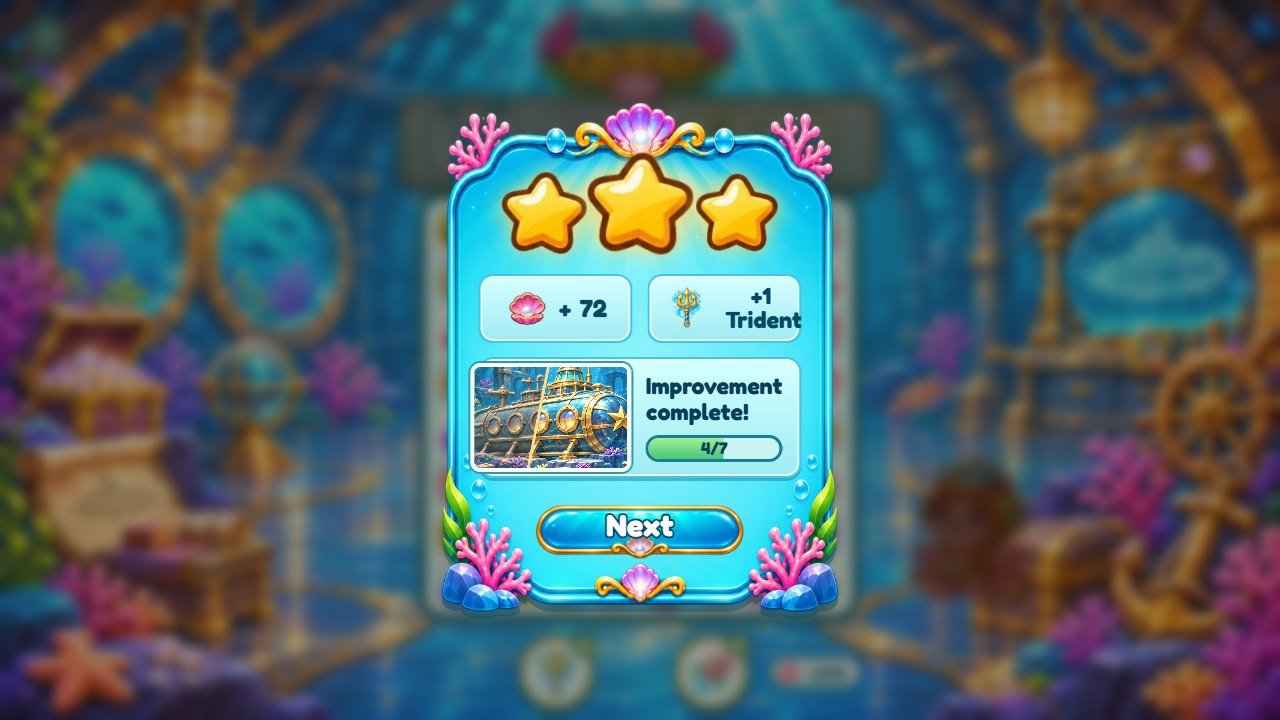
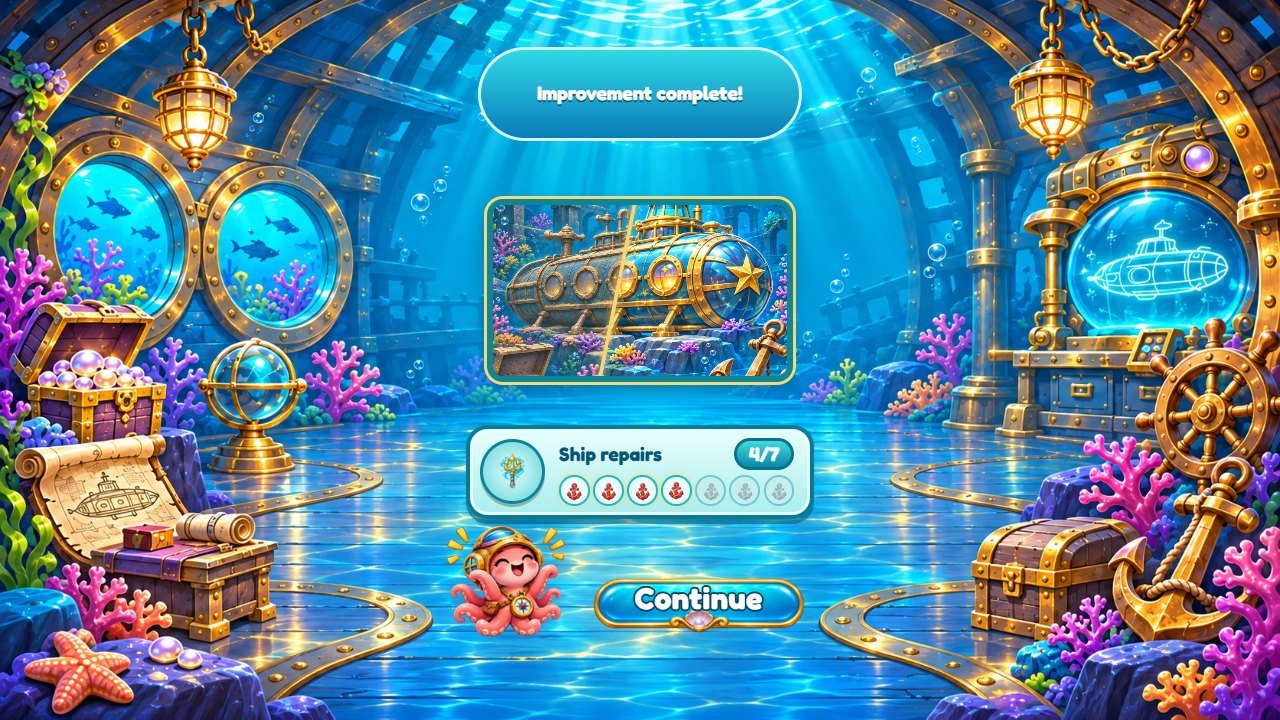
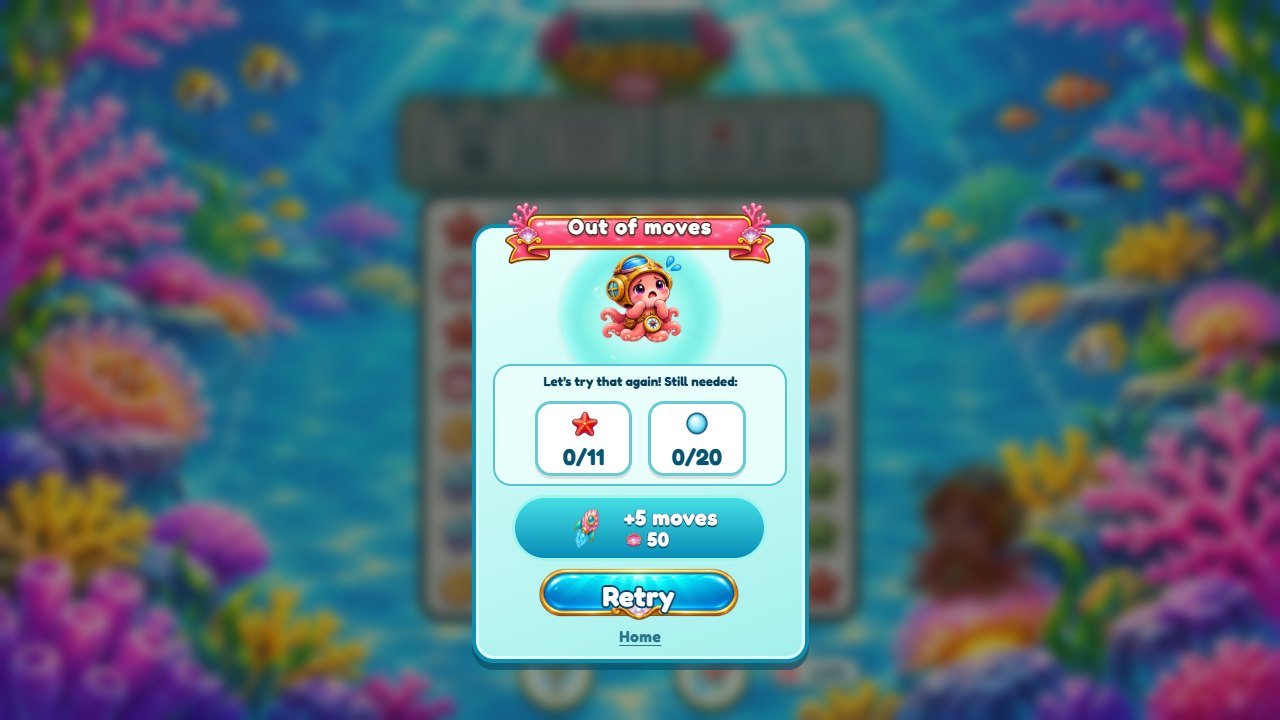
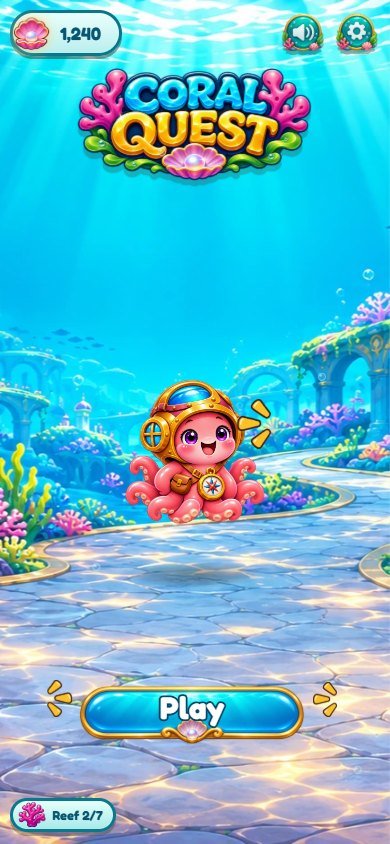
Real screenshots of this version: 1280 x 720 on a computer, plus a phone held upright and in landscape. The game adapts to both positions.
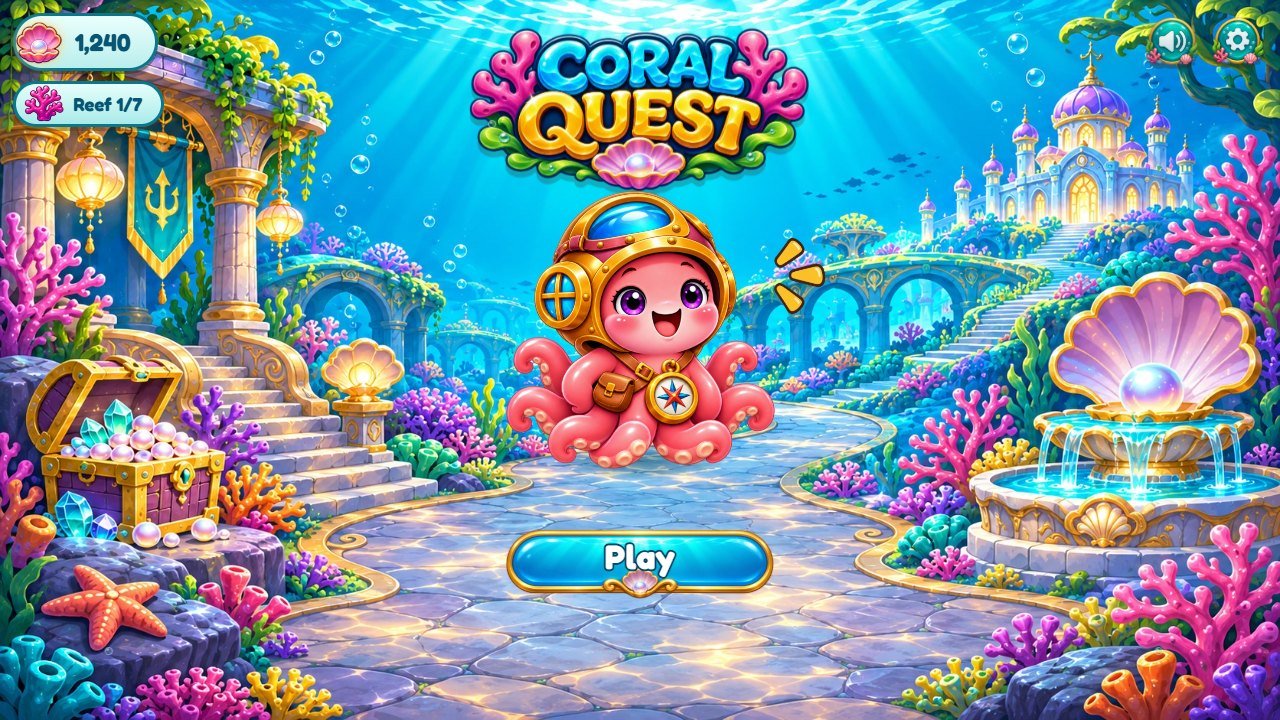
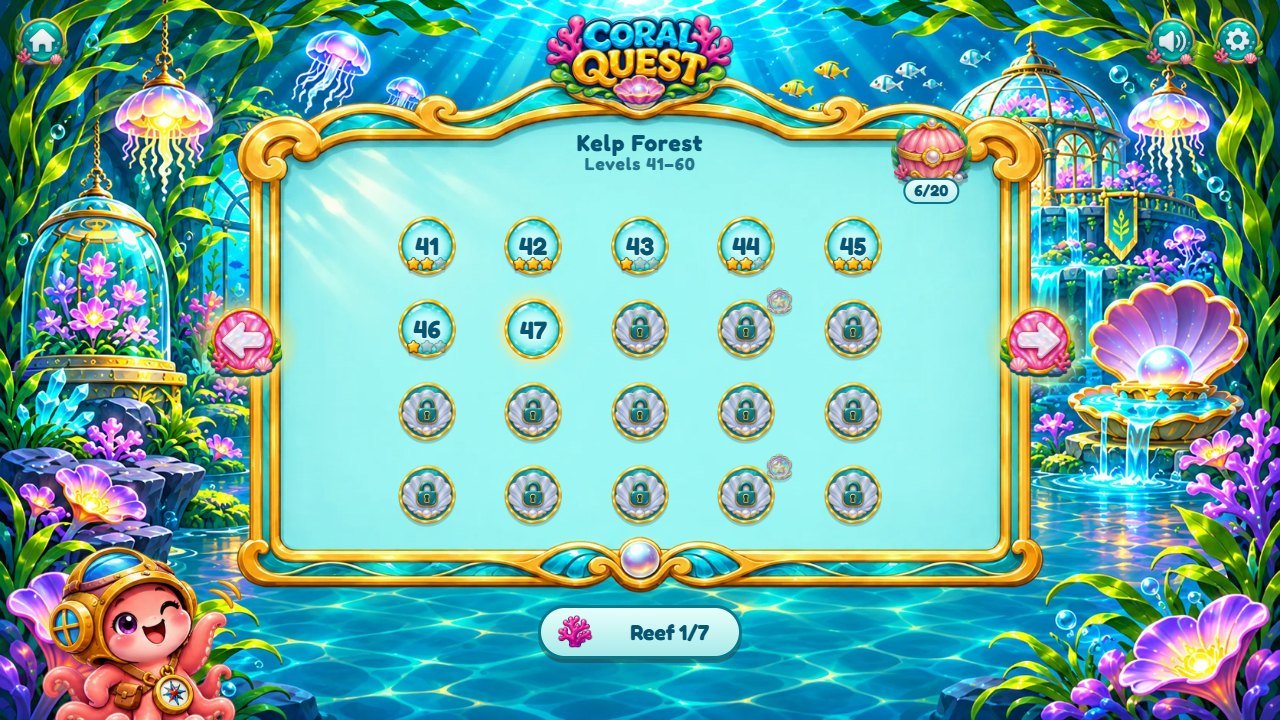
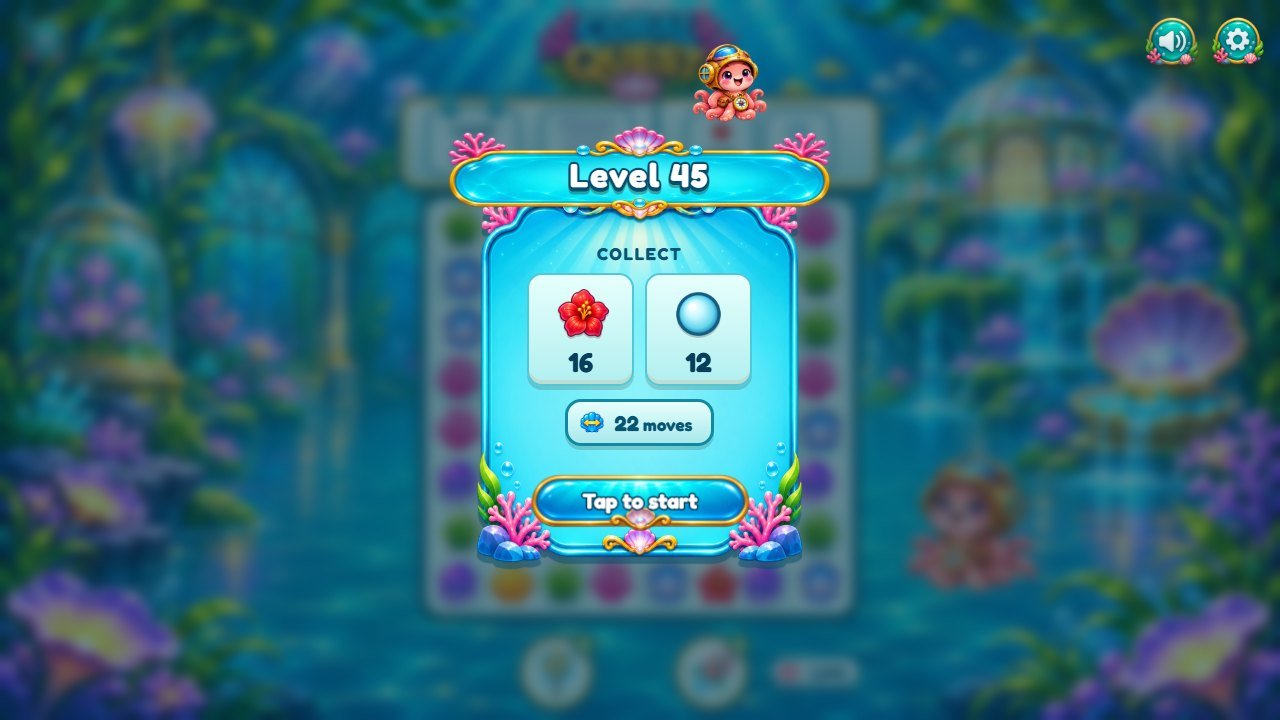
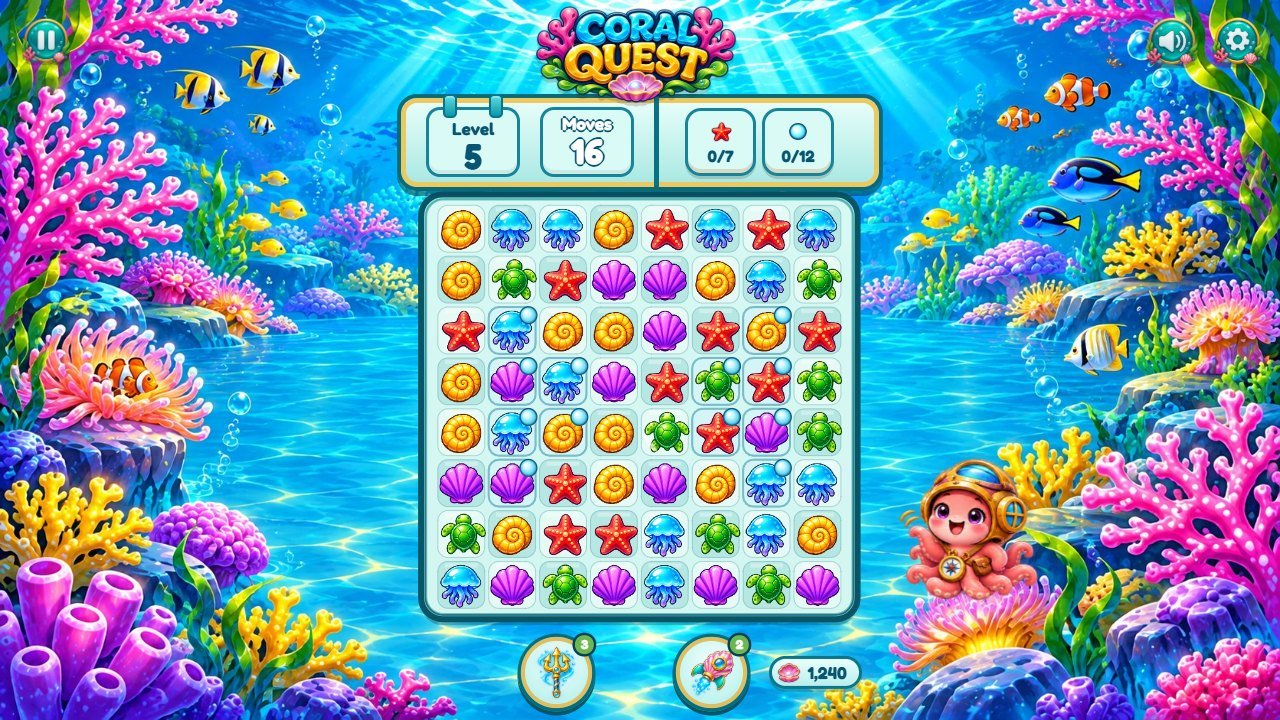
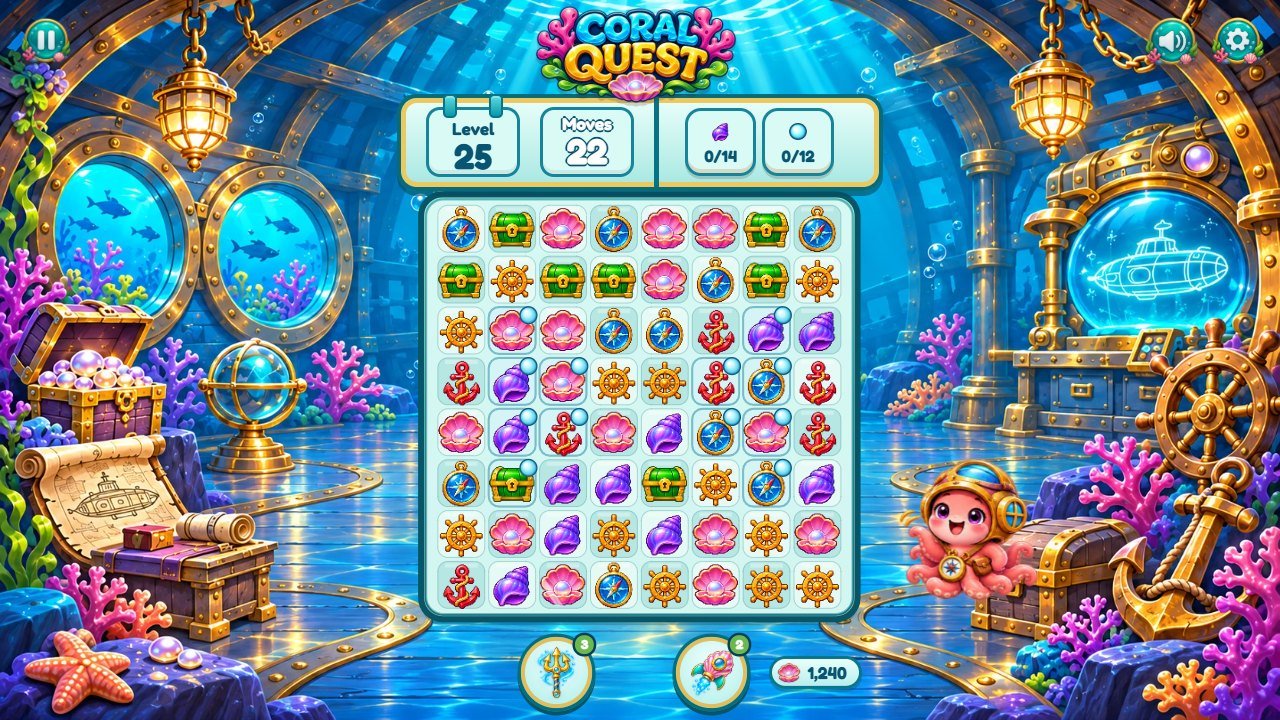
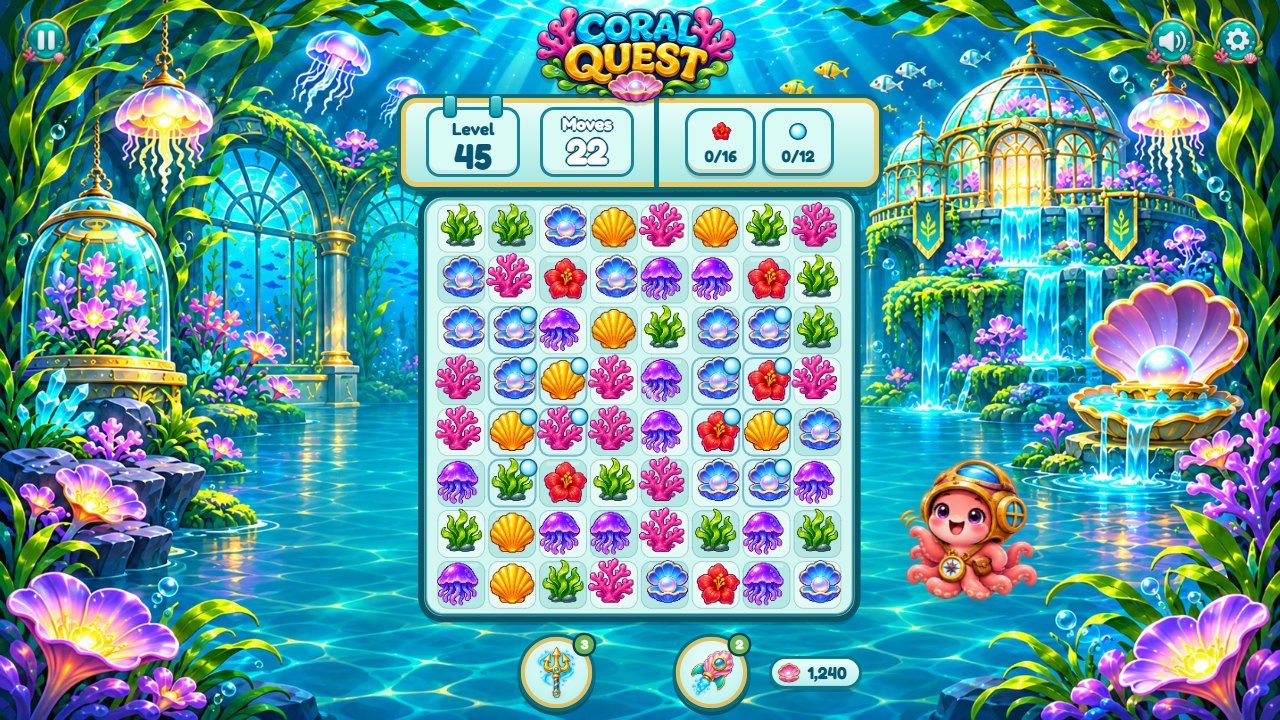
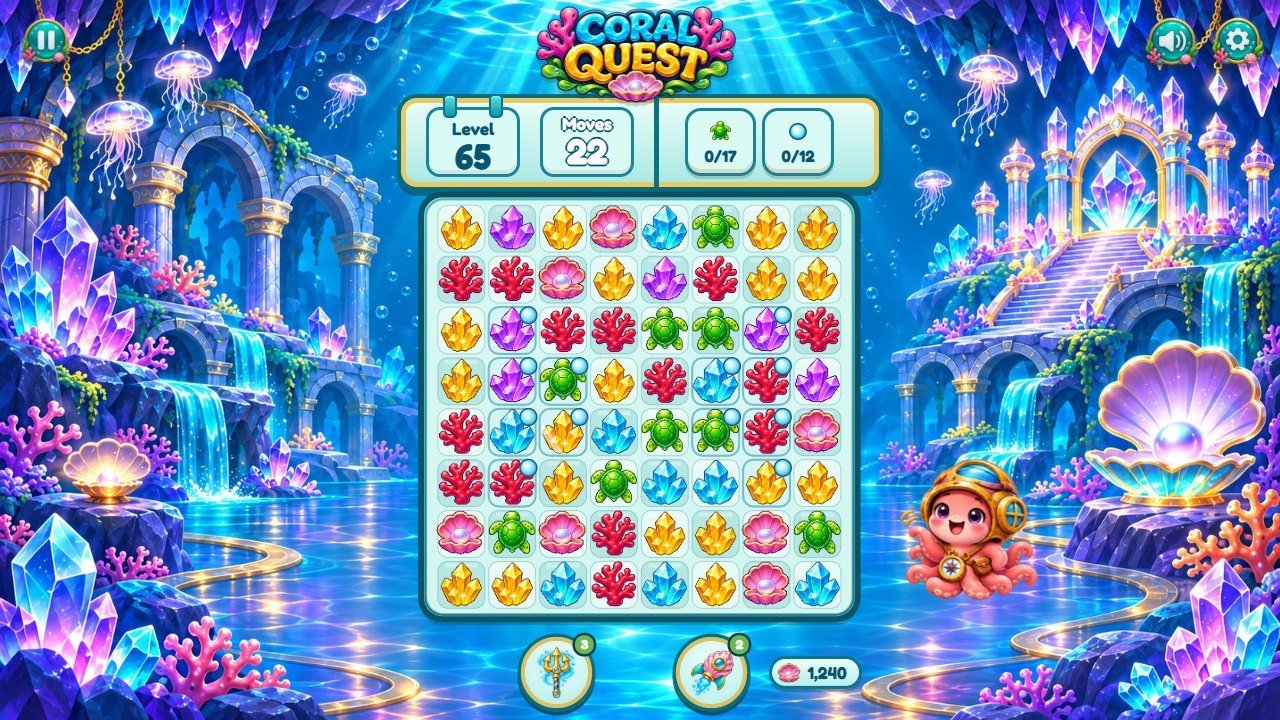
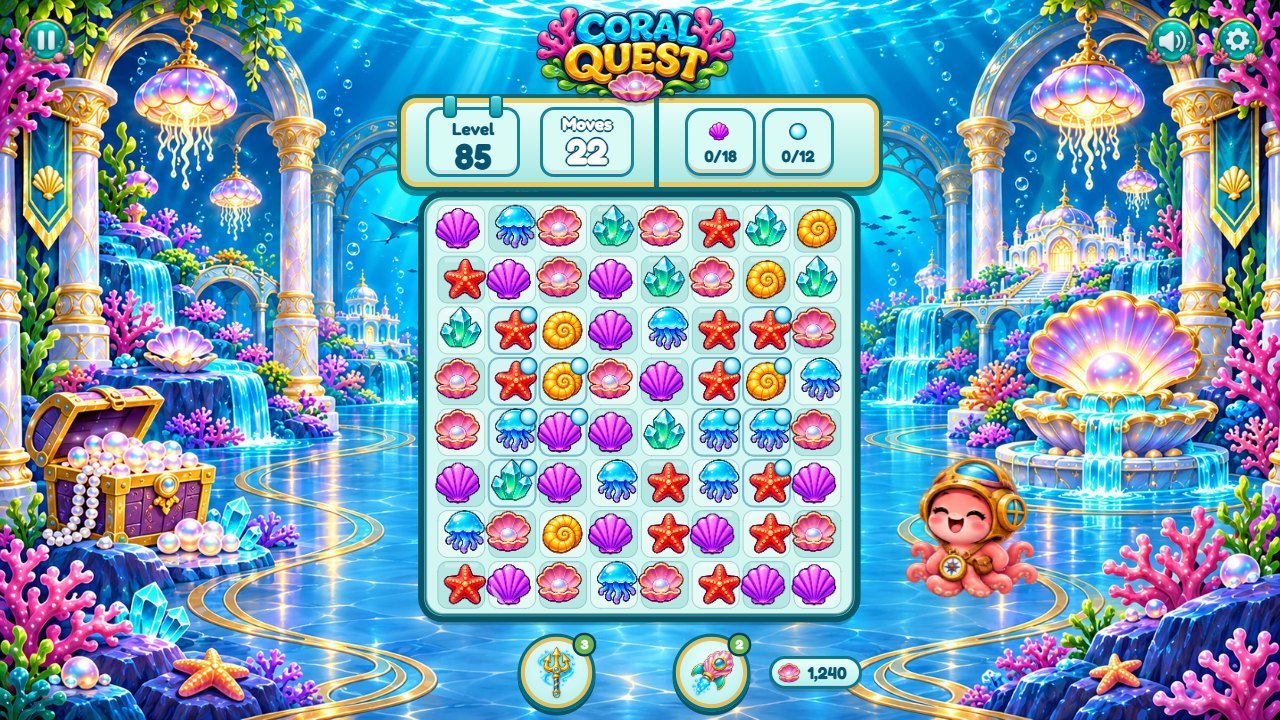
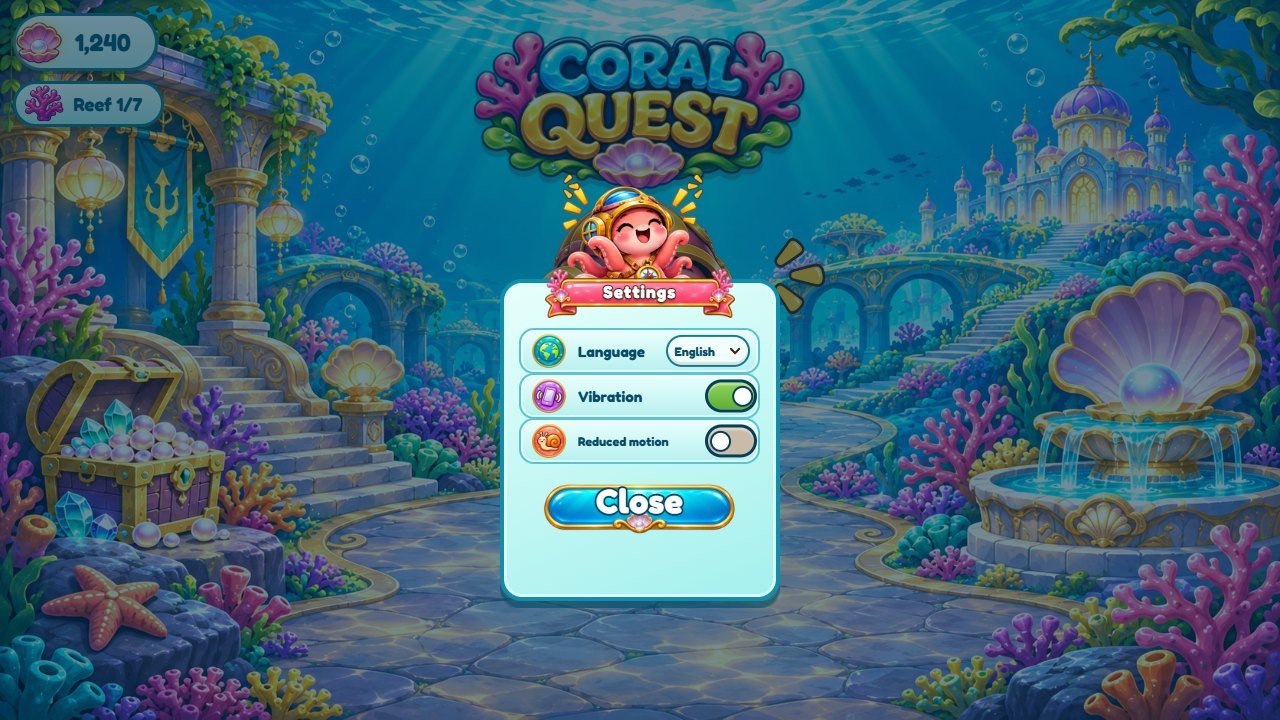
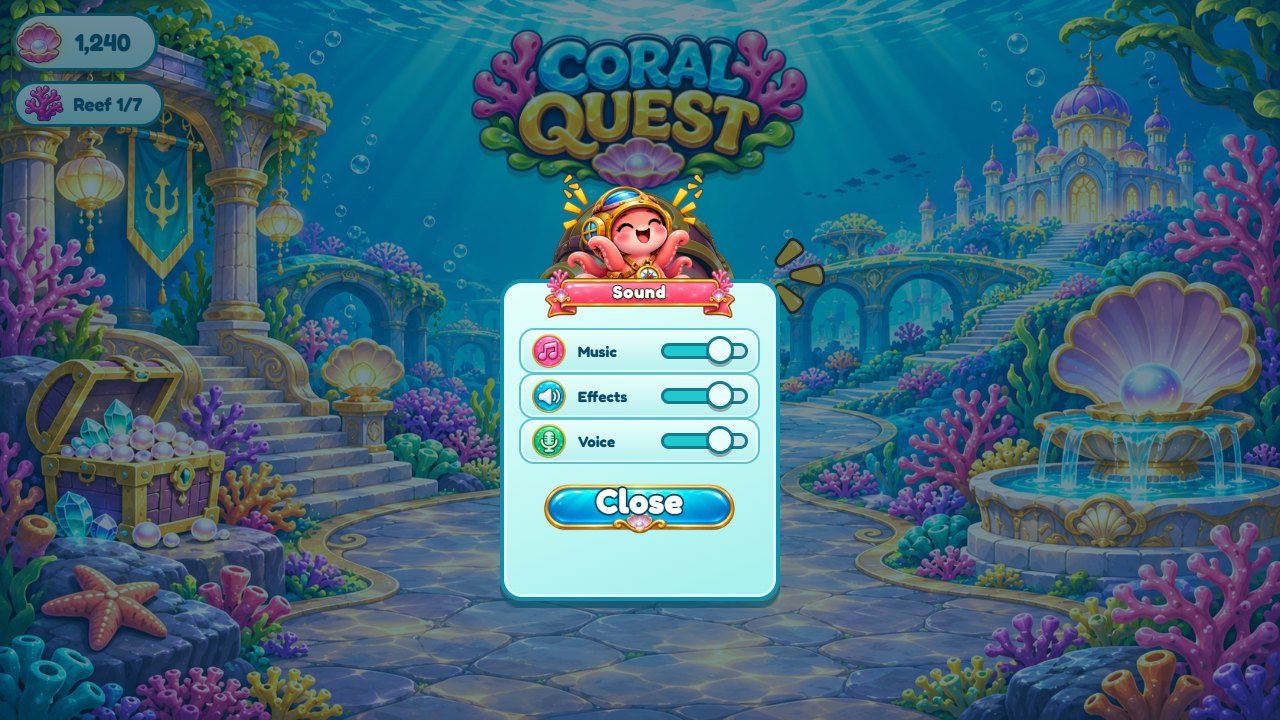
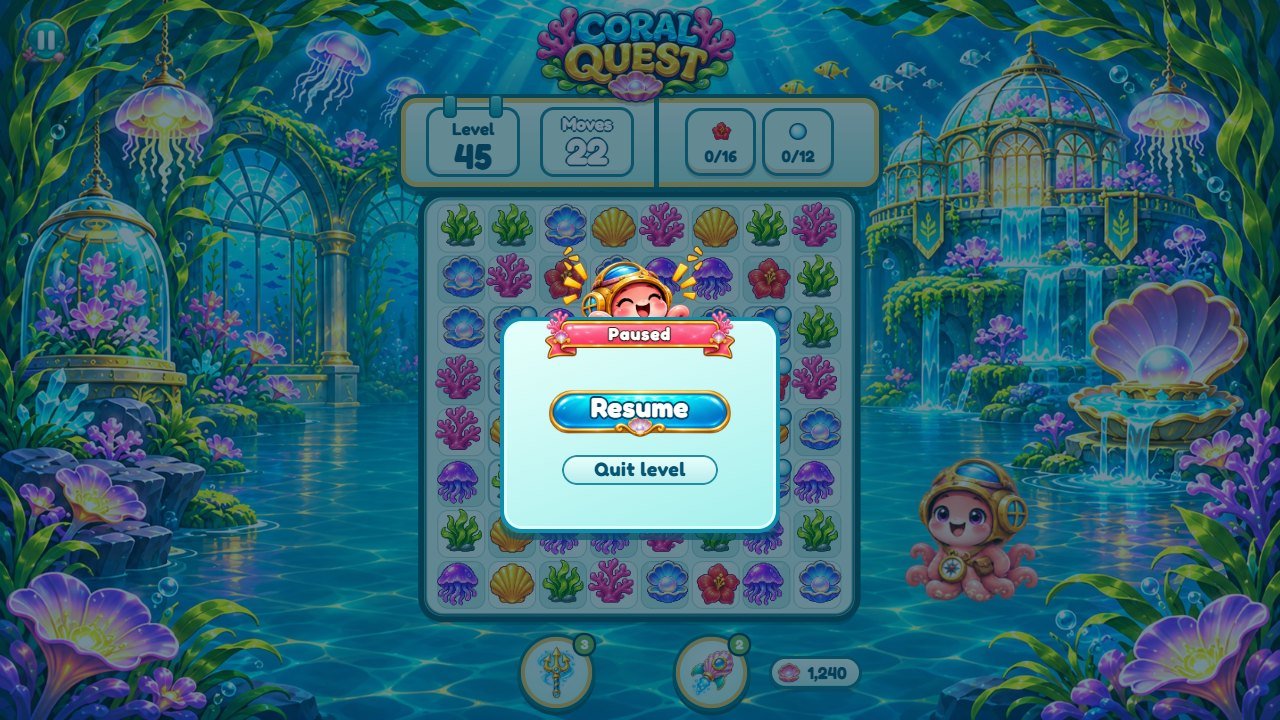
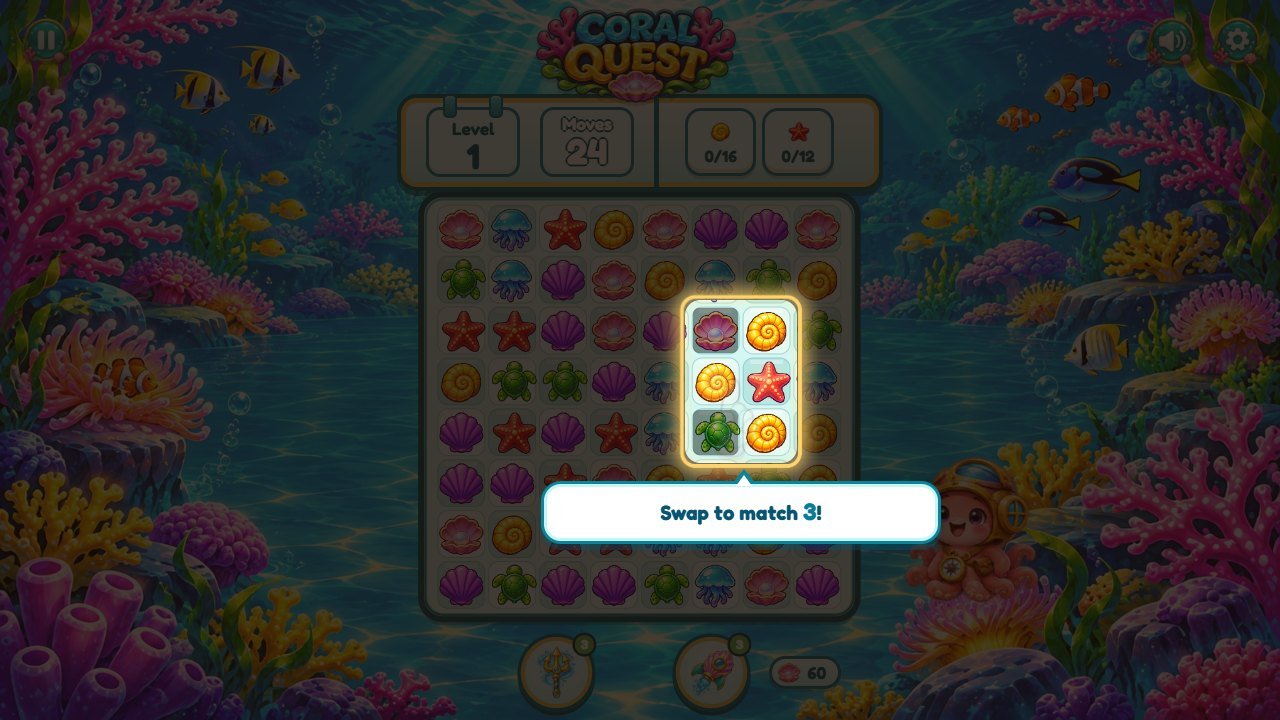
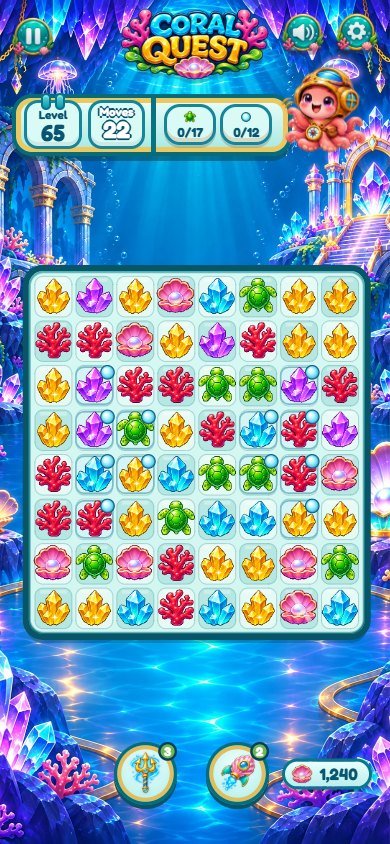
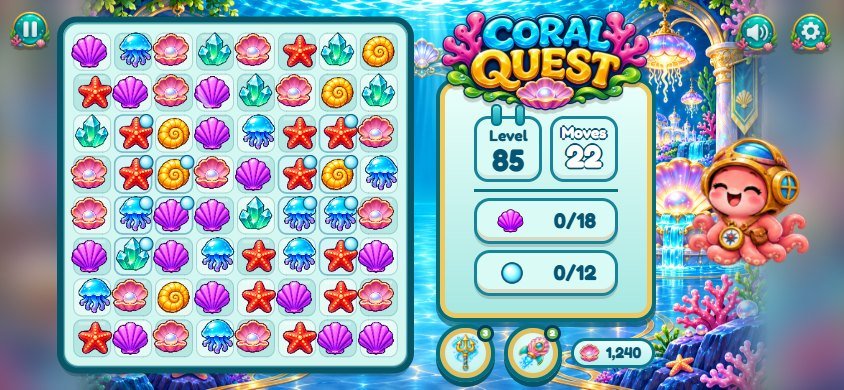
3. Where everything is
The numbers on each screenshot match the table below it. Text keys such as play are explained in
recipe F.
Home screen
1
2
3
4
5
6
| # | What you see | File to change |
|---|---|---|
| 1 | Play button |
Text: key play in src/i18n/en.js (one file per language). Button picture:
assets/coral/button.webp.
|
| 2 | Reef restorations counter |
Text: key cafe ("Reef"). The coral icon is cut from
assets/coral/pieces-sheet.webp by src/coral-sprites.js (recipe C).
|
| 3 | Settings button | Picture: assets/coral/settings-white.webp. |
| 4 | Sound button | Icon: the sixth cell of assets/coral/icons.webp (recipe C). |
| 5 | Octopus mascot |
Home screen: assets/coral/octopus-home-hd.webp. Poses during play:
assets/coral/octopus-sheet.webp (8 poses); idle animation:
assets/coral/octopus-idle.webp (8 frames). Recipe C.
|
| 6 | Game logo |
assets/coral/logo.webp (1774 x 887, transparent background). Also used on the loading screen,
the map and above the board (recipe B).
|
Level map
1
2
3
4
5
6
| # | What you see | File to change |
|---|---|---|
| 1 | Level buttons on the map |
assets/coral/marker-current.webp (next level),
assets/coral/marker-unlocked.webp (won),
assets/coral/marker-locked.webp (locked).
|
| 2 | World name |
Keys w0 ... w4 (Coral Reef ... Pearl Kingdom). Map picture:
assets/coral/map-land.webp, frame assets/coral/map-frame-land.webp (and the
-portrait versions for phones held upright).
|
| 3 | Board chest |
Icons: first two cells of assets/coral/icons.webp. Reward (+200 coins and one of each
booster): SAVE.coins += 200 in src/app/screens.js.
|
| 4 | Previous / next world | Picture: assets/coral/arrow-pearl.webp. |
| 5 | Reef restorations counter |
Text: key cafe ("Reef"). The coral icon is cut from
assets/coral/pieces-sheet.webp by src/coral-sprites.js (recipe C).
|
| 6 | Home button | Icon: a cell of assets/coral/icons.webp. |
Playing a level (World 1, Coral Reef)
1
2
3
4
5
6
7
| # | What you see | File to change |
|---|---|---|
| 1 | Board and pieces |
World 1 pieces: assets/coral/pieces-sheet.webp; worlds 2-5:
assets/coral/pieces-world-1.webp ... pieces-world-4.webp (recipe C).
Backgrounds: assets/coral/world-1-reef.webp (world 1) and world-2.webp ...
world-5.webp.
|
| 2 | Level goals |
The icons are the pieces themselves. How many to collect: recipe G (src/game/levels.js).
|
| 3 | Moves left | Moves of each level: moves in src/game/levels.js (recipe G). |
| 4 | Boosters (Trident, Shell Rocket) |
Pictures: assets/coral/boosters.webp (two cells). Names: keys whisk and
rocket. Price: recipe H.
|
| 5 | Octopus mascot |
Home screen: assets/coral/octopus-home-hd.webp. Poses during play:
assets/coral/octopus-sheet.webp (8 poses); idle animation:
assets/coral/octopus-idle.webp (8 frames). Recipe C.
|
| 6 | Pause button | Icon: the last cell of assets/coral/icons.webp. |
| 7 | Coins |
The coin icon is piece 6 of assets/coral/pieces-sheet.webp. Rewards and prices: recipe H.
|
Settings
1
2
3
| # | What you see | File to change |
|---|---|---|
| 1 | Language list |
Icon: assets/coral/setting-language.webp. The languages offered: LANGS in
src/app/screens.js (recipe F).
|
| 2 | Settings rows |
Icons: assets/coral/setting-vibration.webp and assets/coral/setting-motion.webp;
texts: keys vibration and reduced.
|
| 3 | Window title ribbon |
Picture: assets/coral/title-ribbon.webp; texts: keys settings,
sound, paused, outMoves.
|
Tutorial on level 1
1
2
| # | What you see | File to change |
|---|---|---|
| 1 | Tutorial tip |
Texts: keys swapTip, tutGoals, tutMoves and the
th* keys. Steps of the tutorial: src/app/tutorial.js.
|
| 2 | Tutorial hand | Picture: assets/mao.webp. |
Victory with a restoration step
1
2
3
| # | What you see | File to change |
|---|---|---|
| 1 | Stars | Picture: assets/ui-estrela.webp. How many moves left give 2 or 3 stars: recipe H. |
| 2 | Restoration progress |
The picture is assets/coral/reno-after-1.webp for world 2 (one before/after pair per world,
recipe D). Window frame: assets/coral/victory-frame.webp.
|
| 3 | Next button | Picture: assets/coral/button.webp; text: key next. |
Restoration screen
1
2
3
| # | What you see | File to change |
|---|---|---|
| 1 | Restored place |
Before and after pictures: assets/coral/reno-before-0.webp /
reno-after-0.webp for world 1 ... reno-before-4.webp /
reno-after-4.webp for world 5 (recipe D).
|
| 2 | Restoration steps |
Title: keys rt1 ... rt4 (and cafeUpgT for world 1). Seven steps per
world: const R = 7 in src/app/core.js.
|
| 3 | Continue | Text: key cont. |
Out of moves (defeat)
1
2
3
| # | What you see | File to change |
|---|---|---|
| 1 | Window title ribbon |
Picture: assets/coral/title-ribbon.webp; texts: keys settings,
sound, paused, outMoves.
|
| 2 | Continue | Text: key cont. |
| 3 | Retry |
Text: key retry. The "+5 moves" price is movesCost in
src/app/flow.js (recipe H).
|
4. Recipe A: replace a picture
All pictures are WebP files (one PNG) inside assets/. The game finds each picture by its file name,
so a new picture with the same name simply takes its place.
| Folder | What is inside |
|---|---|
assets/coral/ |
All the ocean art: backgrounds world-* and home.webp, map map-* and
markers marker-*, windows panel.webp and victory-frame.webp,
buttons button.webp, banners ocean-banner.webp and
title-ribbon.webp, settings icons setting-*, the logo, the restored places
reno-* and the sprite sheets (recipe C).
|
assets/ |
Small effects: stars, sparkles, confetti ribbons, rays, the tutorial hand and arrow. |
assets/audio/ |
Sound effects, voice lines and music (recipe E). |
assets/fonts/ |
The Fredoka font (recipe I). |
- Find the file with the numbered screens or by its name in the folders above.
- Open the old picture in your image editor and note its width and height.
- Make your new picture with the same width and height and a transparent background (except the backgrounds and the restored places). Keep the subject in the same place inside the picture.
-
Export as WebP with the exact same name, for example
assets/coral/button.webp, and replace the old file. - Reload the game with Ctrl+F5.
5. Recipe B: change the logo and the game name
-
Logo: replace
assets/coral/logo.webp(1774 x 887, transparent background). It is used on the loading screen, the home screen, the map and above the board. -
Browser tab name: open
index.htmland change the text between<title>and</title>. Also change thealt="Coral Quest"texts of the logo pictures (search forCoral Quest). -
Browser bar color on phones: the
theme-colorline inindex.html. -
Loading screen colors: the
#splashrule in the<style>block at the top ofindex.html.
6. Recipe C: change the octopus, the pieces and the icons (sprite sheets)
Several small pictures are stored together in one sprite sheet: a picture divided into a grid
of equal cells. src/coral-sprites.js cuts the cells when the game starts. To replace one, keep the
sheet size and draw your new picture inside the same cell, centered, with a transparent background.
| Sheet | Grid | Cells, left to right, top to bottom |
|---|---|---|
assets/coral/octopus-sheet.webp |
4 x 2 | octopus poses: neutral (HUD), wave, joy, thinking, worried, grumpy, wow, champion |
assets/coral/octopus-idle.webp |
4 x 2 | 8 frames of the idle animation (played in a loop) |
assets/coral/pieces-sheet.webp |
4 x 3 | the 6 pieces of world 1 (cells 1-6), then extra icons; cell 6 is also the coin and cell 11 the reef icon |
assets/coral/pieces-world-1.webp ... pieces-world-4.webp |
3 x 2 | the 6 pieces of worlds 2, 3, 4 and 5 |
assets/coral/specials.webp |
4 x 1 | striped (row), striped (column), sea bomb, magic pearl |
assets/coral/boosters.webp |
2 x 1 | Trident, Shell Rocket |
assets/coral/icons.webp |
4 x 2 | open chest, closed chest, badge, settings, home, sound, back, pause |
- Open the sheet in Photopea and turn on the grid (View, Show, Grid) with the cell size: the sheet width divided by the columns, the height divided by the rows.
- Paste your picture in a new layer inside the cell you want to change. Leave a small empty margin around it.
- Hide or delete the old drawing in that cell, export the sheet as WebP with the same name and reload.
-
The large octopus on the home screen is a separate picture:
assets/coral/octopus-home-hd.webp. -
Piece colors used by the sparkles when pieces clear:
COLORSinsrc/config.js(one color per piece, in the same order).
7. Recipe D: change the backgrounds and the restored places
-
World backgrounds (used during the levels, behind the map page and on the restoration screen
of each world):
assets/coral/world-1-reef.webpfor world 1 andworld-2.webp...world-5.webpfor worlds 2-5 (1672 x 941, for wide screens), plusworld-1-portrait.webp...world-5-portrait.webpfor phones held upright.world-1.webpis only a fallback. -
Home screen:
assets/coral/home.webp. Map:assets/coral/map-land.webpandmap-portrait.webp, with the framemap-frame-land.webpandmap-frame-portrait.webp. -
Restored places: each world has a "before" and an "after" picture,
assets/coral/reno-before-0.webpandreno-after-0.webpfor world 1 up toreno-before-4.webpandreno-after-4.webpfor world 5. First wins on new levels unlock the seven steps of each world one by one (faster in world 1, then about one step every three levels); each step reveals more of the "after" picture. Draw both pictures from the same point of view so the reveal lines up. -
The names of the steps and the restoration titles are text keys (
s0...s6,r1_0...r4_6,rt1...rt4): recipe F.
8. Recipe E: replace sounds, music and voice
Sound effects are short MP3 files in assets/audio/sfx/. Replace a file with
another MP3 of the same name. If a file is missing, the game plays a simple built-in tone instead.
| File | When it plays |
|---|---|
assets/audio/sfx/tap.mp3 |
a piece is selected |
assets/audio/sfx/swap.mp3 |
two pieces swap |
assets/audio/sfx/bad.mp3 |
a swap that makes no match slides back |
assets/audio/sfx/pop1.mp3, assets/audio/sfx/pop2.mp3,
assets/audio/sfx/pop3.mp3
|
pieces clear (bigger cascades use the higher sounds) |
assets/audio/sfx/line.mp3 |
a striped piece clears a row or column |
assets/audio/sfx/bomb.mp3 |
a sea bomb goes off |
assets/audio/sfx/star.mp3 |
a magic pearl clears a kind |
assets/audio/sfx/special.mp3 |
a special piece is created |
assets/audio/sfx/goal.mp3, assets/audio/sfx/fly.mp3 |
a piece flies to the goals |
assets/audio/sfx/star1.mp3 |
a star appears on the victory window |
assets/audio/sfx/win.mp3, assets/audio/sfx/lose.mp3 |
victory / out of moves |
assets/audio/sfx/coin.mp3 |
coins are counted |
assets/audio/sfx/unlock.mp3 |
a level or a restoration step unlocks |
assets/audio/sfx/button.mp3, assets/audio/sfx/whoosh.mp3 |
buttons and screen changes |
-
Music (
assets/audio/musica/):coral-match-up.mp3(home and map) andcoral-kingdom-map.mp3(levels). The file names are set insrc/audio.js(search forcoral-match-up). Loops work best when the end flows into the start. -
Voice (
assets/audio/voz/, English): short cheers such asnice.mp3,wow.mp3,amazing.mp3,awesome.mp3,hurry.mp3,levelcomplete.mp3,soclose.mp3andnewlevel.mp3. The list isVOZinsrc/audio.js; which cheer plays for each combo iscomboVoiceinsrc/config.js. - Players set music, effects and voice volume in the Sound window. On phones, sound starts after the first touch (a browser rule).
9. Recipe F: change texts and translations
All interface texts are in one file per language: src/i18n/en.js, pt.js,
es.js, fr.js, de.js, it.js, nl.js,
pl.js, tr.js, ru.js, id.js, ja.js,
ko.js and zh.js.
  play: 'Play',
  whisk: 'Trident',
  rocket: 'Shell rocket',
w0: 'Coral Reef',- Find the text you want to change (Ctrl+F in your editor). The word before the colon is the key; never change it.
-
Change only the words inside the quotes. If your text has an apostrophe, like
Let's, put double quotes around it:"Let's go". - Keep markers such as
{n}: the game puts a number there. - Change the same key in the other languages you use. A missing translation falls back to English.
- Short names fit the buttons better: check the screen on a phone after a change.
Remove a language: delete it from LANGS in src/app/screens.js and
from the list L (and its import line) in src/i18n.js.
Add one: copy en.js to a new file, translate it, and add it in the same two
places. Run npm test to check that every key is there.
10. Recipe G: make the levels easier or harder
The 100 levels are built by the function level(n) in src/game/levels.js from a few
numbers. Change one number at a time and play a few levels.
| Setting | What it means | Easier |
|---|---|---|
moves |
Moves of each level (16 to 24). | higher |
base |
How many pieces the main goal asks for; it grows with the level number. | lower |
easy |
Every 5th level is a break: its goal is multiplied by 0.6. | lower number |
hard |
Levels 9, 19, 29... have 2 moves less and pay double coins. | remove the - 2 |
kinds |
Different pieces on the board (5 before level 10, then 6). Fewer kinds = more matches. | 5 |
CREAM |
The five bubble square patterns (1 = one layer, 2 = two layers,
. = empty), used from level 4.
|
fewer 1/2 |
const moves = n === 2 || n === 4 ? 14 : n < 8 ? 16 : ... // add 2 to every level: (...) + 2
Keep the commas, brackets and quotes exactly where they are. With Node.js, run npm test in
source/ after a change: a test checks that all 100 levels still start with a valid move and goals.
Game feel (speeds, shake, hint delay, vibration) is in src/config.js.
11. Recipe H: change prices and rewards
Prices are in in-game coins only (there are no real-money purchases).
| Setting | File | What it changes |
|---|---|---|
coins: 60 (in SAVE) |
src/app/core.js |
Coins of a new player. |
boost: { whisk: 3, rocket: 3 } |
src/app/core.js |
Boosters of a new player. |
PRICE.booster |
src/app/flow.js |
Price of one Trident or Shell Rocket when the stock is empty (80). |
movesCost |
src/app/flow.js |
Price of "+5 moves" after a defeat: free on levels 1-6, then 50 plus 10 for every use. |
coins = (stars * 10 + bonus + combo) |
src/app/flow.js |
Coins for a win: 10 per star, 2 per move left, 10 for a big combo; double on hard levels. |
stars = frac >= 0.35 ? 3 : frac >= 0.12 ? 2 : 1 |
src/app/flow.js |
Stars by the share of moves left (35% or more = 3 stars). |
SAVE.coins += 200 |
src/app/screens.js |
Coins inside the chest of each board. |
12. Recipe I: change colors and the font
-
Ocean theme colors:
css/coral.cssloads last, so its rules win. Text and outline color:--ink: #073f5b;; light panels:--cream; accents:--caramel. Search the file for a color code (for example#0789aa) to find every place that uses it. -
Buttons, windows and banners are pictures (recipe A):
assets/coral/button.webp,panel.webp,victory-frame.webp,ocean-banner.webp,title-ribbon.webp. -
Font: Fredoka (SIL Open Font License), files in
assets/fonts/fredoka/, declared by the two@font-faceblocks at the top ofcss/game-1.css. To use another font, put its.woff2file in the same folder, change thesrc: url(...)lines and keep the name'Fredoka', or change the name everywhere with search and replace. -
Screen shake, pauses on big hits and particle amounts:
src/config.js(smaller numbers = calmer game).
13. Internal names used in the code
Coral Quest is built on the same match-3 engine as an earlier café-themed game, so some file and code names are
neutral leftovers. Players never see them; the names they see come from src/i18n/.
| In the code and files | In the game |
|---|---|
cafe, reno, renovation, RENO,
#cafe-screen
|
The reef restorations (7 per world) and their counter |
panda, #panda, data-octopus |
The octopus mascot |
cream, CREAM |
Bubble squares (obstacle) |
whisk / rocket |
Trident / Shell Rocket boosters |
moeda, coin, data-coin |
Coins (drawn as a pearl shell) |
data-reef |
The coral icon of the reef counter |
peca, piece, esp-* |
Board pieces and special pieces |
fases, mapa, mundo |
Levels, map and worlds |
assets/audio/musica/, assets/audio/voz/ |
The music and voice folders |
14. Check and publish your changes
- Play the parts you changed on your computer (see Before you start), in a wide window and in a phone size (in Chrome or Edge press F12, then Ctrl+Shift+M).
-
If you edited
source/: in a terminal insidesource/, run the commands below. The first checks the rules, the levels and the texts; the second copies the finished game intogame/.
npm test
npm run build-
Upload everything inside
game/to your web hosting, replacing the old files and keeping the folders. - Open your game address and press Ctrl+F5. If you still see the old version, read "Updating and cache" in the main buyer guide.
-
Saved progress belongs to each website address. If you host two copies on the same domain, give each its own
save name:
SAVE_KEYnear the top ofsrc/app/core.js.
15. If something goes wrong
-
Blank or frozen screen after editing a
.jsfile: a comma, quote or bracket is missing. Press F12 and open the Console: it shows the file name and the line with the error. Compare that line with your backup. -
A picture is missing or looks broken: the file name is different (names are case sensitive:
Logo.webpis notlogo.webp), or the file is not really WebP. - A piece or the octopus looks cut: in a sprite sheet the drawing must stay inside its cell (recipe C).
- Nothing changed: the browser is showing the old file. Press Ctrl+F5 or open the game in a private window.
- Still stuck? Restore your backup and change one thing at a time. Support: willian@polargames.com.br (include the game version, what you changed and a screenshot).