1. Before you start
- Make a backup copy of the whole
game/folder. - Use a plain text editor: Visual Studio Code (free) or Notepad++ (free, Windows). Never edit the files in a word processor.
-
To preview your changes, the game must run from a web address, not from the disk. The simplest way: install
Node.js 22 LTS or newer, open the
source/folder in a terminal and runnpm run dev, then openhttp://localhost:5285/. Edit the files insource/and reload the page. - Images: any editor that saves WebP works, for example GIMP or Krita (free).
After every change, reload the page. If the game shows a blank screen, the last edit broke the syntax: undo it (Ctrl+Z) and check commas and quotes.
2. Replace pictures
Replace a file in assets/ with another WebP of the same name and the same size in
pixels. Buttons and panels are stretched in nine pieces, so keep their borders where they are.
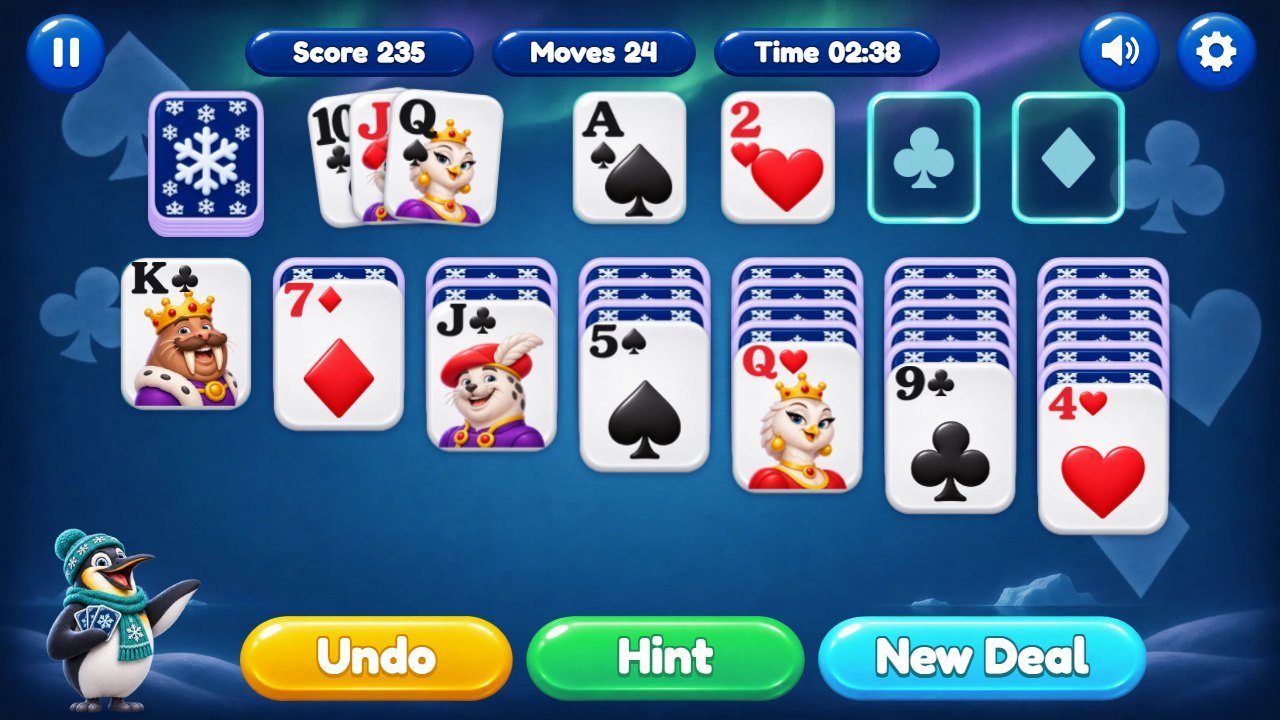
| What | Where |
|---|---|
| Logo | assets/logo.webp |
| Table background | assets/bg-p.webp (portrait) and assets/bg-l.webp (landscape) |
| Card backs | assets/backs/b0.webp (the default) to b5.webp, and spider.webp (the Spider back) |
| Card faces | assets/cards/: the blank card, the rank letters r*.webp and the suits s0.webp to s3.webp |
| Court cards (king, queens, jack) | assets/courts/k.webp, qr.webp (red suits), qp.webp (black suits), j.webp |
| Victory confetti | assets/fx/c0.webp to c3.webp |
| Buttons, panels and icons | assets/ui/ |
3. The mascot
The mascot (an emperor penguin in a knitted beanie and scarf) has 24 poses plus the victory pose in assets/duke/; duke is
simply the internal name of the mascot in the code. All the poses share one canvas of 668 x 534 pixels with the
feet on the same line, so the mascot never jumps when it changes pose.
- Draw each new pose on a transparent canvas of 668 x 534 pixels, feet about 14 pixels above the bottom edge.
- Save it with the same name as the old pose (for example
idle.webp,cheer.webp). -
If your mascot is much wider or taller, update
birdinsrc/theme.js: the canvas size, the left and right edge of the widest pose (0 to 1) and the top of the tallest pose. The game uses these numbers to keep the mascot clear of the cards and buttons.
4. Colors and fonts
The colors of the letters, outlines and glows are in css/base.css and css/screens.css.
Each button style sets its letter outline with --o next to its picture, for example
.pill.green { ... --o: #2f8f05; }. Change the hexadecimal color and reload.
The fonts are at the top of css/base.css (@font-face and --font). Fredoka
and Nunito are included; Japanese, Korean and Chinese use the fonts of the device.
5. Change the pace and the effects
Every number of the game feel sits in a FEEL block at the top of a file:
| File | What it sets |
|---|---|
src/juice.js | Card landings, sparks, points flying to the score, combos |
src/hintfx.js | The light of the hint and how long it shows |
src/fx.js | Vibration and the win ceremony |
src/layout.js | Card sizes and how far apart the cards of a column are |
src/audio.js | Volumes of effects and music, and which take of each sound plays |
Times are in milliseconds (1000 = one second). Change a little at a time and test.
6. Games and rules
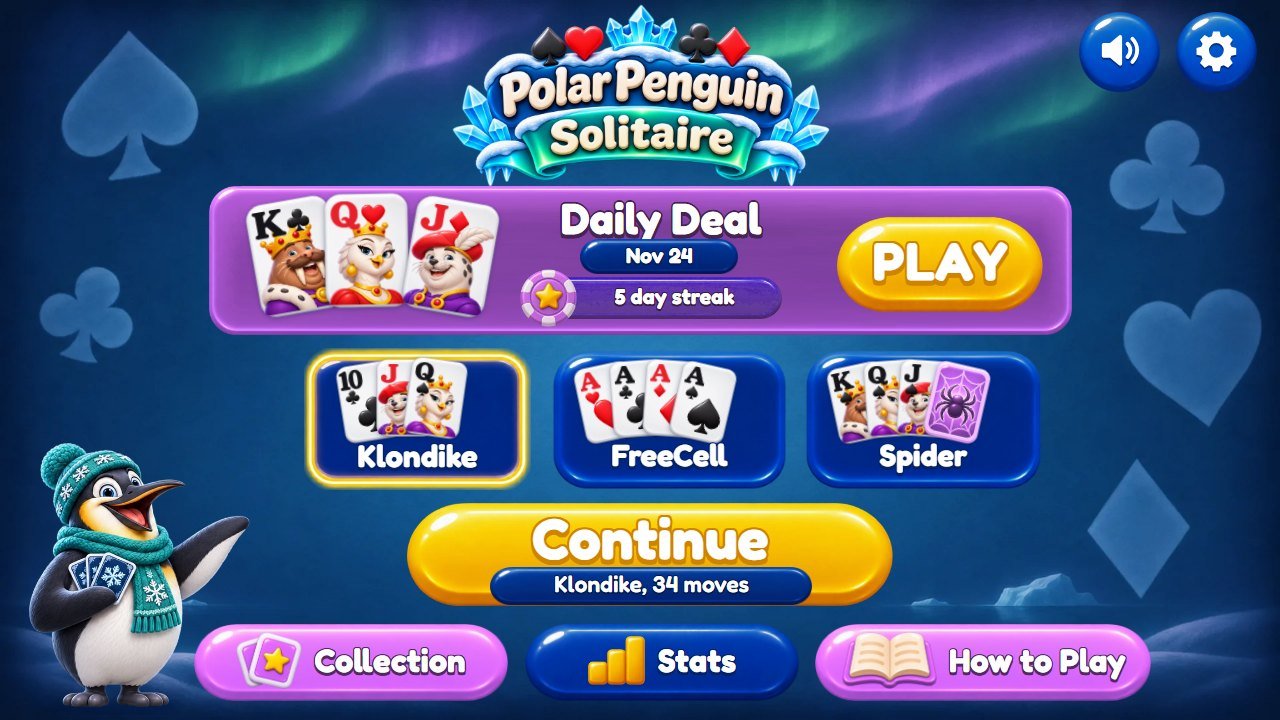
- The three games are listed in
src/modes/index.js(Klondike, FreeCell and Spider). - Klondike rules are in
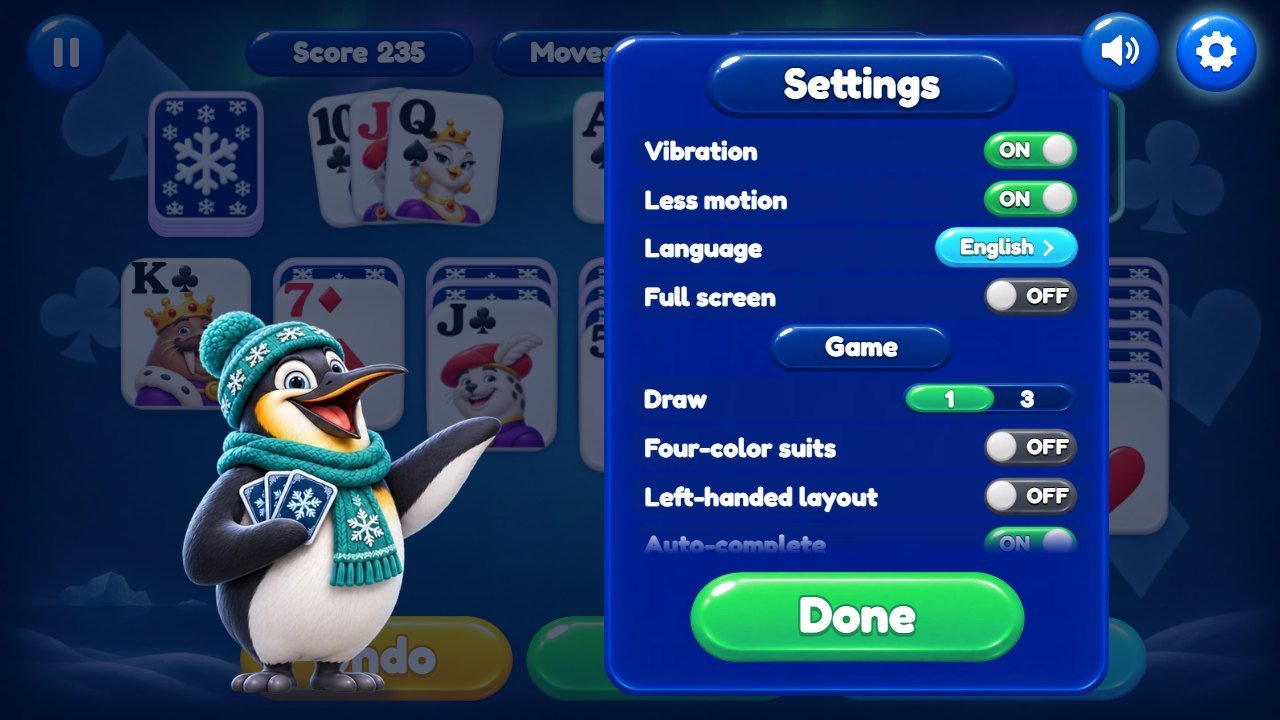
src/rules.js, FreeCell insrc/modes/freecell.jsand Spider insrc/modes/spider.js. - The players choose draw 1 or 3, 1, 2 or 4 suits, winnable deals and scoring on the New game screen; the defaults are
DEFat the top ofsrc/main.js. - The wins needed to open each card back are
DECK_WINS, and the tables areTABLES, both at the top ofsrc/ui/menus.js.
7. Change texts and languages
Each language is one file in src/locales/ (en.js, pt.js, ...), and all of
them use the same keys. Change the text between the quotes and keep the marks such as {n}.
The game name in the page title is in index.html and in src/theme.js.
8. Sounds and music
Sound effects are MP3 files in assets/audio/ named <sound>-a.mp3 (for example
place-a.mp3); the list is FEEL.version in src/audio.js. The music is
assets/audio/music.mp3, a seamless loop. Replace a file keeping its name.
9. Save key and publishing
Progress is saved in the browser with the key in store in src/theme.js. If you host two
copies of the game on the same domain, give each one its own key.
- In
source/, runnpm testand thennpm run build. - Upload the contents of
dist/to your host, replacing the old files. - Open the game and reload once without cache (Ctrl+F5) to see the new version.
Support: willian@polargames.com.br