
Contents
1 Overview
Cosmo Ten is an HTML5 sliding block puzzle game with a toy space theme. The board holds numbered crystal blocks. The player drags a block into another one: if the two numbers add up to 10 they become a capsule, and the capsule has to leave the board through the portal of its own color. A level is won when the board is empty.
There are 50 handmade levels in 5 worlds of 10 (Moon Base, Asteroid Belt, Ice Planet, Crystal Nebula, Star Station). Each world adds something new: locked portals, asteroids, meteors, crystal blocks and surprise boxes, and the last level of each world is a challenge against the clock. Stars depend on the moves left, and every level has been solved by the game's own solver.
The game runs in any modern browser on phones, tablets and computers, in portrait, landscape and a desktop layout with keyboard shortcuts. It uses plain HTML, CSS and JavaScript modules, with no framework, no dependencies, no ads, no store, no accounts and no server code.
2 Quick installation by FTP
Installing takes a few minutes if you have FTP access or a file manager in your hosting panel.
- 1. Extract
cosmo-ten-static-1.0.0.zipon your computer. -
2. Connect to your hosting by FTP or its file manager and open the folder where the game should live, for
example
public_html/games/cosmo-ten/. -
3. Upload only the contents of the
game/folder, so thatindex.htmlsits directly inside the target folder. -
4. Keep
assets/,src/and the three style sheets besideindex.html, with names and letter case exactly as extracted. -
5. Open
https://your-domain.example/games/cosmo-ten/in a modern browser.
source/ folder, the documentation/ folder or the ZIP itself.
Players need no Node.js, PHP, database or account.
3 Requirements and sound
-
Any static web hosting with HTTPS (or HTTP). Opening
index.htmldirectly from the disk (file://) is not supported, because browsers block JavaScript modules that way. - A current browser: Chrome, Edge, Firefox or Safari, on desktop or mobile. Blocks are dragged with the mouse or a finger.
- Browsers start sound only after a user gesture, so music and effects begin after the first tap or click.
- When the page is hidden, the sound fades out over 30 seconds and everything pauses after 60 seconds; it comes back when the player returns.
4 Controls and how the game works
Drag a block with the mouse or a finger; it slides cell by cell and stops at walls and other blocks. Push it into another block: if the sum is 10 the two become a capsule with the color of the block you dragged; if the sum is smaller they join into one block with the sum; more than 10 does not fit. Push a capsule into the portal of its color (the glowing bar on the frame) to launch it.
Every drag uses one move. The counter at the top shows the moves left and the three stars: finishing with more moves to spare gives more stars. If the moves run out, the player can use Extra moves or try again. Levels 10, 20, 30, 40 and 50 also have a clock that starts on the first move.
The first levels show short tips, and a card explains each new obstacle the first time it appears: locked portal (level 8), asteroid (level 11), meteor (level 21), crystal block (level 31) and surprise box (level 41). Four power-ups sit under the board: Undo (3 free on every level), Brush (repaints a capsule), Shovel (launches a capsule at once or breaks an asteroid) and Extra moves (5 more moves). Finishing the 10 levels of a world opens its chest, with one Brush, one Shovel and one Extra moves.
On a computer the keyboard works too: Z Undo, B Brush, S Shovel, M Extra moves, R restart, Escape opens Settings or closes a window, Enter starts from the title screen. Settings (the gear) has vibration, reduced motion and the language list; the music button opens the volume sliders for music and effects.
5 Screens and controls explained
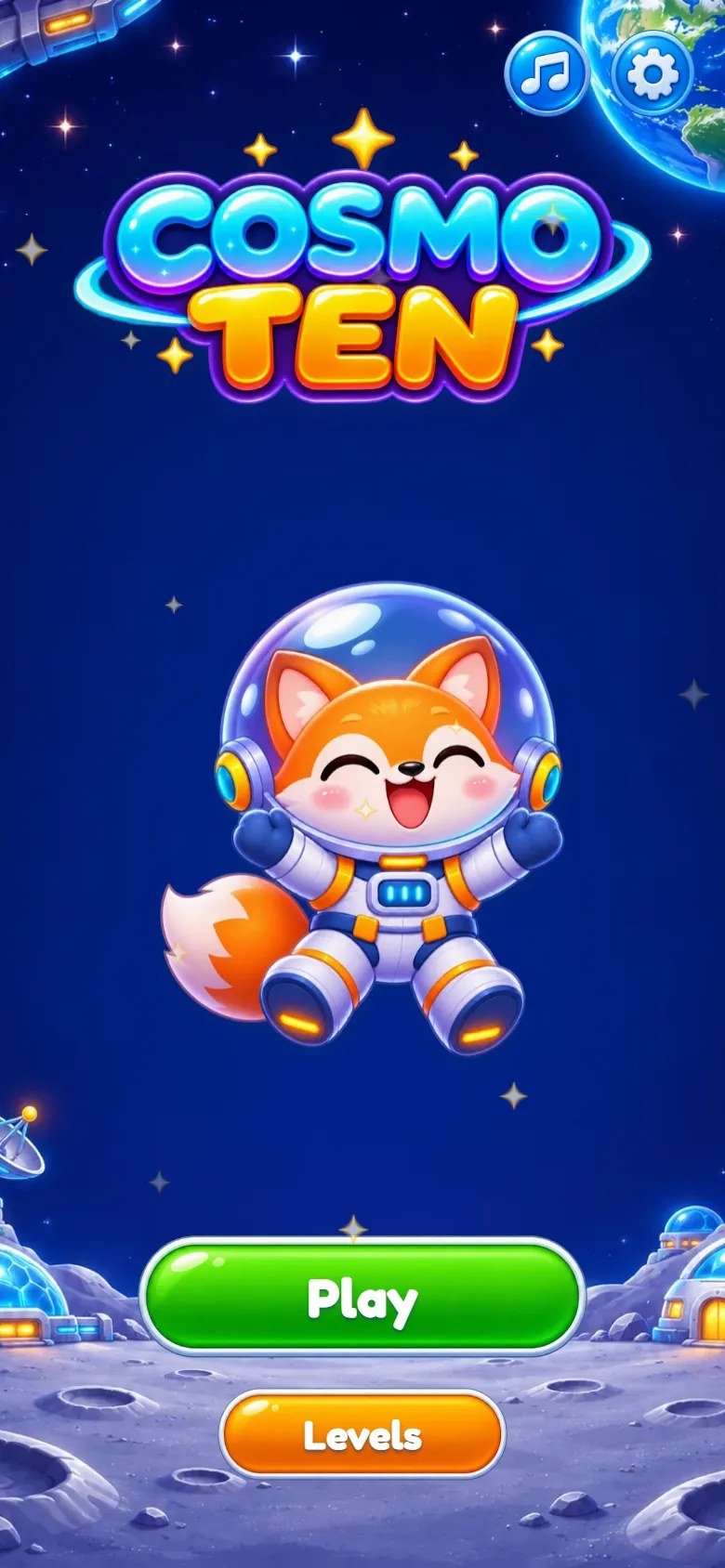
Marks on the screenshot
- Play the next level
- World map
- Music and effects volume
- Settings
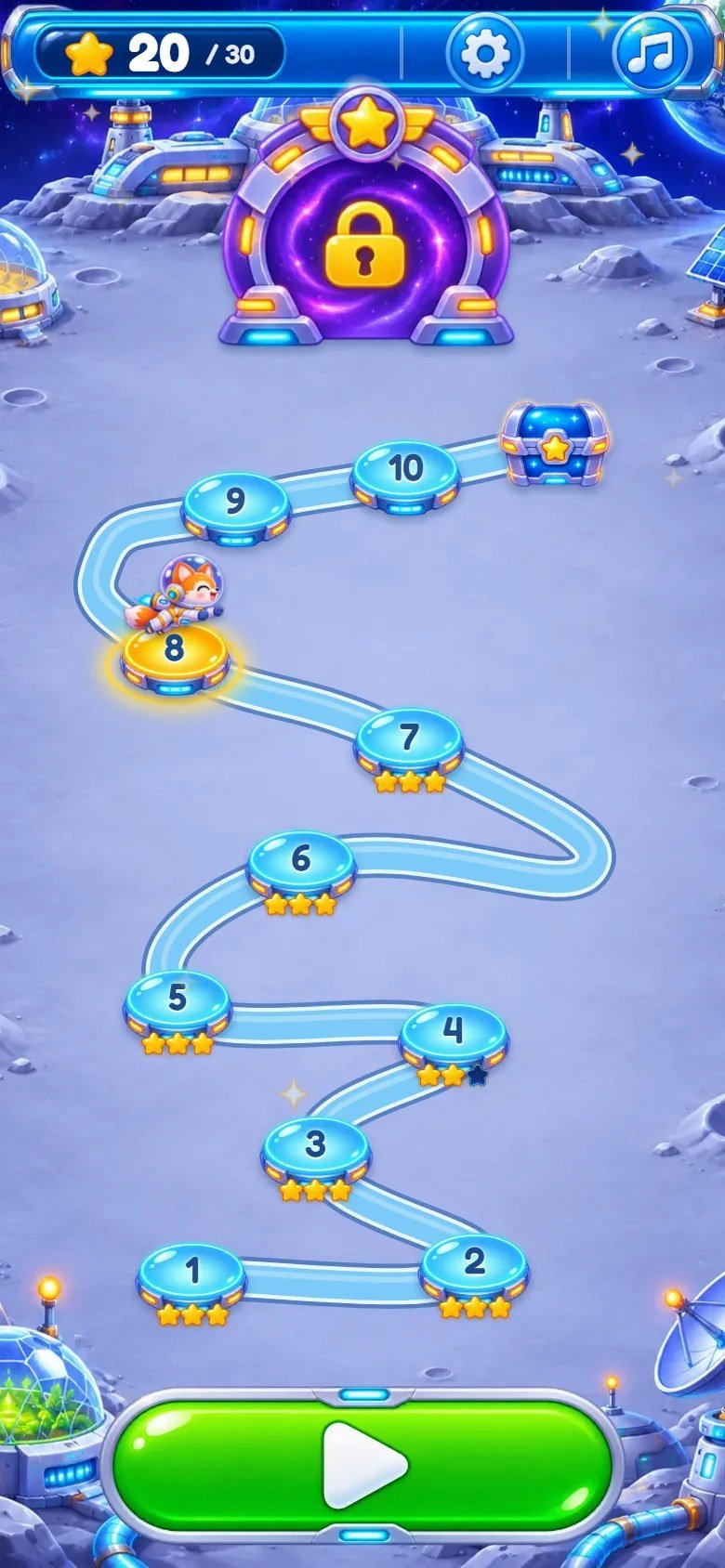
Marks on the screenshot
- Stars earned out of all
- Settings
- Music and effects volume
- Current level
- Finished level with stars
- Locked level
- World chest
- Gate to the next world
- Play the current level

Marks on the screenshot
- Moves left
- Stars you can still get
- Settings and home
- Nova, the mascot
- Number block
- Capsule (a 10)
- Portal of a color
- Power-ups
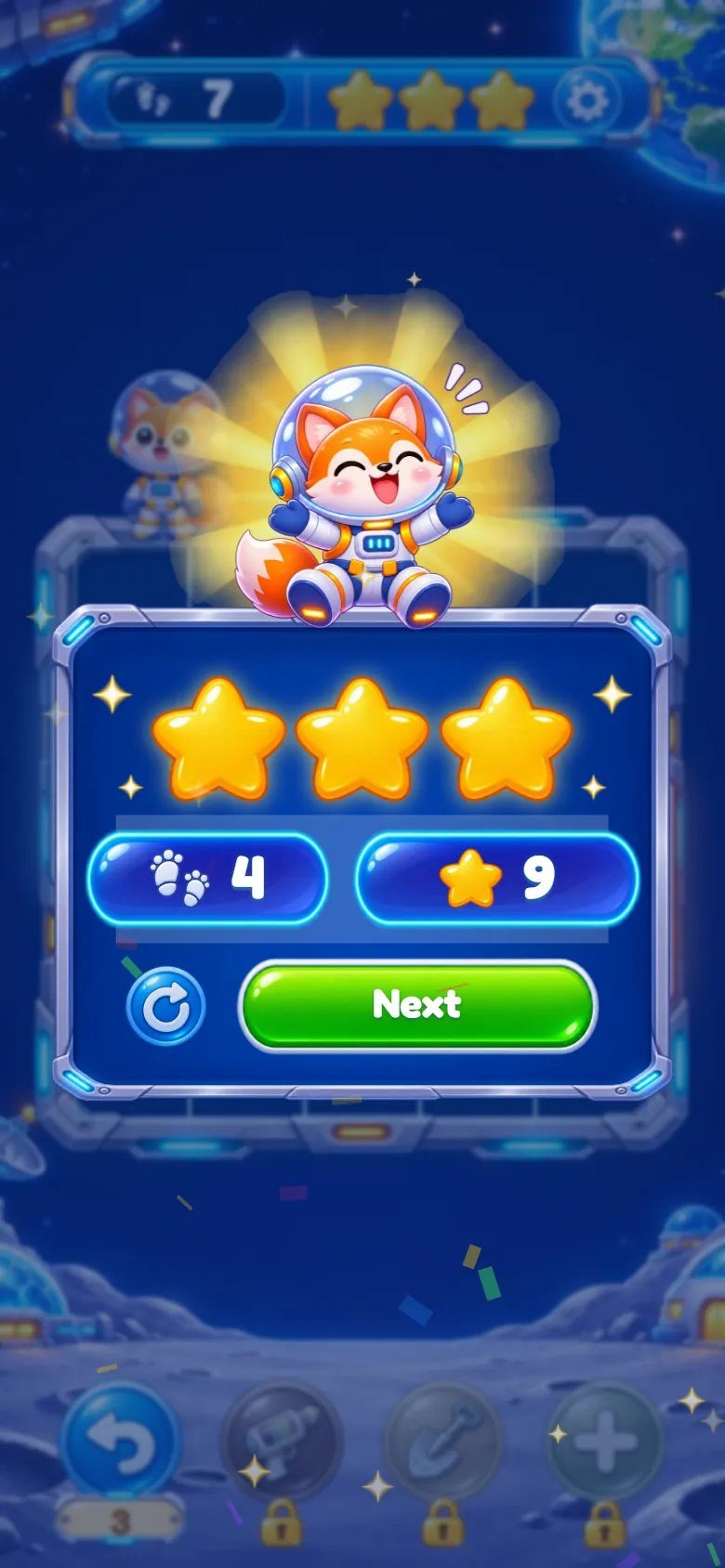
Marks on the screenshot
- Stars
- Moves used
- Total stars
- Play again
- Next level
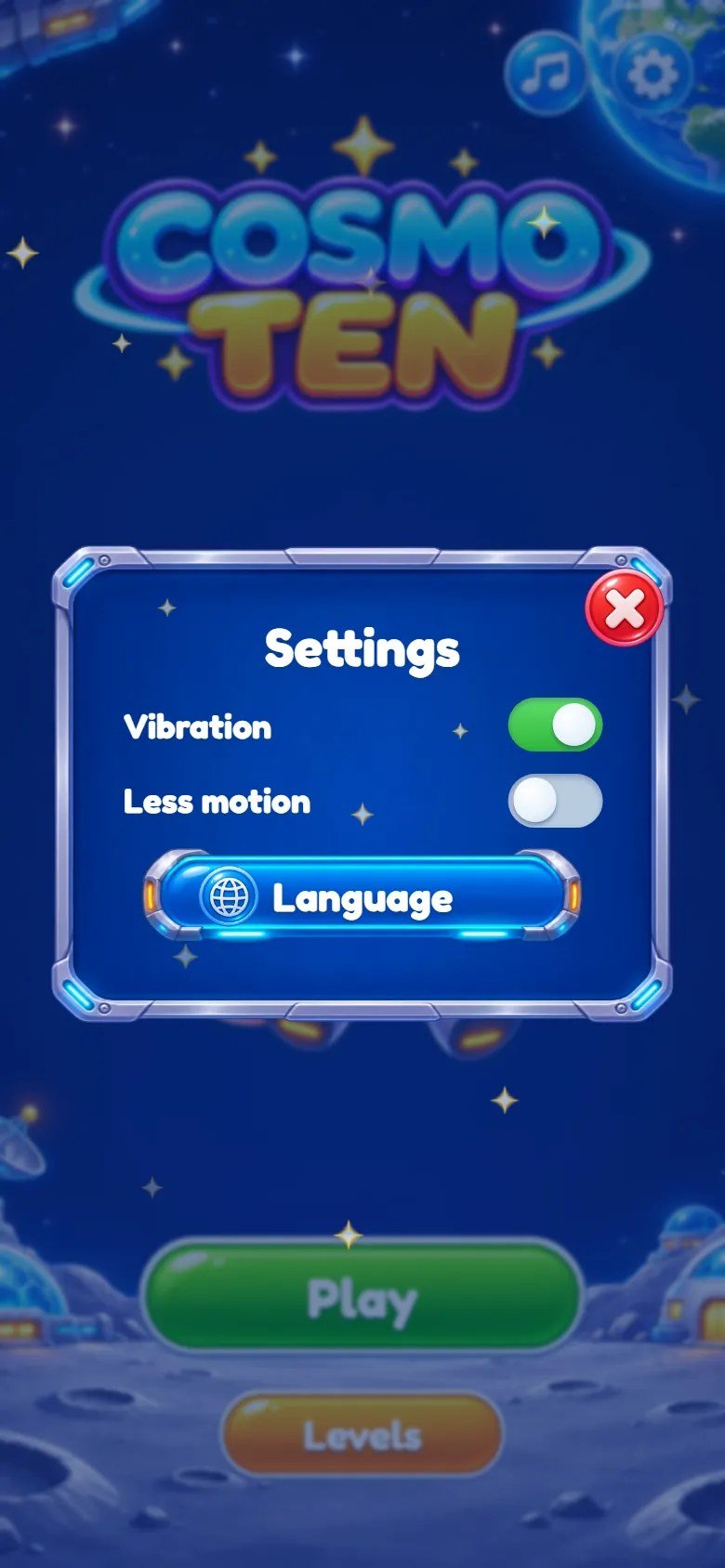
Marks on the screenshot
- Vibration
- Reduced motion
- Language
- Close
6 Map of the files
game/ is the ready-to-host game. source/ has the same editable files plus the
tests, a local preview server, a level generator and the build command. Code comments are in Portuguese.
game/                        upload these contents to your web host
  index.html                 entry page: title, map, level and the windows
  style.css                  base styles (screens, layouts, windows)
  style-details.css          fine tuning of the same screens
  style-theme.css            the space theme (antennas, capsules, asteroids)
  src/main.js                start-up, screens, mascot, power-ups, windows
  src/rules.js               the rules (slide, join, capsules, portals) and the solver
  src/game.js                the board on screen: drag and animations
  src/levels.js              the 50 levels (5 worlds of 10)
  src/map.js                 the world map
  src/fx.js, nine.js         particles and stretchable panels
  src/audio/sound.js         synthesized effects and music
  src/locales.js             texts: English, Portuguese, Spanish
  src/locales-more.js        texts: the other 11 languages
  src/config.js              feel numbers, colors, power-ups, moves, save key
  src/save.js, storage.js, i18n.js, viewport.js
  assets/art/                interface images, Nova and backgrounds (WebP)
  assets/music/              menu.mp3, map.mp3, play.mp3
  assets/fonts/              Fredoka font and its license
  DOCUMENTATION.txt          short note that points to this guide
source/                      the same editable files, plus:
  package.json               npm test, npm run build, npm run serve
  package-lock.json
  README.md
  test/                      node --test tests
  tools/build.mjs            copies the game into dist/
  tools/serve.mjs            local preview server
  tools/gen-levels.mjs       random level generator (checked by the solver)
documentation/               this guide and the customization guide
THIRD-PARTY-LICENSES/        Fredoka (SIL OFL 1.1)
DOCUMENTATION.html           opens this guide
CUSTOMIZATION.html           opens the customization guide
START-HERE.txt, CHANGELOG.txt
-
src/levels.js: the 50 levels, 10 per world. Each level lists its board size, blocks, portals, meteors and par (the fewest moves). -
src/rules.js: the rules with no drawing (slide, join, capsules, portals, locks, asteroids, boxes) and the solver.src/game.js: the board on screen (drag, animations). -
src/main.js: screens, mascot, power-ups, tips, win and lose windows, settings and keyboard.src/map.js: the world map.src/config.js: feel numbers (FEEL), block colors, power-ups and moves (RULES_UI) and the save key. -
src/locales.jsandsrc/locales-more.js: every interface text in the 14 languages;src/i18n.jspicks the language.src/audio/sound.js: the synthesized effects and the music. -
style.css,style-details.cssandstyle-theme.css: the styles, loaded in this order (a rule lower down wins). The last one holds the space theme. -
assets/: interface images and backgrounds (art/, WebP), music (music/, MP3) and the font (fonts/).
7 Customizing levels, texts and sounds
CUSTOMIZATION.html in the main folder of the
download, or documentation/customization.html.
Customization Guide (step by step, in English)
Levels: each level in src/levels.js is a short list: board size, blocks (position, size,
number, color and an optional kind), portals (side, start, length, color and an optional lock) and
par. After a change run npm test: it solves every level and fails if a level has
no solution or its par is wrong.
New levels: tools/gen-levels.mjs creates random levels with the size, shapes, colors and
obstacles you ask for and keeps only those the solver can finish. Paste the result into a world in
src/levels.js.
Difficulty: RULES_UI in src/config.js sets the move limit and the stars from the
par of each level, the level where each power-up appears, the free Undo per level and the
power-ups a new player starts with.
Look: the logo is assets/art/logo.webp, Nova the fox is fox-*.webp, the worlds use
bg-*, map-* and w2- to w5- backgrounds, and the blocks,
capsules, buttons and panels are the other files of assets/art/. Replace a file keeping its
name and shape. World names are the texts w1 to w5.
Music and sound effects
Music: assets/music/menu.mp3 plays on the title screen, assets/music/map.mp3 on
the world map and assets/music/play.mp3 during the levels, in a loop. To change a track,
replace the MP3 keeping the name. To remove the music, delete the files: the game stays silent where a track
is missing.
Sound effects: all effects are synthesized in src/audio/sound.js (object SYNTH,
one short function per effect), so there are no effect files. Change the numbers of an effect to change its
pitch, length or volume.
8 Languages
The game has 14 languages: English, Português (Brasil), Español, Français, Deutsch, Italiano, Nederlands, Polski, Türkçe, Русский, Bahasa Indonesia, 日本語, 한국어 and 简体中文. It follows the browser language on the first visit and the player can change it in Settings. English, Portuguese and Spanish are the reference texts; the other 11 languages were not reviewed by native speakers, so a native review is recommended before a launch in those markets. The bundled font covers Latin letters; Russian, Japanese, Korean and Chinese use a font of the device.
To force a language, add ?lang=pt (or another code) to the game address. World names are the
texts w1 to w5 of each language.
To add a language, copy one of the blocks in src/locales-more.js, translate it, add it to
MORE at the end of that file, and add its code and name to LANGS,
HTML_LANG and NUMBER_LOCALE in src/locales.js. The language test in
test/locales.test.mjs expects 14 languages, so update that number too.
9 Local saves
-
Progress (level reached, stars of each level, power-ups, chests, tips already seen) and the settings are
saved in the browser
localStorageof each device. - There are no accounts or cloud saves. Clearing site data resets the progress on that device.
-
The two keys are shown below. Their prefix is
STORAGE_PREFIXinsrc/config.js.
cosmo-ten.template.save.v1.progress
cosmo-ten.template.save.v1.lang
10 Optional development
This section is only for changing the code. The game/ folder already contains the finished
game, so installing it needs no Node.js. The game has no dependencies and no compile step:
npm run build only copies the files into source/dist/, which is identical to
game/.
1. Install Node.js. Open https://nodejs.org/en/download and choose the latest Node.js 26 LTS installer for your system (minimum 26.13.1). npm is included.
Windows: run the .msi installer, keep npm and Add to PATH enabled, finish the installation and reopen Command Prompt. macOS: run the official .pkg installer and reopen Terminal. Linux: follow the instructions on the official download page for your distribution, including npm.
2. Check the installation. Run node --version and npm --version separately. Both
must print a version number, and Node.js must be 26.13.1 or newer. If a command is not found, reopen the
terminal and check the installation.
node --version
npm --version
3. Extract the complete ZIP first and open its source/ folder, where
package.json is. Windows: type cmd in the address bar of that folder in File Explorer. macOS
and Linux: open Terminal and use cd with the folder path in quotes.
4. Run the commands below one by one. npm ci checks the lock file (nothing is downloaded, the
project has no dependencies). npm test checks the rules, solves the 50 levels, checks the 14
languages and the save key; stop and fix any error before going on.
npm ci
npm test
5. Preview: npm run serve starts a local server; open http://localhost:5196/ in your browser,
play a level, and stop the server with Ctrl+C.
npm run serve
6. Build: npm run build empties source/dist/ and copies index.html,
the style sheets, src/ and assets/ into it. dist/ is what you
publish; while the source is unchanged it matches game/ file by file.
npm run build
7. Publish: back up the game on your website, then upload the contents of dist/ in place of the
old files, keeping the folders. If you deleted or renamed a file, delete the old one on the server yourself.
Clear the browser cache to see the new version (see below).
Test shortcuts (local addresses only)
The shortcuts below work only when the page address is localhost, 127.x or a
private network address (192.168.x, 10.x). On any public address they are ignored,
so players cannot use them. ?lang=pt (or another language code) is not a test shortcut and
works on any address.
-
?level=12opens level 12 directly;?screen=mapopens the world map. -
?unlockopens every level,?reseterases the progress of this browser,?notutorialhides the tips and?allpowersunlocks the power-ups. -
?qaexposes the running game aswindow.__cosmotenfor automated tests in the browser console.
http://localhost:5196/?level=12&lang=es
11 Updating and cache
Clearing the cache without losing progress
Progress is stored in this browser, not on the server. Clearing cached images and files, or doing a hard reload, keeps your progress.
Computer: press Ctrl+F5 on Windows and Linux, or Cmd+Shift+R on macOS. Phone: in the browser settings, choose the option to clear cached images and files.
Do not choose cookies and site data, or clear site data, for the game's address. That deletes the local save.
12 Licenses
The game code and the artwork are supplied under the license of the item you purchased. The music used by the game is included in the package and can be replaced or removed (see the customizing section).
The Fredoka font is used under the SIL Open Font License 1.1; its complete license text is in
THIRD-PARTY-LICENSES/ and in game/assets/fonts/LICENSE-Fredoka-OFL.txt. The game
has no third-party code and no npm dependencies.
13 Troubleshooting
-
Blank page: the game was opened from the disk or a file is missing. Use a web host and keep
assets/,src/and the style sheets next toindex.html. -
npm testfails after you edit a level: the message names the level. Either it has no solution or itsparis not the number of moves the solver finds; write the number the test prints. - No sound: tap the screen once; check that the device is not silent and the volume sliders are up.
- Old version after an update: clear the browser cache (see below).
-
An address such as
?level=5does nothing on your website: test shortcuts only work on local addresses (see the development section).
14 Frequently asked questions
Does the game work without internet?
Can I add ads, a store, cloud saves or a ranking?
Can I publish it on game portals or app stores?
Can I make my own levels?
src/levels.js or generate levels with tools/gen-levels.mjs, then run
npm test to confirm every level can be solved. The Customization Guide has the step-by-step
recipe.
How do I reset the progress while testing?
localStorage.clear() in the
browser console. On a local address, ?reset does the same.
15 Support
Questions or problems: write to willian@polargames.com.br with your purchase code, the browser
and a short description or screenshot.
Support request
When you write to support, include the browser and device, the game version, the page address, the steps that caused the problem, a screenshot and the first error shown in the browser console. Never send passwords, payment details or secret keys.