Customization Guide
Make Bubble Words your own game: your own words and themes (for example for a school subject), levels and worlds, difficulty and powers, pictures, logo, texts, colors and sounds. Every recipe below is a short list of steps and says exactly which file to open. You do not need to know how to program. All pictures on this page are real screenshots of the game in this package.
1. Before you start
Free tools you need:
- A code text editor: Visual Studio Code (Windows, Mac, Linux) or Notepad++ (Windows). Do not use Word or WordPad: they break the files.
- An image editor: Photopea (in the browser), GIMP or Krita. Pictures are WebP, most with a transparent background. You can save a PNG and convert it to WebP at squoosh.app.
-
To see the game on your computer, a browser and one of these: the local server included in
source/(npm run serve, needs Node.js, see the main guide), or any local web server you already use (for example XAMPP, WAMP or MAMP). Openingindex.htmlwith a double click does not work: browsers block the game files when the page comes from the disk. -
For new words (recipe A) Node.js is strongly recommended:
npm testchecks every word list and builds the 100 levels in the three languages, and its message names the word or theme that breaks a rule.
game/ folder (or source/) to a
safe place before you change anything. If something breaks, put the backup back.
Which folder do I edit? The simplest way: edit the files inside game/ and upload
that folder. If you use the developer tools, edit source/ instead and run
npm run build, which copies everything to source/dist/ (the same as
game/). Both folders have the same file names, so every recipe below works in either one. The tests
are only in source/.
Test panel: on your own computer, add ?debug to the address
(http://localhost:5196/?debug) to get buttons that win or lose a level, unlock every level and show
the end screen; ?debug&fase=37 opens level 37. On a public address the panel never appears.
2. Where everything is
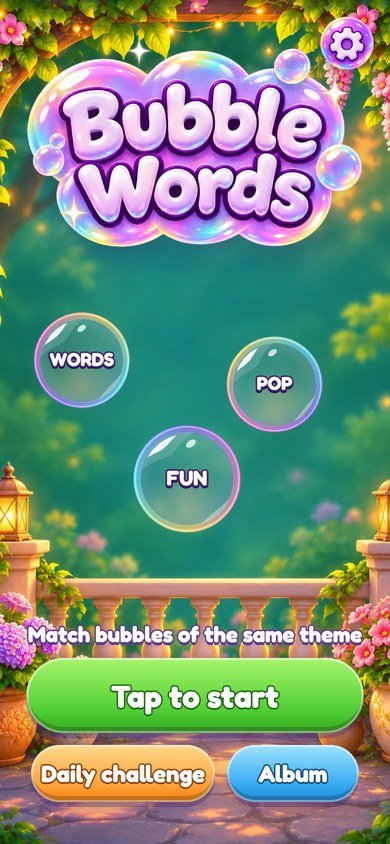
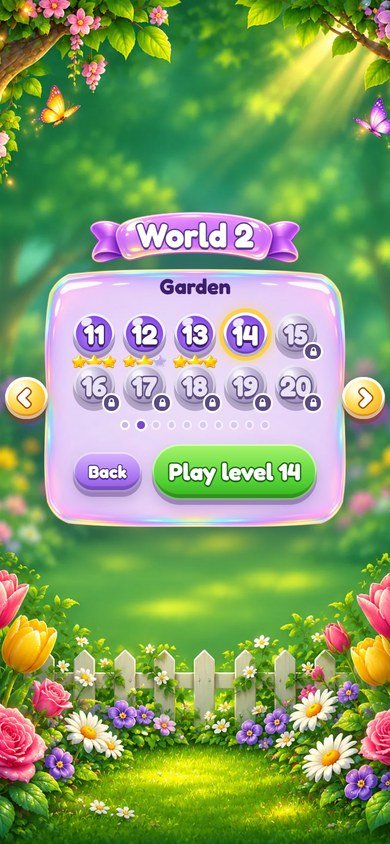
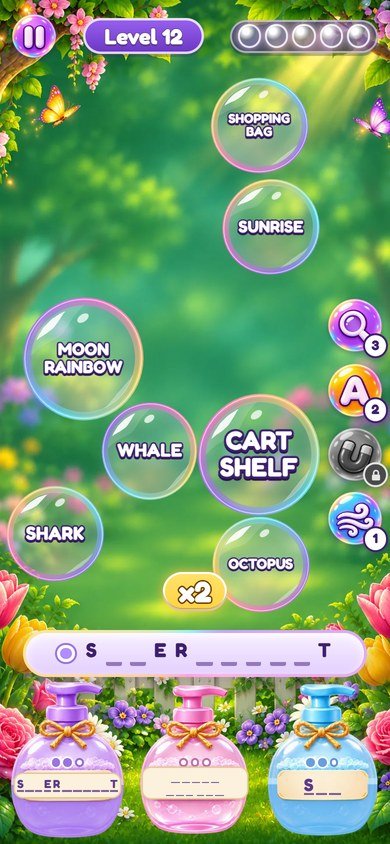
Each number on the screenshot matches a line of the table next to it, with the exact file to change. Interface
texts are in src/i18n.js (English, Portuguese and Spanish); the table gives the key of each text.
Pictures are in assets/ui/ and the world backgrounds in assets/art/.
Title screen
 1
2
3
4
| # | What you see | File to change |
|---|---|---|
| 1 | Tap to start |
Text: key start in src/i18n.js. Green color: .btn.green in
ui.css (recipe F).
|
| 2 | Daily challenge |
Text: key daily in src/i18n.js. The level is built by
makeDaily in src/levels.js.
|
| 3 | Album |
Text: key album in src/i18n.js. Blue color: .btn.blue in
ui-arte2.css.
|
| 4 | Settings |
Icon: assets/ui/ico-config.webp. The window is #s-pause in
index.html.
|
Levels
 1
2
3
4
5
6
| # | What you see | File to change |
|---|---|---|
| 1 | World and its name |
Names: list worlds in src/i18n.js (one per language). Background:
assets/art/mundo-N-retrato.webp / mundo-N-paisagem.webp (recipe B).
|
| 2 | Current level | Golden ring: .lv.current in ui-arte2.css. |
| 3 | Finished level and its stars |
Stars: assets/ui/estrela-ouro.webp and estrela-vazia.webp. Star rule:
win() in src/main.js (recipe C).
|
| 4 | Next world |
Arrows: #world-prev / #world-next. The lock message is key
worldLock in src/i18n.js.
|
| 5 | Play the current level | Text: key playLevel in src/i18n.js. |
| 6 | Back | Text: key back in src/i18n.js. |
A level
 1
2
3
4
5
6
| # | What you see | File to change |
|---|---|---|
| 1 | Pause | Icon: assets/ui/ico-pausa.webp. |
| 2 | Level number | Text: key level in src/i18n.js. |
| 3 | Breaths | How many: breaths in FEEL, src/config.js (recipe C). |
| 4 | Theme bottle |
Pictures: assets/ui/garrafa-N.webp (N = 0 to 5). Soap colors:
THEME_COLORS in src/config.js.
|
| 5 | Powers |
Icons: assets/ui/ico-lupa.webp, ico-letra.webp, ico-ima.webp,
ico-sopro.webp. Levels where they open: POWERS in src/main.js.
|
| 6 | Hint bar |
Shows the theme name; tutorial texts are keys tut1, tutGo,
tutBridge... in src/i18n.js.
|
3. More screens of the game
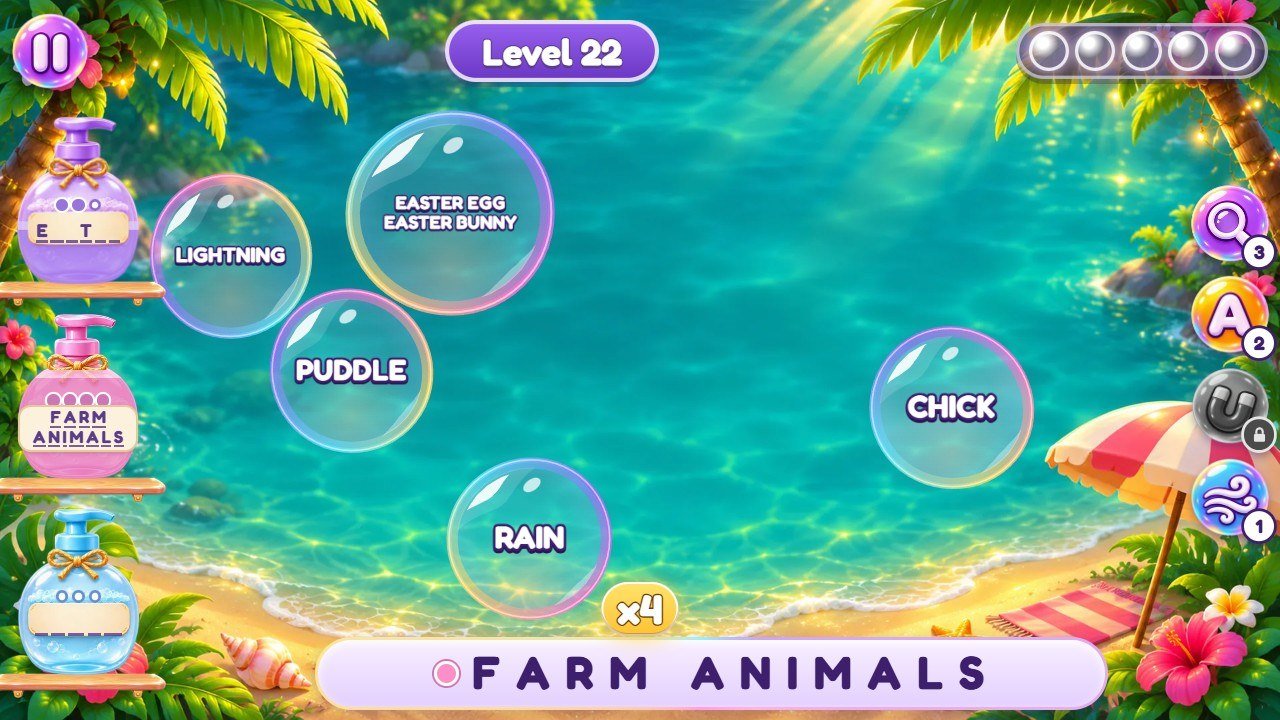
mundo-3-paisagem.webp.
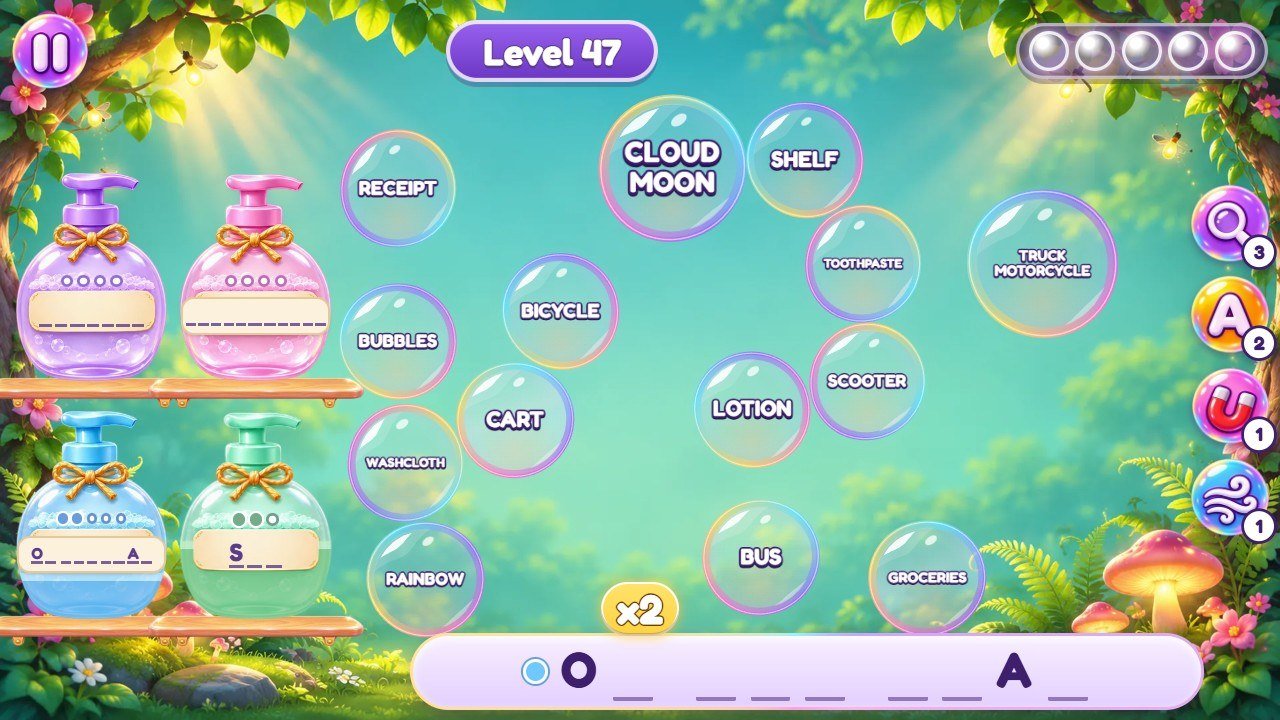
ice in recipe(i), src/levels.js.
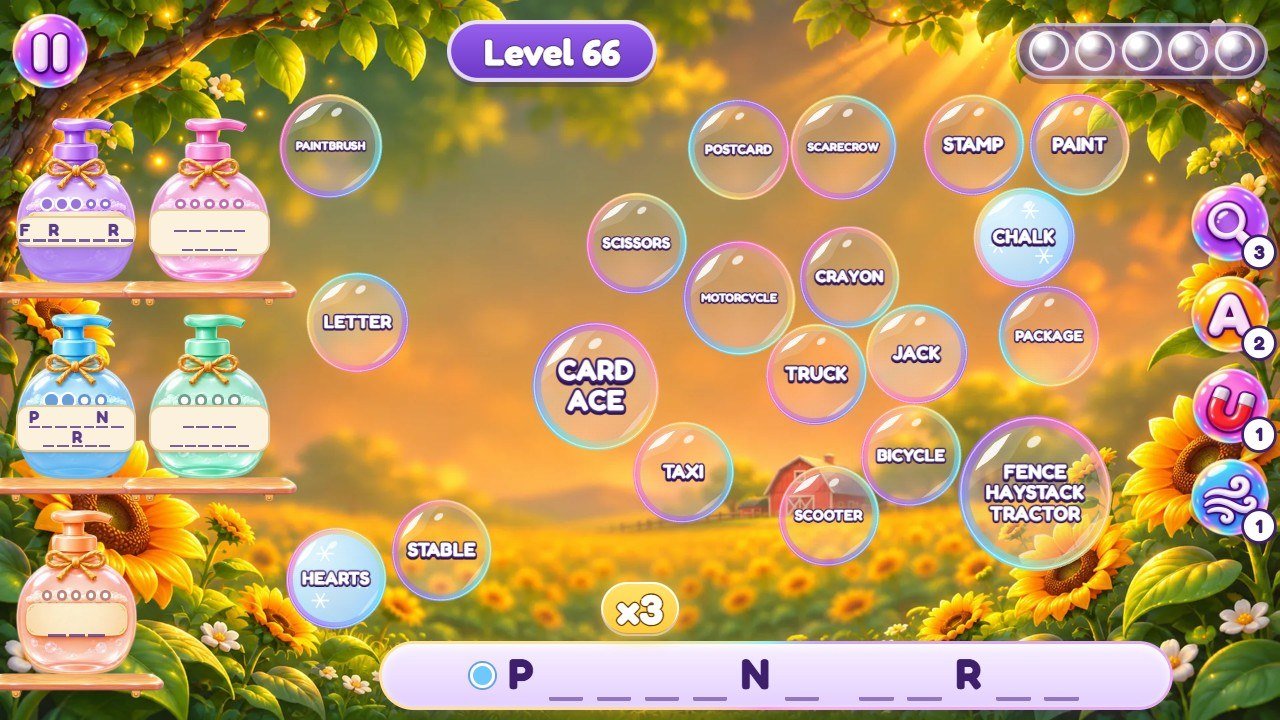
ink in recipe(i).
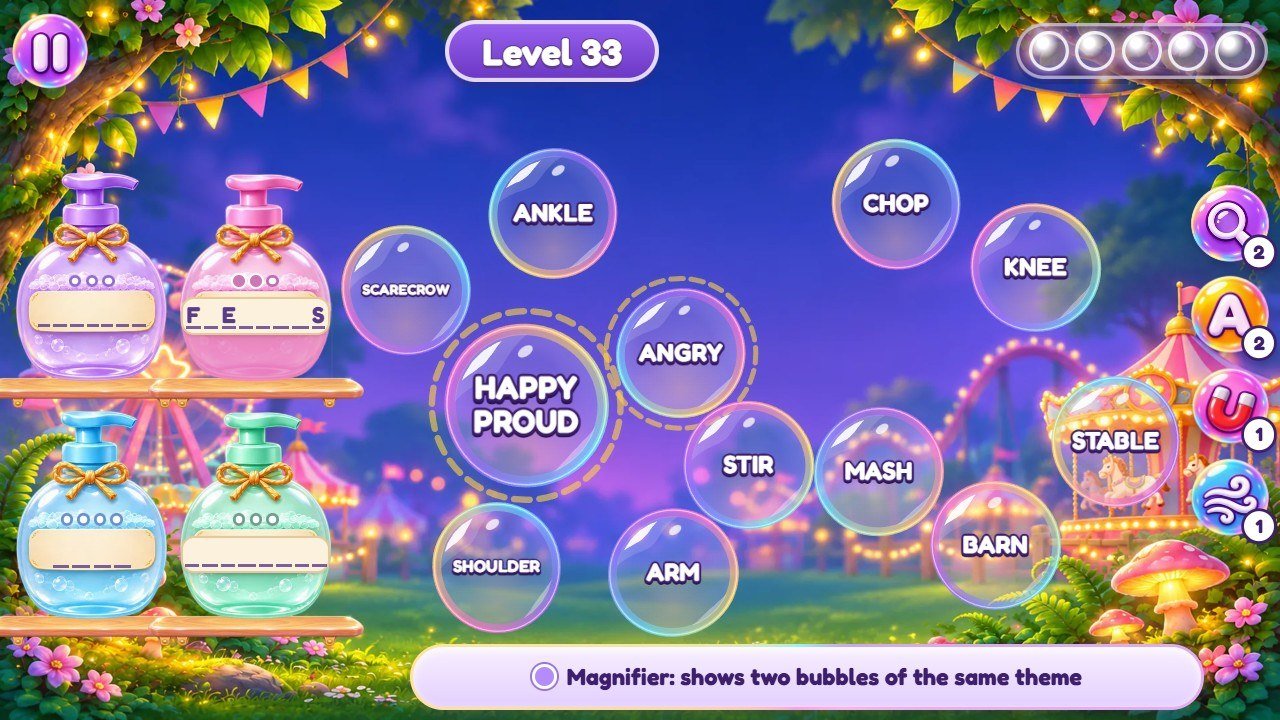
pw_lupa.
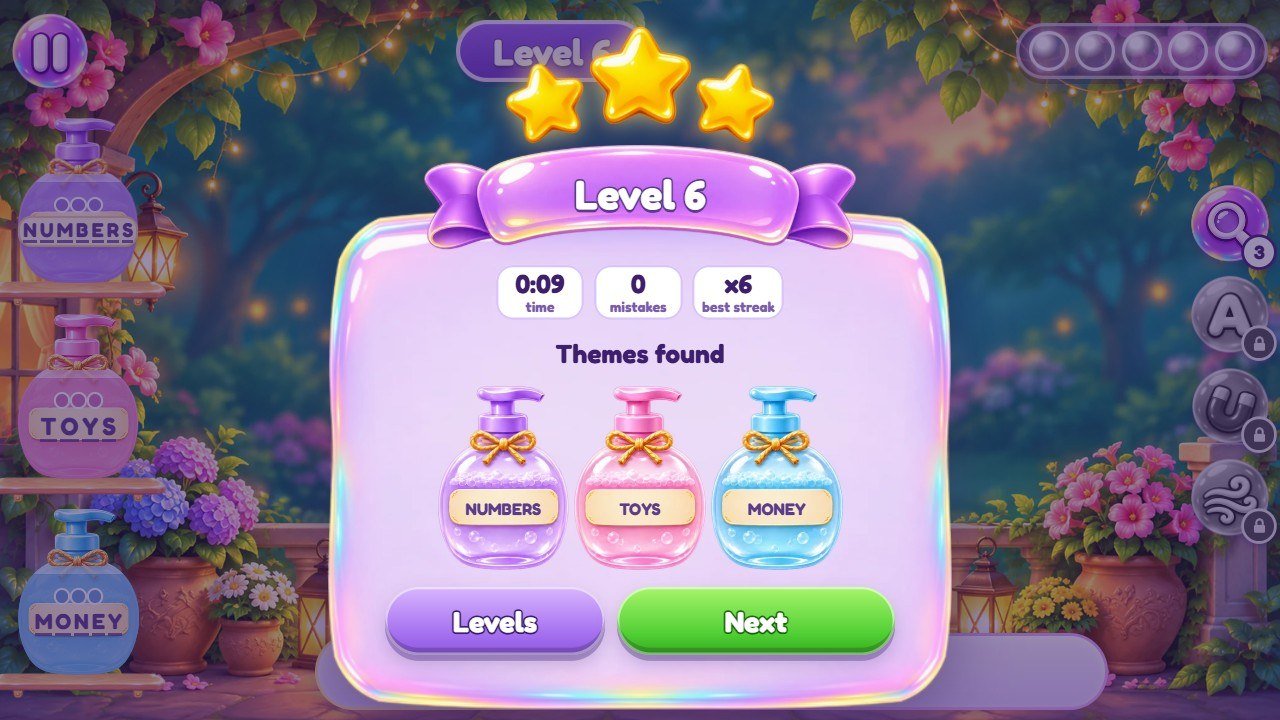
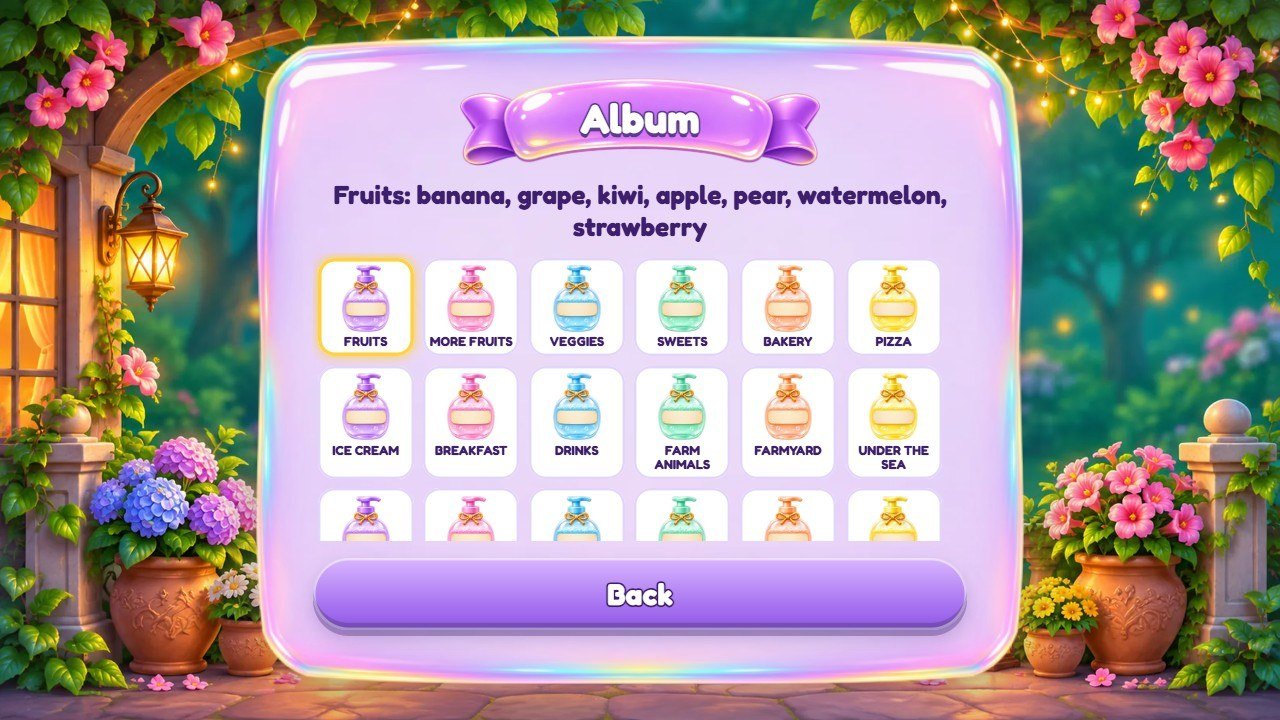
src/words/. Found themes show their bottle; tap one to see its words.
4. Recipe A: change the words and themes
Every theme lives in the word file of each language: src/words/en.js (English),
src/words/pt.js (Portuguese) and src/words/es.js (Spanish). A theme looks like this:
  frutas: {
    name: 'FRUITS',
    f: 'fruta',
    words: ['BANANA', 'GRAPE', 'KIWI', 'APPLE', 'PEAR', 'WATERMELON', 'STRAWBERRY'],
},-
frutasis the id of the theme. It must be the same in the three files (the album and the saves use it). Keep it when you only change the words. nameis what the player sees on the bottle and in the hint bar. Use capital letters.-
fis the family: themes that look alike (for example FRUITS and MORE FRUITS) share a family, and two themes of the same family never meet in a level. The family must be the same in the three files. -
words: 7 words in capital letters, each with up to 12 letters. A word can belong to one theme only in the whole file.
Steps to change words:
-
Open
src/words/en.jsand find the theme (search for its name, for example'FRUITS'). -
Replace a word between the quotes, for example
'KIWI'by'PLUM'. Keep the quotes and the commas. -
Do the same in
pt.jsandes.jsif you want the change in those languages (the words there do not need to be translations). -
Run
npm testinsource/. If a word is now in two themes, or a theme has fewer than 6 words, the message says which one.
To add a new theme, copy a whole block (from the id to the closing },), give it a
new id, name, family and 7 words, and add it with the same id and family to the three files. The levels pick
themes by themselves; npm test checks that every theme appears somewhere in the 100 levels.
Bridge words are words that fit two themes (for example ORANGE, a fruit and a color). They are
in the list BRIDGES at the end of each word file:
{ word: 'ORANGE', own: 'frutas2', alt: 'cores' } means ORANGE is a word of
frutas2 that also fits cores. If you add a word that could belong to another theme of
the file, add it to BRIDGES too, so the game counts it right.
5. Recipe B: levels, worlds, their names and backgrounds
The levels are built from a recipe, not typed one by one. recipe(i) in
src/levels.js says, for level i (0 to 99), how many themes it has, how many words each
theme brings, and how many bridge words, ice bubbles and ink bubbles appear. Each world uses one row of the
lists inside it, so you can make a world easier or harder by changing its numbers.
nThemes: themes per level, one value per world (2 to 5).sizeMin/sizeMax: words per theme (3 to 5).-
bridges,ice,ink: the special bubbles;0turns them off. -
WORLDS = 10, PER_WORLD = 10at the top of the file: the number of worlds and of levels per world.
World names are the list worlds in src/i18n.js, once per language
(for example 'Porch', 'Garden', 'Beach'...). The end screen says how many worlds there are with the
key endText: change it if you change WORLDS.
World backgrounds are two pictures per world in assets/art/:
mundo-N-retrato.webp for phones held upright (1080 x 1919 pixels) and
mundo-N-paisagem.webp for wide screens (1920 x 1081 pixels), where N is the world number (1 to 10).
Keep the middle of the picture calm and colorful: the bubbles float there. If you add worlds, add their two
pictures with the next numbers.
6. Recipe C: difficulty, breaths, stars and powers
-
Breaths (lives per level):
breaths: 5inFEEL,src/config.js. -
Stars: in
win()ofsrc/main.js, the lineconst stars = S.errors === 0 ? 3 : S.errors <= 2 ? 2 : 1;gives 3 stars with no mistakes, 2 stars with up to 2 mistakes and 1 star otherwise. -
When each power opens:
const POWERS = { lupa: 4, sopro: 7, letra: 11, ima: 24 };insrc/main.js. The numbers count from 0, so4is level 5. -
Powers a new player starts with:
{ lupa: 3, letra: 2, ima: 1, sopro: 1 }near the end ofsrc/main.js(search forsave.powers = Object.assign). -
Feel: speeds, springs, how much bubbles grow, timings of effects: the other numbers of
FEELinsrc/config.js. Change one at a time and play a level.
7. Recipe D: replace pictures (logo, bottles, icons, trophy)
Make the new picture the same size (or the same proportions) as the old one, save it as WebP with a transparent background, and give it exactly the same name. Then reload the page.
| Picture | File in assets/ui/ |
|---|---|
| Game logo (title screen) | logo.webp |
| Theme bottles, empty and full (6 colors) |
garrafa-0.webp to garrafa-5.webp, garrafa-cheia-0.webp to
garrafa-cheia-5.webp
|
| Powers, pause and settings icons |
ico-lupa.webp, ico-letra.webp, ico-ima.webp,
ico-sopro.webp, ico-pausa.webp, ico-config.webp
|
| Stars (full and empty) | estrela-ouro.webp, estrela-vazia.webp |
| Trophy of the end screen | trofeu.webp |
| Window frame (bubble panel) | painel-bolha.webp |
| Title ribbon | faixa.webp |
| Cracked bubble of the lose window | bolha-rachada.webp |
| Shelves on wide screens | prateleira.webp |
| Browser tab icon | favicon.png (64 x 64) |
The bubbles themselves are drawn by code (src/bubbles.js), not pictures, so they always stay sharp.
8. Recipe E: change texts, the game name and translations
-
Open
src/i18n.js. It has three blocks:pt,enandes. -
Find the key of the text (the tables of section 2 give it), for example
start: 'Tap to start', and change only the words between the quotes. - Change the same key in the other two blocks if you want.
The game name appears in the browser tab:
<title>Bubble Words</title> in index.html. On the title screen the name is
the logo picture (recipe D). The three words that float on the title screen are titleWords in
src/i18n.js.
9. Recipe F: change colors and the font
-
Button colors:
.btn.greenand.btn.lilacinui.css,.btn.orangeand.btn.blueinui-arte2.css. Each one is a gradient of three colors from top to bottom. -
Soap colors of the bottles and of the confetti:
THEME_COLORSinsrc/config.js, one color per bottle in order. -
Font: Fredoka, in
assets/fonts/, loaded by the two@font-facerules at the top ofstyle.css. To use another font, put its.woff2files there, change the twosrclines, and keep the font license with them.
The four style files are loaded in this order: style.css, ui.css,
ui-contraste.css, ui-arte2.css. When the same thing is set twice, the later file wins,
so search the four files before you change a color.
10. Recipe G: replace the music and sounds
-
Music (MP3, loops):
assets/music/menu.mp3on the title and levels screens;jogo.mp3andjogo-cheia.mp3during a level. The two level tracks play together in sync, and the second one gets louder with a streak of right matches, so make them the same length and tempo. -
Effects (MP3):
assets/sfx/, for examplepop.mp3(a bubble pops),fusao.mp3(two bubbles join),completo.mp3(a theme is complete),vitoria.mp3(win),derrota.mp3(lose),estrela.mp3(a star),botao.mp3(a button). If a file is missing, the game plays a synthesized sound instead. - Replace a file with another MP3 of the same name. Short effects (under one second) feel best.
- The player sets the music and effects volumes in the settings window.
11. Check and publish your changes
-
If you edited
source/: runnpm test, thennpm run build, and usesource/dist/. - Play a few levels in the browser on your computer (the
?debugpanel helps). -
Upload the contents of the folder (
game/ordist/) to your web host, keeping the folders. Then clear the browser cache (see the main guide) to see the new version.
12. If something goes wrong
- Blank page: a file is missing or has a typing error. Open the browser console (F12) to see the file and line, or put your backup back.
-
A picture does not appear: check the name and the letter case;
Logo.webpis notlogo.webp. npm testfails after changing words: read the message, it names the word or the theme.- Need help or custom work: willian@polargames.com.br.